
Ọrọ Iṣaaju
Thank you for choosing the DOYO 270 Degree Wireless Gaming Steering Wheel with Pedals. This manual provides essential information for setting up, operating, and maintaining your racing wheel. Please read these instructions carefully before use to ensure optimal performance and longevity of your device.
Ọja Pariview
The DOYO Gaming Steering Wheel is designed for a realistic racing experience across multiple platforms. It features a 270-degree rotation, dual-vibration motors, and includes a set of pedals for acceleration and braking.

Nọmba 1: Iwaju view of the DOYO Wireless Gaming Steering Wheel with Pedals.
Awọn iṣakoso ati Awọn Atọka

Nọmba 2: Detailed diagram of the steering wheel's buttons, D-Pad, triggers, and indicators.
- Yan Bọtini: Used for various in-game selections.
- D-Pad: Directional input for menu navigation and in-game controls.
- Awọn bọtini A/B/X/Y: Awọn bọtini iṣe deede.
- Bọtini Duro/Bẹrẹ: For pausing games or starting new sessions.
- Bọtini ILE: Ó padà sí ojú ìbojú ilé ètò náà.
- ZR/ZL Triggers: Analog triggers for acceleration and braking (functionality may vary by platform, e.g., ZR = A, ZL = B on Switch).
- M Indicator: Settings indicator.
- Indicators 1/2/3/4: Display current dead zone and sensitivity settings.
Ṣeto
Follow these steps to set up your DOYO Gaming Steering Wheel.
Agbara ẹrọ naa
- The steering wheel requires 3 AAA batteries (not included) for operation. Insert them into the battery compartment located on the underside of the unit, ensuring correct polarity.
Iṣagbesori Wheel Wheel
The steering wheel features a stable fixture clamp design compatible with various desktop thicknesses.

Nọmba 3: Awọn adijositabulu clamp mechanism for securing the steering wheel to a surface.
- Place the steering wheel on a stable, flat surface.
- Ṣe atunṣe clamp screw to fit your desktop thickness (compatible with thicknesses between 3mm and 49mm).
- Mu clamp lailewu lati dena gbigbe lakoko lilo.
Connecting the Pedals
- Connect the pedal unit cable to the designated port on the steering wheel.
Platform Connection
The steering wheel supports both wireless Bluetooth and wired connections.
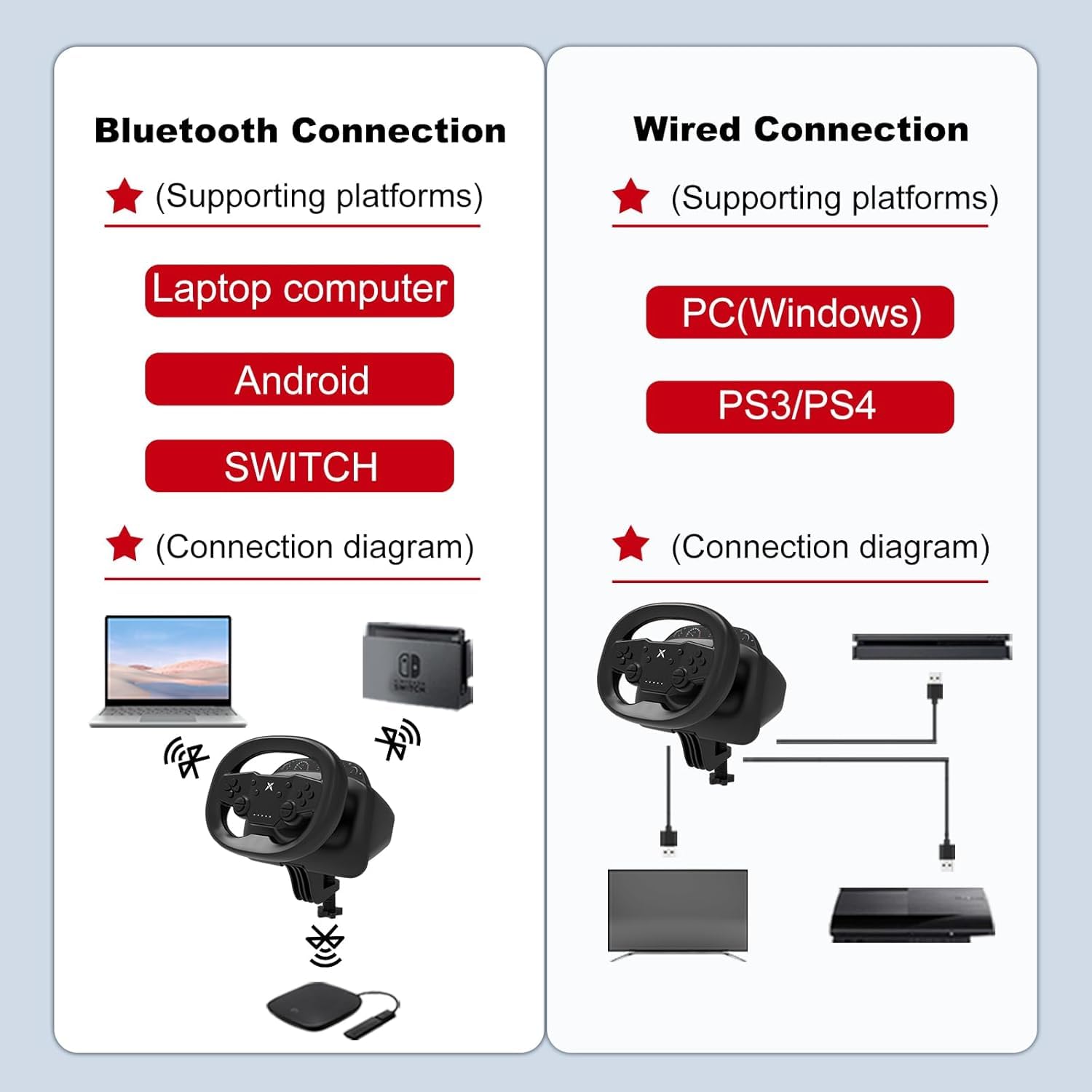
Nọmba 4: Connection diagrams for wireless (Bluetooth) and wired setups.
Wireless Bluetooth Connection (Switch, PC, iOS, Android)
- Ensure the steering wheel has sufficient battery power.
- Activate Bluetooth on your device (Nintendo Switch, PC, iOS/Android mobile phone or tablet).
- Put the steering wheel into pairing mode (refer to the device's specific pairing instructions, usually by holding a specific button combination).
- Select the steering wheel from the list of available Bluetooth devices on your platform to pair.

Nọmba 5: Wireless connection to a mobile device, enhancing mobile gaming.
Wired Connection (PC, PS3, PS4)
- Connect the steering wheel directly to your PC, PS3, or PS4 console using a USB cable.
- The system should automatically detect the device. Follow any on-screen prompts for driver installation if necessary (for PC).
Awọn ilana Iṣiṣẹ
Once connected, you can begin using your DOYO Gaming Steering Wheel for an immersive racing experience.
Steering and Rotation
The steering wheel offers a 270-degree rotation for precise control in racing games.

Nọmba 6: The steering wheel supports 135 degrees of rotation to both the left and right, totaling 270 degrees.
Idahun gbigbọn
- The dual-vibration motors provide realistic feedback during gameplay, enhancing immersion. Vibration intensity may be adjustable in game settings or through specific wheel functions.
Dead Zone and Sensitivity Adjustment
- The steering wheel allows for adjustment of dead zone and sensitivity settings. Refer to the indicators (1/2/3/4) and the 'M' indicator for current settings. Specific adjustment methods are typically detailed in the quick start guide or product packaging.
Platform-Specific Features
- Nintendo Yipada: Optimized for games like Mario Kart, offering adjustable vibration feedback and easy screenshot capture.
- PC: Customizable settings for accuracy and enhanced control in PC racing titles.
Itoju
Proper maintenance ensures the longevity and performance of your steering wheel.
- Ninu: Use a soft, dry cloth to wipe down the steering wheel and pedals. Avoid using harsh chemicals or abrasive cleaners.
- Ibi ipamọ: Tọju ẹrọ naa ni itura, aye gbigbẹ kuro lati orun taara ati awọn iwọn otutu to gaju.
- Itọju Batiri: If the device will not be used for an extended period, remove the AAA batteries to prevent leakage.
- Iṣakoso USB: Yago fun didasilẹ didasilẹ tabi kinks ninu awọn kebulu lati yago fun ibajẹ.
Laasigbotitusita
If you encounter issues with your DOYO Gaming Steering Wheel, refer to the following common solutions.
- Ẹrọ ti ko ni agbara:
- Ensure fresh AAA batteries are correctly inserted with proper polarity.
- Check if the power button (if applicable) is pressed.
- Awọn Iṣoro Asopọmọra (Alailowaya):
- Verify Bluetooth is enabled on your gaming platform.
- Ensure the steering wheel is in pairing mode.
- Move the steering wheel closer to the gaming platform to reduce interference.
- Remove any other active Bluetooth devices that might cause interference.
- Try restarting both the steering wheel and the gaming platform.
- Connection Issues (Wired):
- Ensure the USB cable is securely connected to both the steering wheel and the gaming platform.
- Try a different USB port on your console or PC.
- Ṣe ìdánwò pẹ̀lú okùn USB mìíràn tí ó bá wà.
- No Vibration Feedback:
- Ṣàyẹ̀wò àwọn ètò inú eré láti rí i dájú pé àbájáde ìgbóná náà ti ṣiṣẹ́.
- Rí i dájú pé eré náà ń ṣe àtìlẹ́yìn fún iṣẹ́ ìgbọ̀nsẹ̀.
- Steering Input Not Responding:
- Recalibrate the steering wheel if your platform offers this option.
- Ensure the device is correctly recognized by the system.
Tí àwọn ìgbésẹ̀ wọ̀nyí kò bá yanjú ìṣòro náà, jọ̀wọ́ kan sí ìrànlọ́wọ́ oníbàárà.
Awọn pato
| Brand | DOYO |
| Nọmba awoṣe | B0DXPJZ396 |
| Awọn ẹrọ ibaramu | Android, Nintendo Switch, PC, PlayStation 3, PlayStation 4, iOS Mobile Phones |
| Adarí Iru | Steering Wheel, Pedals |
| Asopọmọra Technology | Bluetooth (Bluetooth 5.0) |
| Afikun Awọn ẹya ara ẹrọ | Ergonomic Design, Multi-use, Wireless, Dual-Vibration Motors, 270-Degree Rotation |
| Orisun agbara | Agbara Batiri (Batiri AAA 3, ko si ninu rẹ) |
| Iwọn Nkan | 2.04 kilo |
| Àwọ̀ | Dudu |
Atilẹyin ọja ati Support
DOYO is committed to providing a smooth and enjoyable gaming experience. For any questions, technical assistance, or warranty inquiries, please contact our dedicated customer support team.
- Atilẹyin Onibara: Refer to the contact information provided with your product packaging or visit the official DOYO webojula fun support awọn aṣayan.
- Alaye Atilẹyin ọja: Specific warranty terms and conditions may vary by region and retailer. Please retain your proof of purchase for warranty claims. Contact customer support for detailed warranty information.