
Ọrọ Iṣaaju
Thank you for choosing the Vrabocry DC12-24V WiFi SPI Music LED Controller. This device is designed to provide versatile control over compatible LED strips, offering a wide range of lighting effects, music synchronization, and smart app integration. Please read this manual carefully before installation and operation to ensure proper use and optimal performance.
Ọja Pariview
Awọn eroja To wa
- 1x Vrabocry WiFi SPI Music LED Controller
- 1x 28-Key Remote Control
Akiyesi: The remote control requires one CR2025 battery, which is not included in the package.
Key Awọn ẹya ara ẹrọ
- Supports WS2812, WS2811, 16703, 16704, 1903, 6812, 1003, 2904 IC types.
- Maximum control of 2048 pixels.
- Dual control methods: 28-key IR remote and SurpLife mobile application.
- Music synchronization mode: Lights change with music rhythm.
- Timing function: Schedule on/off times and lighting effects.
- Group control: Manage multiple controllers simultaneously.
- Linkage function: Synchronize lighting effects across multiple connected devices.
- Various dynamic and static lighting effects, including colorful, scenario, rotation, and rhythmic functions.
Awọn ilana iṣeto
1. Power and LED Strip Connection
Rii daju pe gbogbo awọn asopọ wa ni aabo ṣaaju lilo agbara.
- Connect a DC12-24V power supply (not included) to the DC input port of the LED controller. Ensure the voltage ibaamu awọn ibeere ti rẹ LED rinhoho.
- Connect your compatible LED strip (e.g., WS2811, WS2815) to the output port of the LED controller. Pay attention to the data (DAT), clock (CLK, if applicable), and ground (GND) connections.
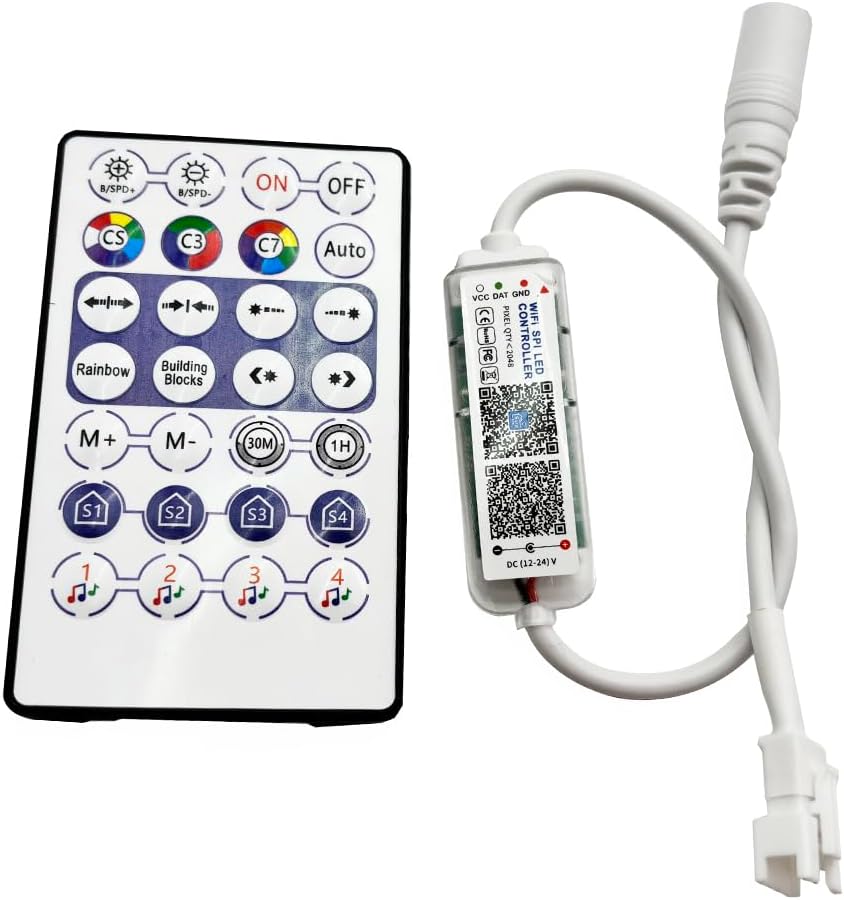
Image: The Vrabocry LED Controller and its accompanying 28-key remote control. The controller is a small, clear plastic unit with a white cable, and the remote is a white rectangular device with various colored buttons.
2. Latọna jijin Iṣakoso batiri sori
The remote control requires one CR2025 button cell battery.
- Wa yara batiri ni ẹhin isakoṣo latọna jijin.
- Slide open the battery tray or press the release tab as indicated.
- Insert one CR2025 battery with the positive (+) side facing up.
- Pa yara batiri naa ni aabo.

Image: The back of the Vrabocry remote control, showing the battery compartment designed for a CR2025 or CR2032 battery. Instructions for opening and inserting the battery are visible.
3. Mobile Application Installation and Pairing (SurpLife App)
The controller can be managed via the SurpLife mobile application.
- Download the "SurpLife" application from your smartphone's app store (iOS App Store or Google Play Store).
- Ensure your smartphone's Bluetooth and/or Wi-Fi is enabled.
- Open the SurpLife app and follow the on-screen instructions to discover and pair with your Vrabocry LED Controller. The app will guide you through the connection process.
Awọn ilana Iṣiṣẹ
1. Isẹ Iṣakoso latọna jijin
The 28-key remote control provides direct access to various functions.

Image: A diagram illustrating the functions of each button on the Vrabocry 28-key remote control. Buttons include On/Off, Speed/Brightness adjustment, static color switching, various dynamic modes like Rainbow Flow and Left Stone Meteor, mode increase/decrease, timed off settings (30M, 1H), 4 scene mode settings (S1-S4), and 4 music mode settings.
- TAN/PA: Power on or off the LED strip.
- B/SPD+ / B/SPD-: Increase/decrease brightness or adjust speed of dynamic modes.
- CS, C3, C7, Auto: Static color switching (CS for single color, C3 for three-color static, C7 for seven-color static, Auto for recurrent mode).
- Awọn bọtini itọka: Opening/closing modalities, Left Stone Meteor Mode, Left/Right Running Mode.
- Rainbow, Building Blocks: Activate Rainbow Flow Mode and Building Block Model.
- M+/M-: Increase or decrease the current mode.
- 30M / 1H: Set a timer for the lights to turn off after 30 minutes or 1 hour.
- S1, S2, S3, S4: Activate preset scene modes.
- Music Notes (1, 2, 3, 4): Activate different music synchronization modes.
2. SurpLife App Functions
The SurpLife app offers advanced control and customization options.
- Awọn iṣẹ ti o ni awọ: Access a wide spectrum of colors and adjust saturation and brightness.
- Scenario Function: Choose from various pre-programmed lighting scenarios or create custom ones.
- Iṣẹ Yiyi: Control the direction and speed of rotating light patterns.
- Išẹ Rhythmic: Engage dynamic lighting effects that respond to sound or music.
- Ipo Orin: Synchronize LED strip lighting with music played through your device's microphone or internal audio.
- Iṣẹ ṣiṣe akoko: Set specific schedules for the LED strip to turn on/off, change modes, or adjust brightness at designated times.
- Iṣẹ Iṣakoso Ẹgbẹ: If you have multiple Vrabocry controllers, group them within the app to control them simultaneously for unified dimming, color changes, and on/off states.
- Linkage Function: Arrange the order of lighting fixtures in the device list and change their direction to create seamless, synchronized lighting effects across multiple linked devices.
Awọn pato
| Paramita | Iye |
|---|---|
| Brand | Vrabocry |
| Nọmba awoṣe | wifi 28key |
| Oṣuwọn Voltage | DC12-24V |
| Controllable Pixels | Max 2048 points |
| Supported IC Types | WS2812, WS2811, 16703, 16704, 1903, 6812, 1003, 2904 |
| Ọna Iṣakoso | Mobile APP (SurpLife), 28-Key IR Remote |
| Ibiti Iṣakoso | 40m (agbegbe ìmọ) |
| Latọna Batiri Iru | CR2025 (ko si) |
| Ohun elo | Ṣiṣu |
| Iwọn Nkan | 1.28 iwon |
| Package Mefa | 4.9 x 3.5 x 0.59 inches |
| inu ile / ita gbangba Lilo | Ninu ile |
| Imọlẹ Orisun Orisun | LED |
| Orisun agbara | Okun Itanna |
Laasigbotitusita
- LED Strip Not Lighting Up:
- Check if the power supply is correctly connected and providing the correct DC12-24V voltage.
- Ensure the LED strip is properly connected to the controller's output, paying attention to DAT, GND, and CLK (if applicable) polarity.
- Verify that the LED strip itself is functional and compatible with the controller's supported IC types.
- Iṣakoso Latọna jijin Ko Dahun:
- Check if the CR2025 battery is installed correctly and has sufficient power. Replace if necessary.
- Ensure there are no obstructions between the remote control and the controller's IR receiver.
- Point the remote directly at the controller.
- Awọn ọran Asopọ App:
- Ensure your smartphone's Bluetooth and/or Wi-Fi is enabled.
- Restart the SurpLife app and try pairing again.
- Rii daju pe oludari wa ni titan.
- If issues persist, try restarting your smartphone and the LED controller.
- Àwọn àwọ̀ tàbí àwọn ipa tí kò tọ́:
- Verify that the correct IC type is selected in the SurpLife app settings, if applicable.
- Ensure the LED strip is connected in the correct orientation.
Itoju
- Ninu: Use a soft, dry cloth to clean the controller and remote. Do not use harsh chemicals or abrasive cleaners.
- Ibi ipamọ: Tọju ẹrọ naa ni itura, aye gbigbẹ kuro lati orun taara ati awọn iwọn otutu to gaju nigbati o ko ba wa ni lilo fun awọn akoko gigun.
- Rirọpo Batiri: Replace the CR2025 battery in the remote control as needed. Dispose of old batteries responsibly.
Atilẹyin ọja ati Support
Specific warranty information for this product is not provided in the available data. For any technical support, troubleshooting assistance, or warranty inquiries, please contact Vrabocry customer service through your purchase platform or their official support channels.