
RadioShack 2607149
RadioShack Transparent Wired RGB Gaming Mouse (Model 2607149) Instruction Manual
Awoṣe: 2607149
Ọja Pariview
The RadioShack Transparent Wired RGB Gaming Mouse is designed for enhanced control and precision in gaming and multitasking. Featuring a durable braided cable, advanced 7D buttons, and customizable RGB lighting, this mouse offers responsive performance and extended durability.

Image: The transparent design of the RadioShack Wired RGB Gaming Mouse showcasing its internal components and vibrant RGB lighting.
Awọn ẹya pataki:
- Durable Braided Cable: Equipped with a resistant white braided USB cable of 1.5 meters for long-lasting use.
- Advanced 7D Buttons: Features 7 programmable buttons for enhanced control and precision.
- Imọlẹ RGB ti a ṣe asefara: Offers 14 modes of RGB light to personalize your gaming setup.
- Iṣe to gaju: Built with an Instant 725F chipset and a polling rate of 125Hz for smooth and responsive performance.
- Igbesi aye ti o gbooro sii: Designed with a keystroke life of up to 5 million clicks for reliable and enduring use.
Awọn ilana iṣeto
To begin using your RadioShack Transparent Wired RGB Gaming Mouse, follow these simple steps:
- So okun USB pọ: Plug the 1.5-meter braided USB cable directly into an available USB port on your personal computer.
- Fifi sori Awakọ: Your operating system (Windows) should automatically detect and install the necessary drivers. Allow a few moments for this process to complete.
- Jẹrisi Asopọmọra: Once drivers are installed, the mouse's RGB lighting should illuminate, indicating a successful connection.
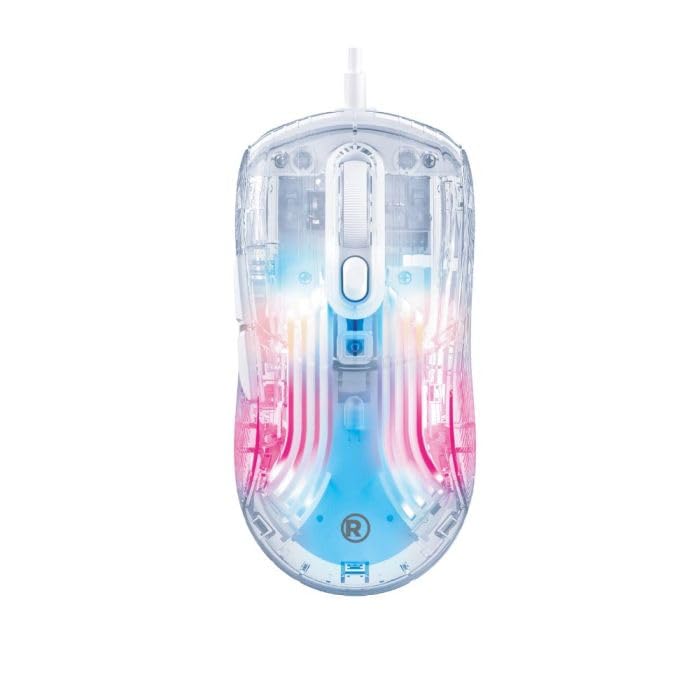
Image: The transparent gaming mouse with its braided USB cable, ready for connection to a computer.
Awọn ilana Iṣiṣẹ
The RadioShack Transparent Wired RGB Gaming Mouse features 7 programmable buttons and customizable RGB lighting to enhance your user experience.
Awọn iṣẹ bọtini:
- Bọtini Tẹ osi: Standard primary function.
- Ọtun Tẹ Bọtini: Standard secondary function.
- Yi lọ Kẹkẹ: Scroll up/down, and clickable for middle-click function.
- Awọn Bọtini Atunse DPI: Typically located near the scroll wheel, these buttons allow you to cycle through different DPI (dots per inch) settings to adjust cursor sensitivity.
- Awọn bọtini Iwaju/Sẹhin: Located on the side, these buttons are commonly used for navigation in web aṣàwákiri tabi file oluwadi.
- Bọtini Ipo RGB: A dedicated button (often on the bottom or top) to cycle through 14 different RGB lighting modes.
Customizing RGB Lighting:
Press the dedicated RGB mode button to switch between the 14 available lighting effects. Some models may also feature a button to select specific colors.
Video: A demonstration of the transparent gaming mouse showcasing its various RGB lighting effects and sleek design.
Itoju
To ensure the longevity and optimal performance of your gaming mouse, regular maintenance is recommended:
- Ninu: Lo aṣọ rírọrùn tí ó gbẹ láti nu ojú eku náà. Fún eruku líle, fi díẹ̀ rẹ́amp asọ le ṣee lo, aridaju ko si ọrinrin ti nwọ awọn ti abẹnu irinše.
- Itọju USB: Avoid sharp bends or excessive pulling on the braided USB cable to prevent damage.
- Ibi ipamọ: Tọ́jú àwọn eku sí ibi tí ó mọ́ tónítóní, tí ó sì gbẹ, tí kò sí ibi tí ó le koko jù àti ibi tí oòrùn kò ti lè ràn nígbà tí a kò bá lò ó.
Laasigbotitusita
If you encounter any issues with your RadioShack Transparent Wired RGB Gaming Mouse, please refer to the following common solutions:
- Asin Ko Dahun: Ensure the USB cable is securely plugged into a functional USB port. Try a different USB port or restart your computer.
- Awọn imọlẹ RGB Ko Ṣiṣẹ: Check if the RGB mode button has been pressed to activate lighting effects. Ensure the mouse is properly connected.
- Àwọn Ìṣòro Ìṣípòpadà Kọ́sọ̀: Clean the optical sensor on the bottom of the mouse. Ensure you are using the mouse on a suitable surface (e.g., a mouse pad). Adjust DPI settings using the dedicated buttons.
Awọn pato
| Ẹya ara ẹrọ | Ẹ̀kúnrẹ́rẹ́ |
|---|---|
| Brand | RadioShack |
| Nọmba awoṣe | 2607149 |
| Àwọ̀ | Sihin |
| Asopọmọra Technology | USB (Ti firanṣẹ) |
| Pataki Ẹya | RGB Lights (14 modes) |
| Imọ-ẹrọ Iwari išipopada | Optical (Instant 725F chipset) |
| Idibo Oṣuwọn | 125Hz |
| Bọtini opoiye | Awọn bọtini 7D |
| Ọwọ Iṣalaye | Ọtun |
| Awọn ẹrọ ibaramu | Kọmputa ti ara ẹni |
| Eto isesise | Windows |
| USB Ipari | 1.5 mita |
| Ìgbésí ayé Keystroke | Up to 5 million jinna |
| Iwọn Nkan | 1.5 iwon |
| Ohun elo apade | Ṣiṣu |
Atilẹyin ọja ati Support
This product does not include a specific warranty description as per available information. For technical support or further assistance, please refer to the official RadioShack customer service channels or visit their webojula.
Ask a question about this manual
Ask about setup, troubleshooting, compatibility, parts, safety, or missing instructions. Manuals+ will review the question and use this page’s manual context to help answer it.