
Ọrọ Iṣaaju
Welcome to the VIBOX IV-335 PC Gamer instruction manual. This document provides essential information for setting up, operating, maintaining, and troubleshooting your new high-performance gaming computer. The VIBOX IV-335 is equipped with an AMD Ryzen 7 5700X processor, Nvidia RTX 5070 graphics card, 32GB DDR4 RAM, and a 1TB SSD, designed to deliver an exceptional gaming and computing experience.
1. Eto
1.1 Unboxing ati Ibẹrẹ ayewo
Carefully remove the PC from its packaging. Inspect the computer for any visible damage that may have occurred during transit. Ensure all accessories, such as the power cable, Wi-Fi adapter, and any included documentation, are present.

Image: The VIBOX IV-335 PC Gamer tower, showcasing its white chassis and internal components.
1.2 Nsopọ Peripherals
Connect your monitor, keyboard, mouse, and other peripherals to the appropriate ports on the back of the PC.
- Atẹle: Use an HDMI or DisplayPort cable to connect your monitor to the graphics card (Nvidia RTX 5070).
- Keyboard ati Asin: Connect to any available USB ports.
- Agbara: Connect the power cable to the PC's power supply unit and then to a wall outlet.
- Nẹtiwọọki: For wired internet, connect an Ethernet cable to the LAN port. For wireless, ensure the included Wi-Fi 6 adapter is installed or connected.

Aworan: A sunmọ-soke view of the PC's versatile connectivity panel, highlighting USB 3.0, USB 2.0, headphone jack, and power input.
1.3 First Boot-up
Press the power button on the front of the PC. The system will boot into Windows 11 Home. Follow the on-screen instructions to complete the initial Windows setup, including language, region, network connection, and user account creation.
2. Awọn ilana Iṣiṣẹ
2.1 Windows 11 Ile Pariview
Your VIBOX IV-335 comes pre-installed with Windows 11 Home, optimized for gaming. Key features include:
- Faster loading times with DirectStorage.
- Improved graphics with AutoHDR.
- Seamless Xbox Game Pass integration.
- Optimized CPU performance for gaming.
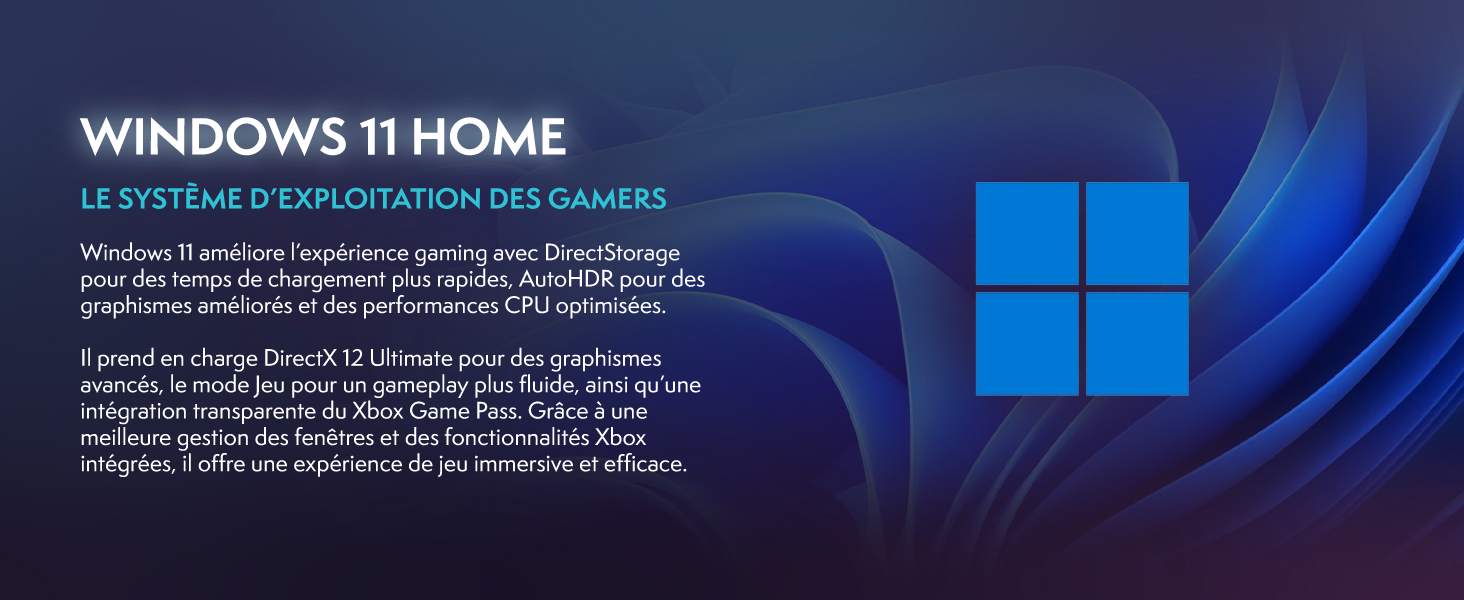
Image: A promotional image highlighting Windows 11 Home features, including DirectStorage and Auto HDR, designed for gamers.
2.2 High-Performance Components
The VIBOX IV-335 is built with powerful components to handle demanding tasks and games:
- Olupilẹṣẹ: AMD Ryzen 7 5700X (8 Cores, up to 4.6 GHz) for exceptional multi-tasking and gaming performance.
- Kaadi eya aworan: Nvidia GeForce RTX 5070 (12GB GDDR7) for stunning visuals and high frame rates.
- Iranti: 32GB DDR4 RAM ensures smooth multitasking and system responsiveness.
- Ibi ipamọ: 1TB SSD provides ultra-fast boot times and rapid game loading.

Image: A close-up of the AMD Ryzen 7 5700X processor, emphasizing its core count and boost frequency.
2.3 itutu System
The system features an advanced cooling solution to maintain optimal temperatures during intense usage:
- Itutu Omi: An AIO 120mm liquid cooler ensures efficient heat dissipation from the CPU.
- RGB Fans: Multiple 120mm RGB fans provide excellent airflow and customizable lighting effects.

Image: A diagram illustrating the exceptional airflow design of the white PC case, with blue arrows indicating cool air intake and red arrows showing hot air exhaust.
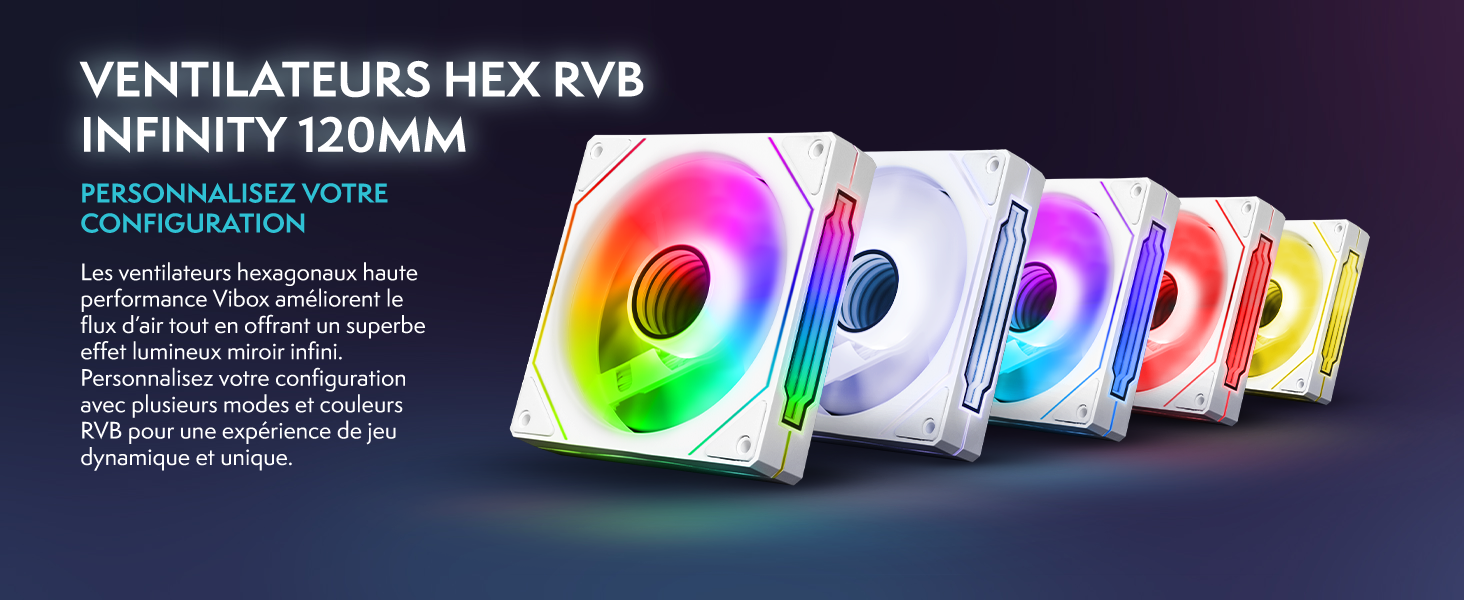
Image: Five 120mm RGB cooling fans displayed in a row, showcasing various customizable lighting options.

Image: The VIBOX AIO 120mm liquid cooler, a compact and efficient cooling solution for the CPU.
3. Itọju
3.1 Ninu
Regular cleaning helps maintain optimal performance and extends the lifespan of your PC.
- Òde: Use a soft, dry cloth to wipe down the exterior surfaces. Avoid abrasive cleaners.
- Inu inu: The PC case features a tempered glass side panel for easy access. Periodically, use compressed air to remove dust from fans, heatsinks, and other internal components. Ensure the PC is powered off and unplugged before opening the side panel.
3.2 Software imudojuiwọn
Keep your operating system, drivers (especially graphics drivers), and applications updated to ensure stability, security, and optimal performance. Windows Update can manage OS updates, while graphics drivers can be updated via Nvidia's official website or software.
4. Laasigbotitusita
If you encounter issues with your VIBOX IV-335, consider the following common troubleshooting steps:
- Ko si Agbara: Ensure the power cable is securely connected to both the PC and the wall outlet. Check the power switch on the back of the power supply unit.
- Ko si Ifihan: Verify that the monitor cable is connected to the graphics card (not the motherboard's video output) and that the monitor is powered on and set to the correct input source.
- Ilọkuro eto: Check for background applications consuming resources. Ensure drivers are up to date and perform a system scan for malware.
- Ariwo afẹfẹ ti ko wọpọ: While some fan noise is normal, excessive or unusual noise might indicate dust buildup or a fan issue. Refer to the cleaning section.
Fun iranlọwọ siwaju sii, jọwọ tọka si Atilẹyin ọja ati apakan Atilẹyin.
5. Awọn pato
Below are the detailed technical specifications for the VIBOX IV-335 PC Gamer:
| Ẹya ara ẹrọ | Ẹ̀kúnrẹ́rẹ́ |
|---|---|
| Brand | VIBOX |
| Nọmba awoṣe | IV-335 |
| Eto isesise | Windows 11 Ile |
| Sipiyu Awoṣe | AMD Ryzen 7 5700X |
| Sipiyu Iyara | 3.4 GHz (Max 4.6 GHz) |
| Sipiyu inu ohun kohun | 8 |
| Olupilẹṣẹ Graphics | Nvidia RTX 5070 |
| Graphics RAM | 12 GB GDDR7 |
| Agbara ipamọ | 1 TB SSD |
| RAM Installed | 32 GB DDR4 |
| Max Ramu atilẹyin | 128 GB |
| RAM Speed | 2666 MHz |
| Ọna Itutu | Itutu agbaiye |
| Asopọmọra | Ethernet, HDMI, USB, Wi-Fi 6, Bluetooth 5.4 |
| Video o wu Interface | HDMI, DisplayPort |
| Lapapọ Awọn ibudo USB | 4 |
| Awọn iwọn (L x W x H) | 40 x 21 x 45 cm |
| Àwọ̀ | Funfun |
6. Atilẹyin ọja ati Support
Your VIBOX IV-335 PC Gamer comes with comprehensive warranty coverage:
- Atilẹyin ọja: ọdun meji 2
- Atilẹyin ọja iṣẹ: Igba aye
- Wiwa Awọn apakan apoju: ọdun meji 2
For technical support or warranty claims, please contact VIBOX customer service. You can find contact information on the official VIBOX webojula tabi nipasẹ rẹ ra Syeed.