
Ọrọ Iṣaaju
The Ruko F11GIM2 4K Drone is an advanced unmanned aerial vehicle designed for capturing high-quality aerial photography and videography. Featuring a 2-axis gimbal with Electronic Image Stabilization (EIS), it delivers stable and clear 4K footage. With extended flight times and robust digital transmission, this drone is suitable for various aerial exploration and content creation needs.
Ohun ti o wa ninu Apoti
- Ruko F11GIM2 Drone
- Latọna jijin Adarí
- Intelligent Flight Battery (x2)
- Ọran gbigbe
- USB Iru-C USB
- RC Cables (various types for phone connection)
- apoju Propellers
- Spare Joysticks
- Ideri kamẹra
- Allen Wrench
- Itọsọna olumulo
- Awọn skru (x12)
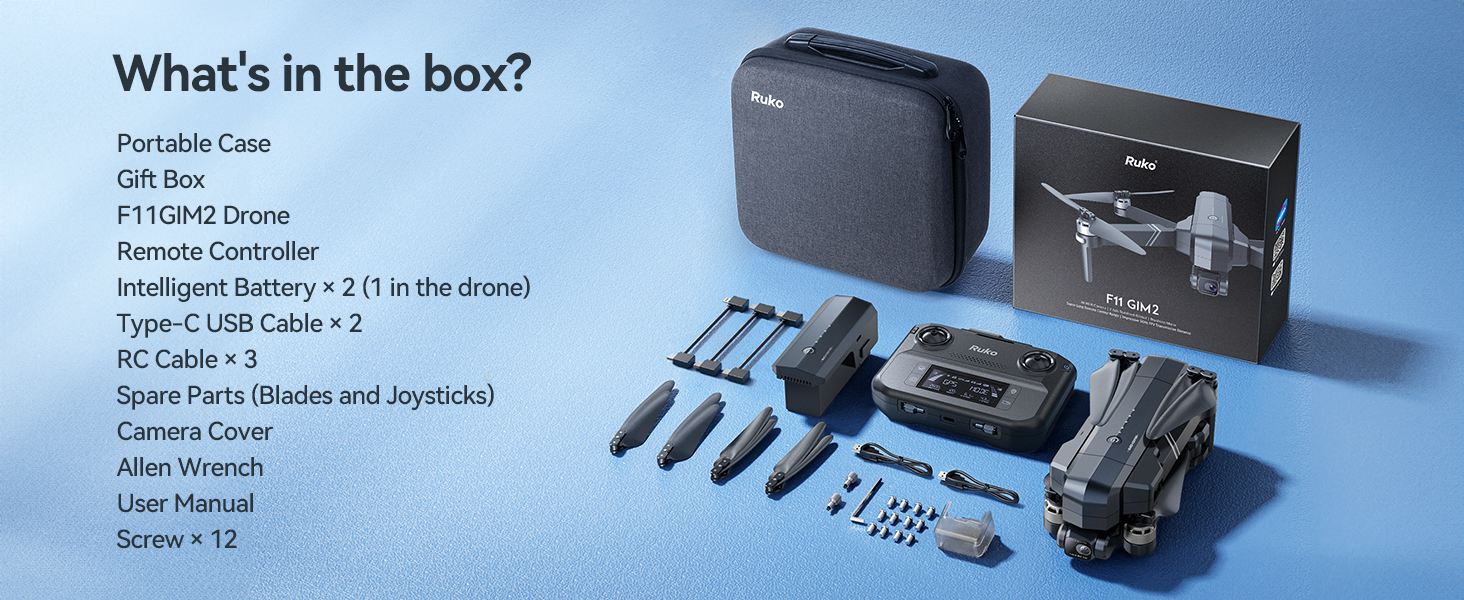
Image: The Ruko F11GIM2 4K drone and its complete set of accessories, including the remote controller, batteries, and various cables, neatly organized within its portable carrying case.
Ṣeto
1. Batiri Ngba agbara
Ensure all intelligent flight batteries are fully charged before first use. Connect the USB Type-C cable to the battery and a compatible 5V/3A wall charger (not included). The LED indicators on the battery will show the charging progress. A full charge typically takes 5 hours.

Image: A Ruko F11GIM2 intelligent flight battery connected to a USB-C cable and a wall charger for recharging. The battery features an on/off button and LED power level indicators.
2. Drone Igbaradi
- Ṣí àwọn apá drone náà.
- Yọ gimbal aabo kuro lati kamẹra.
- Insert a charged Intelligent Flight Battery into the drone until it clicks securely.
- Press and hold the power button on the drone to turn it on. The drone will perform a self-check.
3. Latọna Adarí Oṣo
- Pull up the phone holder on the remote controller.
- Connect your smartphone to the remote controller using the appropriate RC cable (USB-C, Lightning, or Micro-USB).
- Press and hold the power button on the remote controller to turn it on.

Image: A user holding the Ruko F11GIM2 remote controller with a smartphone mounted, displaying the drone's real-time video feed and flight data, set against a scenic mountain backdrop.
4. App Connection & Calibration
Download the Ruko Mini app from your device's app store. Launch the app and follow the on-screen instructions to connect to the drone. Perform compass calibration as instructed by the app before your first flight. This ensures accurate navigation and stable flight.
Ṣiṣẹ Drone
1. Ipilẹ Flight idari
- Bíbẹ̀rẹ̀/Ìbalẹ̀: Use the one-key takeoff/landing button in the app or on the remote.
- Altitude/Direction: Ṣàkóso pẹ̀lú joystick òsì.
- Forward/Backward/Sideways: Ṣakoso pẹlu joystick to tọ.
- Awọn ipo Iyara: Switch between Normal, Cine, and Sport modes using the dedicated switch on the remote.
2. Oye ofurufu Ipo
The Ruko F11GIM2 offers several intelligent flight modes for enhanced creativity and ease of use:
- Iṣakoso oko oju omi: Maintain a steady flight speed for smooth cinematic shots.
- Ọkọ̀ òfurufú Waypoint: Set custom flight paths in the app for precise and repeatable aerial routes.
- Circle Fly: Easily capture perfect circle shots while keeping your subject centered.
- Tele me kalo: The drone automatically follows the remote controller or a designated subject.

Image: The Ruko F11GIM2 drone flying over a scenic coastline, illustrating the cruise control feature for stable and effortless aerial photography.

Image: The Ruko F11GIM2 drone executing a pre-programmed waypoint flight along a winding coastal road, demonstrating its precise navigation capabilities.

Image: The Ruko F11GIM2 drone performing a 'Circle Fly' maneuver around two individuals standing on a cliff overlooking the ocean, capturing a dynamic aerial shot.
3. Isẹ kamẹra
The 4K camera with 2-axis gimbal and EIS ensures stable and clear footage. Use the dedicated buttons on the remote controller or the app interface to:
- Take 4K photos.
- Record 4K/30fps video.
- Adjust the lens angle (80 degrees adjustable).
- Utilize 5x digital zoom.

Image: The Ruko F11GIM2 drone in flight, showcasing its 4K gimbal EIS camera system designed for smooth and stable footage, with mountains in the background.
Video: A tutorial demonstrating the first flight procedures for the Ruko F11PRO 2 drone, covering pre-flight checks, takeoff, and basic maneuvers.
Itoju
- Ninu: Regularly clean the drone body, camera lens, and propellers with a soft, dry cloth.
- Rirọpo Propeller: If propellers are damaged, replace them immediately using the provided spare propellers and Allen wrench. Ensure correct propeller installation (A and B types).
- Itọju Batiri: Tọ́jú àwọn bátìrì sí ibi tí ó tutù tí ó sì gbẹ. Má ṣe gba agbára jù tàbí kí o tú u jù.
Laasigbotitusita
- Drone ko ṣiṣẹ lori: Rii daju pe batiri ti gba agbara ni kikun ati fi sii daradara.
- Remote not connecting: Ensure both drone and remote are powered on and within range. Re-pair if necessary.
- Gbigbe fidio ti ko dara: Check USB connection to phone. Ensure no strong interference sources are nearby.
- Ọkọ ofurufu aiduroṣinṣin: Perform compass calibration again. Check propellers for damage or incorrect installation.
Awọn pato
| Ẹya ara ẹrọ | Ẹ̀kúnrẹ́rẹ́ |
|---|---|
| Brand | Ruko |
| Orukọ awoṣe | F11GIM2 |
| Ipinnu Yaworan fidio | 4K/30fps |
| Ipinnu Iduro ti o munadoko | 8.3 MP (4K Photo) |
| Akoko ofurufu | Up to 32 minutes per battery (64 minutes with 2 batteries) |
| Flying Range | Up to 16404ft (5KM) |
| Afẹfẹ Resistance | Ipele 6 |
| Pataki Awọn ẹya ara ẹrọ | 2-axis Gimbal, EIS Anti-shake, Auto-Landing, 5x Digital Zoom, 80° Adjustable Lens, Brushless Motors, Built-in Remote ID Module (FAA Compliant) |
| Asopọmọra Technology | USB |

Aworan: A alaye view of the Ruko F11GIM2 intelligent flight battery, highlighting its dimensions (4.06" L x 1.83" W x 1.89" H) and specifications including 11.1V, 2500mAh, 6.8oz weight, and 27.75Wh capacity.
Atilẹyin ọja & Atilẹyin
For warranty information, technical support, or service inquiries, please refer to the contact details provided in your product packaging or visit the official Ruko website. Ruko is dedicated to providing high-value products supported by good customer support.

Image: Ruko customer support contact information, including a phone number (+1 (888) 892-0155) and email (service@rukotoy.com), with operating hours for Monday-Friday and Saturday-Sunday.