1. Ifihan
This manual provides detailed instructions for the installation, operation, and maintenance of your Generic Android 12 Car Stereo, model M600S. This unit is specifically designed for Suzuki Celerio vehicles manufactured between 2015 and 2018. Please read this manual thoroughly before installation and use to ensure proper function and safety.
1.1 Awoṣe to wulo
- Ọkọ: Suzuki Celerio
- Awọn Ọdun Awoṣe: 2015, 2016, 2017, 2018
- Stereo Model: M600S (8-core, 6GB RAM + 128GB ROM)
1.2 Key Awọn ẹya ara ẹrọ
- Android 12 Awọn ọna System
- 9-inch HD Touchscreen (1280x720 IPS)
- Built-in Wireless CarPlay and Android Auto
- Bluetooth 5.0 for hands-free calling and audio streaming
- Integrated GPS Navigation with support for various map applications
- Oníṣẹ́ Ohun Oní-ẹ̀rọ (DSP) fún dídára ohùn tí a mú sunwọ̀n síi
- FM/AM RDS Radio
- Àtìlẹ́yìn fún Àwọn Ìṣàkóso Kẹ̀kẹ́ Ìdarí
- Pipin Iboju Išẹ
- OBD II Support for vehicle diagnostics
- Built-in 4G LTE and Wi-Fi connectivity
- Cooling Fan for optimal performance
1.3 Package Awọn akoonu
Daju pe gbogbo awọn nkan wa ninu package ṣaaju ki o to tẹsiwaju pẹlu fifi sori ẹrọ:
- 1x Car Frame (specific to Suzuki Celerio)
- 1x Head-up Display (Screen Unit)
- 1x Power Cable (Plug and Play)
- Awọn kebulu RCA
- Kamẹra iyipada
- Awọn kebulu USB
- Gbohungbohun
- Eriali GPS
- 4G Eriali

This image displays the various components included with the car stereo system, such as the main unit, power cable, RCA cables, reversing camera, USB cables, microphone, and GPS antenna. It also shows a side-by-side comparison of a Suzuki Celerio dashboard before and after the 9-inch Android 12 car stereo is installed, highlighting the integrated appearance.
2. Alaye Aabo
Jọwọ tẹle awọn iṣọra aabo wọnyi lati yago fun ipalara tabi ibajẹ si ẹrọ naa:
- A ṣe iṣeduro fifi sori Ọjọgbọn: The installation of this device requires technical knowledge and experience. It is strongly recommended to seek assistance from qualified professional installation engineers to avoid damage to the vehicle's electrical system or the stereo unit.
- Ibi ti ina elekitiriki ti nwa: Ensure the device is connected to a 12V DC power supply. Incorrect voltage le fa ibajẹ.
- Asopọmọra: Double-check all wiring connections before powering on the unit. Incorrect wiring can lead to short circuits or malfunction.
- Aabo awakọ: Má ṣe ṣiṣẹ́ àwọn iṣẹ́ tó díjú tàbí kí o wo àwọn fídíò tó lè pín ọkàn rẹ níyà nígbà tí o bá ń wakọ̀. Máa fi ààbò ojú ọ̀nà sí ipò àkọ́kọ́.
- Iwọn otutu: Yago fun ṣiṣafihan ẹyọkan si awọn iwọn otutu to gaju tabi oorun taara fun awọn akoko gigun.
- Ọrinrin: Pa ẹrọ kuro lati omi ati ọrinrin pupọ.
3. Eto ati fifi sori
3.1 Pre-Fifi sori Ṣayẹwo
Before beginning installation, confirm the following:
- Your vehicle is a Suzuki Celerio (2015-2018). If unsure, send a photo of your car's center console to the supplier for verification.
- All components listed in Section 1.3 are present.
- Yọ batiri ọkọ ayọkẹlẹ naa kuro lati yago fun awọn kukuru ina lakoko fifi sori ẹrọ.
3.2 Wiring aworan atọka
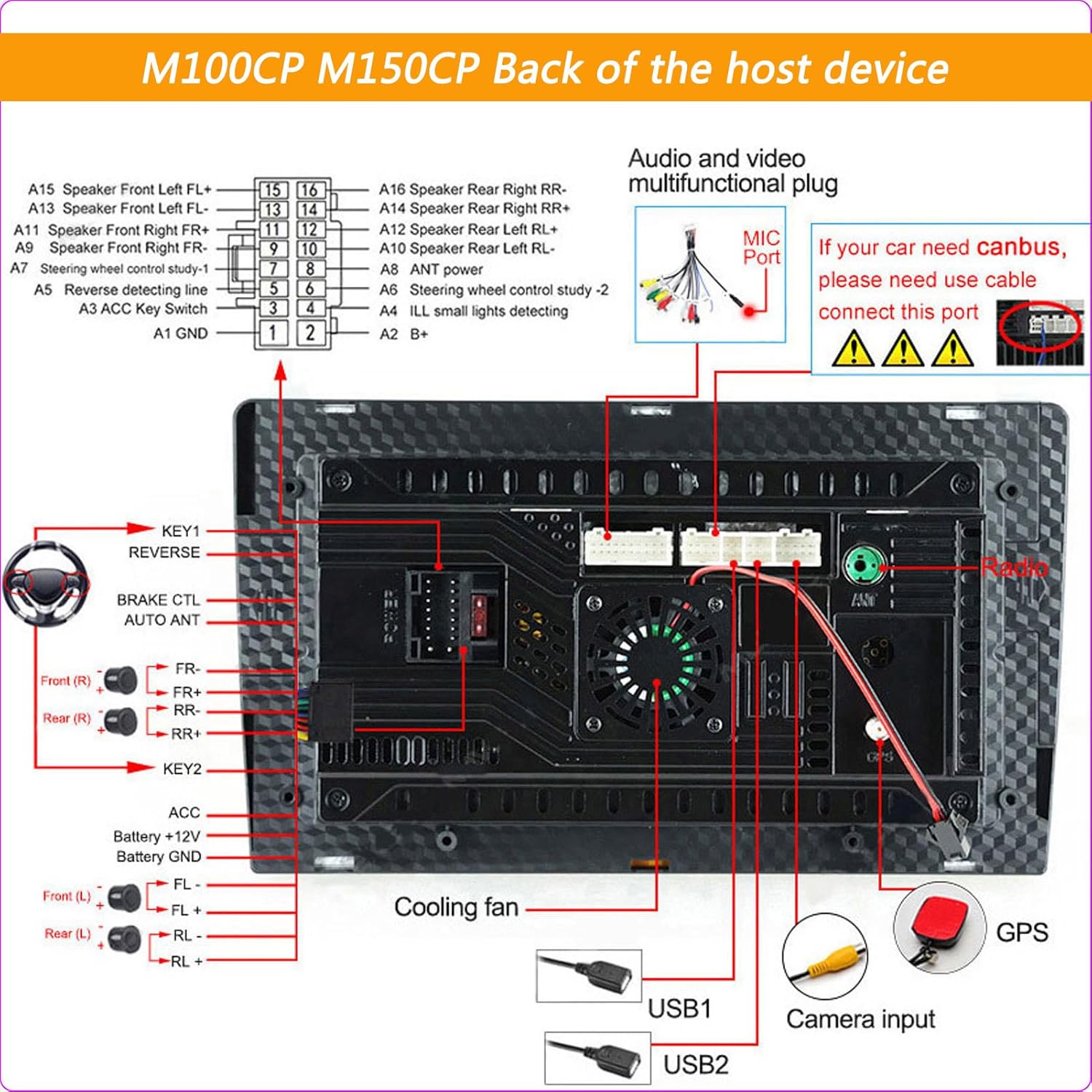
Refer to the following diagrams for proper connection of the main unit and accessories. Note that specific wiring may vary slightly between models, but the general principles apply.

This diagram details the rear connections for M100CP and M150CP models, including the audio and video multi-functional plug, MIC port, power cable, steering wheel control inputs, brake control, auto antenna, amplifier control, USB ports, camera input, and GPS antenna connection. It also notes the requirement for a CANBUS cable if the car has CANBUS.

This image displays the accessories included with M200S through M800S models, such as RCA cables, reversing camera, microphone, GPS antenna, and 4G antenna. It also provides a detailed wiring diagram for the back of these host devices, showing connections for GPS, radio antenna, 4G antenna, USB ports, camera input, cooling fan, and the main power harness. Specific notes are included for CANBUS connection and coaxial fiber optic for M500S/M600S models.
3.3 Awọn igbesẹ fifi sori ẹrọ (Gbogbogbo)
- Carefully remove the original car stereo and trim panels from your Suzuki Celerio dashboard.
- Connect the provided power cable harness to the vehicle's wiring and the new stereo unit. Ensure all connections are secure.
- Connect the GPS antenna, 4G antenna (if applicable), USB cables, microphone, and reversing camera cable to their respective ports on the stereo unit.
- If your vehicle has steering wheel controls, connect the appropriate wires as per the wiring diagram.
- Carefully slide the new stereo unit into the dashboard opening.
- Secure the unit with screws or clips as required by the car frame.
- Tun fi awọn paneli gige ti a ti yọ kuro sori ẹrọ.
- Reconnect the vehicle's battery and power on the unit to test functionality.
4. Awọn ilana Iṣiṣẹ
4.1 Agbara Tan / Pa
- The unit typically powers on automatically when the vehicle's ignition is turned on.
- To manually power off or restart, press and hold the power button on the unit or use the software option in the settings menu.
4.2 Touchscreen isẹ
The 9-inch HD touchscreen supports multi-touch gestures. Navigate through menus, select applications, and control functions by tapping, swiping, and pinching.
4.3 Alailowaya CarPlay / Android Auto
This unit supports wireless CarPlay and Android Auto for seamless smartphone integration.
- Rii daju pe Bluetooth ati Wi-Fi ti ṣiṣẹ lori foonuiyara rẹ.
- Lórí sitẹrio ọkọ̀ ayọ́kẹ́lẹ́, ṣí ohun èlò CarPlay tàbí Android Auto.
- Tẹle awọn ilana loju iboju lati so foonu rẹ pọ mọ nipasẹ Bluetooth.
- Once paired, the system will automatically connect for wireless CarPlay or Android Auto functionality.
4.4 GPS Lilọ kiri
The built-in GPS module provides accurate positioning and navigation. The unit comes with pre-installed navigation applications and supports others from the Google Play Store.
- Open the desired navigation app from the main menu.
- Tẹ ibi ti o nlo ki o si tẹle awọn itọsọna ohun ati wiwo.
- The system supports real-time traffic condition display (requires internet connection).

This image illustrates key functionalities of the car stereo. It shows the Digital Sound Processor (DSP) interface for audio customization, the Bluetooth function for hands-free calls and music streaming with contact synchronization, the GPS navigation system supporting various map applications like Navitel, iGO, Yandex, and Google, and the FM/AM RDS radio interface for station tuning and display.
4.5 Bluetooth Asopọmọra
So foonu alagbeka rẹ tabi awọn ẹrọ Bluetooth miiran pọ fun ipe laisi ọwọ ati sisanwọle ohun.
- Lọ sí àwọn ètò Bluetooth lórí sitíréò ọkọ̀ ayọ́kẹ́lẹ́.
- Mu Bluetooth ṣiṣẹ lori foonu rẹ ki o wa awọn ẹrọ to wa.
- Select the car stereo's Bluetooth name (e.g., "CarBT") from your phone's list and pair.
- Nígbà tí o bá ti sopọ̀ mọ́ ara rẹ, o lè ṣe/gba àwọn ìpè kí o sì fi àwọn agbọ́hùn-ọ̀rọ̀ ọkọ̀ ayọ́kẹ́lẹ́ kọrin.
4.6 FM/AM RDS Radio
Access local radio stations with clear reception and RDS (Radio Data System) information.
- Ṣí ohun èlò redio náà.
- Lo iṣẹ ayẹwo lati wa ati fipamọ awọn ibudo ti o wa laifọwọyi.
- Manually tune to frequencies or select from saved presets.
- RDS provides station information, song titles, and traffic announcements where available.
4.7 DSP isise
The Digital Sound Processor allows for fine-tuning of audio output to match your preferences and vehicle acoustics.
- Access the DSP settings from the main menu or audio settings.
- Adjust equalizer settings, balance, fader, and other audio parameters.
4.8 Pipin iboju Išė
Ṣiṣẹ́ àwọn ohun èlò méjì ní àkókò kan náà lórí ìbòjú, bíi lílọ kiri àti ṣíṣe orin.
- Ṣii ohun elo akọkọ.
- Press and hold the recent apps button or swipe from the bottom (depending on Android version) to activate split-screen mode.
- Select the second application to run alongside the first.
4.9 idari kẹkẹ idari
If properly wired, the unit supports your vehicle's existing steering wheel controls for safe and convenient operation.
- Go to the 'Steering Wheel Control' settings in the system menu.
- Follow the on-screen instructions to map your steering wheel buttons to specific functions (e.g., volume up/down, track skip, mode).
4.10 Àyẹ̀wò OBD II
Connect an optional OBD II adapter (sold separately) to monitor your vehicle's performance and diagnostic information.
- Pair the OBD II adapter via Bluetooth.
- Open a compatible OBD II application (e.g., Torque) on the stereo.
- View real-time engine data, fault codes, and other vehicle parameters.
This image highlights advanced features: ADAS (Advanced Driver-Assistance Systems) DVR for anti-collision and lane departure warnings, a demonstration of the cooling fan's effectiveness in managing device temperature (contrasting high temperature without a fan versus normal temperature with a fan), and the OBD II (On-Board Diagnostics) interface for real-time vehicle status monitoring.
4.11 Ẹyìn View Kamẹra
Ẹyọ naa ṣe atilẹyin ẹhin view camera for safer parking and reversing.
- Nígbà tí a bá gbé ọkọ̀ náà sí ìyípadà jia, ìfihàn náà yóò yípadà sí ẹ̀yìn láìfọwọ́sí view ifunni kamẹra.
- Ensure the camera is properly installed and connected to the 'Camera Input' port.
4.12 4G LTE & Wi-Fi
Stay connected with built-in 4G LTE (requires SIM card) and Wi-Fi capabilities.
- 4G LTE: Insert a compatible 4G SIM card into the designated slot (if available on your model) to access mobile data.
- Wi-Fi: Connect to available Wi-Fi networks (e.g., mobile hotspot) through the system settings to access online features and download apps.
5. Itọju
5.1 Ninu iboju
- Lo aṣọ rirọ, ti ko ni awọ lati nu iboju naa ni rọra.
- Fun agidi smudges, die-die dampen awọn asọ pẹlu omi tabi a iboju-ninu ojutu. Yẹra fun awọn kẹmika lile.
5.2 Software imudojuiwọn
- Periodically check for system software updates in the 'Settings' menu.
- Updates can improve performance, add new features, and fix bugs. Ensure a stable internet connection during updates.
5.3 itutu Fan
The M600S model includes a cooling fan to maintain optimal operating temperature. Ensure the fan vents are not obstructed to allow for proper airflow.
6. Laasigbotitusita
Tí o bá ní ìṣòro pẹ̀lú sitẹrio ọkọ̀ ayọ́kẹ́lẹ́ rẹ, wo àwọn ìṣòro àti ìdáhùn tó wọ́pọ̀ wọ̀nyí:
| Isoro | Owun to le Fa | Ojutu |
|---|---|---|
| Kò sí agbára / Ẹ̀yà kò tan | Incorrect wiring; Blown fuse; Loose power connection | Check power cable connections; Inspect vehicle's fuse box; Ensure battery is connected. |
| Ko si ohun | Volume too low; Mute activated; Speaker wires disconnected; Incorrect audio settings | Increase volume; Check mute status; Verify speaker wiring; Adjust audio output settings (e.g., balance/fader). |
| Ifihan GPS sọnu tabi aiṣedeede | GPS antenna obstructed or disconnected; Poor satellite reception | Rí i dájú pé eriali GPS ti fi sori ẹrọ daradara ati pe o ni imọlẹ view of the sky; Check antenna connection. |
| Awọn oran sisopọ Bluetooth | Bluetooth not enabled; Device not discoverable; Interference | Ensure Bluetooth is on for both devices; Make sure the stereo is in pairing mode; Restart both devices. |
| Iboju ifọwọkan ko dahun | System freeze; Software glitch | Restart the unit (press and hold power button); If persistent, perform a factory reset (data will be lost). |
| CarPlay/Android Auto ko sopọ | Phone settings; App issues; USB cable (for wired connection) | Ensure phone's Bluetooth/Wi-Fi is on; Check phone's CarPlay/Android Auto settings; Try restarting phone and stereo. |
Ti iṣoro naa ba wa lẹhin igbiyanju awọn iṣeduro wọnyi, jọwọ kan si atilẹyin alabara fun iranlọwọ siwaju sii.
7. Awọn pato
Detailed technical specifications for the M600S model:
| Ẹya ara ẹrọ | Specification (M600S) |
|---|---|
| Eto isesise | Android 12 |
| isise | 8-mojuto |
| Àgbo / ROM | 6GB Ramu / 128GB ROM |
| Iwon iboju | 9 inch |
| Ipinnu iboju | 1280x720 |
| Iboju Iru | IPS |
| CarPlay / Android laifọwọyi | Alailowaya Support |
| Bluetooth Module | 5.0 |
| 4G LTE & Wi-Fi | -Itumọ ti ni Support |
| Itutu Fan | Atilẹyin |
| DSP isise | Atilẹyin |
| Kamẹra iyipada | Atilẹyin |
| Redio RDS | Atilẹyin |
| Ibi ti ina elekitiriki ti nwa | 12V DC |
| Nọmba Awoṣe Nkan | HL723783-Black-M600S8-core6+128G |
| ASIN | B0DZP16XXM |

This table provides a detailed comparison of various car stereo models, outlining their internet connectivity (4G/Wi-Fi), operating system (Android 12), core processor type, RAM/ROM configurations, CarPlay/Android Auto support, Bluetooth module version, screen resolution, screen type (IPS), cooling fan presence, full AV output, DSP processor, and RDS radio capabilities. The M600S model features an 8-core processor, 6GB RAM + 128GB ROM, wireless CarPlay/Android Auto, Bluetooth 5.0, 1280x720 IPS screen, cooling fan, DSP, and RDS.
8. Atilẹyin ọja ati Support
Fun alaye atilẹyin ọja ati atilẹyin imọ-ẹrọ, jọwọ tọka si iwe ti a pese pẹlu rira rẹ tabi kan si olutaja taara. Jeki ẹri rira rẹ fun awọn iṣeduro atilẹyin ọja.


