
DOOGEE Tab E3-V
DOOGEE Tab E3 Android 15 Tablet User Manual
Model: Tab E3-V | Brand: DOOGEE
1. Eto
1.1 Package Awọn akoonu
Jẹrisi pe gbogbo awọn ohun kan wa ninu package:
- 1 x DOOGEE Tab E3 Android 15 Tablet
- 1 x Keyboard
- 1 x Asin
- 1 x Stylus Pen
- 1 x Ṣaja
- 1 x Iru-C okun USB
- 1 x Card Removal Needle
- 1 x Itọsọna olumulo
- 1 x Kaadi atilẹyin ọja

Image: Contents of the DOOGEE Tab E3 retail package, including the tablet, keyboard, mouse, stylus, charger, USB cable, card removal tool, user manual, and warranty card.
1.2 Gbigba agbara akọkọ
Before first use, fully charge your DOOGEE Tab E3 tablet. Connect the provided Type-C USB cable to the tablet's charging port and the charger to a power outlet. The tablet supports 18W fast charging, reaching 50% charge in approximately 90 minutes.
1.3 Fifi sori ẹrọ Kaadi SIM ati Kaadi MicroSD
The DOOGEE Tab E3 supports dual SIM cards and expandable storage via a microSD card (up to 2TB, sold separately). Use the provided card removal needle to open the SIM tray. Insert your SIM cards and/or microSD card into the designated slots, ensuring correct orientation. Close the tray securely.

Image: Diagram illustrating the dual SIM and microSD card slots on the DOOGEE Tab E3, showing how to insert SIM cards and a TF card for expanded storage.
1.4 Nsopọ Peripherals
The tablet comes with a keyboard, mouse, and stylus for enhanced productivity. These accessories connect via Bluetooth 5.2. To pair:
- Enable Bluetooth on your tablet via Settings > Connected devices > Bluetooth.
- Put the accessory (keyboard, mouse) into pairing mode (refer to the accessory's specific instructions).
- Select the accessory from the list of available devices on your tablet to complete pairing.

Image: The DOOGEE Tab E3 tablet connected to its dedicated keyboard, demonstrating its laptop-like functionality.
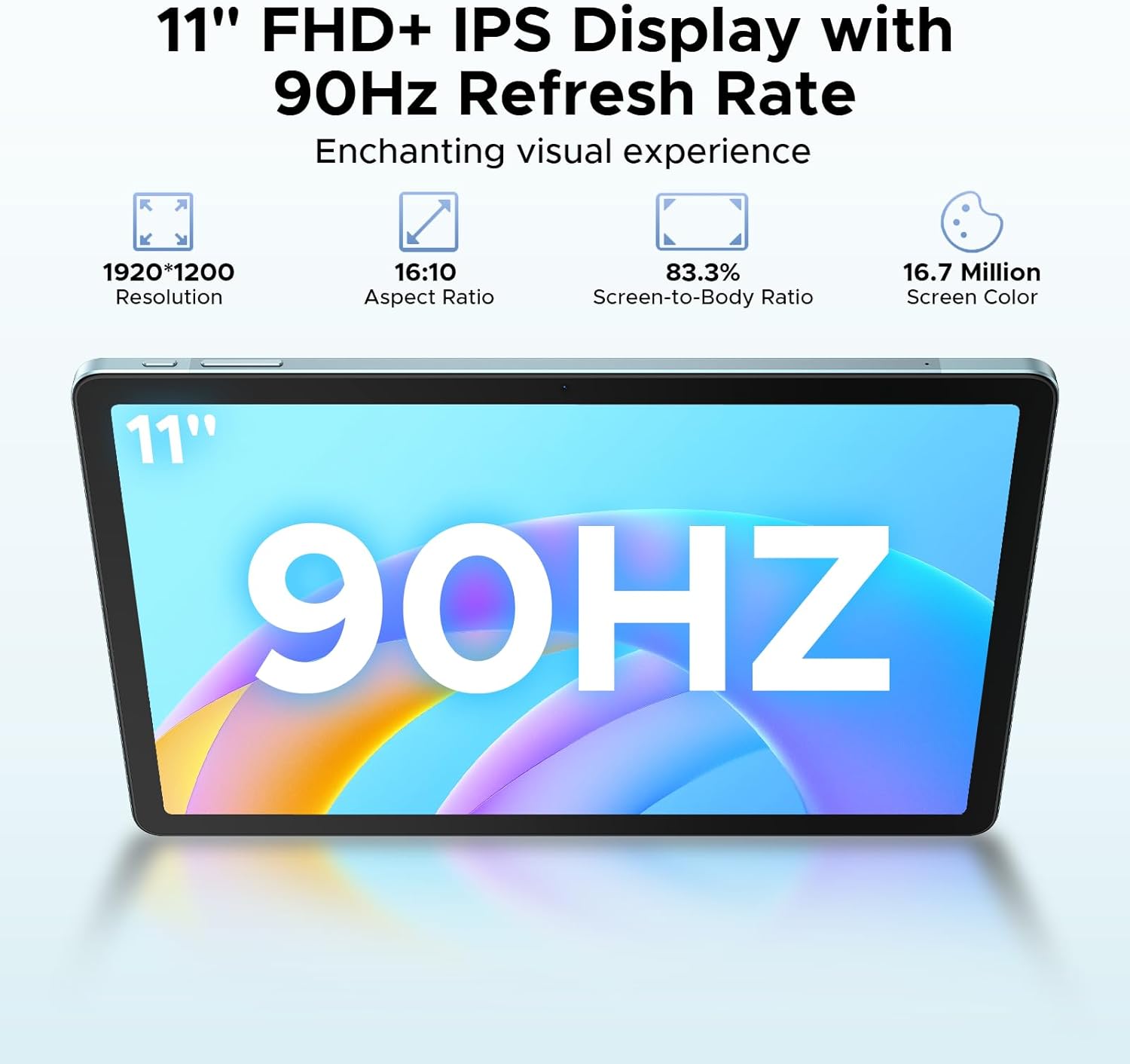
Image: The DOOGEE Tab E3 tablet paired with its wireless mouse, highlighting its versatility for navigation and productivity tasks.
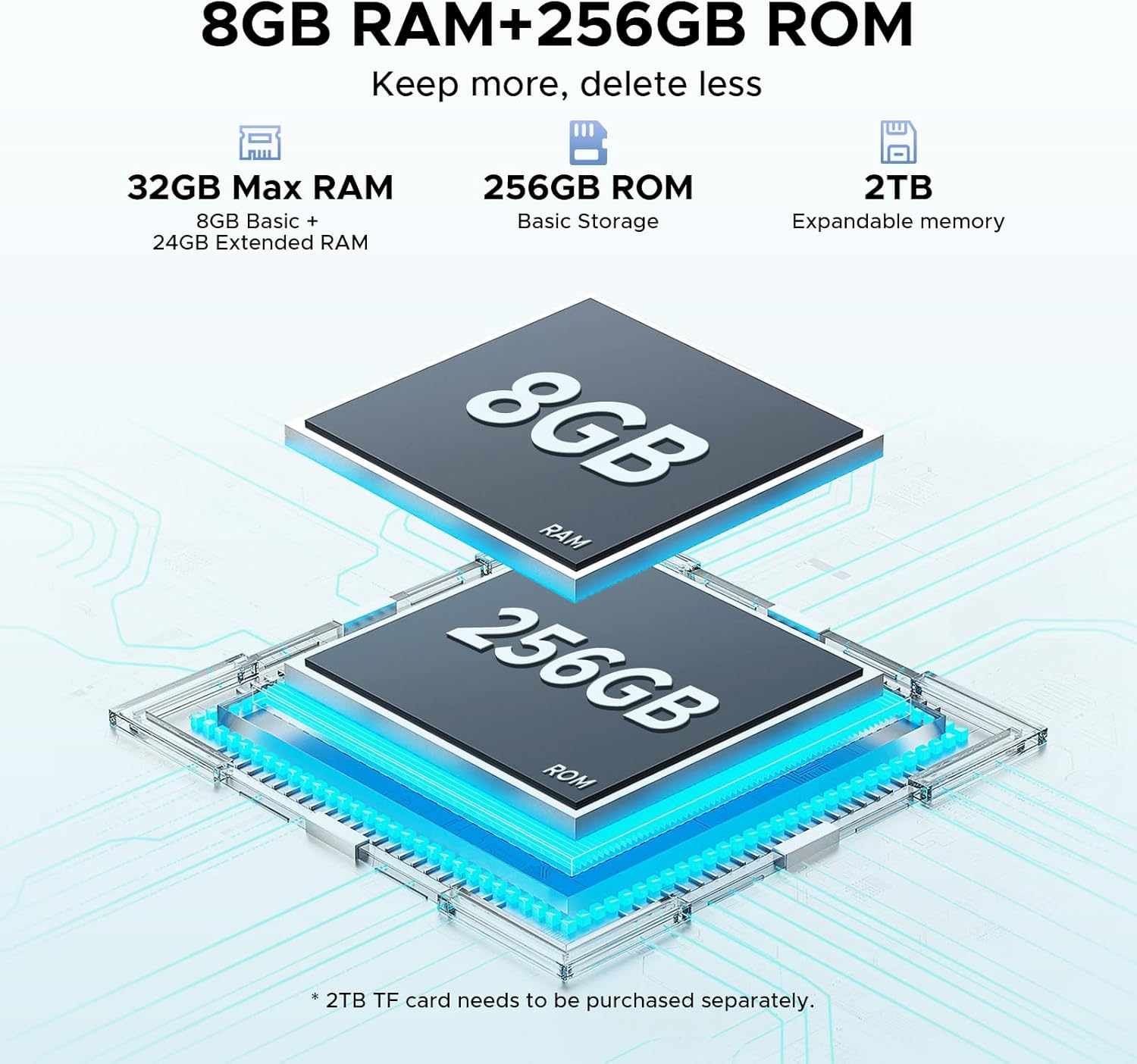
Image: The DOOGEE Tab E3 tablet being used with its stylus pen, ideal for note-taking, drawing, and precise interactions.
2. Ṣiṣẹ rẹ tabulẹti
2.1 Agbara Tan / Pipa ati Lilọ kiri Ipilẹ
To power on, press and hold the power button until the DOOGEE logo appears. To power off, press and hold the power button, then select 'Power off' from the options. The tablet runs on Android 15, offering an intuitive interface. Navigate using touch gestures: swipe, tap, pinch-to-zoom.

Image: Visual representation of the Android 15 operating system interface on the DOOGEE Tab E3, highlighting its intelligent, seamless, and secure features.
2.2 Display Settings and Eye Care
The 11-inch FHD+ IPS display features a 90Hz refresh rate for smooth visuals. Adjust brightness, text size, and display mode (e.g., Dark Mode, Eye-Caring Mode) in Settings > Display. Eye-Caring Mode reduces blue light to minimize eye fatigue during prolonged use, while Dark Mode softens light for night use.

Image: The 11-inch FHD+ IPS display of the DOOGEE Tab E3, showcasing its 1920x1200 resolution, 16:10 aspect ratio, 83.3% screen-to-body ratio, and 16.7 million screen colors for an enchanting visual experience.

Image: A visual representation of the 90Hz screen refresh rate on the DOOGEE Tab E3, emphasizing its upgraded smooth experience across all usage scenarios.

Image: The tablet displaying content in Eye-Caring Mode and Dark Mode, illustrating how these features gently protect eyesight and soften light for comfortable night use.
2.3 Android 15 Features and Gemini AI
The DOOGEE Tab E3 leverages Android 15 with integrated Gemini AI for enhanced intelligence. Key features include:
- Gemini AI: Provides real-time translation, smart text suggestions, AI-enhanced multitasking, content creation, information retrieval, image analysis, code development, language learning, and smart assistance.
- Multi-user System: Allows multiple users to have personalized profiles on the tablet.
- Iṣakoso obi: Manage and restrict content access for children.
- Aabo Aṣiri: Enhanced security features including precision permission control, robust data encryption, timely security patches, and proactive app screening.
- Facial Recognition Unlock: Effortlessly unlock your tablet using facial recognition.

Image: Screenshots demonstrating various Android 15 features on the DOOGEE Tab E3, including Bedtime Mode, Auto Brightness Adjustment, Multi-user System, and Parental Control.

Aworan: An loriview of the built-in Gemini AI capabilities on the DOOGEE Tab E3, listing features such as Content Creation, Information Retrieval & Summarization, Image Analysis, Code Development, Language Learning, and Smart Assistant.

Image: A visual representation of the Facial Recognition Unlock feature on the DOOGEE Tab E3, showing a user effortlessly accessing the tablet.
2.4 Asopọmọra
Táblẹ́ẹ̀tì náà ní àwọn ọ̀nà ìsopọ̀ tó péye:
- Wi-Fi: Supports dual-band Wi-Fi (2.4G/5G) for stable and fast internet access.
- Bluetooth 5.2: For connecting wireless peripherals like headphones, keyboards, and mice.
- 4G LTE: Stay connected on the go with cellular data support via dual SIM slots.

Image: A graphic illustrating the Dual-Band WiFi 2.4G/5G capabilities of the DOOGEE Tab E3, emphasizing low latency, anti-congestion, wide coverage, low power consumption, and high speed.
2.5 kamẹra Awọn iṣẹ
The DOOGEE Tab E3 is equipped with a 13MP main camera and a 5MP front camera. Use the camera application to capture photos and record videos. The tablet supports 2K video recording.

Aworan: The ru view of the DOOGEE Tab E3, highlighting its 13MP main camera designed for capturing sharp photos and clear details.

Image: A group video call displayed on the DOOGEE Tab E3, showcasing its Ultra-Clear 5MP Front Camera, perfect for selfies and video calls.

Image: A dynamic scene of a car driving through a tunnel, illustrating the DOOGEE Tab E3's capability for 2K video recording to capture memorable moments.
2.6 Eto ohun
The tablet features dual HD speakers for clear sound. Adjust volume using the physical buttons or through Settings > Sound & vibration. A 3.5mm headphone jack is available for private listening.

Image: A visual representation of the DOOGEE Tab E3's dual speakers, indicating premium 1217 BOX technology for cinema-quality sound in a tablet size.
2.7 Split-Screen Multitasking
Utilize the split-screen feature to run two applications simultaneously, enhancing productivity. To activate, open a recent apps view and drag one app to the top or side of the screen, then select another app for the remaining space.

Image: The DOOGEE Tab E3 displaying two applications side-by-side in split-screen mode, demonstrating efficient multitasking capabilities.
2.8 lilọ System
The tablet includes a precise navigation system with support for GPS, Glonass, Galileo, and Beidou, ensuring accurate location tracking and navigation.

Image: A person using the DOOGEE Tab E3 for navigation in a car, highlighting its precise navigation system with GPS, Glonass, Galileo, and Beidou support.
3. Itọju ati Itọju
3.1 batiri Management
The 8800mAh high-capacity battery provides extended usage. To maximize battery life:
- Yago fun awọn iwọn otutu to gaju.
- Ma ṣe jẹ ki batiri naa ṣan patapata ṣaaju gbigba agbara nigbagbogbo.
- Use the provided charger for optimal charging.
- Pa awọn ohun elo ti ko lo ti nṣiṣẹ ni abẹlẹ.
The tablet also supports OTG reverse charging, allowing it to act as a power bank for other devices.

Image: A comparison showing the DOOGEE Tab E3's 8800mAh battery capacity versus ordinary tablets, detailing estimated standby, music playing, video watching, and web browsing hours.
3.2 Ninu ẹrọ rẹ
Lo aṣọ rirọ, ti ko ni lint lati nu iboju ati ara tabulẹti naa. Yẹra fun lilo awọn kemikali lile tabi awọn ohun elo ti o le ba oju naa jẹ.
3.3 Software imudojuiwọn
Máa ṣàyẹ̀wò kí o sì fi àwọn àtúnṣe sọ́fítíwètì rẹ sí i déédéé láti rí i dájú pé tablet rẹ ní àwọn ẹ̀yà tuntun, àwọn àtúnṣe ààbò, àti àwọn àtúnṣe iṣẹ́. Lọ sí Ètò > Ètò > Àtúnṣe Ètò.
3.4 Ibi Management
The tablet comes with 256GB of internal storage and supports up to 2TB expandable memory. Regularly manage your storage by deleting unnecessary files, uninstalling unused apps, and moving large media files si ita ipamọ ti o ba nilo.
4. Laasigbotitusita
4.1 Wọpọ Oran ati Solusan
| Oro | Owun to le Solusan |
|---|---|
| Tabulẹti ko ni agbara lori | Rii daju pe batiri ti gba agbara. Tẹ mọlẹ bọtini agbara fun o kere ju iṣẹju 10-15 lati fi ipa mu tun bẹrẹ. |
| Awọn ohun elo kọlu tabi didi | Clear the app's cache (Settings > Apps > [App Name] > Storage > Clear cache). Restart the tablet. Ensure apps are updated. |
| Awọn iṣoro asopọ Wi-Fi/Bluetooth | Toggle Wi-Fi/Bluetooth off and on. Restart your router/device. Forget the network/device and reconnect. |
| O lọra išẹ | Close background apps. Clear cache. Free up storage space. Restart the tablet. |
| Iboju ko dahun | Restart the tablet. If the issue persists, consider a factory reset (backup data first). |
4.2 Atunto ile-iṣẹ
If you encounter persistent issues, a factory reset can resolve them by restoring the tablet to its original state. Ikilọ: Eyi yoo nu gbogbo data rẹ lori tabulẹti rẹ. Ṣe afẹyinti data pataki ṣaaju ki o to tẹsiwaju.
Lati ṣe atunto ile-iṣẹ kan:
- Lọ si Eto> Eto> Tun awọn aṣayan.
- Yan 'Nu gbogbo data rẹ (atunṣe ile-iṣẹ)'.
- Jẹrisi ipinnu rẹ ki o si tẹle awọn ilana loju iboju.
5. Awọn pato
| Ẹya ara ẹrọ | Ẹ̀kúnrẹ́rẹ́ |
|---|---|
| Brand | DOOGEE |
| Orukọ awoṣe | Tab E3-V |
| Eto isesise | Android 15 |
| isise | Helio G100 Octa-Core (6nm) |
| Àgbo | 32GB (8GB physical + 24GB expansion) |
| Ibi ipamọ inu | 256GB |
| Expandable Ibi ipamọ | Up to 2TB (via microSD card) |
| Iwon iboju | 11 inches |
| Ipinnu Ifihan | 1920x1200 Pixels (FHD+) |
| Oṣuwọn sọtun | 90Hz |
| Agbara Batiri | 8800mAh |
| Gbigba agbara | 18W Yara Ngba agbara |
| Kamẹra akọkọ | 13MP |
| Kamẹra iwaju | 5MP |
| Asopọmọra | Wi-Fi 2.4G/5G, Bluetooth 5.2, 4G LTE (Dual SIM) |
| Ohun | Dual HD Speakers, 3.5mm Headphone Jack |
| Awọn iwọn (LxWxH) | 0.29 x 6.64 x 10.11 inches |
| Iwọn Nkan | 3.15 iwon |
| Àwọ̀ | Buluu |
6. Atilẹyin ọja ati Support
6.1 atilẹyin ọja Alaye
Your DOOGEE Tab E3 tablet is covered by a manufacturer's warranty. Please refer to the included Warranty Card in your package for specific terms, conditions, and duration of the warranty.
6.2 Onibara Support
For technical assistance, troubleshooting beyond this manual, or warranty claims, please contact DOOGEE customer support. You can find contact information on the official DOOGEE webaaye tabi nipasẹ alagbata ti o ti ra ọja naa.
Visit the official DOOGEE Store for more information and support: Ile itaja DOOGEE lori Amazon
Ask a question about this manual
Ask about setup, troubleshooting, compatibility, parts, safety, or missing instructions. Manuals+ will review the question and use this page’s manual context to help answer it.