
1. Ifihan
Welcome to the user manual for your new Google Pixel 9 smartphone. This guide provides essential information on setting up, operating, maintaining, and troubleshooting your device. The Google Pixel 9 combines advanced technology with user-friendly design, offering a powerful and intuitive mobile experience.
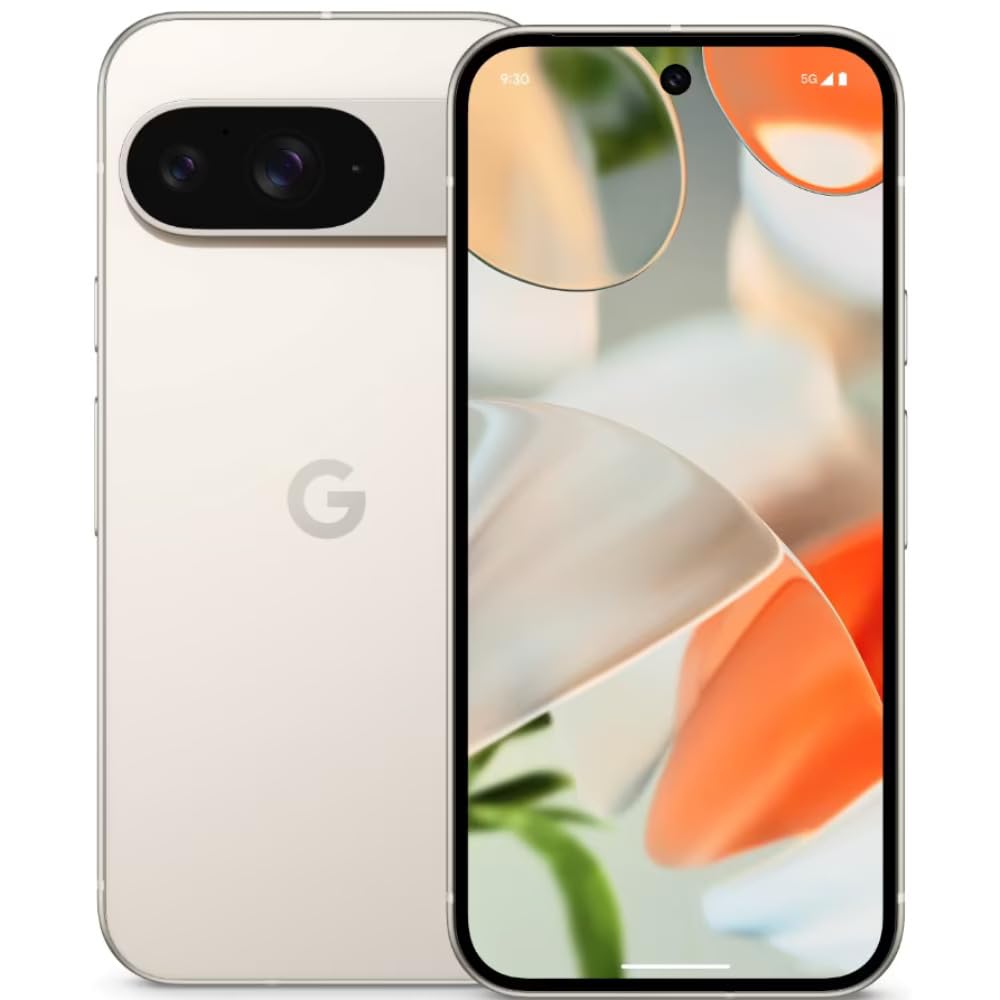
Image: The Google Pixel 9 smartphone, showcasing its sleek design and camera bar on the rear.
2. Eto
2.1. Unboxing ati Ni ibẹrẹ idiyele
Carefully remove all components from the packaging. Before first use, it is recommended to fully charge your Pixel 9 using the provided USB-C to USB-C cable and a compatible power adapter (sold separately).
2.2. Fi kaadi SIM sii
- Locate the SIM card tray on the side of your Pixel 9.
- Insert the SIM ejector tool (included in the box) into the small hole on the tray and press firmly until the tray pops out.
- Place your Nano SIM card(s) into the tray with the gold contacts facing down. The Pixel 9 supports Dual SIM functionality.
- Rọra Titari atẹ naa pada sinu foonu titi ti o fi tẹ sinu aaye.
2.3. Agbara Lori ati Iṣeto ni ibẹrẹ
Press and hold the Power button on the side of the device until the Google logo appears. Follow the on-screen instructions to complete the initial setup, including connecting to Wi-Fi, signing in with your Google account, and setting up security features like fingerprint recognition.
3. Operating Your Google Pixel 9
3.1. Ifihan ati Lilọ kiri
The Pixel 9 features a 6.3-inch OLED display with a dynamic refresh rate up to 120Hz, providing smooth visuals. Navigate the device using touch gestures. Swipe up from the bottom to go home, swipe from the sides to go back, and swipe up and hold for recent apps.
3.2. Iṣẹ ṣiṣe
Powered by the Google Tensor G4 processor and 12 GB of RAM, the Pixel 9 delivers efficient multitasking and responsive performance for applications and games.
3.3. Eto kamẹra
The Pixel 9 is equipped with a dual rear camera system: a 50 MP main sensor and a 48 MP ultrawide lens (123° field of view). The front camera is 10.5 MP. Advanced AI features enhance photography, including:
- Ṣafikun mi: Allows users to insert themselves into photos.
- Pixel Studio: Enables image creation from text prompts.

Image: A visual representation of the Google Pixel 9's AI photo editing capabilities, showing how images can be enhanced or modified.

Image: Screenshots from the Google Pixel 9 illustrating AI functionalities such as Gemini for assistance, advanced Pixel Screenshots, and the 'Circle to Search' feature.
3.4. Batiri ati Ngba agbara
The device includes a 4700 mAh battery. It supports 45W USB-PD fast charging and 15W wireless charging. For optimal charging, use compatible USB-PD chargers.
3.5. Aabo Awọn ẹya ara ẹrọ
Unlock your device securely using the integrated fingerprint recognition sensor.
4. Itọju
4.1. Agbara ati Idaabobo
The Pixel 9 is designed with durability in mind, featuring Corning Gorilla Glass Victus 2 for scratch resistance and protection against minor drops and spills. It is also water resistant.
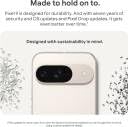
Image: The Google Pixel 9, highlighting its robust construction and the commitment to seven years of OS and security updates, ensuring longevity.
4.2. Software imudojuiwọn
Google provides seven years of OS and security updates for the Pixel 9, ensuring your device remains secure and up-to-date with the latest features. Regularly check for and install available updates via Settings > System > System update.
4.3. Ninu Rẹ Device
To clean your Pixel 9, use a soft, lint-free cloth. Avoid abrasive materials or harsh chemicals. For stubborn marks, slightly dampen the cloth with water. Do not submerge the device in water.
5. Laasigbotitusita
If you encounter issues with your Pixel 9, consider the following general troubleshooting steps:
- Tun Ẹrọ naa bẹrẹ: Tun bẹrẹ irọrun le yanju ọpọlọpọ awọn abawọn sọfitiwia kekere.
- Ṣayẹwo fun Awọn imudojuiwọn sọfitiwia: Ensure your device is running the latest software version.
- Review Awọn igbanilaaye App: If an app is not functioning correctly, check its permissions in Settings.
- Ko kaṣe kuro: For app-specific issues, try clearing the app's cache via Settings > Apps.
- Idapada si Bose wa tele: As a last resort, a factory reset can resolve persistent software problems. Back up your data before performing a factory reset.
For more complex issues or hardware malfunctions, please contact Google Support.
6. Awọn pato
| Ẹya ara ẹrọ | Sipesifikesonu |
|---|---|
| Brand | |
| Awoṣe | Pixel 9 |
| Eto isesise | Android 14 |
| isise | Google Tensor G4 |
| Àgbo | 12 GB |
| Ibi ipamọ inu | 256 GB |
| Iwọn Ifihan | 6.3 inches |
| Ifihan Iru | OLED |
| Ipinnu | 2424x1080 awọn piksẹli |
| Kamẹra ẹhin | 50 MP (Main), 48 MP (Ultrawide) |
| Kamẹra iwaju | 10.5 MP |
| Agbara Batiri | 4700 mAh |
| Gbigba agbara | 45W USB-PD Fast Charging, 15W Wireless Charging |
| Asopọmọra | 5G, Wi-Fi, USB Type C |
| Kaadi SIM Iru | SIM Nano (SIM Meji) |
| Biometric Aabo | Idanimọ itẹka |
| Omi Resistance Ipele | Omi sooro |
| Awọn iwọn (L x W x H) | 15.2 x 7.2 x 0.8 centimeters |
| Iwọn | 198 giramu |
7. Ohun ti o wa ninu Apoti
The Google Pixel 9 retail package includes the following items:
- Google Pixel 9 Smartphone
- USB-C si okun USB-C
- SIM Atẹ ejector Ọpa
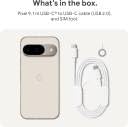
Image: A clear depiction of the Google Pixel 9 and its included accessories: a USB-C to USB-C cable and a SIM ejector tool.
8. Atilẹyin ọja ati Support
8.1. Atilẹyin ọja
Your Google Pixel 9 comes with a 1-year limited warranty from the date of purchase. This warranty covers manufacturing defects. Please retain your proof of purchase for warranty claims.
8.2. Onibara Support
For technical assistance, warranty claims, or further information, please visit the official Google Support website or contact Google customer service. Refer to the Google support page for your region for specific contact details and service center locations.