
Ọja Pariview
The Orbit 62045 Daybreak Programmable Hose Watering Timer is designed to automate your garden watering tasks. It offers two primary modes: Daybreak, which activates watering at sunrise, and Set Time, which allows for scheduled watering at specific intervals and durations. This timer helps ensure consistent watering for your plants while conserving water.
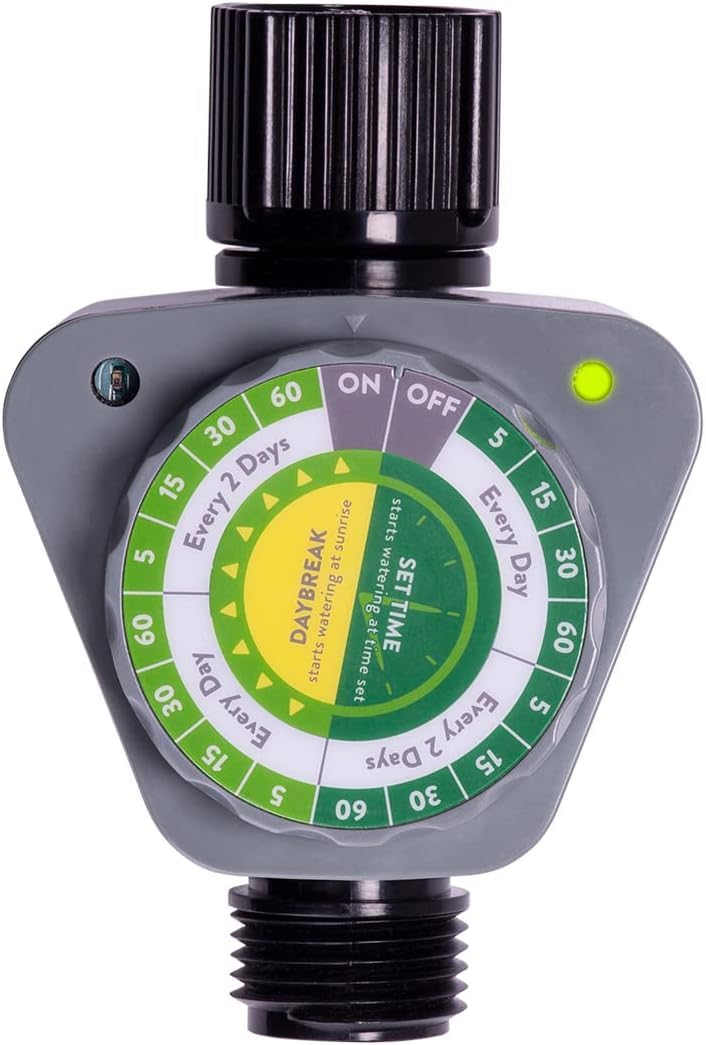
Nọmba 1: The Orbit 62045 Daybreak Programmable Hose Watering Timer. This image displays the gray timer unit with its black hose connectors and the prominent green and white control dial. The dial features settings for 'ON', 'OFF', 'Every Day', 'Every 2 Days', and various watering durations.
Ṣeto
- Fifi sori batiri:
- Wa yara batiri ni ẹhin aago.
- Open the compartment and insert two (2) AA alkaline batteries (not included), ensuring correct polarity.
- Pa yara batiri naa ni aabo lati ṣetọju resistance omi.
- Nsopọ si Faucet:
- Thread the top connector of the timer onto your outdoor faucet. Hand-tighten only. Do not overtighten.
- Ensure the rubber washer is properly seated in the connector to prevent leaks.
- Connecting to Hose:
- Thread your garden hose onto the bottom connector of the timer. Hand-tighten only. Do not overtighten.
Awọn ilana Iṣiṣẹ
The timer features a large, easy-to-read dial for setting your watering preferences.
- Titan/Apapa:
- Turn the dial to the 'ON' position to activate the timer for automatic watering.
- Turn the dial to the 'OFF' position to stop all automatic watering.
- Selecting Watering Mode:
- Daybreak Mode: Rotate the dial to the 'DAYBREAK' section. The photocell on the timer will automatically detect sunlight and initiate watering at sunrise.
- Ṣeto Ipo akoko: Rotate the dial to the 'SET TIME' section. This mode allows you to specify watering duration and frequency.
- Setting Watering Duration (Set Time Mode):
- Within the 'SET TIME' section, select your desired watering duration: 5, 15, 30, or 60 minutes.
- Setting Watering Interval (Set Time Mode):
- Choose between 'Every Day' or 'Every 2 Days' for the watering frequency.
- Agbe pẹlu ọwọ:
- To manually water without altering programmed settings, simply turn the faucet on. The timer allows water to flow through when the faucet is open, regardless of the dial setting.
- Atọka Imọlẹ:
- A green light indicates that a timer setting has been successfully selected.
- A red light indicates that the batteries are low and need to be replaced.
Itoju
- Rirọpo Batiri: Replace batteries when the red indicator light appears. Always use fresh AA alkaline batteries.
- Fifọ́ àlẹ̀: Periodically check the filter washer located in the top connector. Remove and rinse it to clear any debris that may obstruct water flow.
- Igba otutu: Before freezing temperatures occur, disconnect the timer from the faucet and hose. Drain any remaining water and store the timer indoors in a dry, protected area to prevent damage from freezing.
Laasigbotitusita
- Timer Not Watering:
- Ensure the dial is set to an 'ON' or a specific watering mode (Daybreak or Set Time) and not 'OFF'.
- Check battery levels. If the indicator light is red, replace the batteries.
- Verify that the faucet is turned on.
- Inspect the filter washer for clogs and clean if necessary.
- Water Leaking from Connections:
- Ensure all connections are hand-tightened.
- Check that rubber washers are properly seated in both the faucet and hose connections. Replace if damaged.
- Indicator Light Not Functioning:
- Confirm batteries are correctly installed and have sufficient charge.
- The indicator light typically illuminates for a few seconds when a new dial position is selected.
Awọn pato
| Brand | Orbit |
| Nọmba awoṣe | 62045 |
| Ọja Mefa | 4 x 3 x 3 inches (isunmọ) |
| Orisun agbara | Awọn batiri Alkaline 2 AA (kii ṣe pẹlu) |
| Watering Durations | 5, 15, 30, 60 iṣẹju |
| Watering Intervals | Every Day, Every 2 Days |
| Àwọ̀ | Grẹy |
| UPC | 840041575385 |
Atilẹyin ọja ati Support
Fun alaye atilẹyin ọja tabi atilẹyin imọ-ẹrọ, jọwọ tọka si Orbit osise webAaye ayelujara tabi kan si iṣẹ alabara Orbit taara. Pa iwe-ẹri rira rẹ mọ fun awọn ẹtọ atilẹyin ọja.
Orbit Customer Service: Visit Orbit Support Page