
DOOGEE U11-V
DOOGEE U11 Android 15 Tablet
Itọsọna olumulo
Ọja Pariview
The DOOGEE U11 is an 11-inch Android 15 tablet designed for versatile use, from productivity to entertainment. It features a powerful Octa-Core processor, a high-resolution 90Hz display, and a long-lasting 8580mAh battery. This tablet comes equipped with ample storage and expandable memory, along with a suite of accessories to enhance your experience.
Key features include: Android 15 OS, 11-inch IPS 90Hz display, T606 Octa-core processor, 16GB RAM (expandable), 128GB internal storage (expandable up to 2TB), 8580mAh battery, 13MP main camera, 5MP front camera, dual speakers, Dual-Band WiFi, Bluetooth 5.0, AGPS, Face ID, and pre-installed WPS Office.

Image: DOOGEE U11 Android 15 Tablet shown with its full accessory kit, including the tablet, keyboard, mouse, and stylus.
Package Awọn akoonu
Nigbati o ba ṣii package, rii daju pe gbogbo awọn nkan wọnyi wa pẹlu:
- 1 x DOOGEE U11 Tablet
- 1 x Fiimu gilasi tempered
- 1 x Business Leather Case
- 1 x Bluetooth Keypad
- 1 x stylus
- 1 x Asin
- 1 x Ṣaja
- 1 x Iru-C okun USB
- 1 x SIM Card Removal Needle
- 1 x Itọsọna olumulo
- 1 x Apoti Iṣakojọpọ
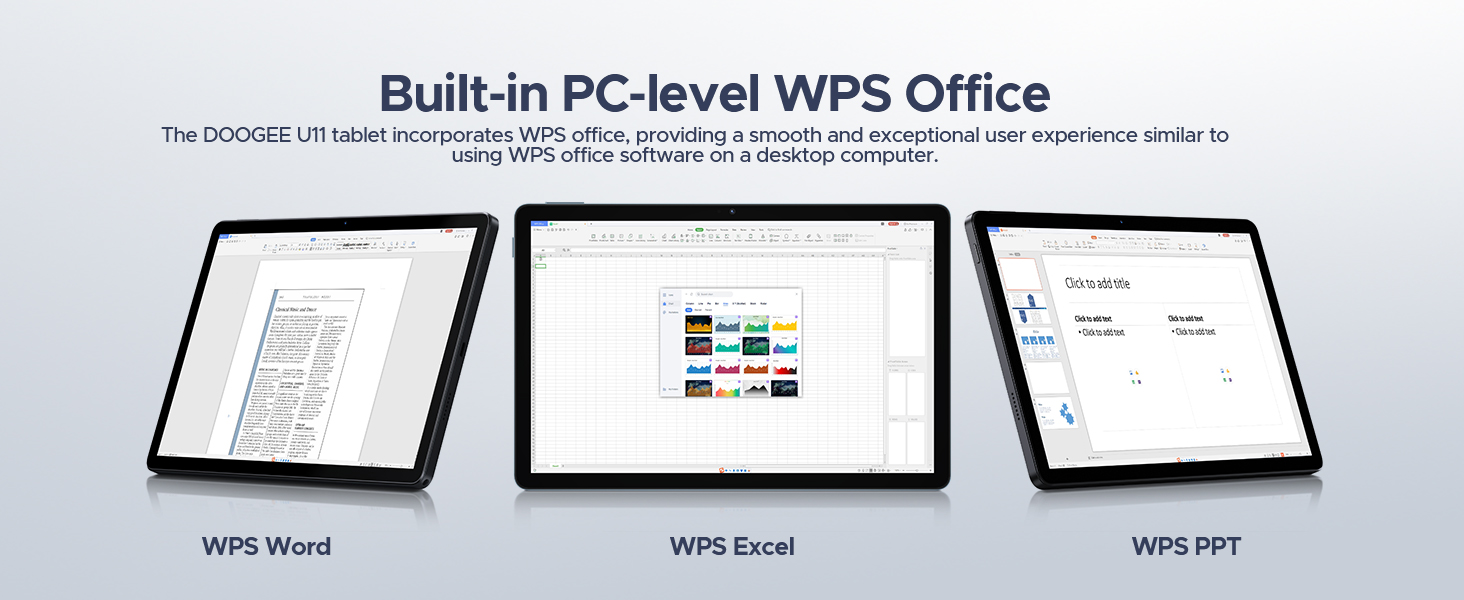
Image: A visual representation of all items included in the DOOGEE U11 Tablet package.
Eto Itọsọna
1. Gbigba agbara akọkọ
Before first use, fully charge the DOOGEE U11 tablet using the provided charger and Type-C USB cable. Connect the cable to the tablet's charging port and the charger to a power outlet. The battery indicator on the screen will show charging progress.
2. Agbara lori / Paa
- Lati Fi agbara: Tẹ bọtini agbara ti o wa ni ẹgbẹ tabulẹti naa ki o si mu titi aami DOOGEE yoo fi han.
- Lati Paarẹ: Press and hold the Power button until the power options menu appears on the screen. Select "Power off" and confirm.
3. Initial Android Setup
Upon first power-on, follow the on-screen prompts to complete the initial Android 15 setup. This includes selecting your language, connecting to a Wi-Fi network, setting up your Google account, and configuring basic security settings.
4. Installing SIM/TF Card (Optional)
If you plan to use mobile data or expand storage, locate the SIM/TF card slot on the tablet. Use the provided SIM card removal needle to open the tray. Carefully insert your Nano-SIM card and/or microSD/TF card (up to 2TB) into the designated slots, ensuring correct orientation. Close the tray securely.
5. Connecting Bluetooth Accessories
The DOOGEE U11 comes with a Bluetooth keyboard and mouse. To pair them:
- Lọ si Eto > Awọn ẹrọ ti a ti sopọ > Bluetooth on your tablet and turn Bluetooth on.
- Put the keyboard/mouse into pairing mode (refer to their individual manuals for specific instructions, usually involves holding a button).
- Select the accessory from the list of available devices on your tablet and follow any on-screen prompts to complete pairing.
Awọn ilana Iṣiṣẹ
Ifihan Awọn ẹya ara ẹrọ
The DOOGEE U11 features an 11-inch IPS full-color display with a 1280x800 pixel resolution, offering clear and vibrant visuals. The 90Hz refresh rate provides a smoother scrolling and gaming experience.

Image: Details of the tablet's 11-inch IPS display, highlighting its resolution, screen-to-body ratio, screen color, and contrast.
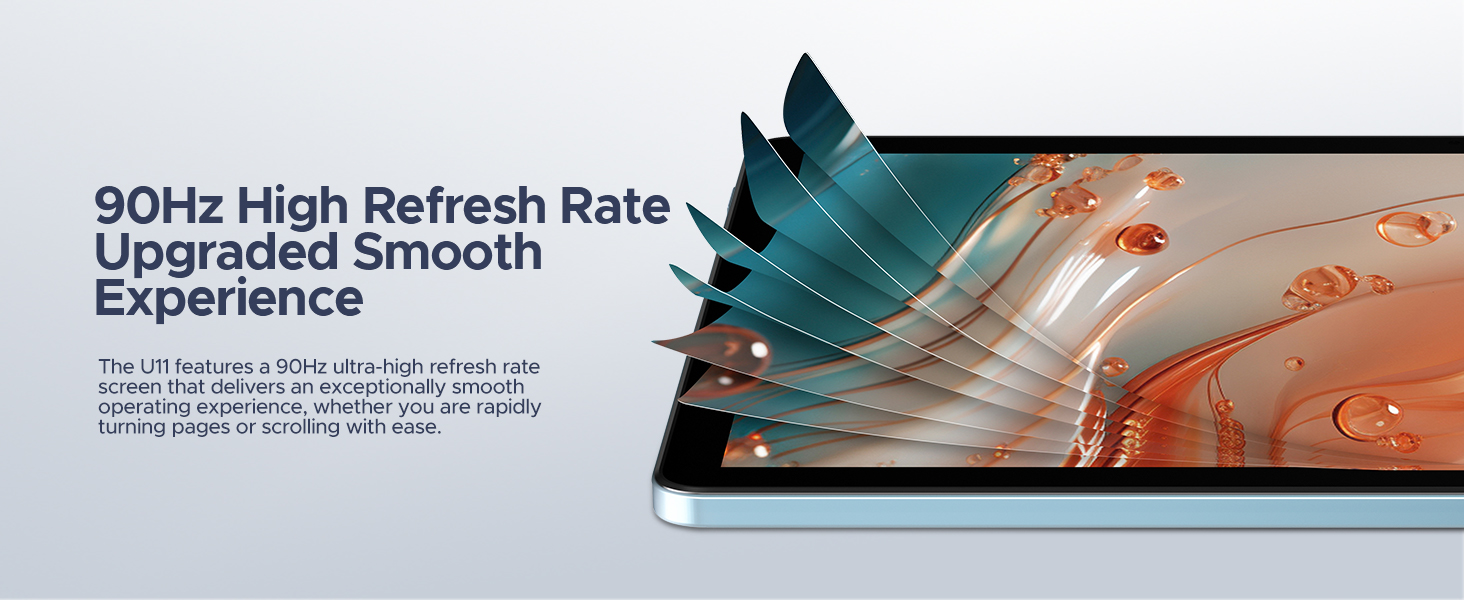
Image: Visual representation of the 90Hz high refresh rate, indicating a smoother user experience.
Išẹ ati Ibi ipamọ
Equipped with a Unisoc T606 Octa-core processor, the tablet ensures efficient multitasking and smooth operation. It comes with 16GB of RAM (4GB physical + 12GB expandable) and 128GB of internal storage, which can be expanded up to 2TB using a microSD/TF card.

Image: Diagram illustrating the Unisoc T606 Octa-core processor, its clock speed, and GPU.

Image: Visualizing the 128GB internal storage with 2TB expansion capability and 4GB physical RAM with 12GB virtual expansion.
Igbesi aye batiri
The 8580mAh battery provides extended usage times for various activities, including standby, music playback, video watching, and web browsing. The tablet also supports reverse charging, allowing it to act as a power bank for other devices.

Aworan: inu view of the tablet highlighting the 8580mAh battery and its estimated usage hours for different activities.
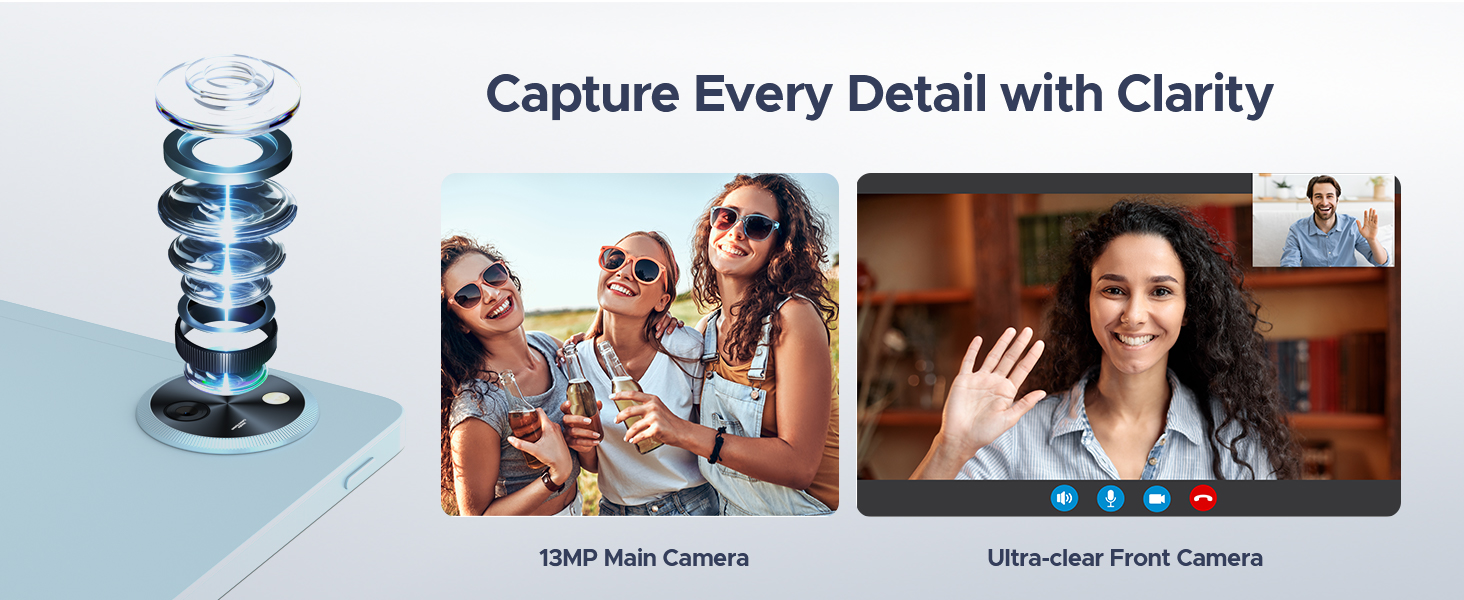
Image: The tablet connected via USB-C to a smartphone, demonstrating its reverse charging capability.
Cameras and Audio
Capture moments with the 13MP main camera and engage in clear video calls using the 5MP front camera. The tablet's professionally tuned dual speakers deliver clear and loud sound for an immersive audio experience.

Image: Depiction of the tablet's 13MP main camera and 5MP front camera, showcasing their clarity for photos and video calls.

Image: The tablet displaying a game, with a visual representation of sound waves emanating from its dual speakers.
Àwọn Ẹ̀yà ara sọ́fítíwè (Android 15)
The DOOGEE U11 runs on the Android 15 operating system, offering a secure and personalized user experience. Features include:
- PC Mode with WPS Office: Easily switch to a PC-like interface for efficient work with pre-installed WPS Office (Word, Excel, PPT).
- Split-screen Functionality: Ṣiṣẹ pupọ nipa ṣiṣe awọn ohun elo meji ni akoko kanna lori iboju.
- Ipo Imọlẹ Buluu Kekere: Dín itujade ina buluu silẹ fun itunu viewlakoko lilo igba pipẹ.
- Awọn iṣakoso obi: Manage and restrict access for children.
- Multi-user Features: Ṣẹda lọtọ olumulo profiles for different individuals.
- Ṣii silẹ oju: Securely unlock your device using facial recognition.
- Widevine L1 Certification: Enjoy 1080P HD streaming on platforms like YouTube, HBO, and Amazon Prime Video.
- Ètò Ìlọsíwájú Tó Péye: Supports GPS, Beidou, GLONASS, Gali, and AGPS for reliable location services.
- Iṣẹ Redio FM: Listen to FM radio stations by plugging in headphones.
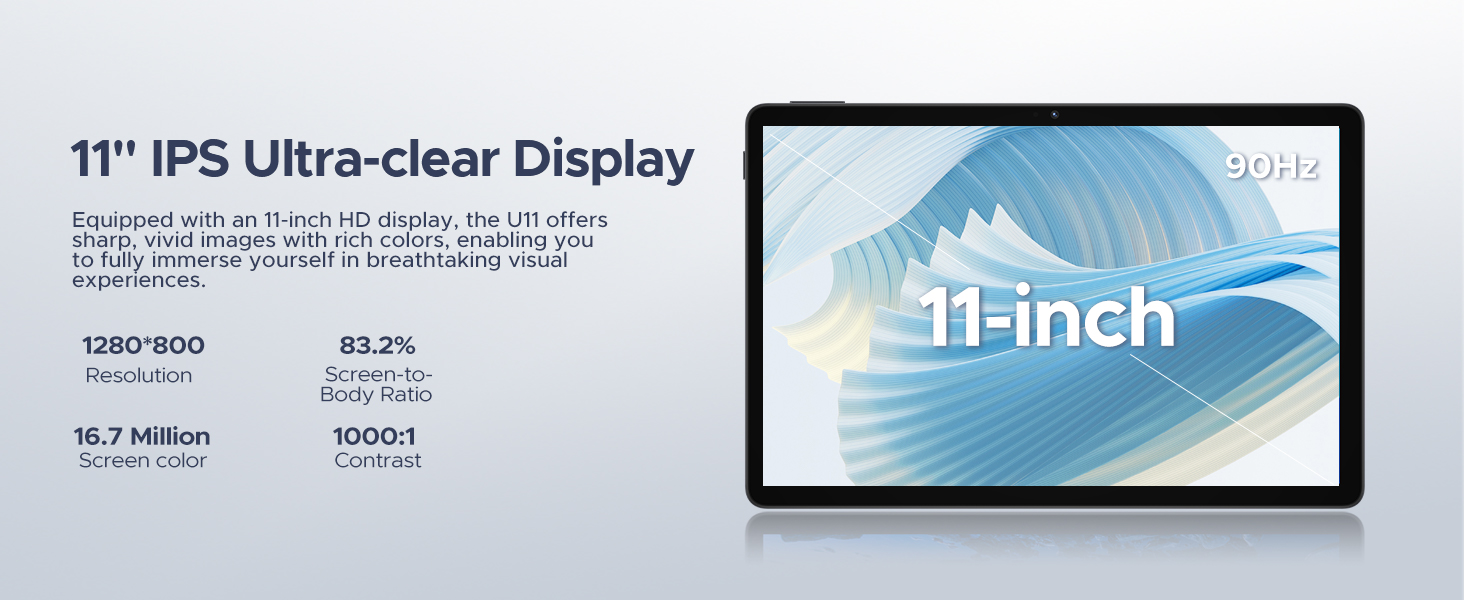
Image: The tablet screen displaying the Android 15 logo and various app icons, emphasizing the new operating system.
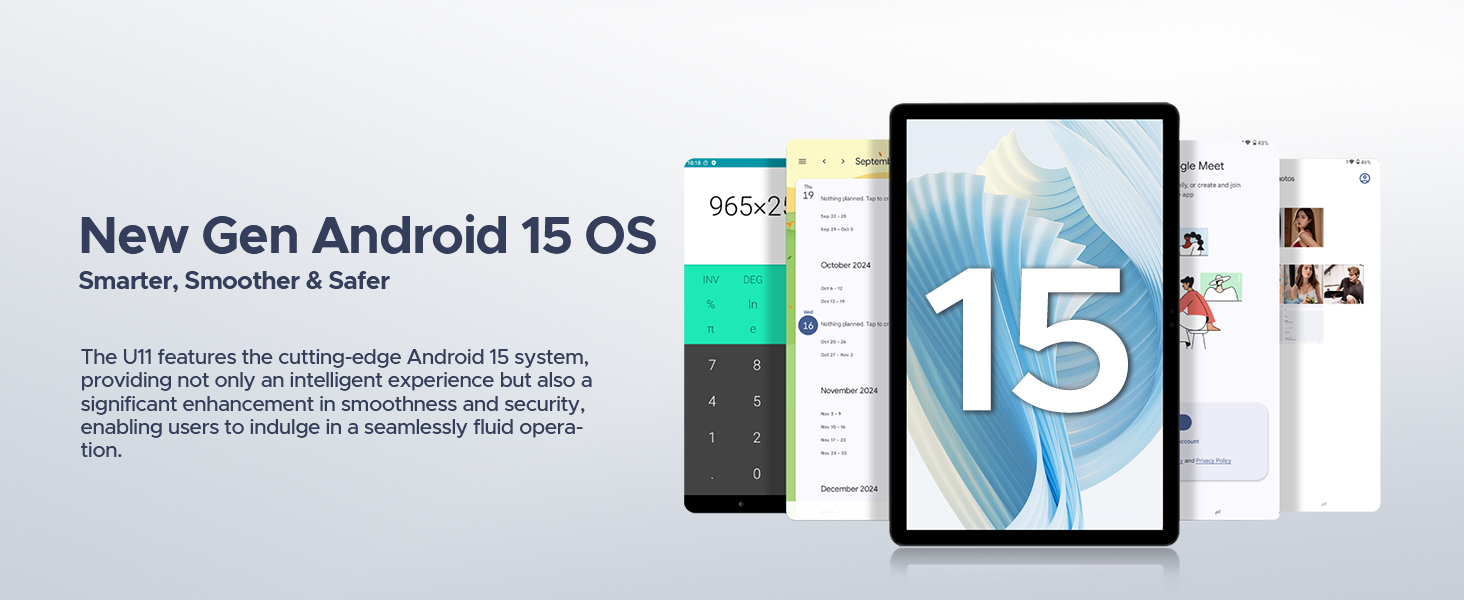
Image: Icons representing Bedtime Mode, Automatic Screen Brightness Adjustment, Multi-user System, and Parental Control features.

Image: The tablet screen showing two applications running side-by-side in split-screen mode, demonstrating multitasking.
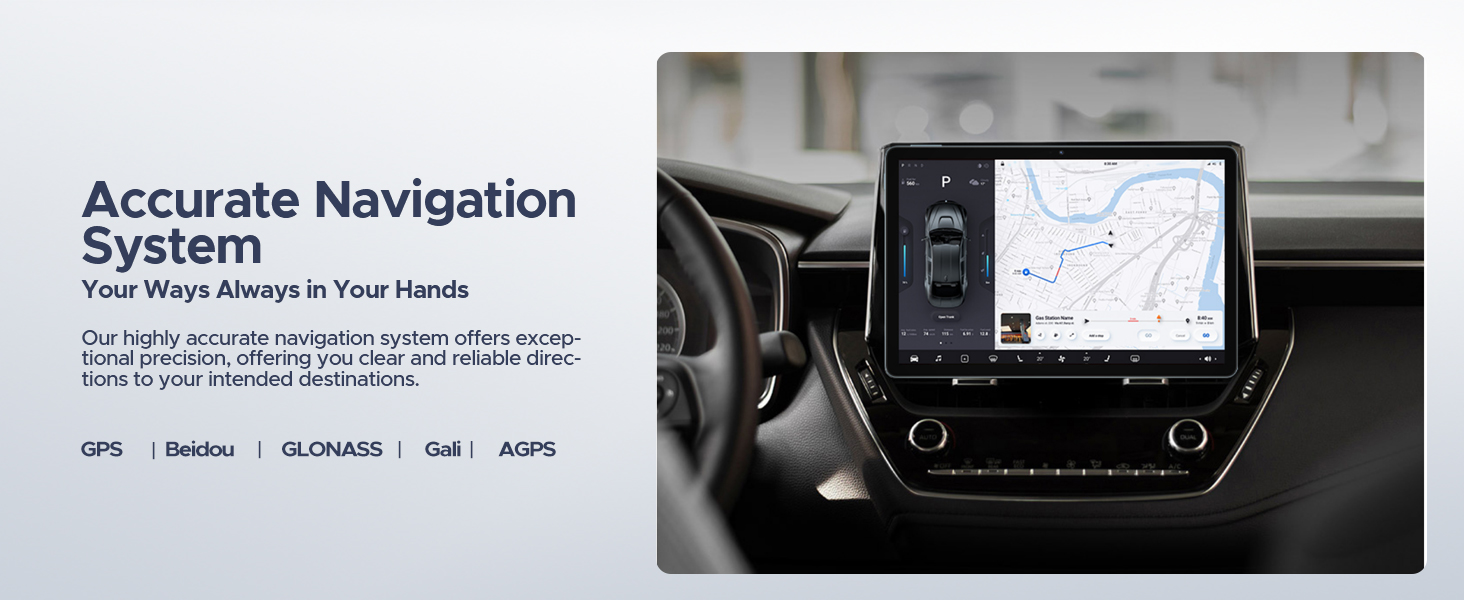
Image: A user comfortably viewing the tablet, with examples of the screen in normal and low blue light modes.
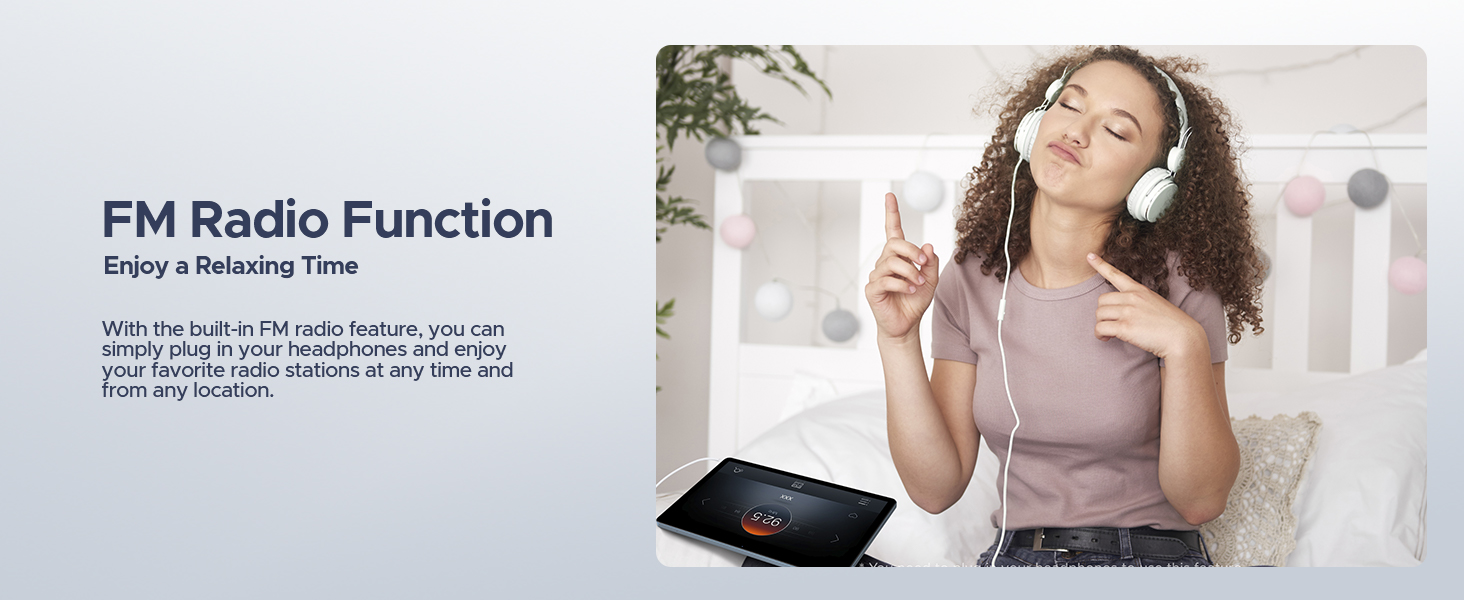
Image: A user unlocking the tablet using facial recognition technology.
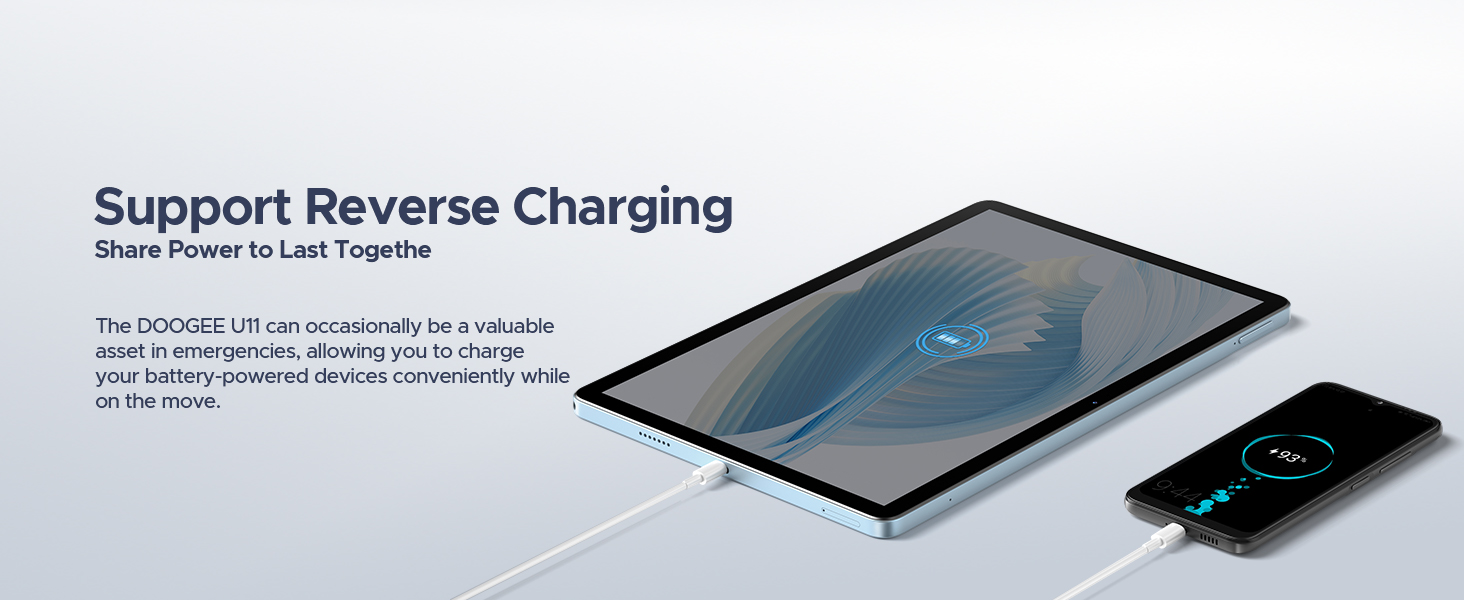
Image: The tablet displaying a high-definition video, with logos of streaming services like Netflix, Hulu, Prime Video, HBO Max, and YouTube, indicating Widevine L1 support.
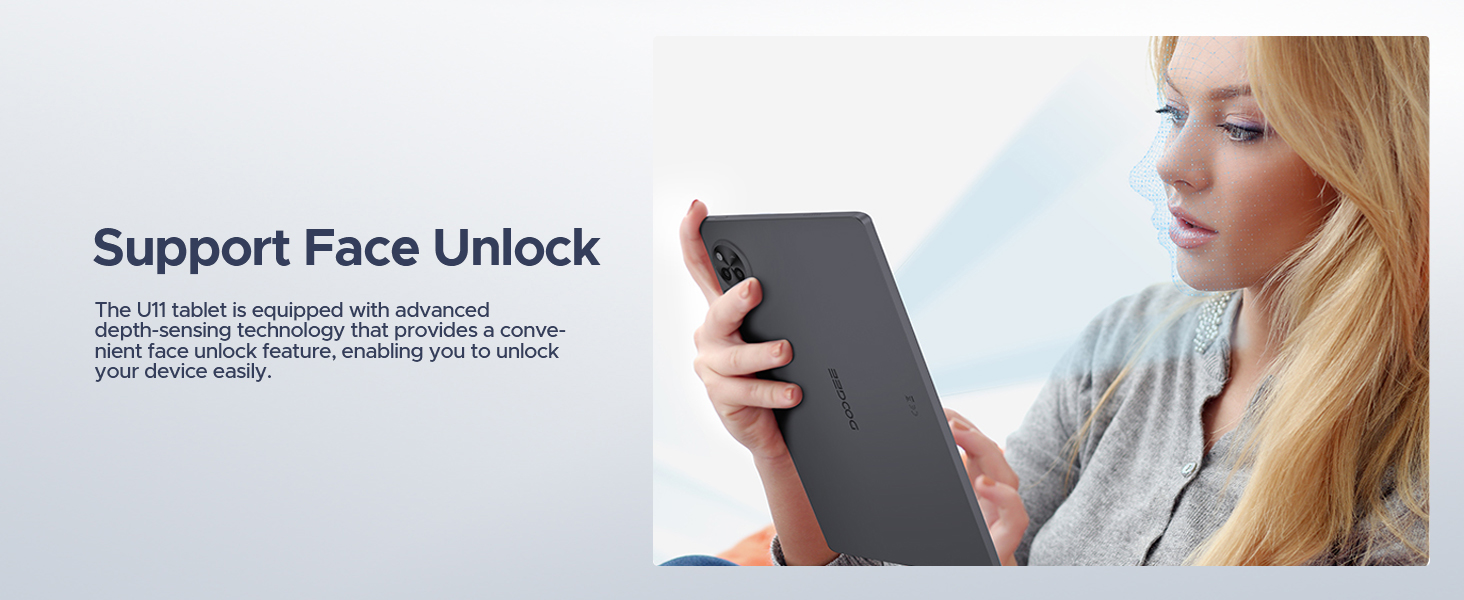
Image: The tablet displaying a navigation map within a car, highlighting support for GPS, Beidou, GLONASS, Gali, and AGPS.
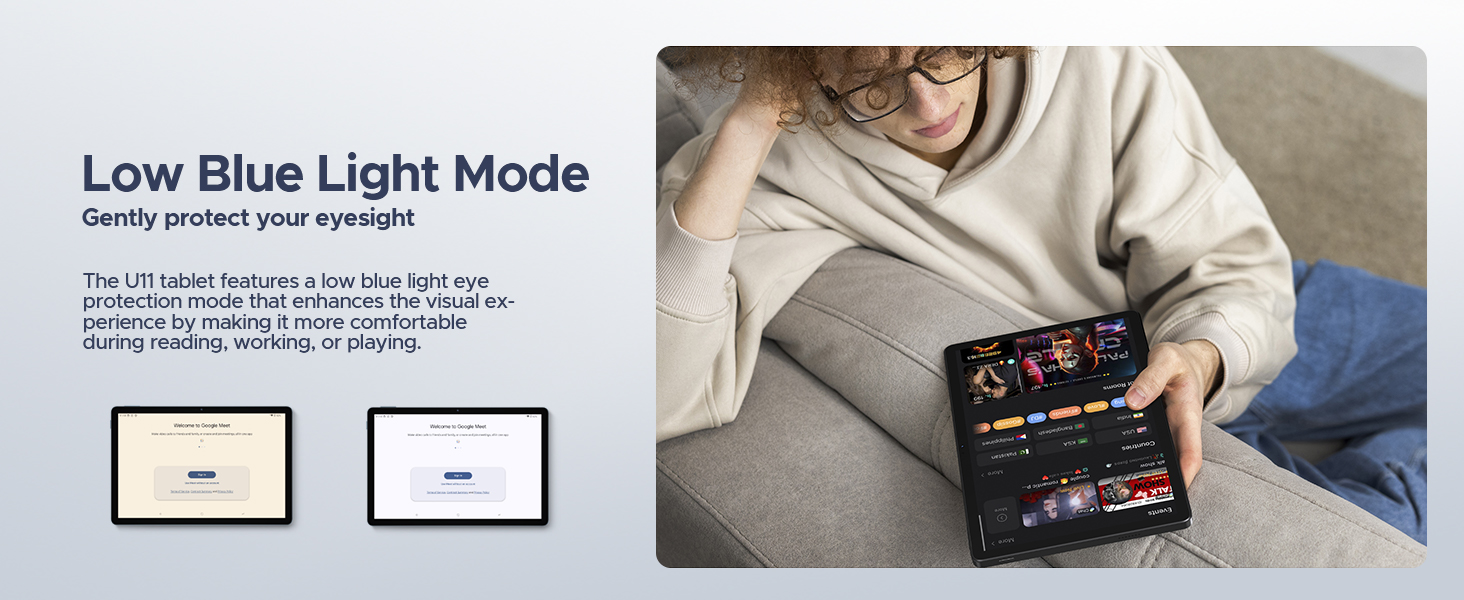
Image: The tablet screen showing WPS Office applications (Word, Excel, PPT), indicating PC-level productivity.
Itoju
Ninu Tablet
Láti nu ìbòjú àti ara tábìlẹ́ẹ̀tì náà, lo aṣọ rírọ̀ tí kò ní àwọ̀. Fún àwọn èérún líle, fi díẹ̀ dì í.ampen the cloth with water or a screen-safe cleaning solution. Avoid using harsh chemicals, abrasive materials, or excessive moisture, as these can damage the device.
Awọn imudojuiwọn Software
Regularly check for and install system updates to ensure optimal performance, security, and access to new features. Go to Eto > Eto > Imudojuiwọn eto to check for available updates. Ensure your tablet is connected to Wi-Fi and has sufficient battery life before starting an update.
Itọju Batiri
Lati pẹ aye batiri:
- Yago fun awọn iwọn otutu to gaju.
- Ma ṣe jẹ ki batiri naa ṣan patapata nigbagbogbo.
- Use the original charger provided with the tablet.
- Tí o bá ń tọ́jú tábìlẹ́ẹ̀tì náà fún ìgbà pípẹ́, gba agbára rẹ̀ sí ìwọ̀n 50% kí o tó pa á.
Laasigbotitusita
This section addresses common issues you might encounter with your DOOGEE U11 tablet.
Ẹrọ Ko Nṣiṣẹ Tan-an
- Ensure the battery is charged. Connect the tablet to the charger and wait a few minutes before attempting to power on again.
- Tẹ bọtini agbara ki o si mu fun o kere ju awọn aaya 10-15 lati fi agbara mu lati tun bẹrẹ.
Iboju ko dahun tabi didin
- Force restart the tablet by pressing and holding the Power button until the device reboots.
- Ti ọrọ naa ba tẹsiwaju, ronu ṣiṣe atunto ile-iṣẹ kan (Note: This will erase all data on the tablet. Back up important data first.).
Wi-Fi or Bluetooth Connectivity Issues
- Toggle Wi-Fi/Bluetooth off and on in the tablet's settings.
- Restart your Wi-Fi router or the Bluetooth device you are trying to connect to.
- Forget the network/device in settings and try reconnecting.
Apps Crashing or Not Responding
- Pa kaṣe app ati data kuro (Eto > Awọn ohun elo > [Orukọ App] > Ibi ipamọ & kaṣe).
- Yọọ kuro ki o tun fi ohun elo iṣoro naa sori ẹrọ.
- Rii daju pe sọfitiwia tabulẹti ti wa ni imudojuiwọn.
Awọn pato
| Ẹya ara ẹrọ | Ẹ̀kúnrẹ́rẹ́ |
|---|---|
| Brand | DOOGEE |
| Orukọ awoṣe | U11-V |
| Eto isesise | Android 15 |
| Iwon iboju | 11 inches |
| Ipinnu Iboju ti o pọju | 1280 * 800 awọn piksẹli |
| isise | 1.6 GHz Octa-Core (Unisoc T606) |
| Àgbo | 16GB (4GB physical + 12GB expandable) |
| Ibi ipamọ inu | 128 GB |
| Expandable Ibi ipamọ | Títí dé 2 TB (Káàdì TF) |
| Agbara Batiri | 8580mAh |
| Kamẹra akọkọ | 13MP |
| Kamẹra iwaju | 5MP |
| Asopọmọra | Dual-Band WiFi (5GHz/2.4GHz), Bluetooth 5.0, AGPS |
| Awọn iwọn (LxWxH) | 10.1 x 6.67 x 0.31 inches |
| Iwọn Nkan | 3.27 iwon |
| Àwọ̀ | Grẹy |
Atilẹyin ọja ati Support
The DOOGEE U11 tablet comes with a two-year warranty service. DOOGEE also offers lifetime technical support for this product. If you encounter any issues or have questions, customer support is available to assist you within 24 hours.
For support, please refer to the contact information provided in your product packaging or visit the official DOOGEE webojula.

Image: Information regarding DOOGEE's customer service, including 30-day money-back guarantee, 2-year limited warranty, and 24/7 online support.
Ask a question about this manual
Ask about setup, troubleshooting, compatibility, parts, safety, or missing instructions. Manuals+ will review the question and use this page’s manual context to help answer it.