
1. Ifihan
The QOMO QPC 70 is an 8MP USB document camera designed for various applications, including classroom teaching, remote learning, and professional presentations. It features high-resolution imaging, adjustable LED lighting, autofocus, and image manipulation capabilities to enhance visual communication.
2. Ohun ti o wa ninu Apoti
Ṣọra si apoti naa ki o rii daju pe gbogbo awọn nkan wa:
- QOMO QPC 70 Document Camera
- USB-C Adapter
3. Awọn ẹya Ọja
The QPC 70 document camera offers a range of features to support diverse educational and professional needs:
- Ipinnu Iyatọ: Supports resolutions up to 3264x2448 (8MP) for clear image capture.
- Imọlẹ Adijositabulu: Features 3-level LED lights and 10-level image exposure control.
- Advanced Auto-Focus: Ensures documents and objects are always in sharp focus.
- Image Flip Function: Allows for easy horizontal and vertical image inversion.
- High-Freedom Pivot: Multi-angle adjustable arm for flexible positioning and a maximum A3-sized viewibiti o wa.
- Ibamu Ọpọ-Eto: Compatible with Windows, Mac, and Chrome OS.
- Awọn Gbohungbohun Meji: Integrated for clear audio capture.

The QOMO QPC 70 document camera set up on a desk, connected to a laptop, demonstrating its use for displaying documents. Key features like high resolution, dual microphones, image flip, autofocus, and LED lighting are highlighted.

The QPC 70 document camera is shown in a classroom environment, highlighting its portability and suitability for various teaching scenarios.
4. Eto
4.1 System Awọn ibeere
Ensure your computer meets the following operating system requirements:
- Windows (XP/7/8/9/10/11)
- Mac OS
- Chrome OS
4.2 ti ara Asopọ
- Unfold the document camera arm and position it as desired.
- Connect the USB cable from the QPC 70 to an available USB port on your computer. If your computer only has USB-C ports, use the provided USB-C adapter.
- The camera should be automatically recognized by your operating system.
- Open your preferred video conferencing software (e.g., Zoom, Skype) or camera application.
- In the software settings, select "USB Camera" as your video input device.

The document camera is shown connected to a laptop, ready for use. This illustrates the simple plug-and-play setup.

Detail showing the USB and USB-C connectivity, highlighting the camera's versatile connection options and robust design features like screw-fixed joints and cable routing.
5. Awọn ilana Iṣiṣẹ
5.1 Adjusting the Camera Arm
The QPC 70 features a highly flexible arm that can be adjusted to various angles to capture different perspectives or objects. Carefully pivot the joints to achieve the desired height and angle. The arm can also be folded for portability and storage.

Illustration of the document camera's multi-angle adjustment, demonstrating its flexibility and how it can be folded for easy transport or storage.
5.2 Auto-Focus Function
The camera is equipped with an automatic focusing system. To ensure your document or object is clear, the camera will automatically adjust its focus. If manual adjustment is needed, use the focus controls on the camera head.
A visual representation of the auto-focus feature, showing how a blurry image is automatically sharpened by the camera, ensuring clarity for displayed content.
5.3 LED ina Iṣakoso
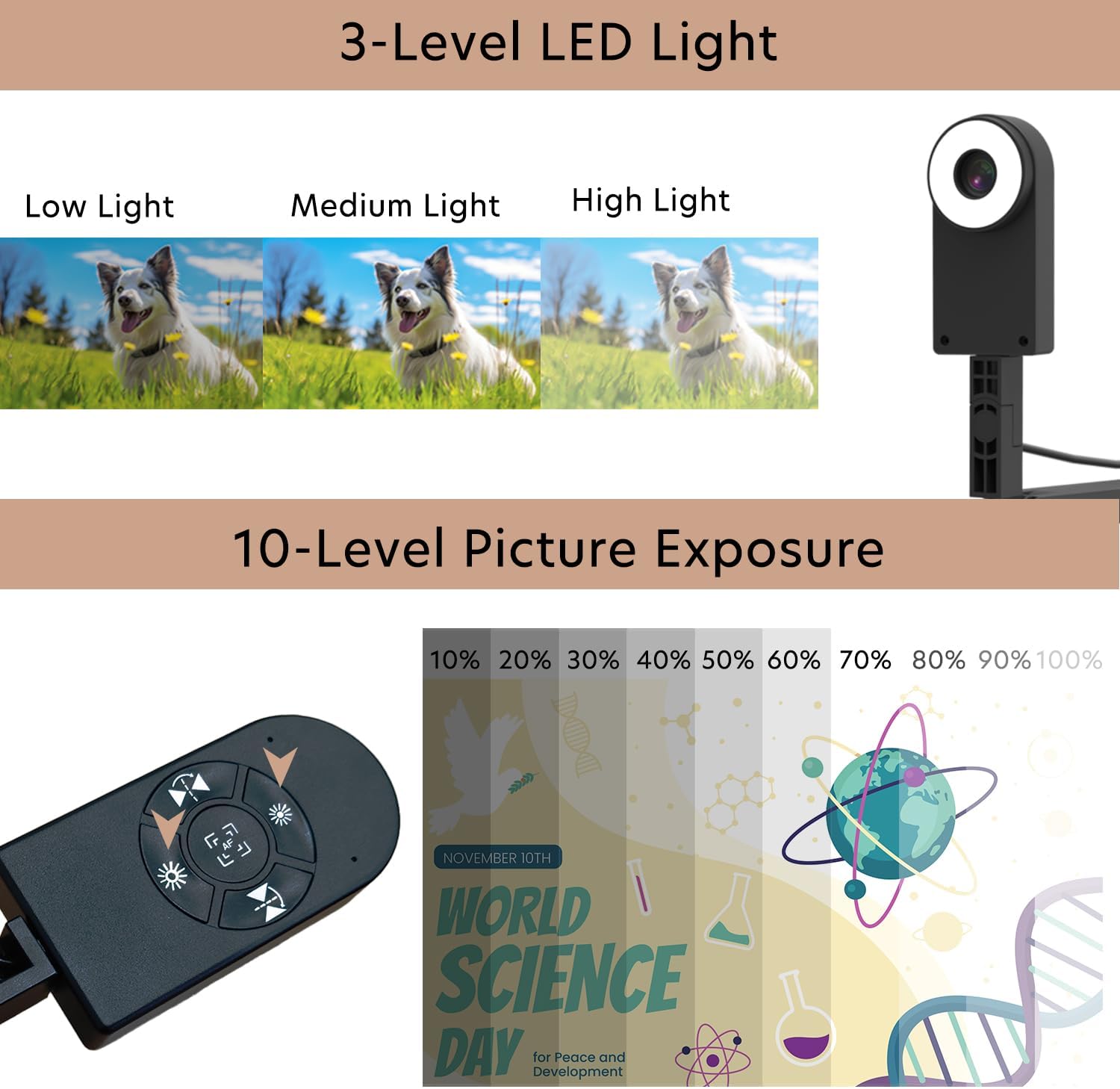
The QPC 70 has a built-in LED light with three adjustable levels (Low, Medium, High) to illuminate your documents or objects. Press the light button on the camera head to cycle through the brightness levels.

This image illustrates the three levels of LED lighting available on the camera, along with the 10-level picture exposure control, allowing users to optimize visibility in various lighting conditions.
5.4 Image Exposure Adjustment
The camera offers 10 levels of image exposure control. Use the exposure buttons on the camera head to adjust the brightness of the captured image, compensating for different ambient light conditions.
Refer to the image in section 5.3 for visual guidance on exposure controls.
5.5 Image Flip Function
The image flip function allows you to correct the orientation of your displayed content. Use the dedicated buttons on the camera head to horizontally or vertically invert the image as needed.
This image visually explains how to adjust the image orientation using the horizontal and vertical flip functions, showing examples of text and images before and after reversal.
5.6 Software ibamu
The QPC 70 is compatible with various operating systems and can be used with popular communication and presentation software:
- Awọn ọna ṣiṣe: Windows (XP/7/8/9/10/11), Android, Mac OS
- Awọn ohun elo: Zoom, YouTube, Facebook, Skype, Microsoft Teams, Messenger

Ipariview of the various operating systems and media platforms that are compatible with the QPC 70 document camera, including Zoom, YouTube, Facebook, Skype, Android, Windows, and Mac OS.
6. Itọju
6.1 Itọju ati Itọju
- To clean the camera lens, use a soft, lint-free cloth specifically designed for optical surfaces. Avoid abrasive materials or harsh chemicals.
- For the camera body, wipe with a dry or slightly damp soft cloth. Do not use liquid cleaners directly on the device.
- Keep the device away from excessive dust, moisture, and extreme temperatures.
- When not in use, fold the camera arm and store it in a safe place to prevent damage.
7. Laasigbotitusita
If you encounter issues with your QPC 70 document camera, refer to the following table for common problems and solutions:
| Isoro | Owun to le Solusan |
|---|---|
| No image displayed / Camera not detected |
|
| Aworan jẹ blurry |
|
| Aworan dudu ju tabi didan ju |
|
| Aworan jẹ lodindi tabi digi |
|
8. Awọn pato
Detailed technical specifications for the QOMO QPC 70 document camera:
| Ẹya ara ẹrọ | Ẹ̀kúnrẹ́rẹ́ |
|---|---|
| Orukọ awoṣe | QPC 70 |
| Ipinnu Iduro ti o munadoko | 8 MP (3264x2448) |
| Ifihan Iṣakoso Iru | Afowoyi |
| Idojukọ Iru | Idojukọ aifọwọyi |
| Ni wiwo Hardware | USB 2.0, USB Iru C |
| Àwọ̀ | Dudu |
| Iwọn Nkan | 1.85 iwon |
| Olupese | QOMO |
| -Itumọ ti Media | Kamẹra iwe |
9. atilẹyin ọja Information
The QOMO QPC 70 Document Camera comes with a 1-odun atilẹyin ọja lati ọjọ ti o ra. Atilẹyin ọja yi ni wiwa awọn abawọn iṣelọpọ labẹ lilo deede. Jọwọ ṣe idaduro ẹri rira rẹ fun awọn iṣeduro atilẹyin ọja.
10. Onibara Support
For further assistance, technical support, or warranty inquiries, please contact QOMO customer service through their official website or the retailer where the product was purchased. Ensure you have your model number (QPC 70) and proof of purchase ready when contacting support.