
Macally BTZKEYA
MACALLY BTZKEYA Bluetooth Wireless Keyboard for Mac (JIS Layout) - Rechargeable, Multi-Device Pairing Instruction Manual
Model: BTZKEYA
Ọrọ Iṣaaju
Welcome to the Macally family. Thank you for purchasing the ACEBTKEY series keyboard. Our mission is to provide visually appealing, high-quality, and affordable peripherals and accessories to satisfy our customers. To achieve this, we create innovative and practical products, prioritizing ease of use above all else.
This manual provides comprehensive instructions for setting up, operating, and maintaining your new Macally BTZKEYA Bluetooth Wireless Keyboard. Please read it thoroughly to ensure optimal performance and longevity of your device.
Package Awọn akoonu
- Macally BTZKEYA Bluetooth Wireless Keyboard
- USB-C si okun USB-A Ngba agbara
- Itọsọna olumulo
System Awọn ibeere
- Bluetooth-enabled computer, laptop, smartphone, or tablet.
- Mac OS X or later.
- A USB-A port on your laptop or desktop PC for charging the keyboard.
- If your laptop or desktop PC only has USB-C ports, a USB-C to USB-A hub or adapter is required for charging.
Ọja Pariview
The Macally BTZKEYA keyboard is designed for efficiency and comfort, featuring a full-size layout with a numeric keypad and dedicated macOS shortcut keys. Its slim profile and scissor-switch keys provide a quiet and responsive typing experience.

Nọmba 1: The Macally BTZKEYA keyboard's slim profile and integrated kickstand. The keyboard is only 0.8 inches (approx. 2cm) thick.

Nọmba 2: The keyboard features 111 scissor-switch keys and 14 dedicated shortcut keys for macOS, enhancing productivity.

Nọmba 3: Scissor-switch keycaps provide a smooth, tactile, and quiet typing experience.

Nọmba 4: The keyboard supports multi-sync Bluetooth, allowing pairing with up to three devices like MacBook, iMac, iPad, and iPhone, with a wireless range of 30 feet.
Ṣeto
Ngba agbara si Keyboard
Before initial use, ensure the keyboard is fully charged. The built-in rechargeable battery provides extended usage.
- Connect the USB-A end of the included cable to a USB-A port on your computer, laptop, or a USB-compatible AC adapter.
- Connect the USB-C end to the USB-C charging port located on the side of the keyboard.
- Akiyesi: This cable is for charging only. The keyboard will not function as a wired device when connected via this cable.
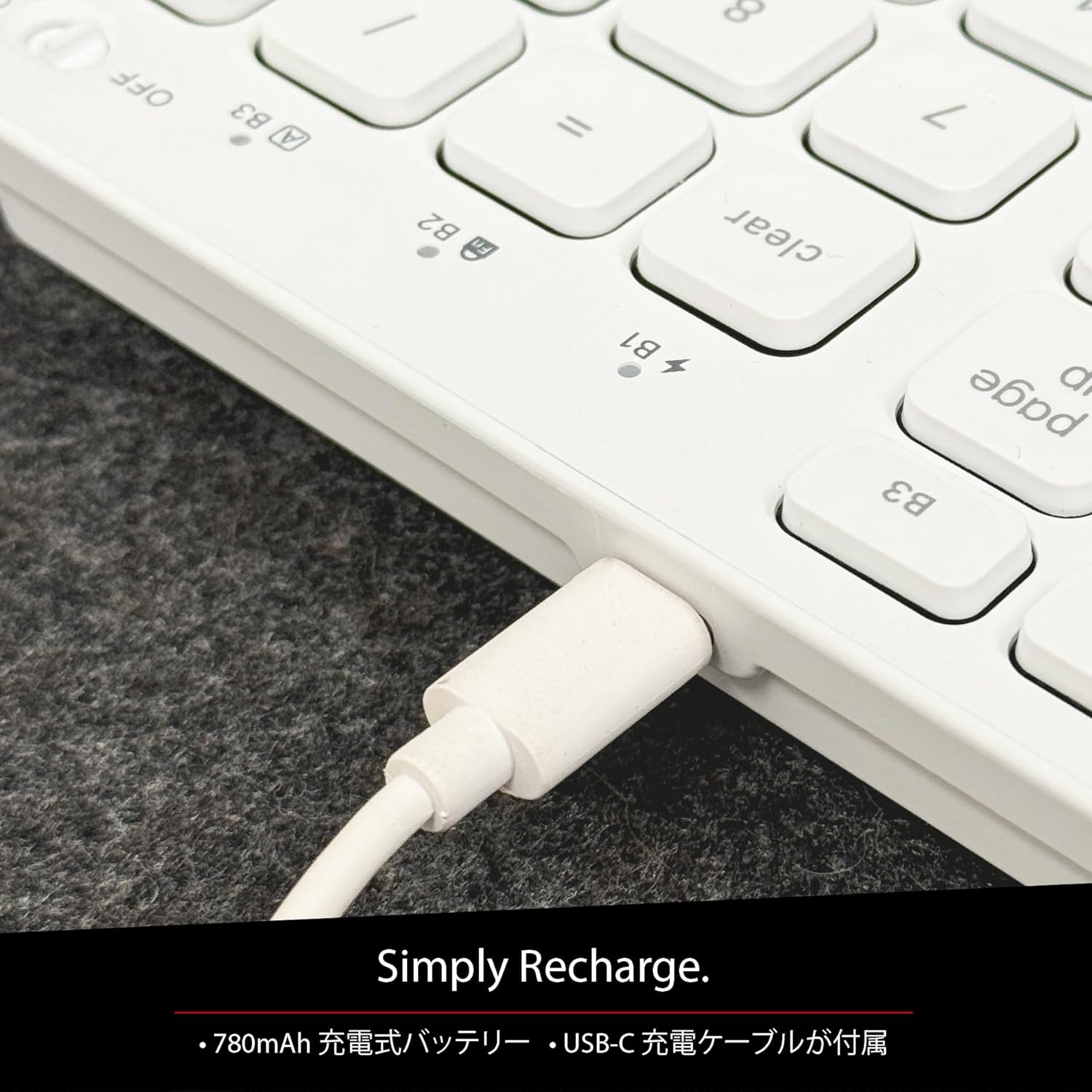
Nọmba 5: The USB-C charging port for easy recharging. The keyboard includes a 780mAh rechargeable battery.
Awọn itọkasi LED gbigba agbara:
- LED pupa: Gbigba agbara ni ilọsiwaju.
- Green Green: Ti gba agbara ni kikun.
- All Bluetooth Channel LEDs flashing: Batiri naa kere.
Ilana sisopọ Bluetooth
The keyboard can be paired with up to three Bluetooth-enabled devices. The number keys 1, 2, and 3 on the top row (not the numeric keypad) are labeled B1, B2, and B3, representing the Bluetooth channels.
Ensure the keyboard is powered on and sufficiently charged before starting the pairing process. The power switch is a slide button located on the side of the keyboard (Red for Off, Green for On).
Steps to Pair (using Bluetooth Channel 1 (B1) as an example):
- On the device you wish to connect (laptop, desktop, tablet, smartphone, etc.), open the Bluetooth settings screen.
- Lórí keyboard, tẹ kí o sì di mọ́lẹ̀ fn bọtini, ki o si tẹ awọn 1 key (B1) to select Bluetooth Channel 1.
- Next, press and hold the fn key and simultaneously press the P key. This will put the keyboard into pairing mode, and the B1 LED will flash rapidly.
- On your device's Bluetooth settings screen, click or tap the device name "ACEBTKEY" to initiate pairing.
- Once pairing is complete, the B1 LED on the keyboard will remain steadily lit in blue.
To connect to a second or third device, follow the same procedure using B2 (fn+2) or B3 (fn+3).
Keyboard Setup Assistant (For Mac Users)
If your Bluetooth keyboard is not immediately recognized by macOS, the Keyboard Setup Assistant will automatically launch, prompting you to specify the keyboard type. Follow the on-screen instructions.
- When prompted, press the Z bọtini.
- Lẹhinna, tẹ bọtini naa ? bọtini.
- Confirm that "ANSI" is selected as the keyboard type and click "Done".
If keys do not respond or different characters are entered than printed, you may need to manually launch the Keyboard Setup Assistant:
- Open "System Settings" or "System Preferences".
- Select "Keyboard" and click "Change Keyboard Type".
- When the "Keyboard Setup Assistant" window appears, click "Continue" and follow the on-screen instructions.
Awọn ilana Iṣiṣẹ
Switching Between Multiple Devices
After pairing all your devices with the keyboard, you can easily switch between them:
- Tẹ mọlẹ fn bọtini.
- Nigba dani fn, press the desired Bluetooth channel key (B1, B2, tabi B3).
- Release both keys. The keyboard will switch to the selected device.
Shortcut and Function Keys
The F-row (function key row) at the top of the keyboard defaults to shortcut mode. These keys perform functions indicated by the small white icons or text printed on them (e.g., play, pause, cut, copy).
To use standard function keys (F1, F2, etc.), press the desired function key while holding down the fn bọtini.
You can toggle between shortcut mode and standard F1-F12 function keys at any time by pressing fn + Esc. After switching, if you wish to use a shortcut function, press the desired shortcut key while holding down the fn bọtini. Titẹ fn + Esc again will return the keyboard to shortcut mode.
F-Key Functions:
| Išẹ | Mac OSX | Windows | iOS | Android |
|---|---|---|---|---|
| fn+esc (Toggle F-row mode) | ✓ | ✓ | ✓ | ✓ |
| Imọlẹ iboju isalẹ | ✓ | ✓ | ||
| Imọlẹ iboju Up | ✓ | ✓ | ||
| Ge | ✓ | ✓ | ✓ | ✓ |
| Daakọ | ✓ | ✓ | ✓ | ✓ |
| Lẹẹmọ | ✓ | ✓ | ✓ | ✓ |
| Ti tẹlẹ Track | ✓ | ✓ | ✓ | ✓ |
| Ṣiṣẹ / Sinmi | ✓ | ✓ | ✓ | ✓ |
| Next Track | ✓ | ✓ | ✓ | ✓ |
| Pa ẹnu mọ́ | ✓ | ✓ | ✓ | ✓ |
| Iwọn didun isalẹ | ✓ | ✓ | ✓ | ✓ |
| Iwọn didun soke | ✓ | ✓ | ✓ | ✓ |
| Titẹ sita | ✓ | |||
| Mac: Eject Mac / Windows: Media Eject | ✓ | ✓ | ||
| Area Capture (Screenshot) | ✓ | |||
| Keyboard loju iboju | ✓ | |||
| àwárí | ✓ | ✓ | ✓ | ✓ |
| Bọtini Ile | ✓ | ✓ | ||
| Akojọ aṣyn | ✓ | |||
| Titiipa | ✓ | ✓ | ✓ | ✓ |
Akiyesi pataki: Standard function keys (F1-F12) may have special functions assigned by the connected operating system or currently running programs.
Ipo fifipamọ agbara
The keyboard is designed with power-saving features. Based on an average of 3 hours of daily use, the built-in rechargeable battery can last up to 3 months on a single charge.
Itoju
To ensure the longevity and optimal performance of your Macally BTZKEYA keyboard, please follow these maintenance guidelines:
- Keep the device away from liquids, moisture, and water.
- Use the device only within the specified temperature range of 0°C (32°F) to 40°C (104°F).
- Clean the keyboard regularly with a soft, dry cloth. Avoid using harsh chemicals or abrasive materials.
- Do not disassemble the device. Disassembly will void the warranty.
- When disposing of the product, do not treat it as general waste. Take it to your nearest recycling center for proper disposal.
Laasigbotitusita
Awọn oran Isopọpọ:
- If pairing fails, delete all existing pairing records for the keyboard on your device and attempt to reconnect.
- Rí i dájú pé keyboard ti gba agbára dáadáa àti pé ó ti ń ṣiṣẹ́.
- Rii daju pe Bluetooth ẹrọ rẹ ti ṣiṣẹ ati wiwa.
Key Response Issues:
- If keys do not respond or different characters are entered than printed, manually launch the Keyboard Setup Assistant on your Mac (refer to the "Keyboard Setup Assistant" section under Setup).
- Ensure the keyboard is within the 30-foot wireless range of your device.
Ibamu Gbogbogbo:
- While designed for Mac, this keyboard is also compatible with Windows PCs. However, some functions may behave differently depending on the operating system or running programs.
Awọn pato
| Ẹya ara ẹrọ | Ẹ̀kúnrẹ́rẹ́ |
|---|---|
| Brand | Macally |
| Nọmba awoṣe | BTZKEYA |
| Nọmba ti Awọn bọtini | 111 keys (Mac layout) |
| Iru Yipada Bọtini | Scissor-yipada |
| Asopọmọra Technology | Bluetooth |
| Olona-Device Support | Titi di awọn ẹrọ 3 |
| Agbara Batiri | 780mAh (Agba agbara) |
| Gbigba agbara Port | USB-C |
| Ọja Mefa | 42 x 14 x 2 cm |
| Iwọn Ọja | 650 g |
| Iṣeduro Lilo | Multimedia, Everyday Use, Personal, Education, Student, Business |
Alaye atilẹyin ọja
Macally Peripherals warrants this product against defects in title, materials, and workmanship for a period of one year from the date of purchase. If a defect is found in the product, Macally's sole obligation and your sole remedy will be to repair or replace the product.
This is a limited warranty applicable only to the product accompanied by this user guide. This warranty does not apply in the following cases:
- Lilo tabi lilo ọja naa ni ilokulo.
- Exposure to abnormal electrical or environmental conditions.
- Use under conditions not considered normal use.
- Disassembly of the device.
Macally Peripherals' liability arising from this warranty and sale is limited to a refund of the purchase price. Macally is not responsible for the cost of procuring substitute products or services, lost profits, or any other consequential, incidental, direct, or indirect damages. These limitations apply even if the limited remedies fail of their essential purpose.
Oluranlowo lati tun nkan se
For technical assistance, please contact Macally support during the following hours:
- Awọn wakati iṣẹ: Monday to Friday, 9 AM to 5 PM (Pacific Standard Time)
- Imeeli: techsupport@macal.com
When contacting support, please have your product model number (BTZKEYA) and purchase information ready.
Gbólóhùn Ibamu FCC
Ẹrọ yii ni ibamu pẹlu Apá 15 ti Awọn ofin FCC. Isẹ jẹ koko ọrọ si awọn ipo meji wọnyi: (1) Ẹrọ yii le ma fa kikọlu ipalara, ati (2) ẹrọ yii gbọdọ gba kikọlu eyikeyi ti o gba, pẹlu kikọlu ti o le fa iṣẹ ti ko fẹ.
Awọn iyipada tabi awọn iyipada ti ko fọwọsi ni pato nipasẹ ẹgbẹ ti o ni iduro fun ibamu le sọ aṣẹ olumulo di ofo lati ṣiṣẹ ohun elo naa.
Ohun elo yii ti ni idanwo ati rii lati ni ibamu pẹlu awọn opin fun ẹrọ oni nọmba Kilasi B, ni ibamu si Apá 15 ti Awọn ofin FCC. Awọn opin wọnyi jẹ apẹrẹ lati pese aabo to tọ si kikọlu ipalara ni fifi sori ibugbe kan. Ẹrọ yii n ṣe ipilẹṣẹ, nlo, ati pe o le tan agbara ipo igbohunsafẹfẹ redio ati, ti ko ba fi sii ati lo ni ibamu pẹlu awọn ilana, o le fa kikọlu ipalara si awọn ibaraẹnisọrọ redio. Sibẹsibẹ, ko si iṣeduro pe kikọlu ko ni waye ni fifi sori ẹrọ kan pato. Ti ohun elo yii ba fa kikọlu ipalara si redio tabi gbigba tẹlifisiọnu, eyiti o le pinnu nipasẹ titan ohun elo naa ni pipa ati tan, a gba olumulo niyanju lati gbiyanju lati ṣatunṣe kikọlu naa nipasẹ ọkan tabi diẹ ẹ sii ti awọn iwọn wọnyi:
- Reorient tabi tun eriali gbigba pada.
- Mu iyatọ pọ si laarin ẹrọ ati olugba.
- So ohun elo pọ si ọna iṣan lori Circuit ti o yatọ si eyiti olugba ti sopọ.
- Kan si alagbawo oniṣowo tabi redio ti o ni iriri / onimọ-ẹrọ TV fun iranlọwọ.
Ẹrọ yii ti ni iṣiro lati pade awọn ibeere ifihan RF gbogbogbo. Ẹrọ naa le ṣee lo ni awọn ipo ifihan gbigbe laisi ihamọ.
Awọn fidio ọja
Macally BTZKEYA Bluetooth Keyboard Overview
Yi fidio pese kan gbogboogbo loriview of the Macally BTZKEYA Bluetooth keyboard, highlighting its features and design.
Macally Mac Bluetooth Keyboard - Premium Multi-Device
A detailed look at the Macally Bluetooth keyboard for Mac, emphasizing its premium build and multi-device capabilities.
Macally SLIMKEYPROA Keyboard Features
This video showcases the features of the Macally SLIMKEYPROA keyboard, which shares similar design and functionality with the BTZKEYA model.
Macally BLSlimkeyproA Keyboard Demonstration
A demonstration of the Macally BLSlimkeyproA keyboard, highlighting its compact design and key features.
Macally ACEBTKEYSGCB Keyboard Overview
Yi fidio pese ohun loriview of the Macally ACEBTKEYSGCB keyboard, showcasing awọn oniwe-oniru ati iṣẹ-.
Macally SLIMKEYPRO Manual Guide
A visual guide to the Macally SLIMKEYPRO, offering insights into its usage and features.
Ask a question about this manual
Ask about setup, troubleshooting, compatibility, parts, safety, or missing instructions. Manuals+ will review the question and use this page’s manual context to help answer it.