
1. Ifihan
This manual provides essential information for setting up, operating, and maintaining your Thrustmaster T98 Ferrari 296 GTB Racing Wheel and Pedal Set. Designed for an immersive driving simulation experience, this racing wheel and pedal set is compatible with Xbox Series X|S, Xbox One, and PC. Please read this manual carefully before use and retain it for future reference.
2. Eto
2.1. Unboxing ati irinše
Ni ifarabalẹ yọ gbogbo awọn paati kuro ninu apoti. Rii daju pe awọn nkan wọnyi wa:
- Thrustmaster T98 Ferrari 296 GTB Racing Wheel
- Efatelese Ṣeto
- Clamping System (pre-attached or separate)
- Okun Asopọ USB
2.2. Iṣagbesori Wheel-ije
The racing wheel features a tool-free clamping system for easy and secure attachment to a desk or table. The clamping system can accommodate surfaces up to approximately 1.8 inches (4.5 cm) thick.
- Place the racing wheel on a flat, stable surface.
- Ṣe atunṣe clamping screw until the wheel is firmly secured to the surface.

2.3. Connecting the Pedal Set
Connect the pedal set to the racing wheel using the dedicated cable. Ensure the connection is secure.

2.4. Connecting to Console or PC
Connect the racing wheel to your gaming system using the provided USB cable. The device is plug-and-play, requiring no additional software for basic functionality on supported platforms.
2.4.1. Xbox Series X|S / Xbox One
- Plug the USB cable from the racing wheel into an available USB port on your Xbox console.
- The console should automatically detect the device.
2.4.2. Kọ̀ǹpútà (Fíńdòsì)
- Plug the USB cable from the racing wheel into an available USB port on your PC.
- The PC should automatically install necessary drivers.
- For optimal performance and customization, visit the Thrustmaster support website to download the latest drivers and firmware.
2.5. Aṣayan Ipo
The racing wheel may feature a mode switch to select between console and PC compatibility. Refer to the indicators on the wheel to ensure the correct mode is selected for your platform.
3. Operating the Racing Wheel
3.1. Awọn iṣakoso ipilẹ
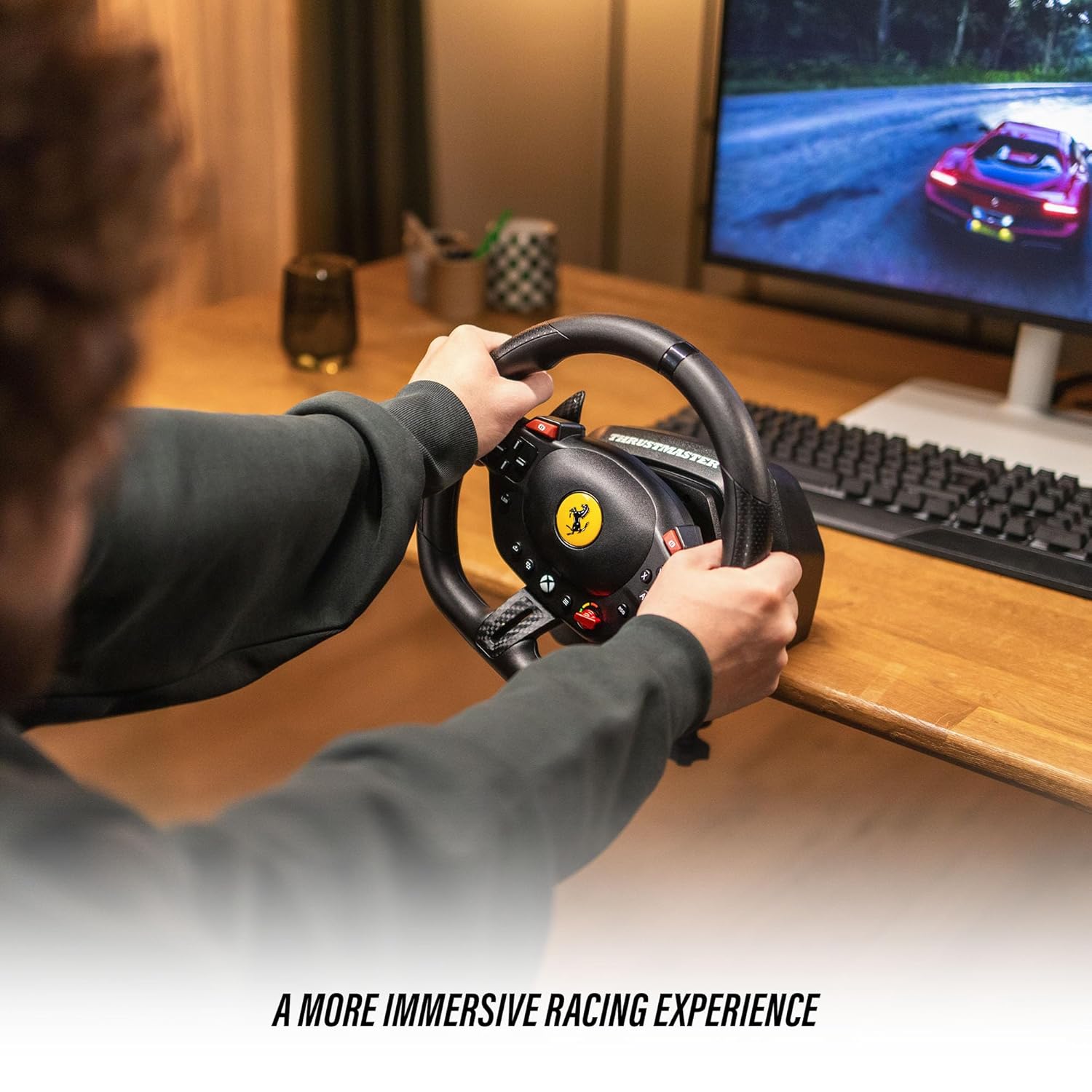
The T98 Racing Wheel is equipped with 16 action buttons, a D-pad, and paddle shifters for comprehensive control during gameplay.
- Kẹkẹ irin-ajo: Provides 240° rotation for precise steering control. Features smooth resistance and automatic centering for a realistic driving feel.
- Àwọn Olùyípadà Paddle: Located behind the wheel for quick gear changes.
- Awọn bọtini iṣe: Mimic standard controller buttons for in-game actions.
- D-Pad: For menu navigation and specific in-game functions.
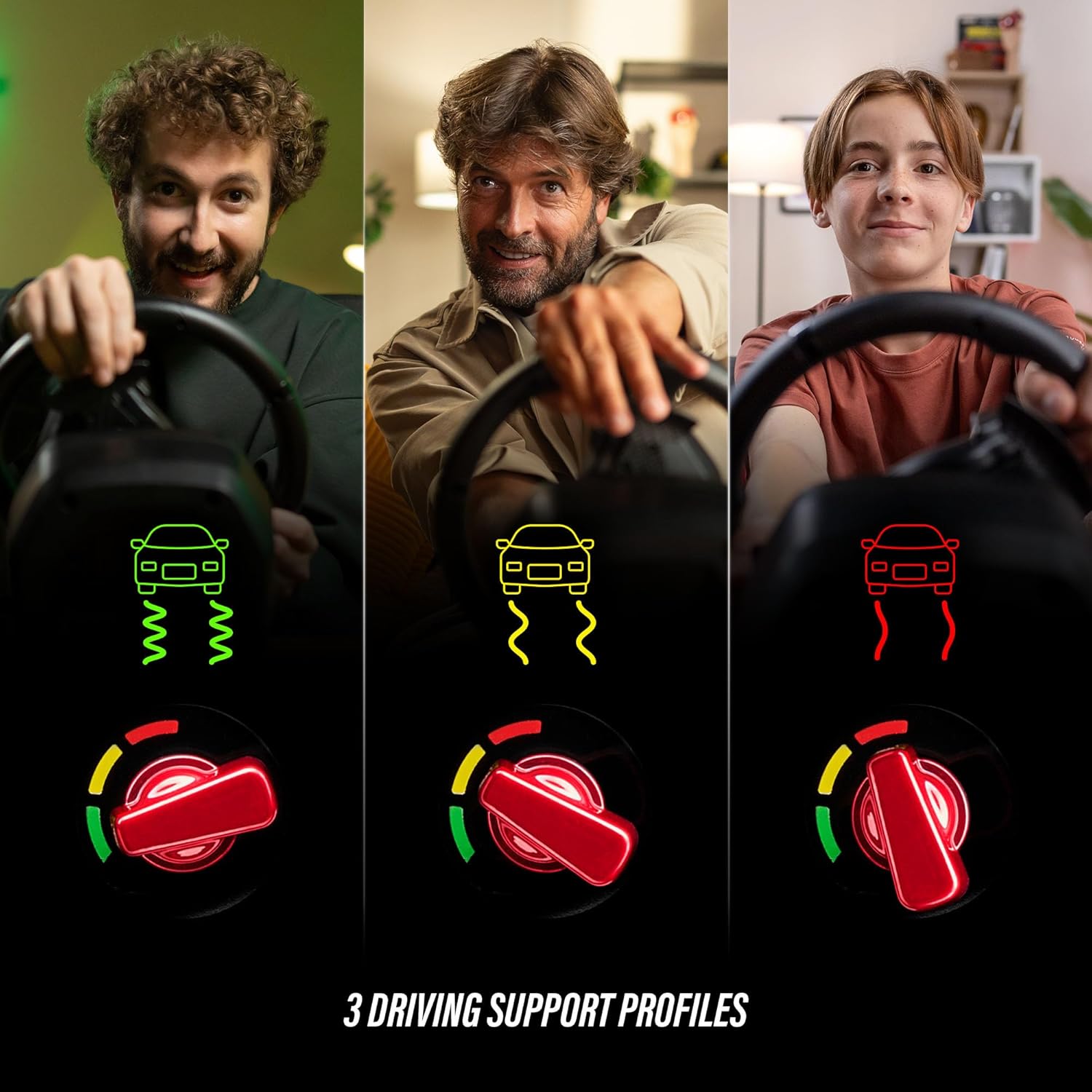
3.2. Driving Profiles (Manettino Selector)
The Ferrari-inspired Manettino selector on the wheel allows you to switch between three distinct driving profiles. Awọn wọnyi Profiles adjust the wheel's response to suit different driving styles and game scenarios, offering varied levels of assistance or challenge.
3.3. Pedal Operation
The compact pedal set provides smooth and consistent input for acceleration and braking, utilizing Hall Effect sensor technology for precision.
- Pẹda onínára: Controls in-game acceleration.
- Efatelese Brake: Controls in-game braking.
3.4. Game Compatibility
The Thrustmaster T98 Ferrari 296 GTB Racing Wheel and Pedal Set is compatible with Xbox Series X|S, Xbox One, and Windows PC. It supports a wide range of racing simulation games, including titles like Forza Horizon 5, Forza Motorsport, EA Sports F1, Assetto Corsa Competizione, and more.

4. Itọju
4.1. Ninu
To maintain the appearance and functionality of your racing wheel and pedal set, clean it regularly with a soft, dry cloth. Avoid using abrasive cleaners or solvents, as these can damage the surfaces.
4.2. Ibi ipamọ
When not in use, store the racing wheel and pedal set in a cool, dry place away from direct sunlight and extreme temperatures. If the clamping system is used, ensure it is securely fastened or removed and stored separately to prevent damage.
5. Laasigbotitusita
5.1. Wheel Not Detected
- Ensure all cables are securely connected to the racing wheel, pedal set, and gaming system.
- Try connecting the USB cable to a different port on your console or PC.
- Tun console rẹ tabi PC bẹrẹ.
- For PC users, ensure the latest drivers are installed from the Thrustmaster support webojula.
5.2. Incorrect Button Mapping or Response
- Check in-game control settings to ensure the racing wheel is selected as the primary input device and buttons are mapped correctly.
- Verify the mode switch on the racing wheel is set to the correct platform (Xbox or PC).
- Update the wheel's firmware via the Thrustmaster support webojula.
5.3. Pedals Not Responding
- Ensure the pedal set cable is firmly connected to the racing wheel.
- Test the pedals in a different game or on a different platform if possible.
6. Awọn pato
| Brand | Thrustmaster |
| Orukọ awoṣe | T98 Ferrari 296 GTB |
| Nọmba awoṣe | 4460297 |
| UPC / GTIN | 663296425195 |
| Awọn ẹrọ ibaramu | PC, Xbox One, Xbox Series S, Xbox Series X |
| Adarí Iru | Pedals, Steering Wheel |
| Asopọmọra Technology | USB |
| Afikun Awọn ẹya ara ẹrọ | Ergonomic |
| Bọtini opoiye | 16 |
| Hardware Platform | Desktop, Gaming Console, Laptop |
| Awọn iwọn Nkan | 11.81 x 10.63 x 13.39 inches |
| Àwọ̀ | Dudu |
7. Atilẹyin ọja
This product is covered by a one-year manufacturer's warranty. Please retain your proof of purchase for warranty claims. For detailed warranty terms and conditions, refer to the official Thrustmaster webojula tabi kan si atilẹyin alabara.
8. Atilẹyin
For further assistance, technical support, or to access updated drivers and firmware, please visit the official Thrustmaster support webAaye ayelujara. O tun le ri awọn ibeere ti a beere nigbagbogbo ati awọn apejọ agbegbe fun iranlọwọ afikun.