
1. Ifihan
This manual provides detailed instructions for the installation, operation, and maintenance of your RSNAVI Android Car Stereo. This unit is designed to integrate advanced multimedia and navigation features into your Chrysler Grand Voyager (2011-2015 model years).
Please read this manual thoroughly before installation and use to ensure proper functionality and to maximize your experience with the device.

Nọmba 1.1: RSNAVI Android Car Stereo with included accessories.
This image displays the RSNAVI 9-inch Android Car Stereo unit integrated into a vehicle's dashboard, specifically designed for the Chrysler Grand Voyager. Surrounding the main unit are various accessories: a rearview camera for enhanced visibility, an external microphone for clear audio input during calls, and a cooling fan to maintain optimal operating temperature. The screen shows a map interface and various application icons, indicating its multimedia and navigation capabilities.
2. Compatibility and Package Contents
2.1 Ọkọ ibamu
This RSNAVI Android Car Stereo is specifically designed for the Chrysler Grand Voyager manufactured between 2011 ati 2015. Before installation, confirm the year, size, and shape of your vehicle's center console to ensure proper fitment.
2.2 Package Awọn akoonu
Awọn boṣewa package pẹlu awọn wọnyi paati:
- RSNAVI Android Car Stereo Head Unit
- Canbus Decoder
- Okun agbara
- Okun RCA
- Eriali Redio
- Eriali GPS
- USB Cables (Dual USB interface)
- Gbohungbohun ita
- Ẹyìnview Camera (AHD/CVBS compatible)
- Installation Frame (if applicable for specific models)
3. Eto ati fifi sori
3.1 Pre-Fifi sori Ṣayẹwo
- Ensure the vehicle's ignition is off and the battery is disconnected before starting any electrical work.
- Daju gbogbo awọn paati ti a ṣe akojọ si ni Abala 2.2 wa.
- Familiarize yourself with your vehicle's dashboard removal process. Online video tutorials specific to the Chrysler Grand Voyager 2011-2015 can be helpful.
3.2 Wáyà àti Ìsopọ̀
The car stereo comes with dedicated wiring harnesses designed for your vehicle. Connect the power cord, RCA cables, radio antenna, GPS antenna, USB cables, external microphone, and rearview camera to their respective ports on the head unit and to the vehicle's wiring system.
- Okun Agbara: Connect to the vehicle's power supply, ensuring correct polarity. The included Canbus decoder facilitates integration with vehicle systems.
- Àwọn okùn RCA: Fun awọn isopọ ohun/ohun/fidio/awọn asopọ ti o wu jade (fun apẹẹrẹ, ita amplifier, additional monitors).
- Eriali: Connect the radio antenna for FM/RDS reception and the GPS antenna for navigation functionality. Position the GPS antenna in a location with a clear view ti ọrun.
- Awọn atọkun USB: Use the dual USB interfaces for connecting USB drives, charging devices, or for wired CarPlay/Android Auto connections.
- Gbohungbohun ita: Connect for improved call quality and voice commands.
- Ẹyìnview Kamẹra: Connect the camera to the 'Inverted Input' (AHD/CVBS) port. Ensure proper routing of the camera cable to the rear of the vehicle.

Nọmba 3.1: Included wiring harness and installation frame.
This image displays the specific wiring harness and a custom-fit frame provided with the RSNAVI car stereo. The harness includes various connectors for power, speakers, and data, designed to integrate seamlessly with the Chrysler Grand Voyager's electrical system. The frame ensures a flush and secure installation of the 9-inch head unit into the vehicle's dashboard opening.

Nọmba 3.2: Dashboard before and after stereo installation.
This image set illustrates the visual transformation of a Chrysler Grand Voyager dashboard. The top-left panel shows the original factory radio. The other panels demonstrate the RSNAVI Android Car Stereo installed, displaying various interfaces such as a navigation map, a media player, and the main application screen, highlighting the integrated appearance and functionality.
3.3 Awọn sọwedowo fifi sori ẹrọ lẹhin
- Tun batiri ọkọ pọ.
- Turn on the ignition and power on the head unit.
- Test all functions: radio, Bluetooth, GPS, USB, steering wheel controls, and rearview kamẹra.
- If any issues arise, refer to the Troubleshooting section or recheck connections.
4. Awọn ilana Iṣiṣẹ
4.1 System Loriview
The RSNAVI car stereo operates on an Android system, providing a familiar and customizable user interface via its 9-inch touchscreen. The system supports various applications and features, similar to a smartphone or tablet.
4.2 Alailowaya CarPlay / Android Auto
Connect your smartphone wirelessly to access Apple CarPlay or Android Auto. This feature allows for hands-free calls, access to phone contacts, emails, notifications, map navigation, music, and video playback directly on the car stereo display. This integration is designed to enhance driving safety by minimizing phone interaction.
- Rii daju pe Bluetooth ati Wi-Fi ti ṣiṣẹ lori foonuiyara rẹ.
- Lórí sitẹrio ọkọ̀ ayọ́kẹ́lẹ́, ṣí ohun èlò CarPlay tàbí Android Auto.
- Tẹle awọn ilana loju iboju lati so ẹrọ rẹ pọ mọ.
- Once connected, your phone's compatible apps will appear on the stereo display.

Nọmba 4.1: CarPlay, Android Auto, and Mirror Link interfaces.
This image illustrates the various smartphone integration options available with the RSNAVI car stereo. It shows the user interfaces for Wireless CarPlay and Android Auto, displaying familiar app icons for navigation, music, and communication. Additionally, it demonstrates the Mirror Link function, which allows the display of an iOS or Android phone screen directly onto the car stereo, enabling full control of the phone's interface.
4.3 GPS Lilọ kiri
The unit features a dual navigation system supporting both offline and online maps. A built-in offline map is provided, but internet data download is required for initial setup or updates. Online maps require a Wi-Fi connection.
- Rí i dájú pé eriali GPS náà wà ní ìpele tó yẹ, ó sì ní àmì tó hàn gbangba.
- To use offline maps, navigate to the map application and download the necessary regional data via a Wi-Fi connection.
- For online navigation, connect the unit to a Wi-Fi hotspot.
4.4 WiFi Asopọmọra
Connect the car stereo to a Wi-Fi hotspot (e.g., from your smartphone) to access online features. This enables app installation from the Play Store, online navigation, and streaming media.
- Go to the system settings and select 'Wi-Fi'.
- Tan Wi-Fi ki o si yan nẹtiwọọki ti o fẹ.
- Tẹ ọrọ igbaniwọle sii ti o ba ṣetan.

Nọmba 4.2: GPS Navigation and WiFi Hotspot features.
This image highlights the navigation and connectivity capabilities of the RSNAVI car stereo. The top section displays a detailed GPS map with route guidance, indicating distance and estimated travel time. The bottom section illustrates the WiFi Hotspot feature, showing a screen filled with various streaming applications like Netflix, Hulu, and YouTube, demonstrating the unit's ability to access online content when connected to a network.
4.5 Bluetooth Iṣẹ
The integrated Bluetooth module allows for hands-free calling, phone book synchronization, and audio streaming from your smartphone.
- Mu Bluetooth ṣiṣẹ lori foonuiyara rẹ ki o jẹ ki o ṣawari.
- On the car stereo, open the Bluetooth application and search for devices.
- Yan foonu rẹ lati inu akojọ naa ki o jẹrisi koodu asopọ.
- Once paired, you can make/receive calls and play music wirelessly.
4.6 FM / RDS Redio
The unit includes an FM/RDS radio tuner for clear channel reception and low noise. RDS (Radio Data System) provides additional information such as station name and program type.
- Ṣí ohun èlò redio náà.
- Lo iṣẹ ayẹwo lati wa ati fipamọ awọn ibudo ti o wa laifọwọyi.
- Manually tune to frequencies or select from saved presets.
4.7 Ohun èlò ìṣètò (EQ)
Adjust the audio output using the built-in equalizer to customize the sound profile. This includes settings for bass, treble, and mid-range frequencies, as well as various sound field modes.
- Wọle si awọn eto EQ lati inu akojọ aṣayan akọkọ tabi awọn eto ohun.
- Select a preset or manually adjust the frequency bands to your preference.
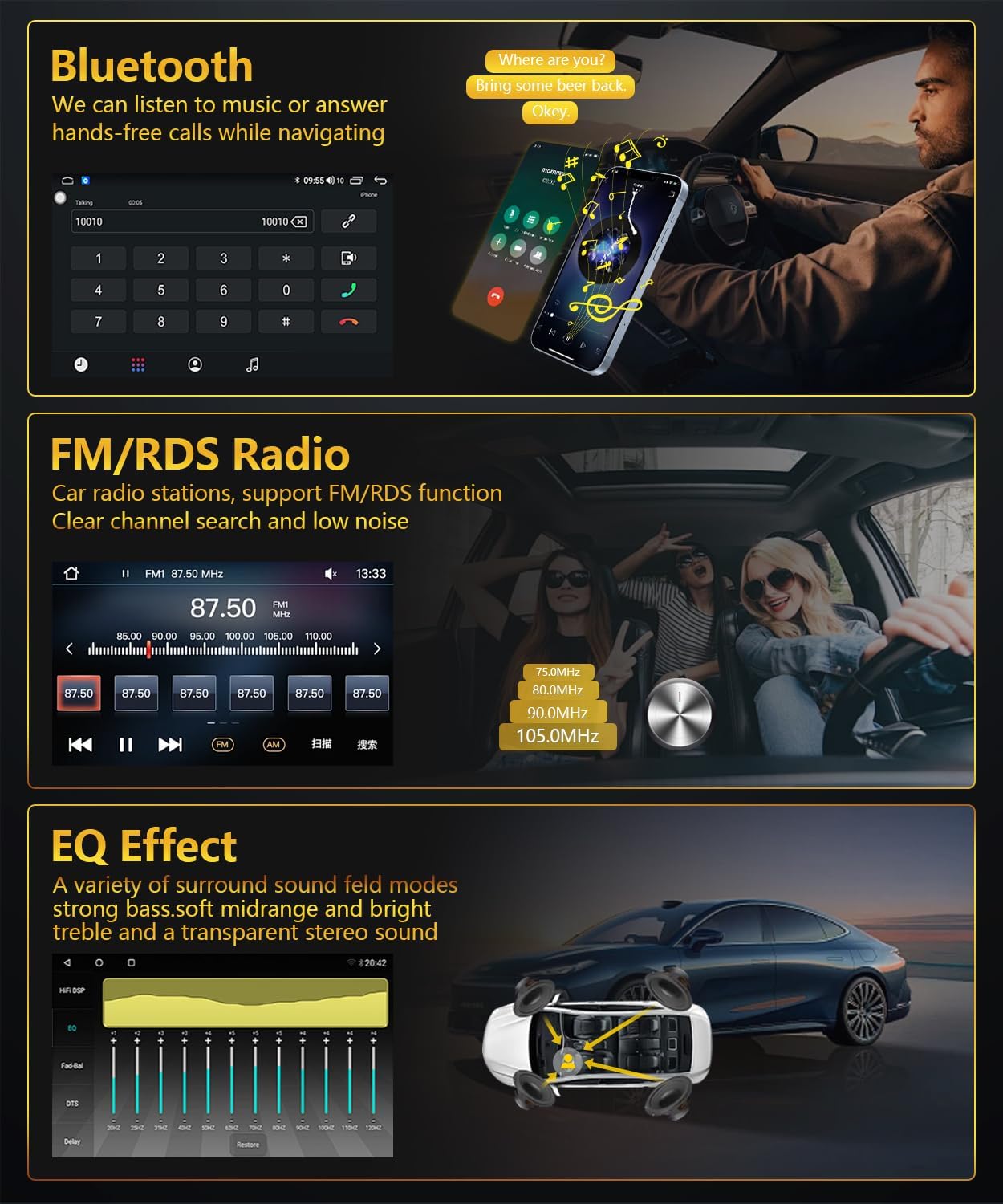
Nọmba 4.3: Bluetooth, FM/RDS Radio, and EQ Effect features.
This image showcases three key audio features of the RSNAVI car stereo. The top section displays the Bluetooth calling interface, showing a dial pad and contact information. The middle section illustrates the FM/RDS radio tuner, with frequency display and station presets. The bottom section presents an audio equalizer (EQ) interface, allowing users to fine-tune sound characteristics like bass, mid-range, and treble, accompanied by a diagram showing speaker placement in a car for optimal sound distribution.
4.8 Ifihan Kamẹra Yiyipada
Ẹyọ naa ṣe atilẹyin ẹhinview camera input. When the vehicle is shifted into reverse gear, the screen automatically switches to display the camera feed, aiding in safe maneuvering. The included camera is waterproof and features night vision and a wide-angle view.
- Rii daju ẹhinview camera is correctly installed and connected to the 'Inverted Input'.
- Shift the vehicle into reverse gear; the display will automatically show the camera view.
4.9 Iṣakoso kẹkẹ idari
If your vehicle has original steering wheel control buttons, they can be configured to operate the car radio, providing convenient and safe control while driving.
- Wọle si awọn eto 'Iṣakoso Kẹkẹ Iwakọ' ninu akojọ aṣayan eto naa.
- Follow the on-screen instructions to map the vehicle's steering wheel buttons to the desired functions on the car stereo.

Nọmba 4.4: Reversing Display and Steering Wheel Control.
This image highlights two important safety and convenience features. The top section illustrates the rearview camera system, detailing its HD image quality, waterproof design, night vision, and wide-angle capabilities, with a visual representation of the camera's field of view. The bottom section displays the car stereo's interface for configuring steering wheel controls, showing various button functions like volume, track skip, and call management, allowing for seamless operation without taking hands off the wheel.
5. Itọju
5.1 Itọju Gbogbogbo
Láti rí i dájú pé sitẹrio ọkọ̀ ayọ́kẹ́lẹ́ rẹ pẹ́ tó àti pé ó ń ṣiṣẹ́ dáadáa, tẹ̀lé àwọn ìlànà ìtọ́jú gbogbogbòò wọ̀nyí:
- Isọsọ iboju: Lo asọ rirọ, ti ko ni lint lati mu rọra nu iboju ifọwọkan. Fun agidi smudges, die-die dampen awọn asọ pẹlu omi tabi a iboju-ailewu regede. Yago fun awọn kẹmika lile tabi awọn ohun elo abrasive.
- Yiyọ eruku kuro: Periodically clean dust from the unit's vents and openings using a soft brush or compressed air to prevent overheating.
- Iwọn otutu: Avoid exposing the unit to extreme temperatures for extended periods. The operating temperature range is -20℃ to 75℃.
- Awọn imudojuiwọn sọfitiwia: Check for available software updates periodically to ensure the system has the latest features and bug fixes.
6. Laasigbotitusita
This section addresses common issues you might encounter with your RSNAVI Android Car Stereo.
6.1 Wọpọ Oran ati Solusan
- Ko si Agbara:
- Ṣayẹwo gbogbo awọn asopọ agbara ati awọn fiusi.
- Rí i dájú pé batiri ọkọ̀ náà so pọ̀ dáadáa.
- Ko si Ohun:
- Ṣe àyẹ̀wò àwọn ìsopọ̀ agbọrọsọ.
- Ṣayẹwo awọn ipele iwọn didun ati awọn eto ipalọlọ.
- Rí i dájú pé a yan orísun ohùn tó tọ́.
- Ipadanu ifihan agbara GPS:
- Rí i dájú pé eriali GPS náà so pọ̀ dáadáa, kí a sì gbé e sí ibi tí ó ní ibi tí ó mọ́ kedere. view ti ọrun.
- If using offline maps, ensure map data has been fully downloaded.
- Awọn oran Asopọmọra Bluetooth:
- Rí i dájú pé Bluetooth ti ṣiṣẹ́ lórí sitẹrio àti fóònù rẹ.
- Pa àwọn ìsopọ̀ ìṣáájú rẹ́ kí o sì gbìyànjú láti tún so wọ́n pọ̀.
- Tun awọn ẹrọ mejeeji bẹrẹ.
- Poor UI Responsiveness:
- Pa awọn ohun elo abẹlẹ ti ko wulo.
- Tun eto tun bẹrẹ.
- Awọn idari Kẹkẹ idari Ko Ṣiṣẹ:
- Verify the Canbus decoder is correctly installed.
- Reconfigure the steering wheel control settings in the system menu.
6.2 Factory Eto
If persistent issues occur, a factory reset may resolve them. The factory setting keyword is 3368. Use this option with caution as it will erase all user data and settings.
7. Awọn pato
| Ẹya ara ẹrọ | Sipesifikesonu |
|---|---|
| Eto | Android |
| Chipset | UIS81411 |
| Iwon iboju | 9 inches |
| Ìrántí (RAM + ROM) | 2GB (Ramu) + 64GB (ROM) |
| Ipinnu iboju | 1280*720 |
| Chip Redio | UIS |
| Ijade agbara | 4 x45W |
| Awọn iwọn otutu ti nṣiṣẹ | -20 ℃ si 75 ℃ |
| Agbara Amplifier Chip | TDA7388 |
| Band Band | FM/RDS |
| Ijade fidio | Atilẹyin |
| Inverted Input | AHD/CVBS (Rearview Kamẹra) |
| Gbohungbohun ita | Atilẹyin |
| Pipin-iboju | Atilẹyin |
| Maapu | Built-in offline map (Internet download data required) |
| WIFI | Atilẹyin |
| USB | Meji ni wiwo USB |
| Asopọmọra Technology | Bluetooth, USB, Wi-Fi |
| Ipo Ijade Ohun | Sitẹrio |
| Awọn irinše to wa | Canbus, Car Radio, Power cord, RCA Cable, Radio Antenna |
| Ọja Mefa | 33.02 x 27 x 11.02 cm; 1 kg |
| Nọmba awoṣe | 4 Core 2G-64G CAM |
8. Atilẹyin ọja ati Onibara Support
RSNAVI is committed to providing quality products and support. Your purchase includes:
- Ẹri Owo Pada 30-ọjọ: Tí o kò bá ní ìtẹ́lọ́rùn pẹ̀lú ohun tí o rà, o lè dá a padà láàrín ọjọ́ 30 kí o lè san owó rẹ padà pátápátá.
- Atilẹyin fun oṣu 24: The product is covered by a 24-month warranty against manufacturing defects.
- Atilẹyin Imọ-ọjọ igbesi aye: RSNAVI offers lifetime technical assistance for any questions regarding installation or use.
For any questions or assistance, please contact our customer service team via email. We aim to respond and address your concerns within 24 hours.