
Thundeal TD93 Pro
Ìwé Àgbékalẹ̀ Olùlò Thundeal TD93 Pro Mini Projector
Model: TD93 Pro | Brand: Thundeal
1. Ifihan
This manual provides detailed instructions for the setup, operation, and maintenance of your Thundeal TD93 Pro Mini Projector. Please read this manual thoroughly before using the product to ensure proper functionality and to extend its lifespan.

Image 1.1: Thundeal TD93 Pro Mini Projector overview.
2. Ohun ti o wa ninu Apoti
Daju pe gbogbo awọn nkan ti a ṣe akojọ rẹ si isalẹ wa ninu package rẹ:
- Thundeal TD93 Pro Projector
- Isakoṣo latọna jijin
- Okun agbara
- Afowoyi Olumulo (iwe-ipamọ yii)
- AV Cable
- Okun HDMI
- Pirojekito lẹnsi Ideri

Image 2.1: Package contents of the TD93 Pro Projector.
3. Product Specifications and Features
3.1. Imọ ni pato
| Nọmba awoṣe | TD93 Pro (Item Model Number: TD97) |
| Ipinnu abinibi | 1920 x 1080 (HD ni kikun) |
| Àtìlẹ́yìn Ìpinnu Tó Pọ̀ Jùlọ | 2K 4K UHD (from HD Signal) |
| Imọlẹ | 12000 Lumens |
| Ipin Itansan | 15000:1 |
| Apakan Ipin | 4:3 / 16:9 / Aifọwọyi |
| Eto isesise | Android 9.0 OS |
| Alailowaya Asopọmọra | 2.4G / 5G WiFi, Bluetooth-compatible |
| Iranti | Ramu 1G DDR3 + ROM 8G |
| Keystone Atunse | 6D Keystone (4-point corner +/- 60°, Vertical +/- 60°) |
| Iṣẹ Sún | 50-100% Proportional Reduction |
| Iwọn Isọtẹlẹ | 49 to 300 inches (recommended 93-150 inches) |
| Ijinna asọtẹlẹ | 1.6 to 6.5 meters (recommended 3-5 meters) |
| Lamp Igba aye | wakati meji 50,000 |
| Ohun | Built-in 5W stereo speakers with SRS sound system |
| Pataki Awọn ẹya ara ẹrọ | 3D-Ready (Red-Blue 3D), Auto Horizontal Keystone, Built-In Wi-Fi, Portable, Dust Removal Net |
3.2. Key Awọn ẹya ara ẹrọ
- High Definition Visuals: Native 1080P resolution with support for 2K/4K UHD signals, delivering clear and vibrant images.
- Smart Android OS: Integrated Android 9.0 operating system allows direct app downloads and streaming.
- WiFi-Band Meji: 2.4G and 5G WiFi connectivity for stable and fast wireless streaming and screen mirroring.
- Asopọmọra Bluetooth: Connect external Bluetooth speakers or headphones for enhanced audio.
- Advanced Image Correction: 6D Keystone correction (4-point and vertical) for flexible placement and precise image alignment.
- Isọtẹlẹ Rọ: Adjustable zoom from 50% to 100% and support for screen sizes up to 300 inches.
- Igba pipẹ Lamp: LED lamp designed for up to 50,000 hours of operation.
- Multi-Media Compatibility: Supports various input sources including HDMI, USB, AV, and direct office file Sisisẹsẹhin nipasẹ USB.

Image 3.1: Visual comparison of projector brightness and resolution.
4. Eto Itọsọna
4.1. Pirojekito Placement
The projector can be placed in various positions to suit your viewing environment:
- On a Desk: Gbe awọn pirojekito lori kan idurosinsin, alapin dada.
- Lori Irin-ajo: Utilize the 6mm screw hole on the bottom for tripod mounting.
- Ceiling Hoisting: Mount the projector to the ceiling using a compatible hanger.
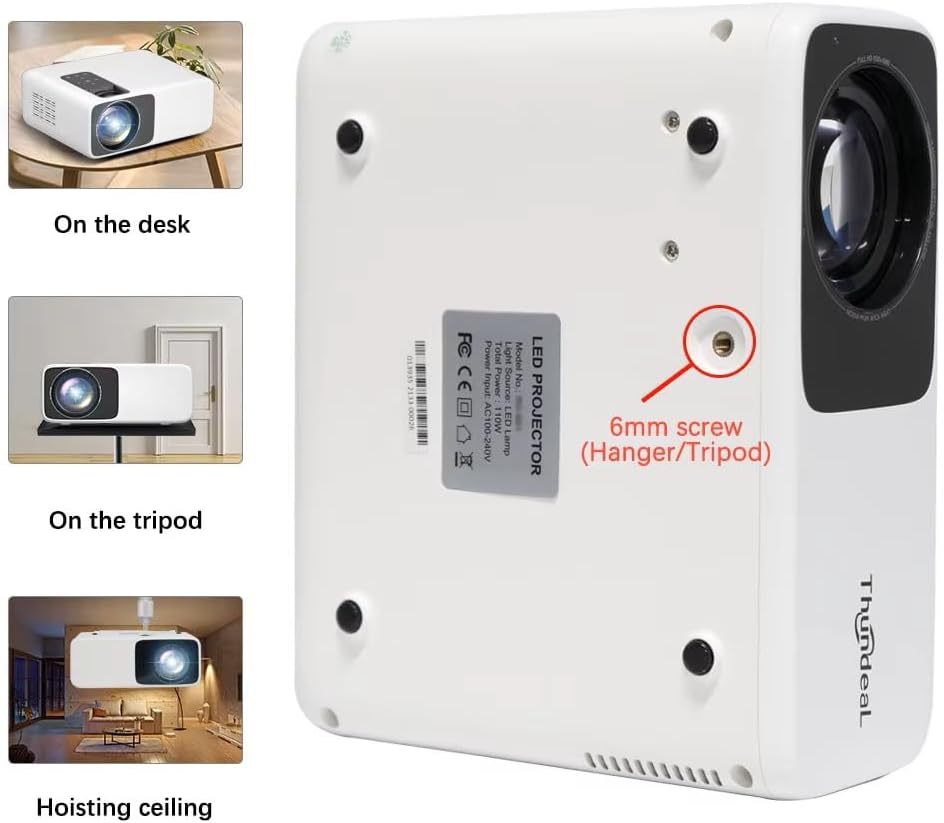
Image 4.1: Projector placement options and mounting point.
Fun aipe viewing, ensure the projector is positioned perpendicular to the screen or wall. Adjust the projection distance (1.6 to 6.5 meters) to achieve your desired screen size (49 to 300 inches). A distance of 3-5 meters for a 93-150 inch screen is recommended for eye comfort.
4.2. Asopọ agbara
- So okùn agbára pọ̀ mọ́ ibudo ìtẹ̀wọlé agbára ti ẹ̀rọ atọ́nà náà.
- So opin keji okun ina sinu ibudo ina deede.
- Tẹ bọtini agbara lori pirojekito tabi isakoṣo latọna jijin lati tan-an.
5. Awọn ilana Iṣiṣẹ
5.1. Multi-Media Connections
The TD93 Pro projector offers various ports for connecting external devices:
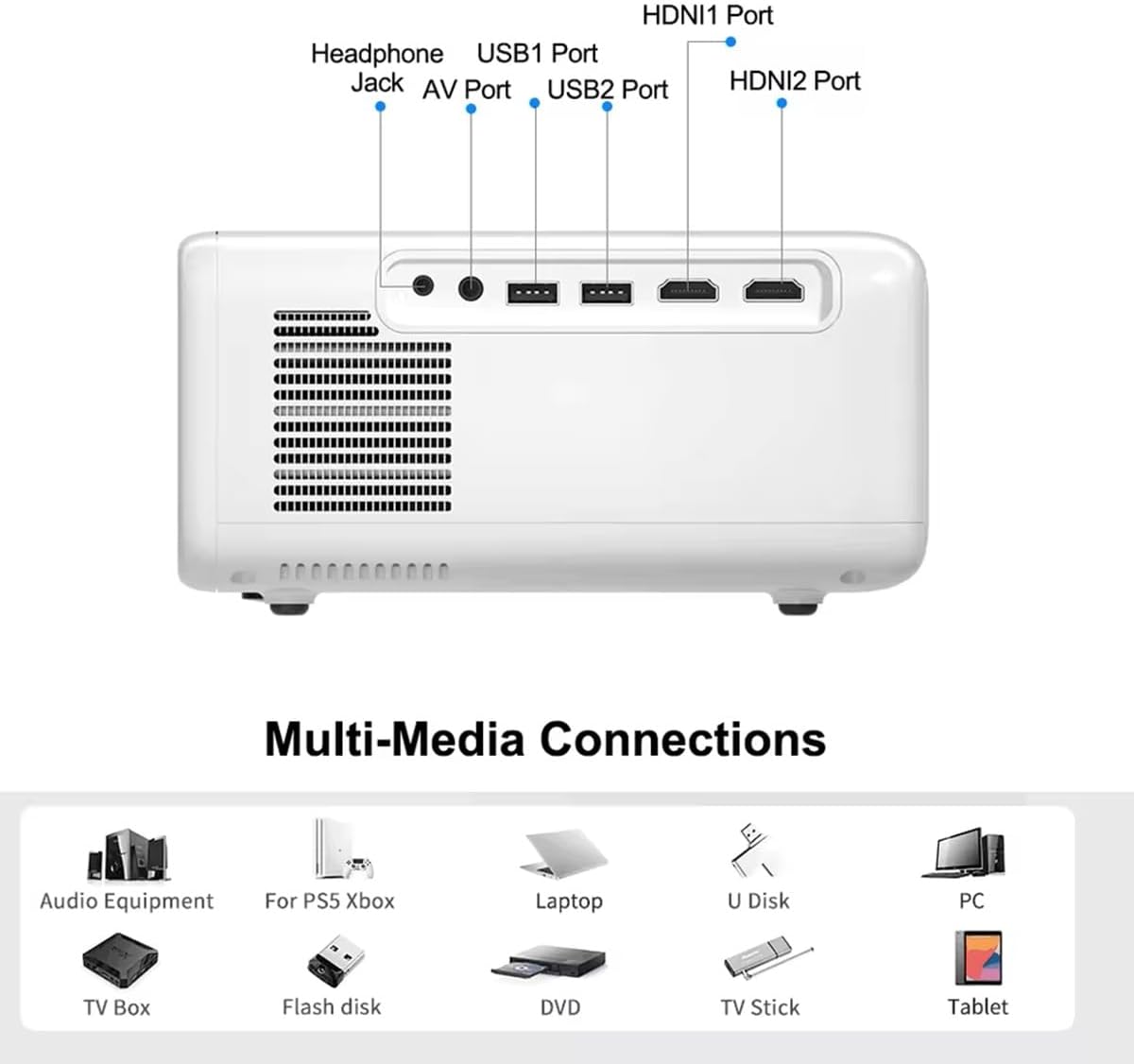
Image 5.1: Available multimedia connection ports.
- Àwọn Ibudo HDMI (HDMI1, HDMI2): Connect devices such as TV boxes, gaming consoles (PS5, Xbox), laptops, or Blu-ray players.
- USB Ports (USB1, USB2): Connect USB flash drives for direct media playback (photos, videos, office documents).
- Ibudo AV: So àwọn ẹ̀rọ àtijọ́ pọ̀ nípa lílo okùn AV tí a pèsè.
- Jack agbekọri (3.5mm): So awọn agbekọri ita tabi awọn agbohunsoke.
To switch input sources, use the "Source" button on the remote control or the projector's control panel and select the desired input (HDMI1, HDMI2, AV, USB).
5.2. Alailowaya Asopọmọra
5.2.1. WiFi Connection (2.4G/5G)
The projector supports dual-band WiFi for internet access and network features:
- Navigate to the "Settings" menu on the projector's Android interface.
- Yan "Nẹtiwọọki & Intanẹẹti" lẹhinna "Wi-Fi".
- Tan Wi-Fi ki o yan nẹtiwọki ti o fẹ lati inu akojọ.
- Tẹ ọrọ igbaniwọle sii ti o ba ṣetan ati sopọ.
5.2.2. Asopọ Bluetooth
Connect Bluetooth-compatible audio devices like speakers or headphones:
- Go to "Settings" > "Connected devices" > "Bluetooth".
- Tan Bluetooth.
- Fi ẹrọ Bluetooth rẹ sinu ipo sisopọ.
- Yan ẹrọ rẹ lati inu akojọ awọn ẹrọ ti o wa lati so pọ.
5.3. Screen Mirroring (Airplay/WiFi-Display)
Wirelessly display content from your Android or iOS phone:

Image 5.2: Screen mirroring from iOS and Android devices.
- Ensure both your projector and mobile device are connected to the same Wi-Fi network.
- On the projector's main interface, select the "Screen Mirroring" or "Airplay/WiFi-Display" application.
- For iOS devices: Open Control Center, tap "Screen Mirroring" or "AirPlay Mirroring", and select the projector from the list.
- For Android devices: Open the notification panel, find "Cast", "Smart View", "Wireless Display", or similar function, and select the projector.
5.4. Atunṣe Aworan
5.4.1. Keystone Correction (6D)
The projector features 6D keystone correction to adjust image shape:
- Òkúta ọ̀rọ̀ inaro: Adjust +/- 60 degrees vertically using the remote control.
- 4-Point Corner Keystone: Adjust each of the four corners independently by +/- 60 degrees for side projection or irregular surfaces. This allows for precise rectangular image alignment.
Access keystone settings via the projector's menu or dedicated buttons on the remote.
5.4.2. Sun Išė
Adjust the display size from 50% to 100% proportionally without moving the projector. This feature is useful for fine-tuning the image size to fit your screen or wall.
Access the zoom function through the projector's menu settings.
5.5. Android OS and App Usage
The integrated Android 9.0 OS allows you to download and install applications directly from the Play Store. Ensure the projector is connected to Wi-Fi to access online services and apps.
- Play itaja: Access the Google Play Store to download streaming apps, games, and utilities.
- Sisisẹsẹhin Media: Use pre-installed media players or download alternatives (e.g., VLC player for AC3 audio support).
6. Itọju
6.1. Yíyọ eruku kúrò
The projector is equipped with a built-in dust net for easy cleaning. Regularly clean the dust net to maintain optimal performance and prevent overheating. Press to pop out the dust net for cleaning.
6.2. itutu System
The advanced cooling system is designed to dissipate heat efficiently and extend the lamp's lifespan. Ensure proper ventilation around the projector and avoid blocking air vents during operation.
6.3. Lamp Igba aye
LED lamp has an estimated lifespan of 50,000 hours. No lamp replacement is typically required during the product's operational life under normal usage conditions.
7. Laasigbotitusita
7.1. No Image Displayed
- Ṣayẹwo boya pirojekito ti wa ni agbara lori.
- Verify the input source is correctly selected (e.g., HDMI1, USB).
- Rii daju pe gbogbo awọn kebulu ti sopọ ni aabo.
- Adjust focus and keystone correction.
7.2. Ko si Ohun
- Ṣàyẹ̀wò ipele iwọn didun lori pirojekito ati ẹrọ orisun ti a so pọ mọ.
- Ensure external speakers or headphones are properly connected and powered on if used.
- If using an external source, verify its audio output settings.
- For AC3 audio, ensure you are using a compatible player like VLC.
7.3. Connectivity Issues (WiFi/Bluetooth)
- Ensure WiFi is enabled and you are connected to the correct network.
- Tun ẹrọ pirojekito naa ati ẹrọ olulana/Bluetooth rẹ bẹrẹ.
- For screen mirroring, confirm both devices are on the same Wi-Fi network.
7.4. Image is Blurry or Distorted
- Ṣatunṣe oruka idojukọ lori lẹnsi pirojekito.
- Use the keystone correction features to correct any trapezoidal distortion.
- Rii daju pe oju asọtẹlẹ jẹ alapin ati dan.
8. Atilẹyin ọja ati Support
Fún àlàyé nípa àtìlẹ́yìn àti ìrànlọ́wọ́ ìmọ̀ ẹ̀rọ, jọ̀wọ́ wo àwọn ìwé tí a pèsè ní àkókò tí o ń rà á tàbí kí o kan sí olùtajà rẹ. Pa ìwé ẹ̀rí ìrajà rẹ mọ́ gẹ́gẹ́ bí ẹ̀rí ìrajà náà.
Ask a question about this manual
Ask about setup, troubleshooting, compatibility, parts, safety, or missing instructions. Manuals+ will review the question and use this page’s manual context to help answer it.