
1. Ifihan
This manual provides detailed instructions for the setup, operation, and maintenance of your Transformers GK01 Wireless Mechanical Keyboard. The GK01 is a versatile keyboard featuring tri-mode connectivity (Bluetooth 5.0, 2.4GHz wireless, and USB-C wired), a 101-key layout, RGB backlighting, and hot-swappable switches for a customizable typing experience.

Figure 1.1: Transformers GK01 Wireless Mechanical Keyboard.
2. Package Awọn akoonu
Jọwọ rii daju pe gbogbo awọn nkan ti a ṣe akojọ rẹ si isalẹ wa ninu package rẹ:
- Transformers GK01 Wireless Mechanical Keyboard
- USB-C si okun USB-A
- 2.4GHz Dongle USB Alailowaya
- 2-ni-1 Keycap ati Yipada Puller
- Afowoyi Olumulo (iwe-ipamọ yii)
- Awọn iyipada apoju (awọn ege mẹrin)
- Ideri Keyboard
3. Eto ati Asopọ
3.1. Ìsopọ̀ Mẹ́ta-Mode Lóríview
The GK01 keyboard supports three connection modes: USB-C wired, 2.4GHz wireless, and Bluetooth 5.0. You can connect to up to five devices simultaneously and switch between them seamlessly.

Figure 3.1: Tri-Mode Connection Capabilities.
3.2. USB-C ti firanṣẹ Asopọ
- Wa ibudo USB-C lori keyboard.
- So opin kan ti okun USB-C ti a pese mọ keyboard naa.
- Connect the other end of the USB-C cable to an available USB-A port on your computer.
- Awọn bọtini itẹwe yoo jẹ idanimọ laifọwọyi ati ṣetan fun lilo.
3.3. 2.4GHz Asopọ Alailowaya
- Locate the 2.4GHz wireless USB dongle.
- Plug the dongle into an available USB-A port on your computer.
- On the keyboard, ensure the mode switch (usually on the side or back) is set to 2.4GHz mode.
- Awọn keyboard yẹ ki o sopọ laifọwọyi. Ti kii ba ṣe bẹ, tẹ Fn + R lati pilẹṣẹ sisopọ.

Figure 3.2: USB-C Port and 2.4GHz Dongle Location.
3.4. Bluetooth 5.0 Asopọ
The keyboard supports connecting to up to three Bluetooth devices (BT1, BT2, BT3).
- On the keyboard, set the mode switch to Bluetooth mode.
- Lati tẹ ipo sisopọ pọ fun ikanni Bluetooth kan pato, tẹ mọlẹ Fn + Q (fun BT1), Fn + W (fun BT2), tabi Fn + E (for BT3) for 3-5 seconds until the indicator light flashes rapidly.
- On your device (PC, tablet, smartphone), open Bluetooth settings and search for new devices.
- Select "Transformers GK01" from the list of available devices.
- Once connected, the indicator light on the keyboard will stop flashing.
- Lati yipada laarin awọn ẹrọ Bluetooth ti a so pọ, tẹ nirọrun Fn + Q, Fn + W, tabi Fn + E.
4. Ipilẹ isẹ
4.1. Keyboard Layout and Anti-Ghosting
The GK01 features a 101-key layout, providing a full set of keys including a numeric keypad. All keys are equipped with anti-ghosting technology, ensuring that every keystroke is registered accurately, even when multiple keys are pressed simultaneously.
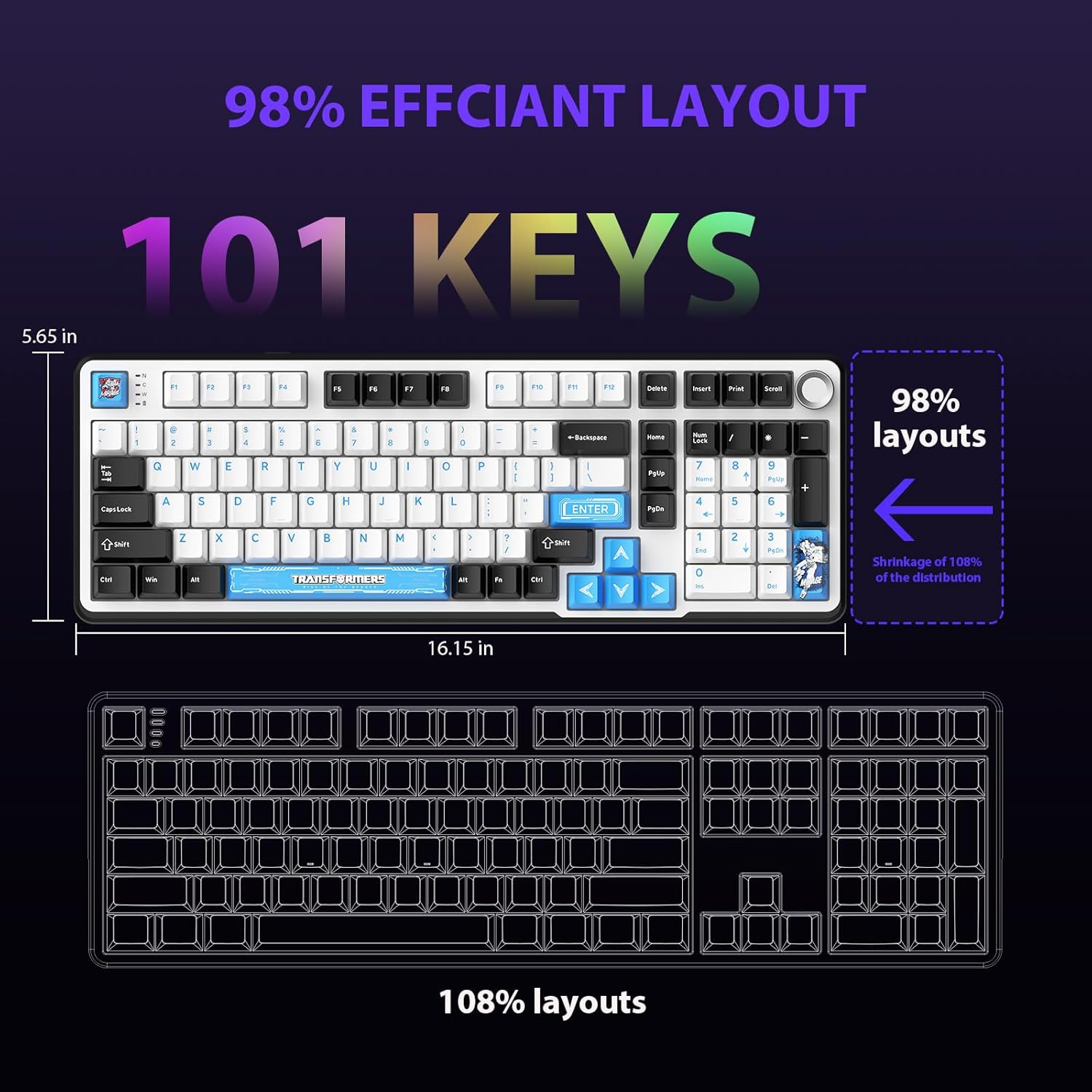
Figure 4.1: 101-Key Layout.
4.2. Kọ́nù Ìṣàkóso Multimedia
The dedicated knob located on the top right of the keyboard provides convenient multimedia control:
- Yiyi lọna aago: Mu iwọn didun pọ si.
- Rotate Counter-Clockwise: Din iwọn didun silẹ.
- Tẹ isalẹ: Mu ohùn náà gbó/Mu ohùn náà gbó.
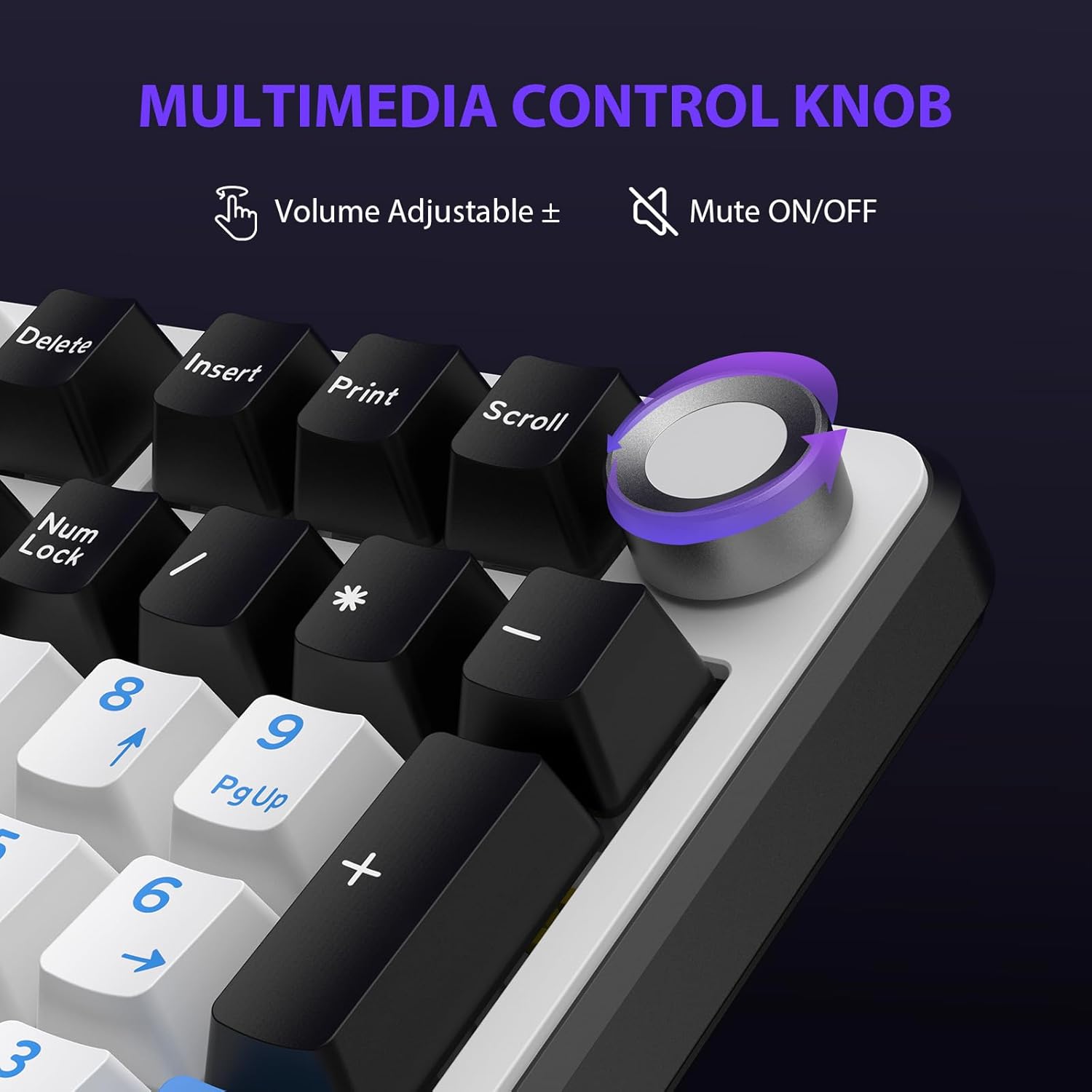
Figure 4.2: Multimedia Control Knob.
4.3. RGB Backlight Iṣakoso
The GK01 keyboard features 16.8 million color RGB backlighting with various effects.
- Fn + [Right Arrow]: Adjust 5 brightness levels.
- Fn + [Left Arrow]: Adjust 5 speed levels for dynamic effects.
- Fn + [Fi sii]: Switch between 20 different backlight modes.
- Fn + [tẹ sii]: Switch color order within certain modes.
- Fn + [X]: Turn off light / activate power-saving mode.
- Fn + [Apa-ẹhin]: Switch color order within certain modes.

Figure 4.3: RGB Backlight Controls.
5. Awọn ẹya ara ẹrọ ti ilọsiwaju
5.1. Gbona-Swappable Yipada
The GK01 keyboard is equipped with pre-lubricated Cybertron linear switches and supports solder-free hot-swapping. This allows you to easily replace switches with compatible 3-pin or 5-pin mechanical switches without soldering.
Lati paarọ iyipada kan:
- Using the provided 2-in-1 keycap and switch puller, gently remove the keycap from the desired switch.
- Insert the switch puller onto the switch, ensuring it grips the top and bottom clips of the switch.
- Fi ọwọ́ rọra fa ìyípadà náà sókè láti yọ ọ́ kúrò nínú PCB náà.
- Mö awọn pinni ti awọn titun yipada pẹlu awọn iho lori PCB. Rii daju pe awọn pinni wa ni taara lati yago fun atunse.
- Tẹ iyipada tuntun naa ṣinṣin sinu aaye titi ti o fi tẹ.
- Tun bọtini bọtini somọ.

Figure 5.1: Hot-Swappable Switch Replacement.
5.2. Sọ́fítíwètì tí a lè ṣètò
The GK01 supports custom software for advanced customization, including key remapping, macro creation, and detailed RGB lighting effects.
- The software is compatible only with the Windows operating system.
- The keyboard must be connected via USB-C wired mode to use the software.
- For driver download, please visit the official Transformers Keyboard website or refer to the link provided in the product packaging.
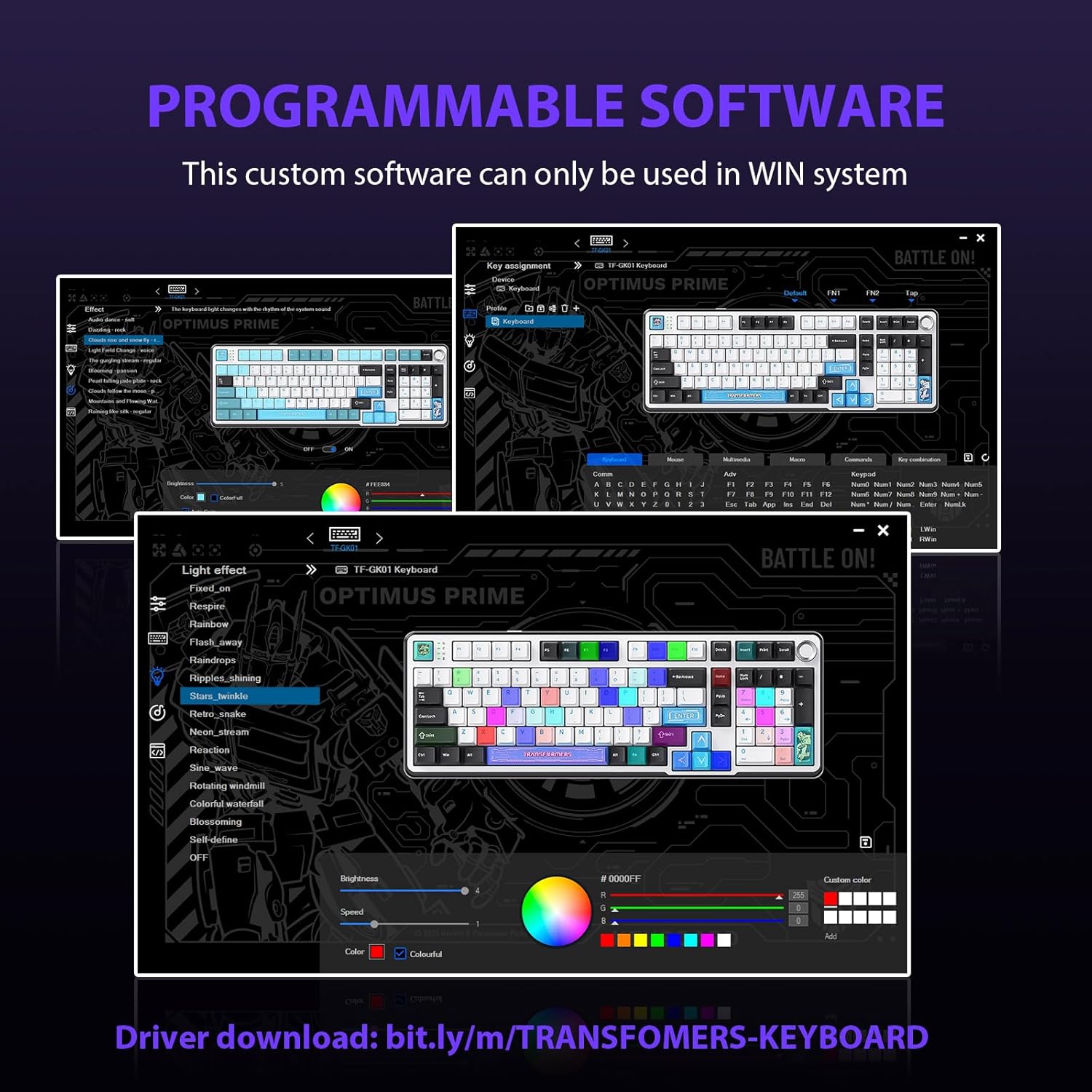
Figure 5.2: Programmable Software Interface.
5.3. Gasket Mounted Structure
The keyboard features a five-layer sound-absorbing and shock-absorbing gasket mounted structure. This design effectively reduces hollow noise and provides a softer, more consistent typing feel by isolating the plate from the case.
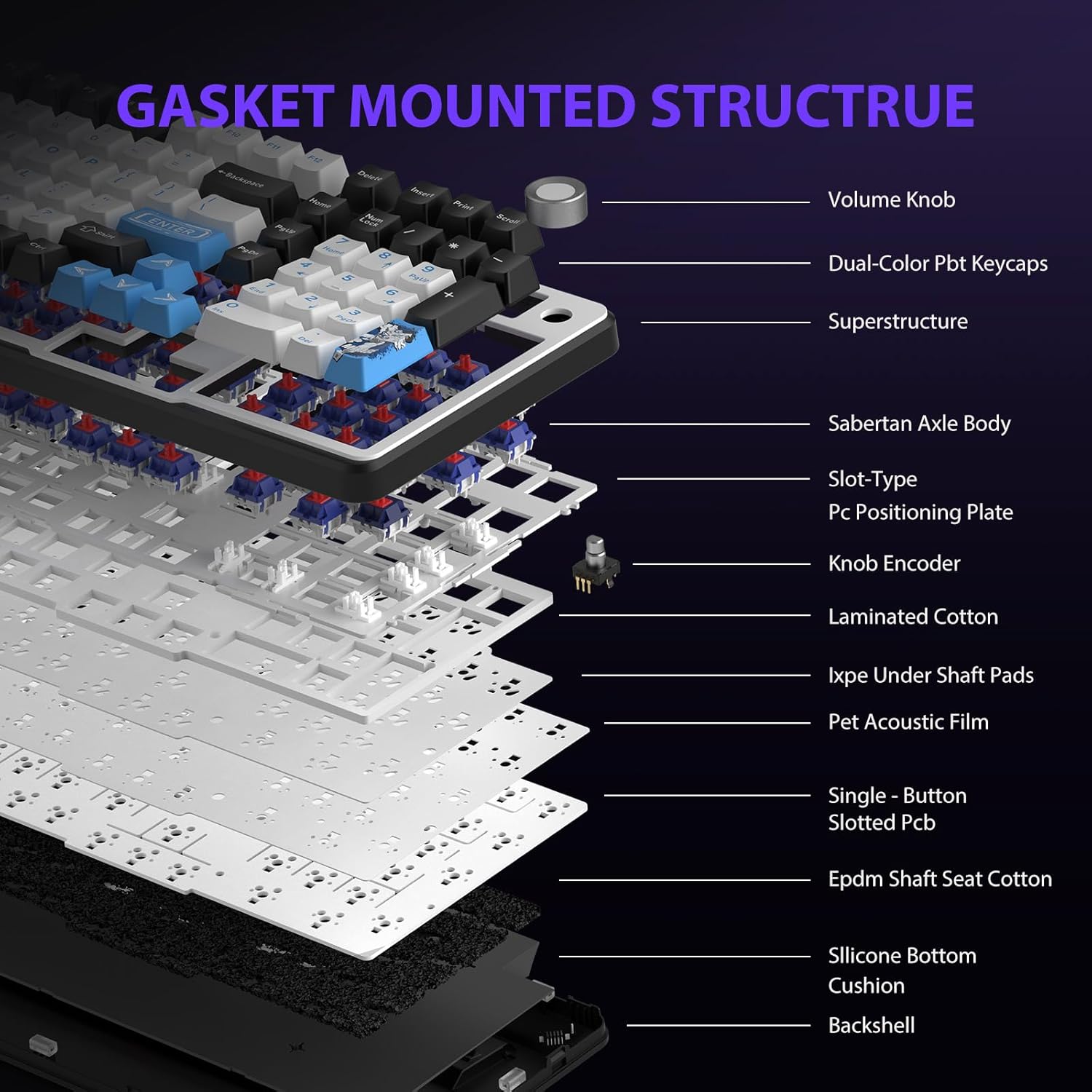
Figure 5.3: Gasket Mounted Structure Components.
6. Iṣakoso batiri
The GK01 keyboard is equipped with a 4000mAh rechargeable battery.
- Gbigba agbara: Connect the keyboard to a USB power source using the provided USB-C cable. The indicator light will show charging status.
- Igbesi aye batiri: A fully charged battery provides extended usage time. Actual battery life may vary based on usage patterns and RGB lighting intensity.
- Nfi agbara pamọ: The keyboard will enter a power-saving sleep mode after a period of inactivity to conserve battery. Press any key to wake it up.
7. Itọju
7.1. Ninu Keyboard
- Ge asopọ keyboard kuro lati gbogbo awọn orisun agbara ṣaaju ṣiṣe mimọ.
- Lo asọ asọ, ti ko ni lint die-die dampti a fi omi kun tabi ojutu mimọ kekere lati nu awọn bọtini bọtini ati ẹnjini naa.
- Fun eruku ati idoti laarin awọn bọtini bọtini, lo afẹfẹ fisinuirindigbindigbin tabi fẹlẹ kekere kan.
- Yago fun lilo awọn kẹmika lile tabi awọn ohun elo abrasive.
7.2. Ìtọ́jú Keycap àti Switch
- The PBT keycaps are designed for durability and fade resistance.
- Refer to Section 5.1 for instructions on safely removing and replacing keycaps and switches.
- Ensure the keyboard feet are clean and free of debris for stable placement.

Figure 7.1: Adjustable Keyboard Feet.
8. Laasigbotitusita
| Isoro | Owun to le Fa | Ojutu |
|---|---|---|
| Keyboard ko dahun ni ipo alailowaya. | Batiri kekere, ipo ti ko tọ ti yan, ko sopọ dongle, Bluetooth ko so pọ mọ. | Charge the keyboard. Ensure the mode switch is set correctly (2.4GHz or BT). Re-insert the 2.4GHz dongle. Re-pair Bluetooth connection. Try wired mode to confirm keyboard functionality. |
| Awọn bọtini kii ṣe iforukọsilẹ tabi titẹ-meji. | Loose switch, software issue, debris under keycap. | Ensure switches are fully seated. Clean under keycaps. If using programmable software, ensure it's updated or try resetting keyboard settings. |
| RGB backlight not working or stuck. | Backlight turned off, software conflict. | Tẹ Fn + X to toggle backlight. Check programmable software settings. |
| Ko le sopọ nipasẹ Bluetooth. | Kííbọọ̀dù kò sí ní ipò ìsopọ̀, Bluetooth ẹ̀rọ ti pa, ìdènà. | Ensure keyboard is in Bluetooth pairing mode (Fn + Q/W/E long press). Ensure device Bluetooth is on and discoverable. Move closer to the device. |
9. Awọn pato
| Ẹya ara ẹrọ | Ẹ̀kúnrẹ́rẹ́ |
|---|---|
| Nọmba awoṣe | TF-GK01 |
| Asopọmọra | Bluetooth 5.0, 2.4GHz Alailowaya, USB-C Ti firanṣẹ |
| Keyboard Iru | Ẹ̀rọ |
| Ìfilélẹ | Àwọn kọ́kọ́rọ́ 101 (Iwọn kikun) |
| Yipada | Pre-lubed Cybertron Linear Switches, Hot-Swappable (3-pin/5-pin compatible) |
| Awọn bọtini itẹwe | Heat-sublimated PBT |
| Imọlẹ afẹyinti | RGB (16.8 Million Colors, 20 modes, music rhythm effects via driver) |
| Agbara Batiri | 4000mAh |
| Ọja Mefa | 16.15 x 5.65 x 1.63 inches (41.02 x 14.35 x 4.14 cm) |
| Iwọn Nkan | 2.24 poun (1.02 kg) |
| Awọn ẹrọ ibaramu | Kọǹpútà alágbèéká, PC, Foonuiyara, Tabulẹti |
| Pataki Awọn ẹya ara ẹrọ | Anti-Ghosting (all keys), Multimedia Control Knob, Programmable Keys (via software), Rechargeable |
10. Atilẹyin ọja ati Support
For information regarding warranty coverage, technical support, or service inquiries, please refer to the warranty card included with your product or visit the official Transformers Keyboard webojula.
Olupese: Ayirapada