
Ọja Pariview
The VENTION TPVBB Wireless HDMI Docking Station is a versatile device designed to extend your display and connectivity options. It functions as both a wired docking station and a wireless HDMI transmitter/receiver, offering high-resolution video output, fast data transfer, and power delivery capabilities.

Aworan: Pariview of the VENTION USB-C Wireless HDMI Docking Station highlighting its key features.
Awọn ẹya pataki:
- 4K@30Hz Wired HDMI Output: Supports crystal-clear 4K resolution at 30Hz via wired HDMI connection, backward compatible with 2K/1080P devices.
- 1080P@60Hz Wireless HDMI Output: Provides 1080P resolution at 60Hz for wireless screen mirroring.
- Gbigbe Data 5Gbps: Equipped with 3 USB-A and 1 USB-C port, enabling data transfer speeds up to 5Gbps.
- 50M Wireless Transmission: Utilizes 5G transmission protocol for stable wireless signals up to 50 meters (165 feet) in open environments.
- 60W PD Gbigba agbara Yara: Features a 60W Power Delivery port to charge compatible USB-C devices.
- Ibamu gbooro: Compatible with devices featuring a full-featured USB-C port, including MacBook Air/Pro, Mac mini M4, iPhone 15/16 series, Galaxy S series, and other phones/tablets.
Package Awọn akoonu
Jọwọ rii daju pe gbogbo awọn nkan ti a ṣe akojọ rẹ si isalẹ wa ninu package rẹ:
- VENTION Wireless HDMI Docking Station (Transmitter)
- Alailowaya olugba
- Okun Ngba agbara USB-C (1m)
- HDMI Extension Cable (0.2m)
- Ilana itọnisọna

Àwòrán: Àwòrán gbogbo àwọn ohun tí a fi sínú àpò ọjà náà.
Eto Itọsọna
Follow these steps to set up your VENTION Wireless HDMI Docking Station for wireless screen mirroring. For optimal performance, ensure the TX docking station's PD port is connected to a power adapter if needed.
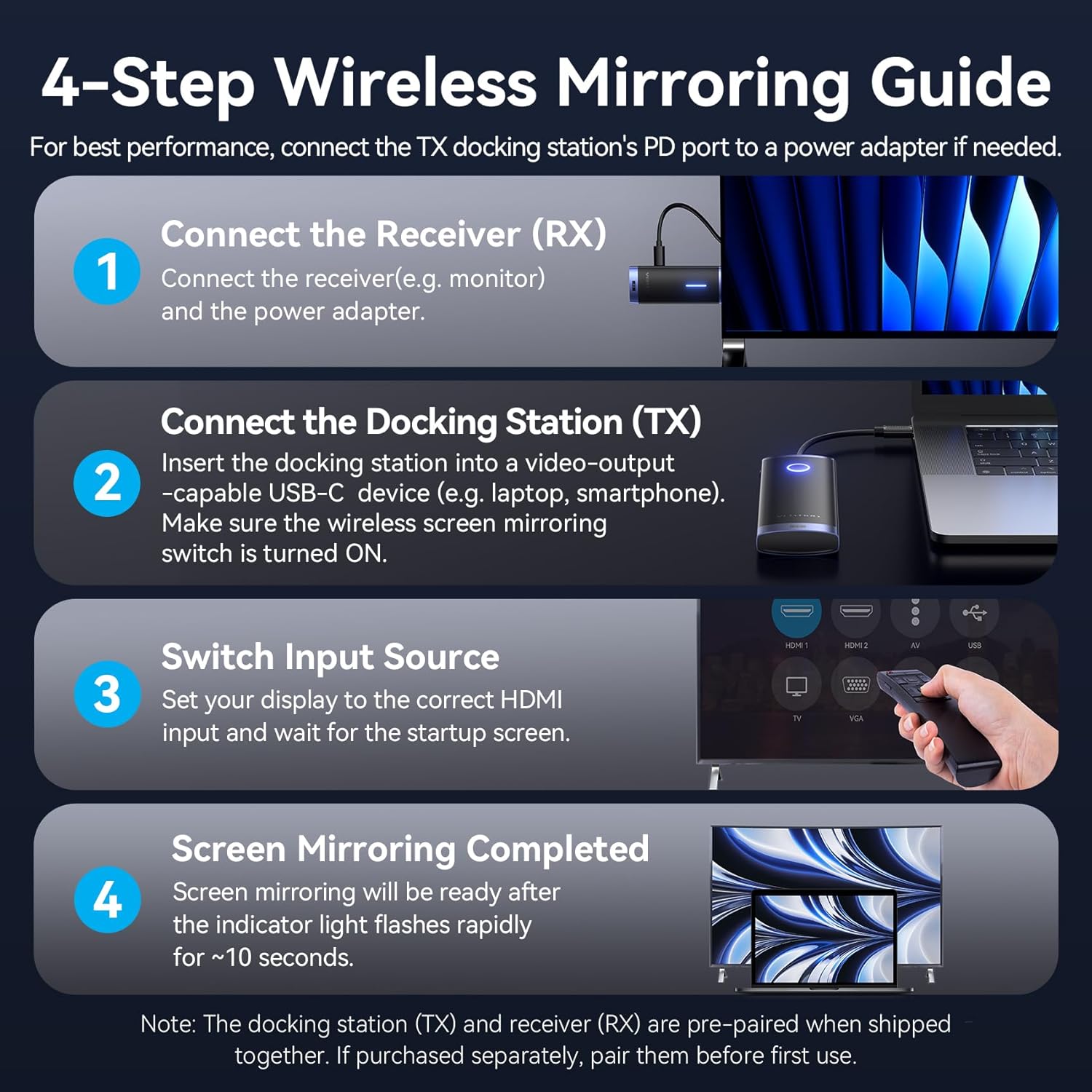
Image: A visual guide demonstrating the four-step setup process for wireless screen mirroring.
- So olugba (RX): Connect the wireless receiver to your display device (e.g., monitor, TV, projector) via an HDMI port. Connect the receiver to a power source using a USB cable.
- Connect the Docking Station (TX): Insert the docking station (transmitter) into a video-output capable USB-C port on your source device (e.g., laptop, smartphone). Ensure the wireless screen mirroring switch on the docking station is turned ON.
- Switch Input Source: On your display device, use its remote control to select the correct HDMI input source to which the receiver is connected. Wait for the startup screen to appear.
- Screen Mirroring Completed: Screen mirroring will be ready after the indicator light on the docking station flashes rapidly for approximately 10 seconds.
Akiyesi: The docking station (TX) and receiver (RX) are pre-paired from the factory. If purchased separately or if pairing is lost, refer to the troubleshooting section for re-pairing instructions.
Awọn ilana Iṣiṣẹ
Wired Display Mode (4K@30Hz)
When connected directly via an HDMI cable from the docking station to a display, the device supports 4K@30Hz resolution. This mode provides a stable, high-definition output suitable for detailed work or high-quality media consumption.

Image: A laptop connected to an external monitor for wired 4K@30Hz display.
Wireless Screen Mirroring (1080P@60Hz)
For wireless display, the system supports 1080P@60Hz. This is ideal for presentations, streaming, or extending your workspace without physical cables. The 5G transmission protocol ensures a stable connection up to 50 meters in open areas.

Image: Depiction of the 50-meter long-range wireless transmission capability.

Image: Visual representation of the benefits of 5GHz Wi-Fi band for low latency and stable performance.
Simultaneous Wired + Wireless Display
The docking station supports multi-screen collaboration, allowing for simultaneous wired and wireless displays. This enables flexible setups for various needs, such as extending your desktop to multiple screens.

Aworan: Examples of AAA and ABB display modes for simultaneous wired and wireless multi-screen setups.
Multi-Transmitter Support
This system supports connecting up to 8 transmitters to a single receiver, allowing for flexible use in environments where multiple source devices need to share one display. Independent channels prevent interference, ensuring smooth transitions between sources. Akiyesi: This feature requires the purchase of additional transmitters.

Image: Illustration of multiple transmitters connecting to a single receiver for flexible display sharing.
Gbigbe data ati gbigba agbara
The docking station provides multiple USB ports for data transfer and a dedicated USB-C PD port for charging.
- 5Gbps Data Ports: Utilize the 3 USB-A and 1 USB-C ports for high-speed data transfer, allowing you to connect peripherals like keyboards, mice, external hard drives, USB flash drives, and card readers.
- 60W PD Gbigba agbara Yara: Connect a power adapter to the 60W PD port to charge your laptop, tablet, or smartphone while using the docking station. This ensures uninterrupted operation during extended use.
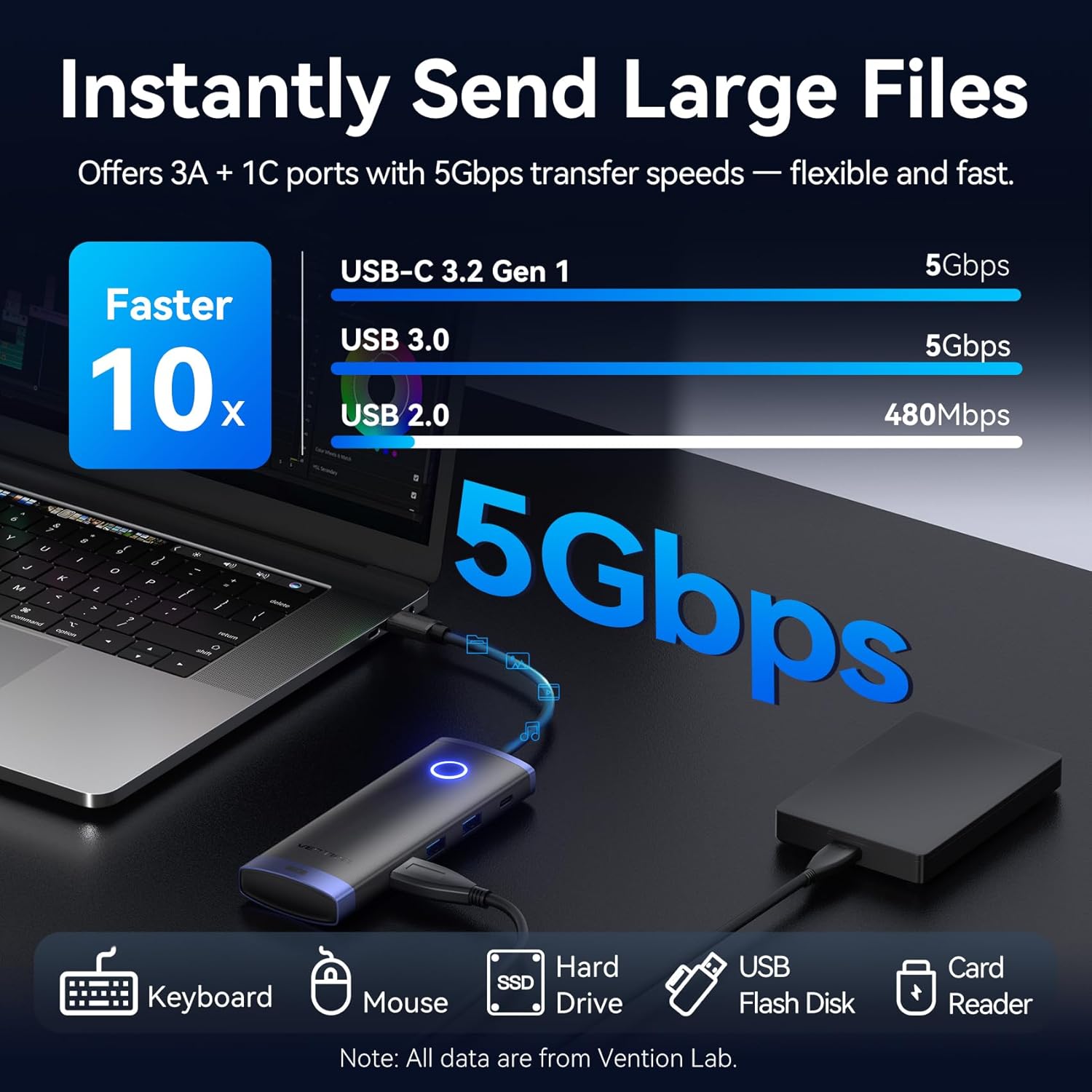
Image: Visual comparison of data transfer speeds for USB-C 3.2 Gen 1, USB 3.0, and USB 2.0, highlighting 5Gbps capability.

Image: A laptop receiving 60W fast charging through the docking station's PD port.
Ibamu
The VENTION TPVBB Wireless HDMI Docking Station is designed for broad compatibility with various devices.
Source Device (Transmitter):
- Devices with a full-featured USB-C port that supports video output (DisplayPort Alternate Mode).
- Examples include: MacBook Air/Pro, iMac, Mac Mini M4, iPhone 16/15 series, Galaxy S25/S24/S23/S22/S21, and other compatible phones, tablets, and laptops.
Display Device (Receiver):
- Most HDMI input devices, such as TVs, monitors, and projectors.

Image: Visual representation of the wide range of compatible devices for both the transmitter and receiver.
Awọn pato
| Ẹya ara ẹrọ | Ẹ̀kúnrẹ́rẹ́ |
|---|---|
| Nọmba awoṣe | TPVBB |
| Wired HDMI Output | 4K@30Hz (backward compatible with 2K/1080P) |
| Wireless HDMI Output | 1080P @ 60Hz |
| Data Transfer Ports | 3 x USB-A (5Gbps), 1 x USB-C (5Gbps) |
| Ifijiṣẹ Agbara | 60W PD Fast Charging (USB-C port) |
| Alailowaya Gbigbe Ibiti | Up to 50 meters (165 feet) in open environments |
| Ilana Alailowaya | 5G Transmission Protocol |
| Iwọn Nkan | 7.4 iwon |
| Ọja Mefa | 6.85 x 5.23 x 1.18 inches |
| Àwọ̀ | Dudu |
| Awọn ẹrọ ibaramu | Personal Computer, Smartphones, Tablets with full-featured USB-C |
| Asopọmọra Iru | Wi-Fi, USB-C, HDMI |
Itoju
To ensure the longevity and optimal performance of your VENTION Wireless HDMI Docking Station, please follow these maintenance guidelines:
- Ninu: Use a soft, dry cloth to clean the exterior of the device. Avoid using liquid cleaners, aerosols, or solvents, as these may damage the finish or internal components.
- Ibi ipamọ: When not in use, store the docking station and receiver in a cool, dry place away from direct sunlight and extreme temperatures.
- Mimu: Handle the device with care. Avoid dropping it or subjecting it to strong impacts, which can damage internal circuitry.
- Iṣakoso USB: Ensure cables are not excessively bent or kinked, as this can lead to damage over time.
- Afẹfẹ: Do not block the ventilation openings on the device, if any, to prevent overheating.
Laasigbotitusita
If you encounter issues with your VENTION Wireless HDMI Docking Station, refer to the following common troubleshooting steps:
- Ko si Ifihan/Ifihan:
- Ensure both the transmitter (TX) and receiver (RX) are properly powered.
- Verify that the HDMI cable is securely connected between the receiver and the display.
- Check that the display is set to the correct HDMI input source.
- Confirm that the source device's USB-C port supports video output (DisplayPort Alternate Mode).
- If using wireless mode, ensure the wireless mirroring switch on the TX is ON and the devices are within the effective transmission range (50M line of sight). Obstructions can reduce range.
- Gbiyanju lati tun ẹrọ orisun ati ifihan naa bẹrẹ.
- Unstable Wireless Connection/Flickering:
- Dín ijinna laarin atagba ati olugba kù.
- Minimize obstructions (walls, furniture) between the devices.
- Ensure there are no strong Wi-Fi or other wireless interference sources nearby.
- Confirm both units are receiving adequate power.
- Awọn ọran Gbigbe Data:
- Ensure the USB devices are properly inserted into the docking station's ports.
- Test the USB device directly with your source computer to rule out device issues.
- Some high-power USB devices may require the docking station to be connected to an external power adapter.
- Gbigba agbara Ko ṣiṣẹ:
- Verify that a compatible USB-C PD power adapter is connected to the docking station's PD port.
- Ensure your source device supports USB-C Power Delivery.
- Check the power adapter and cable for damage.
- Atunkọ Atagba ati Olugba:
If the TX and RX units lose their pairing, follow these steps:
- Power on both the TX and RX units.
- Press and hold the function button on both the TX and RX units simultaneously for approximately 5-7 seconds until their indicator lights start flashing rapidly.
- Release the buttons. The units should attempt to re-pair. Once successfully paired, the indicator lights will become solid or flash slowly, indicating a connection.
Atilẹyin ọja ati Support
For warranty information and technical support, please refer to the official VENTION webojula tabi kan si wọn onibara iṣẹ taara. Tọju iwe-ẹri rira rẹ fun awọn ẹtọ atilẹyin ọja.
- Atilẹyin Ayelujara: Ṣabẹwo www.ventiontech.com (fun apẹẹrẹample URL, replace with actual if available) for FAQs, driver downloads, and support resources.
- Iṣẹ onibara: Contact VENTION customer support for assistance with product issues or warranty claims.