
1. Ifihan
Thank you for choosing the GUSGU SplitFolio Detachable Keyboard Case. This manual provides detailed instructions for setting up, operating, and maintaining your new keyboard case. Designed for versatility and protection, this case enhances your iPad experience, transforming it into a powerful productivity tool or an entertainment hub.
2. Ibamu
The GUSGU SplitFolio Detachable Keyboard Case is compatible with the following iPad models:
- 2024 iPad Air 13-inch (M2)
- 2025 iPad Air 13-inch (M3)
- 2022 iPad Pro 12.9-inch (6th Gen)
- 2021 iPad Pro 12.9-inch (5th Gen)
- 2020 iPad Pro 12.9-inch (4th Gen)
- 2018 iPad Pro 12.9-inch (3rd Gen)
To verify your iPad model number, refer to the back of your device or check your iPad's settings under 'About'.

Figure 2.1: Compatibility chart and guide to verify your iPad model number.
3. Awọn ẹya ara ẹrọ
3.1 Magnetic Detachable Design
The keyboard attaches magnetically to the case, allowing for seamless transitions between typing and tablet-only use. This design provides stability for typing and can be easily detached when you prefer to use your iPad without the keyboard, reducing bulk.

Figure 3.1: The keyboard detaches magnetically for flexible use.
3.2 Adjustable Kickstand & 360° Rotation
The integrated kickstand and 360° rotatable hinge allow you to find the perfect viewing or working angle. This flexibility supports various activities, including drawing, typing, presenting, or watching media.

Figure 3.2: The adjustable kickstand provides multiple viewing awọn igun.
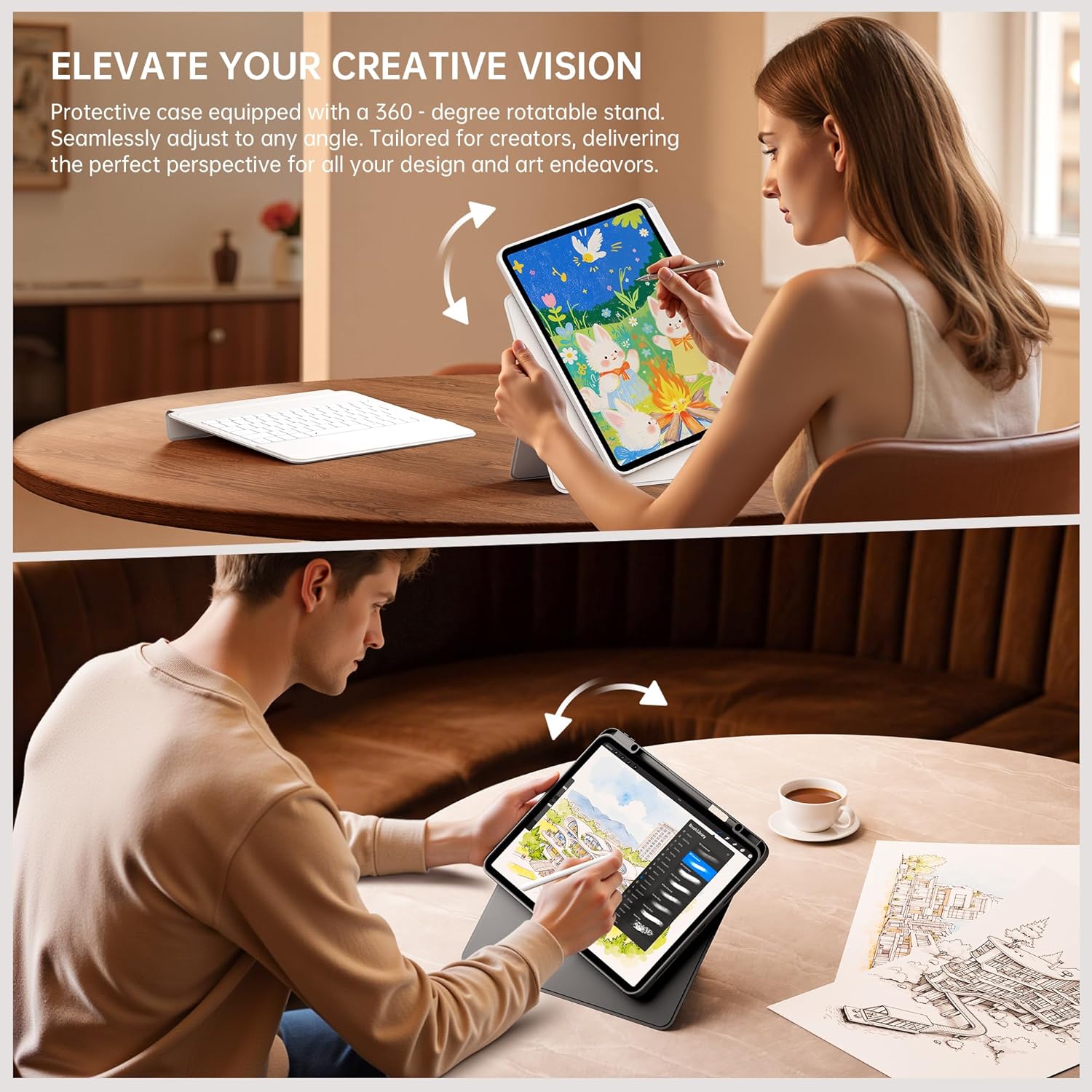
Figure 3.3: The case supports 360° rotation for portrait or landscape orientation.
3.3 Multi-Touch Trackpad with Native Gesture Support
Navigate your iPad with precision using the multi-touch trackpad. It supports native iPadOS gestures, enabling intuitive actions like swiping, scrolling, and switching between applications to enhance your workflow and multitasking efficiency.

Figure 3.4: The trackpad supports native iPadOS gestures for smooth navigation.
3.4 7-Awọ Backlit Keyboard
The keyboard features 7 adjustable backlight colors, allowing you to customize your typing experience. This is particularly useful in dim environments and adds a personalized touch to your workspace.

Figure 3.5: The keyboard features 7 adjustable backlight colors.
3.5 Secure Form-Fit Protection & Apple Pencil Holder
The case provides secure, form-fit protection for your iPad, safeguarding it from everyday bumps and scratches. It also includes a dedicated slot for your Apple Pencil, ensuring it's always within reach and securely stored.

Figure 3.6: Secure fit and integrated Apple Pencil holder.
4. Awọn ilana iṣeto
- Insert Your iPad: Gently place your iPad into the protective case, ensuring all edges are securely fitted. The case is designed for a snug fit to prevent accidental dislodgement.
- Gba agbara si Keyboard: Before first use, fully charge the keyboard using the provided USB-C cable. The charging port is typically located on the side of the keyboard. A charging indicator light will show the charging status.
- Agbara Lori Keyboard: Locate the power switch on the keyboard and slide it to the 'ON' position. The indicator light will typically flash, indicating it's ready for pairing.
- Bata nipasẹ Bluetooth:
- Lori iPad rẹ, lọ si Eto > Bluetooth.
- Tan Bluetooth.
- Lori awọn keyboard, tẹ awọn Sopọ button (often labeled with a Bluetooth icon or 'Fn + C'). The Bluetooth indicator light will start blinking rapidly.
- On your iPad, look for 'GUSGU Keyboard' or a similar name in the 'Other Devices' list and tap to connect.
- If prompted, enter the pairing code displayed on your iPad using the keyboard and press Wọle.
- Once connected, the Bluetooth indicator light on the keyboard will stop blinking and remain solid or turn off.
Video 4.1: Demonstrates the detachable keyboard feature and iPad installation. (Source: GSGDirect)
5. Awọn ilana Iṣiṣẹ
- Lilo Keyboard: Once paired, the keyboard functions like a standard external keyboard. Type directly into any text field on your iPad.
- Using the Trackpad: The integrated trackpad allows for precise cursor control and supports various iPadOS gestures. Refer to your iPad's settings for a full list of supported gestures. Common gestures include:
- Fọwọba ika-ọkan: Click/select.
- Yi lọ ika meji: Yi lọ si oke/isalẹ/osi/ọtun.
- Fífún ìka méjì: Sun sinu/sita.
- Three-finger swipe up: Lọ sí Iboju Àkọ́kọ́.
- Fi ika mẹta si osi/ọtun: Yipada laarin awọn ohun elo ṣiṣi.
- Atunse Backlight: Tẹ awọn Fn bọtini ati awọn gilobu ina icon key (usually near the arrow keys) to cycle through backlight colors and brightness levels.
- Títúnṣe Viewigun Angle: Utilize the adjustable kickstand to set your preferred viewing angle. The 360° rotation allows you to switch between landscape and portrait modes as needed.
- Yiyọ Keyboard kuro: Simply pull the keyboard away from the magnetic connection points on the case to use your iPad in tablet mode.
Fidio 5.1: Pariview of the GUSGU Detachable iPad Keyboard Case features and usage. (Source: GSGDirect)
6. Itọju
- Ninu ọran naa: Wipe the case with a soft, damp asọ. Yẹra fun awọn kẹmika lile tabi awọn olutọpa abrasive.
- Ninu Keyboard naa: Use a soft, dry cloth to clean the keyboard keys. For dust or debris between keys, use compressed air.
- Itọju Batiri: To prolong battery life, avoid fully discharging the keyboard battery frequently. Charge it regularly.
- Ibi ipamọ: Tí o kò bá lò ó fún ìgbà pípẹ́, tọ́jú àpótí kíákíá náà sí ibi tí ó tutù tí ó sì gbẹ.
7. Laasigbotitusita
- Keyboard Ko Sopọ:
- Rii daju pe keyboard ti wa ni titan ati gbigba agbara ni kikun.
- Ṣàyẹ̀wò pé Bluetooth ti ṣiṣẹ́ lórí iPad rẹ.
- Gbagbe ẹrọ inu awọn eto Bluetooth ti iPad rẹ ki o gbiyanju lati tun so pọ.
- Tun bẹrẹ mejeeji iPad ati keyboard.
- Awọn bọtini Ko Dahun:
- Rii daju pe keyboard ti sopọ nipasẹ Bluetooth.
- Ṣayẹwo fun batiri ti o kere.
- Clean the keyboard for any debris that might be obstructing keys.
- Trackpad Ko Ṣiṣẹ:
- Jẹrisi asopọ Bluetooth.
- Ensure the trackpad is clean and free of obstructions.
- Ṣayẹwo awọn eto iPadOS fun iṣẹ ipapad.
- Backlight Not Working/Changing:
- Rii daju pe keyboard ti wa ni titan.
- Press Fn + light bulb icon key to activate or change the backlight.
- Ṣayẹwo fun batiri ti o kere.
8. Awọn pato
| Ẹya ara ẹrọ | Ẹ̀kúnrẹ́rẹ́ |
|---|---|
| Brand | GUSGU |
| Àwọ̀ | Dudu |
| Awọn ẹrọ ibaramu | Tablets (Specific iPad models listed in Compatibility section) |
| Pataki Awọn ẹya ara ẹrọ | Magnetic Detachable Design, Multi-Touch Trackpad, Adjustable Kickstand & 360° Rotation, 7-Color Backlight |
| Iwọn Nkan | 1.15 kilo |
| Olupese | GUSGU |
9. Atilẹyin ọja & Atilẹyin
The GUSGU SplitFolio Detachable Keyboard Case typically comes with a 5-year extended warranty. Please refer to the warranty card included with your product for specific terms and conditions.
For further assistance, technical support, or warranty claims, please visit the official GUSGU store on Amazon or contact GUSGU customer service directly. You can find more information and contact details via the GUSGU Brand Store.