
TOOLTOP TT-TSNTC125
TOOLTOP NTC125 Autofocus Inspection Camera User Manual
Model: TT-TSNTC125
1. Ifihan
This manual provides comprehensive instructions for the safe and effective use of your TOOLTOP NTC125 Autofocus Inspection Camera. Please read this manual thoroughly before operating the device and retain it for future reference. This inspection camera is designed for visual inspection in hard-to-reach areas, featuring autofocus capabilities and high-resolution imaging.
2. Ọja Ipariview
The TOOLTOP NTC125 is a 5.0-megapixel micro inspection camera equipped with an autofocus lens, allowing for clear imaging from 1 inch to infinity. Its semi-rigid waterproof cable provides flexibility and durability for various inspection tasks.
2.1 Package Awọn akoonu

Figure 2.1: Complete package contents of the TOOLTOP NTC125 inspection camera. Includes the camera probe, USB cable, various accessory hooks, and a protective carrying case.
Daju pe gbogbo awọn nkan ti a ṣe akojọ rẹ si isalẹ wa ninu package rẹ:
- TOOLTOP NTC125 Autofocus Inspection Camera Probe (with integrated USB/Micro USB cable)
- USB-C Adapter (if applicable, for modern Android devices)
- Accessory Hooks (e.g., hook, magnet, side-view digi)
- Ọran Gbigbe Idaabobo
- Afowoyi Olumulo (iwe-ipamọ yii)
2.2 Key Awọn ẹya ara ẹrọ
- Lẹnsi idojukọ aifọwọyi: Automatically adjusts focus for clear images from 1 inch (30mm) to infinity, similar to a smartphone camera.
- Ipinnu giga: 5.0 Megapixel camera sensor, providing resolutions up to 2594x1944 pixels.
- Flexible & Waterproof Cable: 16-ft (5-meter) semi-rigid cable, IP67 waterproof, ideal for navigating tight and wet environments.
- Awọn imọlẹ LED ti o ṣatunṣe: Six high-intensity LEDs with 3 adjustable brightness levels for optimal illumination in dark areas.
- Ibamu gbooro: Connects via USB to Android phones with OTG function, MacBook, and Windows PC.

Nọmba 2.2: Alaye view of the camera head, highlighting the six adjustable LED lights surrounding the lens.

Figure 2.3: Exploded diagram illustrating the internal components of the camera lens, including the sensor and optical elements.
3. Eto ati fifi sori
Follow these steps to set up your TOOLTOP NTC125 inspection camera:
- Ṣe igbasilẹ sọfitiwia:
- Fun Android: Wa fun "Kámẹ́rà USB", "OTG View", or "AN98" in the Google Play Store and install a compatible application. Ensure your Android device supports OTG (On-The-Go) function.
- Fun Windows PC: Download the "ViewPlayCap" software or similar camera viewing software from the manufacturer's webaaye tabi orisun ti a gbẹkẹle.
- Fun MacBook: Use the built-in "Photo Booth" application or download a third-party camera application.
- So kamẹra pọ:
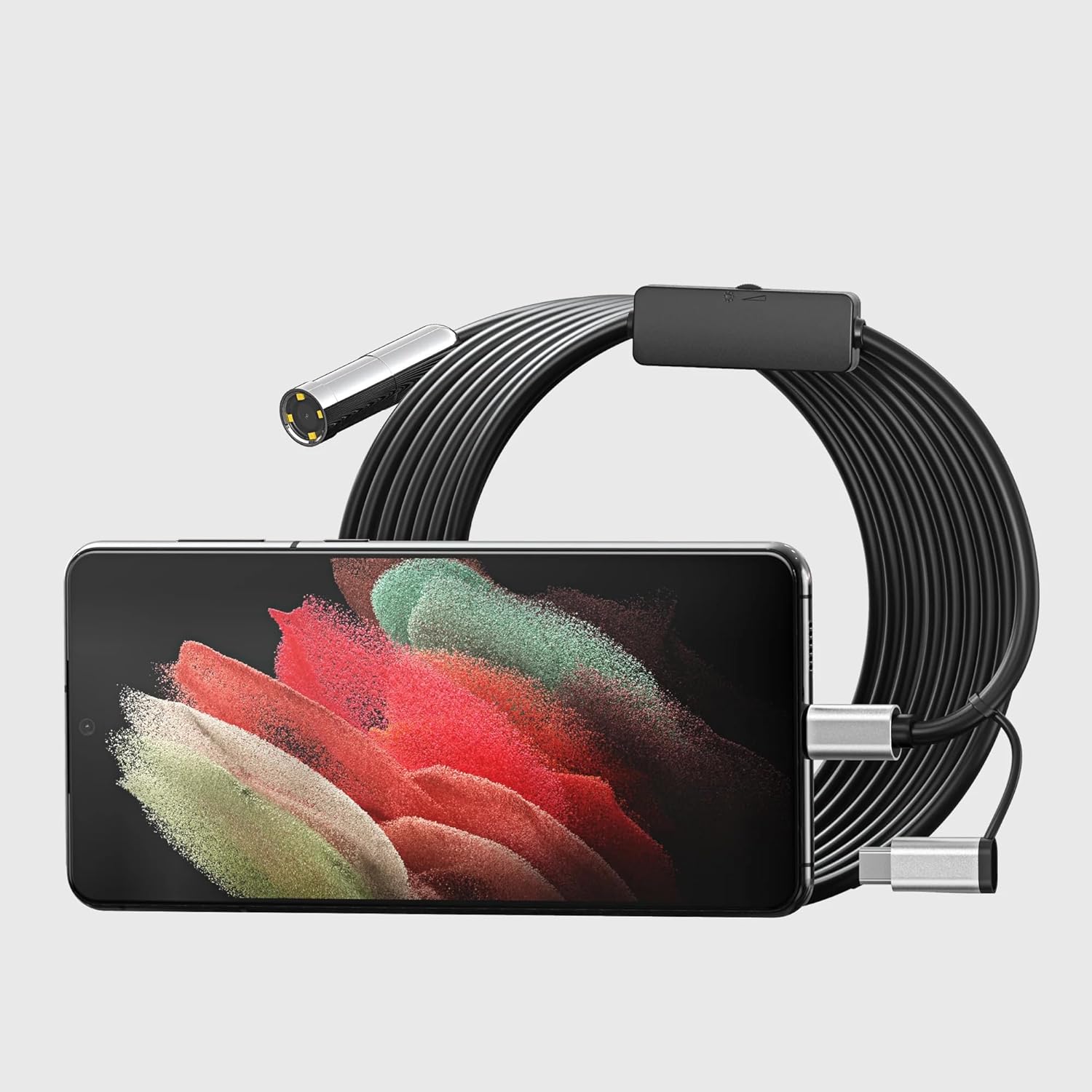
Figure 3.1: The endoscope's USB connector plugged into a smartphone, ready for use.
- Plug the USB connector of the inspection camera into your device's USB port. If using an Android phone, you may need to use the included Micro USB or USB-C adapter.
- Sọfitiwia ifilọlẹ: Open the downloaded camera application on your device. The camera feed should appear automatically. If not, select the external USB camera from the application's settings.
- Ṣatunṣe Imọlẹ LED: Use the brightness control wheel located on the USB cable to adjust the intensity of the LED lights on the camera head for optimal visibility.
4. Awọn ilana Iṣiṣẹ
Once set up, the TOOLTOP NTC125 is ready for inspection.
- Fi Kamẹra sii: Carefully guide the semi-rigid cable and camera head into the area you wish to inspect. The cable's flexibility allows it to navigate bends and tight spaces.
- View the Feed: Observe the live video feed on your connected device's screen. The autofocus feature will automatically adjust for clear images at varying distances.
- Ṣatunṣe Imọlẹ: Rotate the LED brightness control wheel on the cable to illuminate dark areas effectively.
- Ya aworan/Fidio: Most compatible applications will have options to capture still images or record video. Refer to your specific application's instructions for these functions.
- Lo Awọn ẹya ẹrọ: Attach the included hook, magnet, or side-view mirror accessories to the camera head as needed for retrieving objects or viewing ni orisirisi awọn agbekale.

Figure 4.1: Practical application of the endoscope, demonstrating its use for inspecting hard-to-reach areas like under a vehicle.
5. Itọju ati Itọju
To ensure the longevity and optimal performance of your inspection camera, follow these maintenance guidelines:
- Ninu: After each use, especially in dirty or wet environments, gently wipe the camera head and cable with a soft, damp asọ. Maṣe lo awọn kẹmika ti o lewu tabi awọn afọmọ abrasive.
- Gbigbe: Ensure the camera head and cable are completely dry before storing.
- Ibi ipamọ: Store the camera and accessories in the provided protective carrying case in a cool, dry place, away from direct sunlight and extreme temperatures. Avoid kinking or sharply bending the cable.
- Yago fun ipa: Do not force the camera into tight spaces. If resistance is met, try to find an alternative path or remove obstructions.
6. Laasigbotitusita
If you encounter issues with your TOOLTOP NTC125, refer to the following common problems and solutions:
| Isoro | Owun to le Fa | Ojutu |
|---|---|---|
| No image on screen / Camera not detected. |
|
|
| Àwòrán náà kò ní àwọ̀ tàbí ó dúdú. |
|
|
| Sọ́fítíwètì máa ń jábọ́ tàbí kí ó dì. |
|
|
7. Awọn pato
| Ẹya ara ẹrọ | Ẹ̀kúnrẹ́rẹ́ |
|---|---|
| Nọmba awoṣe | TT-TSNTC125 (NTC125) |
| Iru kamẹra | Autofocus Single Lens, Straight-viewing |
| Iwọn Iwọn kamẹra | 0.49-inch (12.5mm) |
| USB Ipari | 16-ft (5 Meters) |
| Megapiksẹli | 5.0 Megapiksẹli |
| Ipinnu | 2594x1944 pixels / 1920x1080 pixels |
| Viewigun igun | 70° |
| Ijinle ti Field | 1.18-inch to infinity (30mm to infinity) |
| Imọlẹ LED | 6 Adjustable High-intensity LEDs |
| Asopọmọra | USB (compatible with Android OTG, Windows PC, MacBook) |
| Olupese | Teslong Technology |
8. Atilẹyin ọja ati Support
For warranty information and technical support, please contact TOOLTOP Official or the manufacturer, Teslong Technology. Refer to your purchase documentation for specific warranty terms and contact details.
- Àkókò Wíwà Àwọn Ohun Èlò Pàtàkì EU: Odun 1
For further assistance, visit the official TOOLTOP webojula tabi kan si wọn onibara iṣẹ.