
ILEBYGO B0F83Q1HHT
Ìwé Ìtọ́sọ́nà Olùlò ILEBYGO Mini Projector B0F83Q1HHT
Model: B0F83Q1HHT
1. Ifihan
Thank you for choosing the ILEBYGO Mini Projector B0F83Q1HHT. This portable projector is designed to provide a versatile entertainment experience with its Android 13 operating system, WiFi 6, Bluetooth 5.0, 1080P Full HD resolution with 4K support, 320 ANSI lumens brightness, 270-degree rotation, auto keystone correction, and autofocus. This manual provides essential information for setting up, operating, and maintaining your projector.
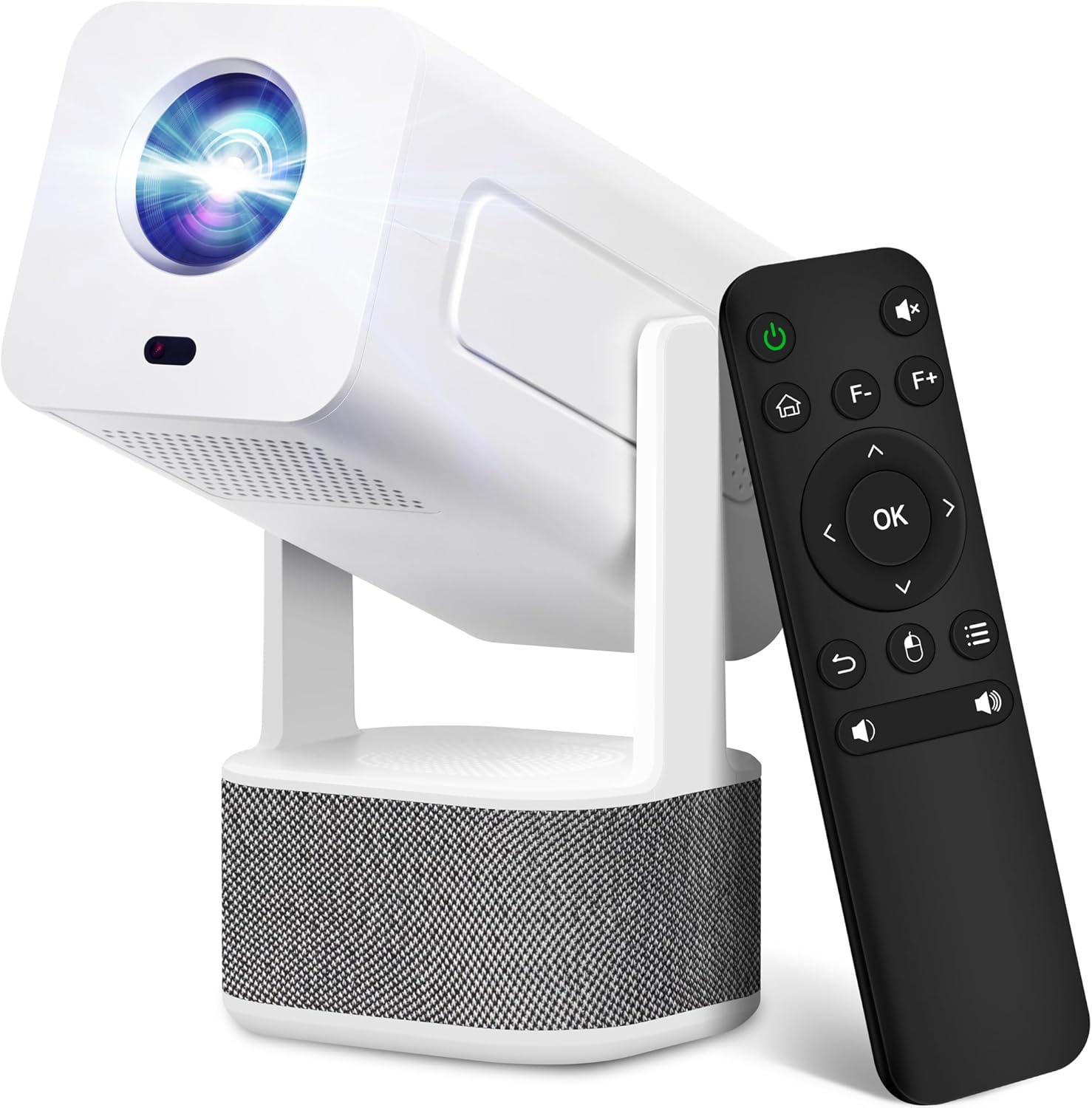
Image 1.1: ILEBYGO Mini Projector and Remote Control
The ILEBYGO Mini Projector B0F83Q1HHT offers a projection size ranging from 30 to 200 inches, making it suitable for various environments from small rooms to outdoor settings. Its dual 5W speakers deliver integrated audio, and multiple connectivity options ensure compatibility with a wide range of devices.
2. Ohun ti o wa ninu Apoti
Jọwọ ṣayẹwo awọn awọn akoonu ti rẹ package. Ti awọn ohun kan ba nsọnu tabi bajẹ, kan si atilẹyin alabara.
- 1x ILEBYGO Mini Projector
- 1x Itọsọna olumulo
- 1x Power Adapter
- 1x Isakoṣo latọna jijin
3. Eto Itọsọna
3.1. Agbara Lori
- So ohun ti nmu badọgba agbara si awọn DC input ibudo lori pirojekito.
- Pulọọgi ohun ti nmu badọgba agbara sinu iṣan ogiri kan.
- Tẹ bọtini agbara lori pirojekito tabi isakoṣo latọna jijin lati tan ẹrọ naa.

Image 3.1: Projector Connectivity Ports (DC, HDMI, USB, Audio)
3.2. Initial Placement and Adjustment
The projector features a 270-degree rotatable design, allowing flexible placement.
- Gbe awọn pirojekito lori kan idurosinsin dada.
- Adjust the projector's angle to direct the image onto your desired projection surface (wall, screen, ceiling).
- The projector will automatically perform keystone correction and autofocus to optimize the image clarity and shape.
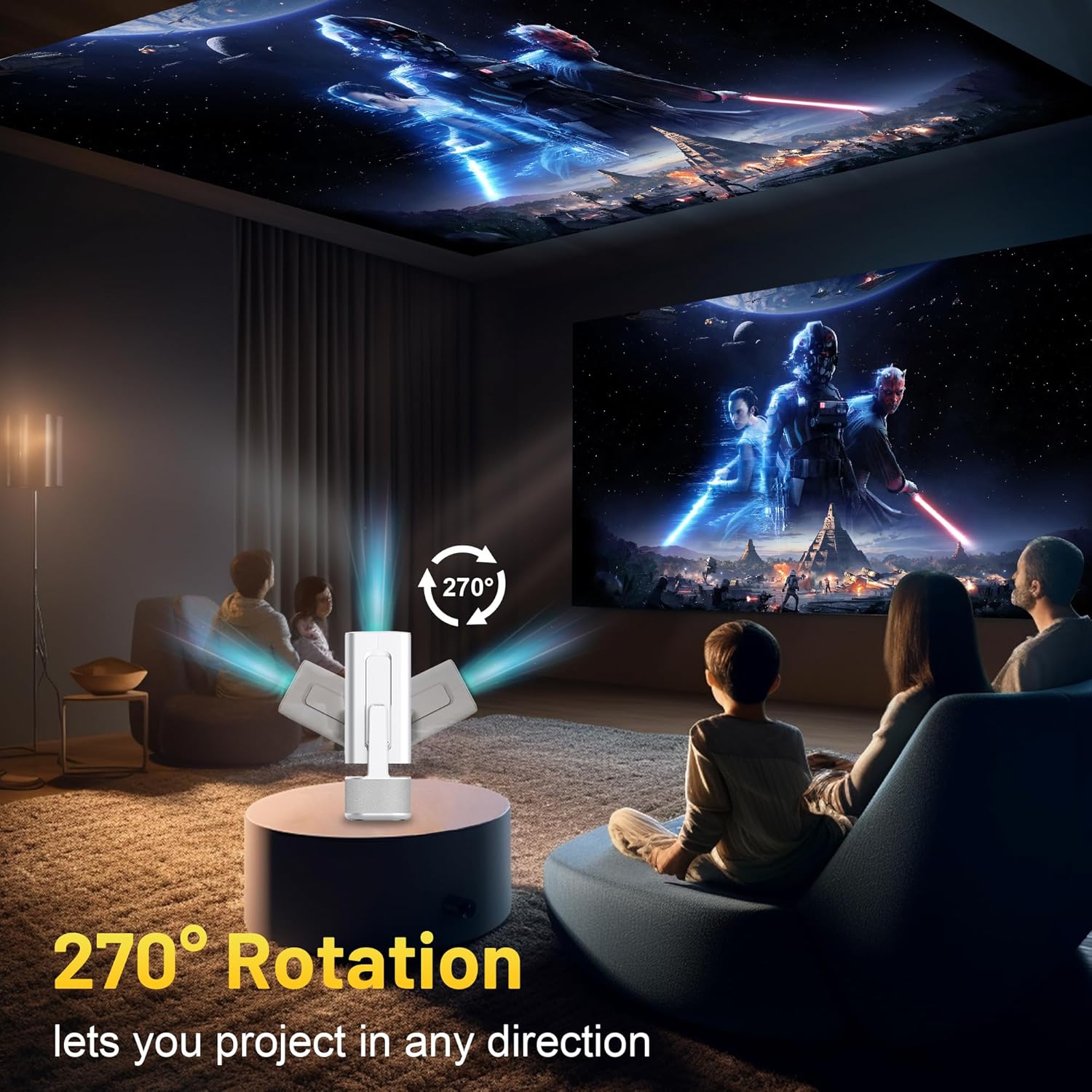
Image 3.2: 270-Degree Rotation Capability
3.3. Asopọ nẹtiwọki (WiFi)
Láti wọ inú àwọn iṣẹ́ ìṣàn àkóónú lórí ayélujára àti ìṣàn, so ẹ̀rọ ìṣàn àwòrán náà pọ̀ mọ́ nẹ́tíwọ́ọ̀kì Wi-Fi kan.
- Láti ojú ìbojú àkọ́kọ́, lọ sí 'Ètò'.
- Yan 'Nẹtiwọọki & Intanẹẹti'.
- Tan Wi-Fi ki o yan nẹtiwọki ti o fẹ lati inu akojọ.
- Tẹ ọrọ igbaniwọle Wi-Fi sii ti o ba beere ki o si so pọ.

Image 3.3: Dual Band WiFi 6 and Bluetooth 5.0
3.4. Sisopọ Bluetooth
Pair Bluetooth devices like external speakers or headphones for enhanced audio.
- Láti ojú ìbojú àkọ́kọ́, lọ sí 'Ètò'.
- Yan 'Awọn Ẹrọ ti a Sopọ' tabi 'Bluetooth'.
- Tan Bluetooth.
- Fi ẹrọ Bluetooth rẹ sinu ipo sisopọ.
- Yan ẹ̀rọ rẹ láti inú àkójọ àwọn ẹ̀rọ tó wà lórí ìbòjú projector láti so pọ̀.
4. Awọn ilana Iṣiṣẹ
4.1. Lilọ kiri
Use the included remote control to navigate the projector's interface. The directional buttons, 'OK' button, 'Back' button, and 'Home' button are primary controls.
4.2. App Usage (Android 13)
The projector runs on Android 13 and comes with pre-installed streaming applications.
- From the home screen, select the desired application (e.g., Netflix, YouTube, Prime Video).
- Log in with your account credentials if required.
- Browse and play content as you would on any Android smart device.
- Additional apps can be downloaded from the Google Play Store.

Image 4.1: Built-in Android 13 System with Apps
4.3. Ṣíṣe àwòrán/Ṣíṣe àwòrán ìbòjú
Ṣe àfihàn akoonu lati inu foonu alagbeka rẹ, tabulẹti, tabi kọmputa laisi alailowaya.
- Ensure both the projector and your device are connected to the same Wi-Fi network.
- On the projector, select the screen mirroring/casting application (e.g., Miracast, AirPlay).
- On your mobile device, enable screen mirroring or casting and select the projector from the list of available devices.
4.4. External Device Connection (HDMI, USB)
Connect external devices such as laptops, gaming consoles, or USB drives.
- HDMI: Connect an HDMI cable from your device to the HDMI port on the projector. Select the HDMI input source from the projector's input menu.
- USB: Insert a USB drive into the USB port. The projector's file manager will typically open automatically, allowing you to browse and play media files.

Image 4.2: Multi-Device Compatibility
4.5. Atunṣe Aworan
The projector features automatic adjustments for convenience.
- Atunse Keystone Aifọwọyi: The projector automatically corrects vertical image distortion. If manual adjustment is needed, navigate to 'Settings' > 'Projection Settings' > 'Keystone Correction'.
- Idojukọ: The image will automatically focus when the projector is moved or powered on. Manual focus adjustment can be found in 'Settings' > 'Projection Settings' > 'Focus'.
- Sun-un: Adjust the projection size from 50% to 100% without moving the projector. This setting is typically found in 'Settings' > 'Projection Settings' > 'Zoom'.

Image 4.3: Auto Keystone Correction and Autofocus
5. Itọju
5.1. Ninu
- Lẹnsi: Lo asọ, asọ ti ko ni lint ti a ṣe apẹrẹ pataki fun awọn lẹnsi opiti. Yago fun awọn ohun elo abrasive tabi awọn kemikali lile.
- Òde: Mu ese pirojekito nu pẹlu asọ ti o gbẹ. Ma ṣe lo awọn olutọpa omi taara lori ẹrọ naa.
- Afẹfẹ: Rii daju pe awọn šiši fentilesonu ko kuro ninu eruku ati awọn idena lati ṣe idiwọ igbona.
5.2. Ibi ipamọ
When not in use, store the projector in a cool, dry place away from direct sunlight and extreme temperatures. Use the original packaging or a protective case to prevent dust accumulation and physical damage.
6. Laasigbotitusita
Tọkasi tabili ni isalẹ fun awọn ọran ti o wọpọ ati awọn ojutu wọn.
| Oro | Owun to le Fa | Ojutu |
|---|---|---|
| Ko si Agbara | Power cable not connected; Power outlet malfunction | Rii daju pe okun agbara ti sopọ ni aabo. Gbiyanju iṣan agbara ti o yatọ. |
| Ko si Aworan | Incorrect input source; Device not connected; Projector in standby mode | Select correct input source (HDMI, USB). Ensure external device is powered on and connected. Press power button to wake projector. |
| Aworan ti ko dara | Out of focus; Keystone not corrected | Allow autofocus to adjust. Manually adjust focus in settings if needed. Check keystone correction settings. |
| Ko si Ohun | Volume too low; Muted; External audio device not connected/paired | Increase volume. Unmute projector. Ensure Bluetooth audio device is paired and connected, or external speakers are properly connected via audio jack. |
| Awọn oran Asopọ Wi-Fi | Incorrect password; Network interference; Router issues | Verify Wi-Fi password. Move projector closer to router. Restart router. |
| Ikuna Sisopọ Bluetooth | Device not in pairing mode; Interference; Device too far | Ensure Bluetooth device is in pairing mode. Keep devices close. Turn off other Bluetooth devices to reduce interference. |
7. Awọn pato
| Ẹya ara ẹrọ | Ẹ̀kúnrẹ́rẹ́ |
|---|---|
| Brand | ILEBYGO |
| Awoṣe | B0F83Q1HHT |
| Ipinnu Ifihan | 1920 x 1080 (Full HD), 4K Support |
| Imọlẹ | 320 ANSI Lumens |
| Asopọmọra Technology | Bluetooth 5.0, HDMI, USB, Wi-Fi 6 (2.4G+5G) |
| Eto isesise | Android 13 |
| Pataki Awọn ẹya ara ẹrọ | Auto Keystone Correction, Autofocus, 270° Rotation, Built-in Dual 5W Speakers |
| Iwọn Isọtẹlẹ | 30''-200'' |
| Apakan Ipin | 16:9 / 4:3 |
| Iwọn Nkan | 2.72 iwon |
| Package Mefa | 13.54 x 5.39 x 5.2 inches |
8. Atilẹyin ọja ati Support
The ILEBYGO Mini Projector B0F83Q1HHT comes with a standard manufacturer's warranty. Please refer to the warranty card included in your package for specific terms and conditions.
For technical support, troubleshooting assistance, or warranty claims, please contact ILEBYGO customer service through the retailer's platform or the contact information provided in your product documentation.
Ask a question about this manual
Ask about setup, troubleshooting, compatibility, parts, safety, or missing instructions. Manuals+ will review the question and use this page’s manual context to help answer it.