
1. Ifihan
This manual provides detailed instructions for the GUSGU G7 Wireless Gaming Controller. Please read this guide thoroughly to ensure proper setup, operation, and maintenance of your device. The GUSGU G7 controller offers advanced features such as an interactive screen, Hall Effect joysticks and triggers, programmable buttons, and broad compatibility across multiple platforms.
2. Ọja Ipariview
Familiarize yourself with the components and features of your GUSGU G7 Wireless Gaming Controller.

olusin 2.1: Iwaju view of the GUSGU G7 Wireless Gaming Controller, showcasing its transparent red design and button layout.
2.1 Key Awọn ẹya ara ẹrọ
- Interactive Display Screen: For on-the-fly configuration of settings.
- Awọn Joysticks Ipa Hall: Drift-free precision with adjustable dead zones.
- Hall Effect Dual-Stage Triggers: Customizable trigger travel for various game genres.
- Àwọn bọ́tìnì ẹ̀yìn tí a lè ṣètò: Four customizable buttons for macros and shortcuts.
- Sensọ Gyro Apá 6: For motion control in supported games.
- Awọn Motors Gbigbọn Asymmetric: Four levels of haptic feedback.
- Awọn ọna Asopọmọra pupọ: Bluetooth 5.1, 2.4GHz wireless, and USB-C wired.
- Oṣuwọn Idibo giga: 1000Hz for ultra-fast input in wired/2.4GHz modes.
- Igbesi aye batiri gigun: 1000mAh battery providing up to 18 hours of gameplay.
3. Eto
3.1 Gbigba agbara Adarí
Before initial use, fully charge the controller. Connect the supplied USB-C cable to the controller's charging port and the other end to a compatible USB power source (e.g., PC, USB wall adapter). The interactive screen will indicate charging status. A full charge provides up to 18 hours of gameplay.
3.2 Ibẹrẹ Ibẹrẹ ati Asopọ
The GUSGU G7 supports three connection methods: Bluetooth, 2.4GHz wireless, and USB-C wired.
3.2.1 2.4GHz Wireless Connection (PC, Android TV)
- Insert the 2.4GHz USB receiver into an available USB port on your device (PC, Android TV).
- Tan oluṣakoso naa nipa titẹ bọtini Ile.
- The controller will automatically attempt to connect to the receiver. The interactive screen will display connection status.
3.2.2 Bluetooth Connection (iOS, Android, Switch, PS4)
- Rii daju pe Bluetooth ti ṣiṣẹ lori ẹrọ rẹ.
- On the controller, press and hold the Home button until the interactive screen displays pairing mode.
- On your device, search for Bluetooth devices and select "GUSGU G7" from the list.
- Once paired, the interactive screen will confirm the connection.
3.2.3 USB-C Wired Connection (PC, Switch, PS4)
- Connect the USB-C cable from the controller to a USB port on your device.
- Olùdarí náà yóò yípadà sí ipò onírin láifọwọ́ṣe.
- For Switch and PS4, ensure the console's settings allow for wired controller communication.
4. Isẹ
4.1 Using the Interactive Display Screen
The interactive screen allows for direct adjustment of controller settings without external software. Press the 'H' button for 3 seconds to enter the menu. Navigate using the D-pad and confirm selections with the 'A' button. Use 'B' to go back.
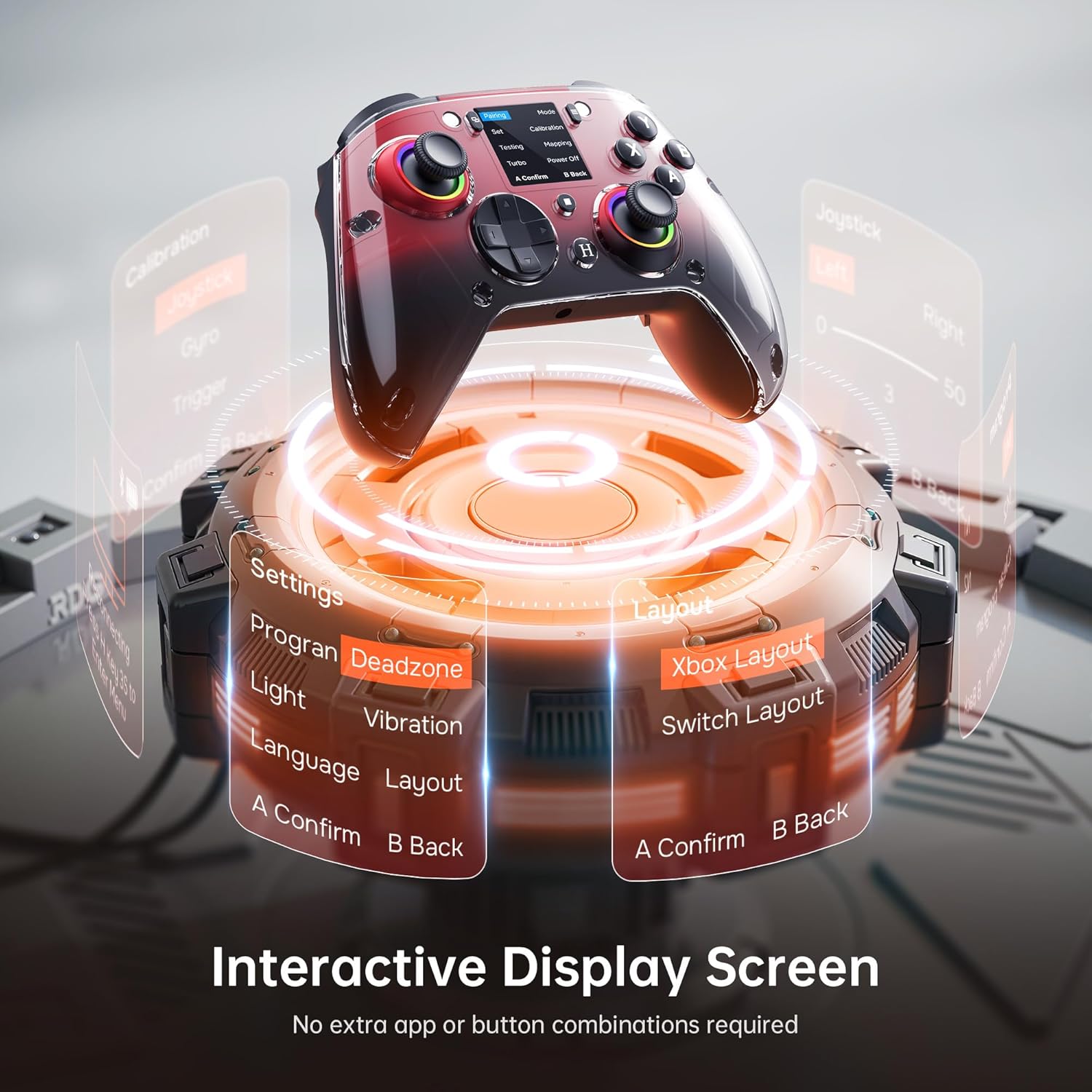
Figure 4.1: The interactive display screen allows for easy adjustment of settings like dead zones, vibration, and button layouts.
- Eto: Adjust vibration intensity, joystick dead zones, trigger sensitivity, and lighting effects.
- Eto: Configure the four programmable back buttons (M1, M2, N1, N2).
- Ilana: Switch between Xbox and Switch button layouts.
- Iṣatunṣe: Calibrate joysticks, gyro, and triggers if needed.
4.2 Programmable Back Buttons
The GUSGU G7 features four programmable back buttons (M1, M2, N1, N2) located on the underside of the controller. These can be assigned to single button presses, sequences, or macros via the interactive screen's "Program" menu. This allows for quick execution of complex commands during gameplay.
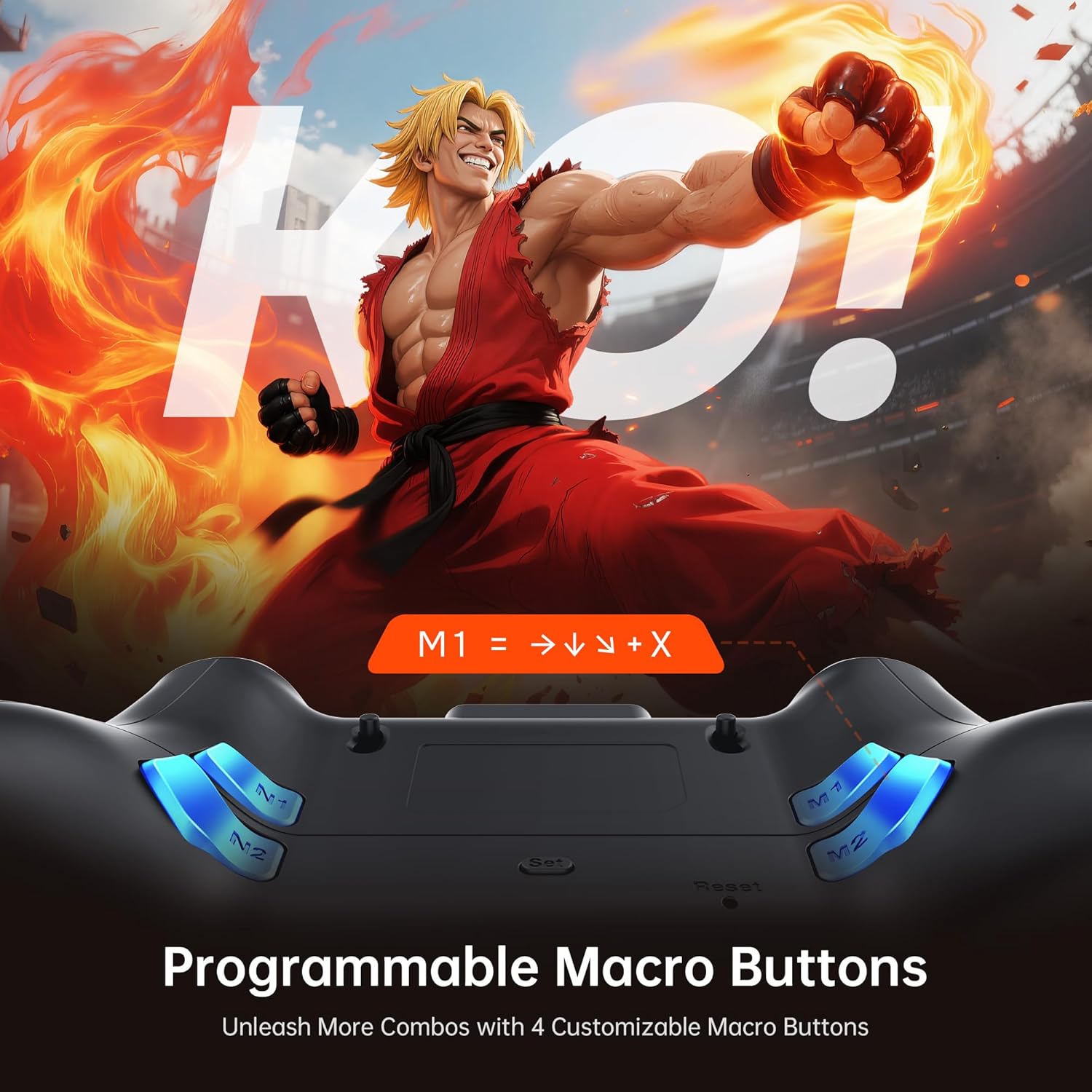
Figure 4.2: The four programmable back buttons (M1, M2, N1, N2) on the rear of the controller, designed for custom macros and shortcuts.
4.3 Hall Effect Joysticks and Adjustable Dead Zones
The Hall Effect joysticks provide precise, drift-free control. Dead zones can be customized from 0% to 50% using the interactive screen to match your preference and game requirements. A smaller dead zone offers more immediate response, while a larger one can prevent unintended inputs.

Figure 4.3: Illustration of the Hall Effect joystick mechanism and the concept of adjustable dead zones for enhanced precision.
4.4 Hall Effect Dual-Stage Triggers
The triggers feature a dual-stage mechanism, allowing you to switch between short-pull for quick actions (e.g., shooting in FPS games) and full-pull for precise control (e.g., acceleration in racing games). This can be configured through the interactive screen.

Figure 4.4: Visual representation of the dual-stage trigger functionality, demonstrating its application in different gaming scenarios.
4.5 Motion Control (6-Axis Gyro Sensor)
The built-in 6-axis gyroscope provides precise motion sensing for games that support tilt or motion-based controls. This enhances immersion in titles requiring realistic steering, aiming, or flight mechanics.
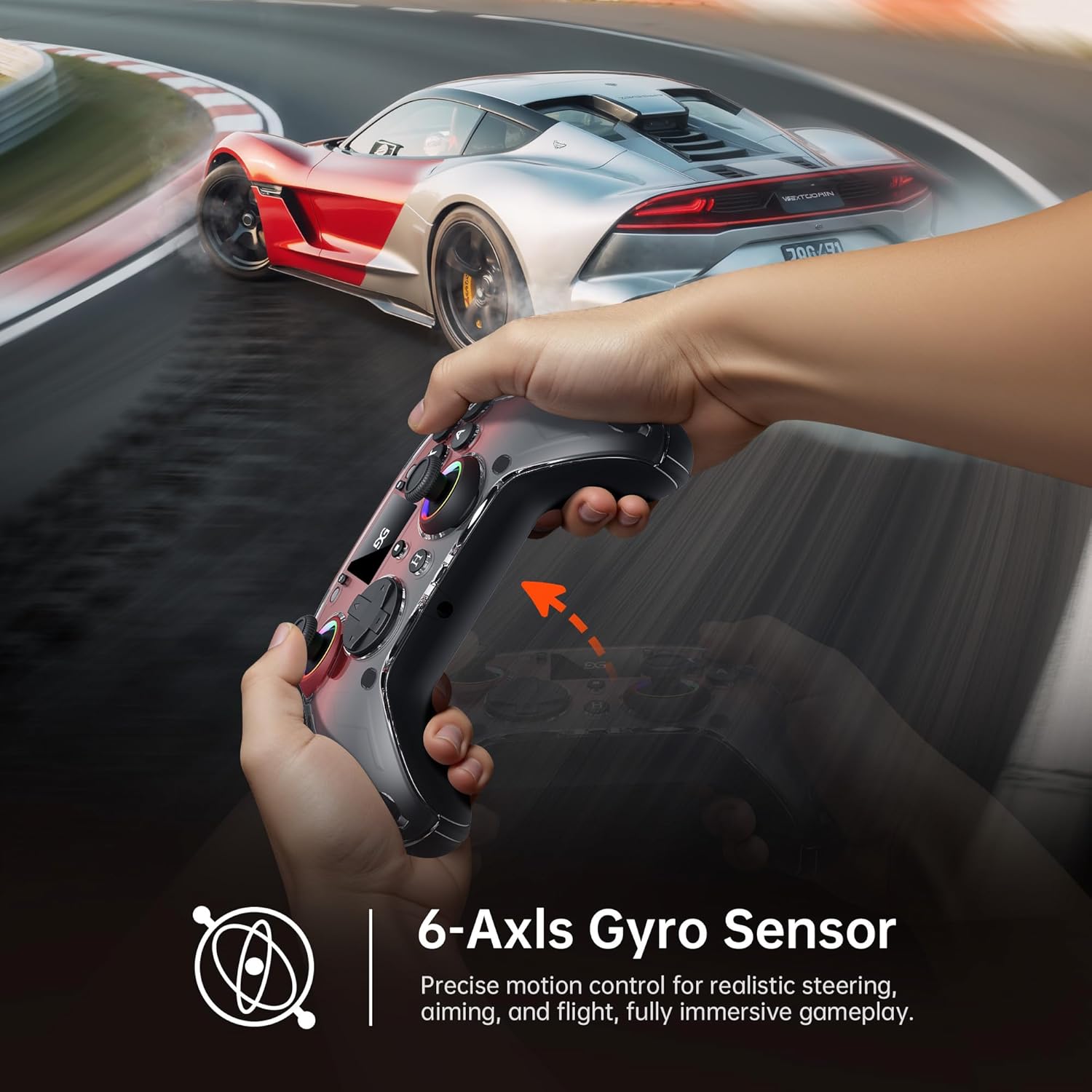
Figure 4.5: A user demonstrating motion control with the GUSGU G7 controller in a racing game, highlighting the 6-axis gyro sensor.
4.6 Gbigbọn esi
Dual asymmetric vibration motors provide four levels of haptic feedback, accurately replicating in-game events such as impacts, explosions, or engine rumble. Vibration intensity can be adjusted via the interactive screen.
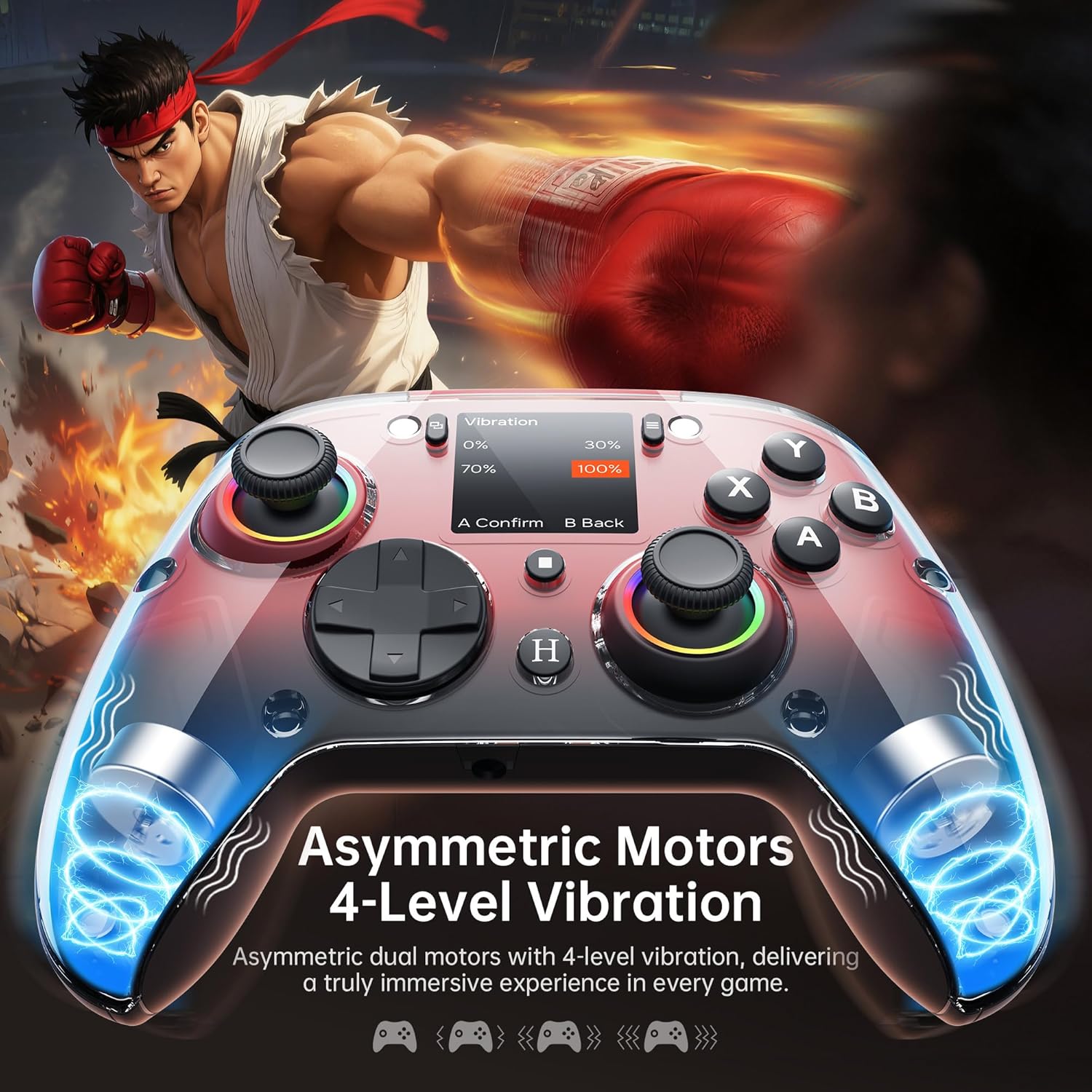
olusin 4.6: Ti abẹnu view of the GUSGU G7 controller illustrating the asymmetric vibration motors and their four adjustable intensity levels.
4.7 Audio wu
The 3.5mm headphone jack supports game audio output when the controller is connected via USB cable to a Nintendo Switch (Switch 1) or PlayStation 4. Audio output is not supported on other devices such as PC or mobile phones.
5. Ibamu
The GUSGU G7 Wireless Gaming Controller offers broad compatibility across various platforms:

Figure 5.1: The GUSGU G7 controller displayed with a list of compatible devices including PC, mobile, gaming consoles, and in-car systems.
- PC: Windows 10 and above (X-input, D-input modes).
- iOS: iOS 14.0 ati loke.
- Android: Android 9.0 ati loke.
- Nintendo Switch (NS): Supports Switch mode.
- PlayStation 4 (PS4): Supports PS4 mode.
- Tesla Arcade: Compatible with Tesla in-car gaming systems.
Note: The GUSGU G7 controller is currently not compatible with Xbox or PlayStation 5 consoles.
6. Itọju
To ensure the longevity and optimal performance of your GUSGU G7 controller, follow these maintenance guidelines:
- Ninu: Lo asọ ti o tutu, ti o gbẹ lati nu oludari naa. Fun idoti alagidi, die-die dampen awọn asọ pẹlu omi. Yẹra fun lilo awọn kẹmika lile tabi awọn afọmọ abrasive.
- Ibi ipamọ: Tọju olutọju naa ni itura, aye gbigbẹ kuro lati orun taara ati awọn iwọn otutu to gaju.
- Itọju Batiri: Avoid fully discharging the battery frequently. If storing for an extended period, charge the controller to approximately 50% to preserve battery health.
- Iṣakoso USB: Do not excessively bend or pull the USB-C cable to prevent damage.
7. Laasigbotitusita
If you encounter issues with your GUSGU G7 controller, refer to the following common solutions:
| Isoro | Ojutu |
|---|---|
| Adarí ko ni tan. | Ensure the controller is charged. Connect it to a power source using the USB-C cable. |
| Adarí kò sopọ̀ mọ́ alailowaya. |
|
| Joystick drift or inaccurate input. |
|
| Programmable buttons not working. | Verify the button assignments in the "Program" menu on the interactive screen. Ensure they are correctly configured. |
| Ko si ohun lati inu jaketi 3.5mm. | Ensure the controller is connected via USB-C to a Nintendo Switch (Switch 1) or PlayStation 4. Audio is not supported on PC or mobile devices. Check device audio settings. |
8. Awọn pato
| Ẹya ara ẹrọ | Ẹ̀kúnrẹ́rẹ́ |
|---|---|
| Nọmba awoṣe | GUSGU G7 |
| Asopọmọra | Bluetooth 5.1, 2.4GHz Alailowaya, USB-C Ti firanṣẹ |
| Idibo Oṣuwọn | 1000Hz (Wired/2.4GHz), 250Hz (Bluetooth) |
| Joysticks | Hall Effect, Adjustable Dead Zones (0-50%) |
| Awọn okunfa | Hall Effect, Dual-Stage with Adjustable Travel |
| Awọn bọtini eto | 4 Back Buttons (M1, M2, N1, N2) |
| Sensọ išipopada | 6-Axis Gyroscope |
| Gbigbọn | Dual Asymmetric Motors, 4 Levels Adjustable |
| Agbara Batiri | 1000mAh |
| Igbesi aye batiri | Titi di wakati 18 |
| Jack ohun | 3.5mm (Switch 1, PS4 via USB only) |
| Ibamu | PC (Win 10+), iOS (14.0+), Android (9.0+), NS, PS4, Tesla Arcade |
| Awọn iwọn | 7.72 x 5.16 x 2.83 inches |
| Iwọn | 16 iwon |
9. Atilẹyin ọja ati Support
GUSGU is committed to providing quality products and customer satisfaction. While specific warranty details are not provided in this manual, GUSGU offers lifetime customer support for its products.
For further assistance, technical support, or warranty inquiries, please visit the official GUSGU webaaye ayelujara tabi kan si ẹka iṣẹ alabara wọn nipasẹ olutaja nibiti a ti ra ọja naa.
O tun le ṣàbẹwò awọn GUSGU Store on Amazon fun alaye siwaju sii ati support oro.