
Ọrọ Iṣaaju
The GUSGU G7 Wireless Gaming Controller is a versatile and high-performance device designed for an immersive gaming experience across multiple platforms. Featuring an interactive screen for easy configuration, Hall Effect joysticks and triggers for precision, and dual-mode connectivity, this controller is built for serious gamers.
Key Awọn ẹya ara ẹrọ
- Interactive Screen & Programmable Buttons: Configure settings directly on the controller's display. Four programmable back buttons allow for custom shortcuts and macros.
- Àwọn Joysticks àti àwọn ohun tó ń fa ìjàǹbá Hall: Experience drift-free precision with Hall sensing technology. Customizable dead zones and dual-stage trigger locks enhance control.
- 6-Axis Gyroscope & Asymmetric Motors: Enjoy precise motion control for aiming and steering, complemented by realistic 4-level vibration feedback for immersive gameplay.
- Asopọmọra-Ipo Meji: Seamlessly switch between Bluetooth 5.1, 2.4GHz wireless, and USB-C wired connections.
- Igbesi aye batiri gigun: The 1000mAh battery provides up to 18 hours of gameplay on a single charge.
- Precise 8-Way D-Pad & Conductive Silicone Buttons: Designed for accurate control and comfortable, quiet presses during long gaming sessions.
- Jack agbekọri 3.5mm: Supports game audio output when the controller is connected via USB cable to Switch or PS4.
Eto Itọsọna
Awọn akoonu idii:
- GUSGU G7 Wireless Gaming Controller
- USB-C Charging/Wired Cable
- 2.4GHz Alailowaya Dongle
- Itọsọna olumulo
Idiyele Ibẹrẹ:
Before first use, fully charge the controller using the provided USB-C cable. Connect the USB-C end to the controller and the USB-A end to a compatible power source (e.g., computer USB port, USB wall adapter). The interactive screen will indicate charging status.
Titan / Pipa:
Lati mu agbara ṣiṣẹ, tẹ bọtini naa H bọtini. Lati fi agbara si pipa, tẹ mọlẹ H button for 3 seconds until the screen turns off.
Sisopọ Alakoso:
The GUSGU G7 supports multiple connection modes:
1. 2.4GHz Wireless Connection (Recommended for PC):
- Insert the 2.4GHz wireless dongle into an available USB port on your PC or compatible device.
- Agbara lori oludari.
- On the controller's interactive screen, navigate to Ipo ki o si yan Dongle. The controller will automatically pair with the dongle.

Image: GUSGU G7 Controller displaying the 2.4GHz wireless connection mode on its interactive screen, with the wireless dongle shown.
2. Bluetooth 5.1 Connection (for iOS, Android, Switch, PS4):
- Agbara lori oludari.
- On the controller's interactive screen, navigate to Ipo and select the desired platform (e.g., Android, iOS, Yipada, PS4).
- Enable Bluetooth on your device (phone, tablet, Switch console, PS4).
- Wa fun "GUSGU G7" in the Bluetooth device list and select it to pair.

Image: GUSGU G7 Controller with various compatible devices like PC, mobile, and consoles displayed around it.
3. USB-C Wired Connection:
- Connect the USB-C cable to the controller and the other end to your PC or compatible console.
- Olùdarí náà yóò yípadà sí ipò onírin láifọwọ́ṣe.

Image: Close-up of the GUSGU G7 Controller, highlighting its USB-C port for wired connection and charging.
Awọn ilana Iṣiṣẹ
Interactive Screen Navigation:
Tẹ mọlẹ H button for 3 seconds to access the main menu on the interactive screen. Use the joysticks or D-pad to navigate through options and the A/B buttons for confirmation/back.

Image: GUSGU G7 Controller displaying the interactive display screen with various settings menus, emphasizing ease of use without external apps.
Programmable Back Buttons (M1-M4):
The four back buttons (M1, M2, M3, M4) can be programmed to perform single actions or complex macros. Access the Eto option in the interactive screen menu to set up custom commands.

Image: The underside of the GUSGU G7 Controller, highlighting the programmable macro buttons (M1, M2, N1, N2) for custom commands.
Adjusting Joystick Dead Zones:
To eliminate stick drift and fine-tune precision, use the interactive screen to adjust joystick dead zones from 0-50% via the Agbegbe ipari eto.

Image: Diagram illustrating the adjustable dead zone feature of the GUSGU G7's Hall Effect joysticks, showing precision control.
Meji-Stage Trigger Locks:
The Hall Effect triggers feature dual-stage locks. Use the physical switches on the underside of the controller to toggle between rapid short-press firing and full-press precision control, adapting to different game genres.

Image: Visual representation of the GUSGU G7's Hall Effect two-stage triggers, demonstrating their use in different gaming scenarios.
Idahun gbigbọn:
The asymmetric dual motors provide four adjustable levels of vibration feedback. Adjust the intensity via the Gbigbọn setting on the interactive screen to suit your preference.

Aworan: Ti abẹnu view of the GUSGU G7 Controller showing the asymmetric motors and illustrating the four levels of vibration feedback.
Gyroscope Apá 6:
The built-in 6-axis gyroscope enables precise motion control for aiming, steering, and action gameplay. This feature is automatically active when supported by the game.
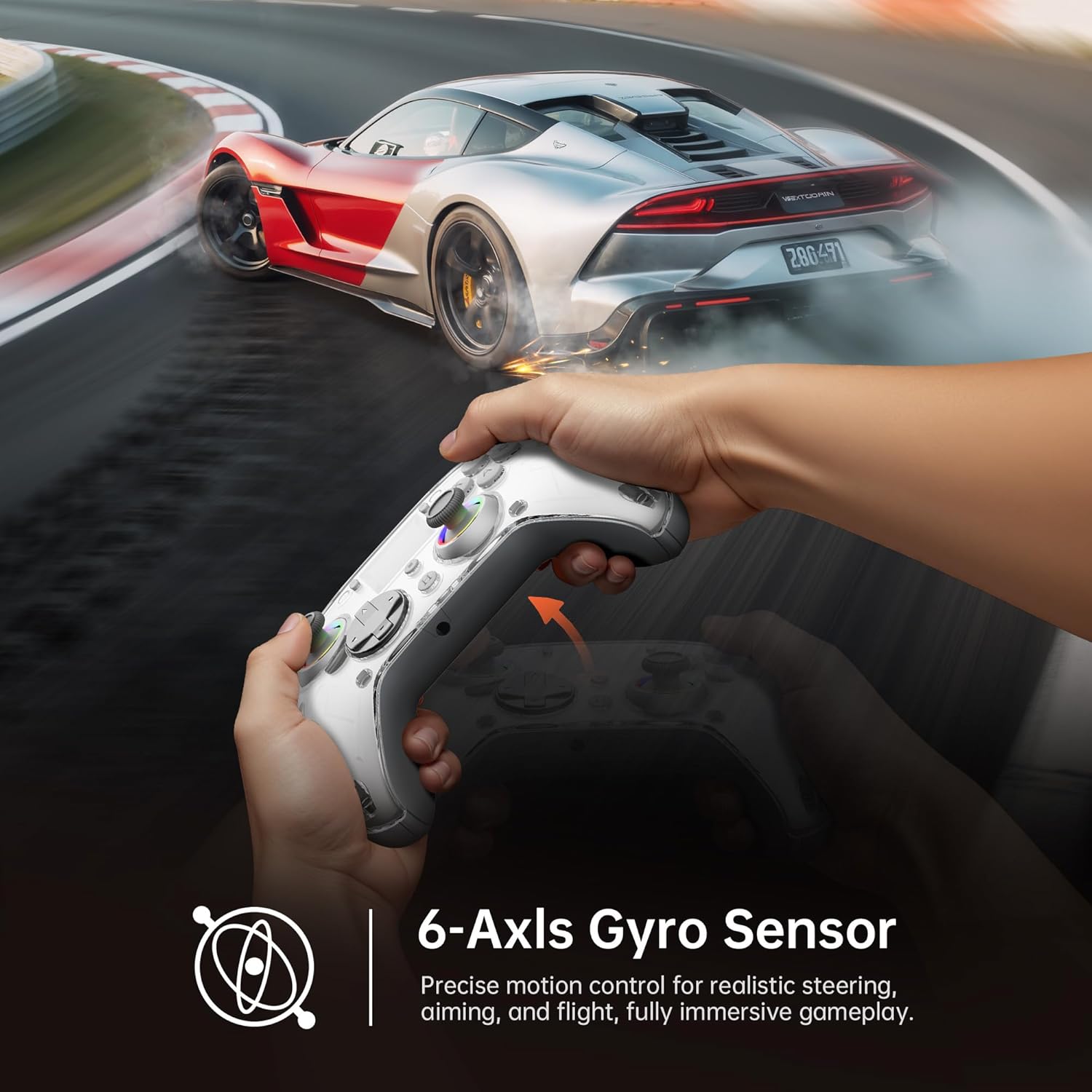
Image: Diagram illustrating the 6-Axis Gyro Sensor in the GUSGU G7 Controller, showing its application in precise motion control for gaming.
Changing Button Layouts:
Switch between Xbox and Switch button layouts (A/B/X/Y mapping) via the Ìfilélẹ setting on the interactive screen to match your preferred gaming style or console.
Headphone Jack Usage:
The 3.5mm headphone jack supports game audio output when the controller is connected via USB cable to a Nintendo Switch or PlayStation 4. Audio output is not supported on PC or mobile phones through this jack.
Fidio Ọja Oṣiṣẹ:
Fídíò: Ìfihàn fídíò ọjà tí a fọwọ́ síasing the GUSGU G7 Wireless Gaming Controller's features and functionality.
Itoju
- Jẹ́ kí olùdarí náà mọ́ tónítóní nípa fífi aṣọ rírọ̀ tí ó gbẹ nu ún.
- Yẹra fún fífi olùdarí náà sí àwọn iwọn otutu tó le koko, ọriniinitutu, tàbí oòrùn tààrà.
- Do not disassemble the controller, as this will void the warranty.
- Tọju olutọju naa ni itura, aye gbigbẹ nigbati o ko ba wa ni lilo.
Laasigbotitusita
Alakoso Ko Sopọ:
- Rii daju pe oludari ti gba agbara ni kikun.
- Verify the correct connection mode is selected on the interactive screen (2.4GHz, Bluetooth, or Wired).
- Fún Bluetooth, rí i dájú pé Bluetooth ẹ̀rọ rẹ ti ṣiṣẹ́ àti pé olùdarí náà wà ní ipò ìsopọ̀.
- Gbìyànjú láti tún bẹ̀rẹ̀ olùdarí àti ẹ̀rọ tí o ń so pọ̀ mọ́.
- If using 2.4GHz, ensure the dongle is securely inserted and recognized by your device.
Stick Drift or Input Issues:
- Calibrate the joysticks and triggers via the Isọdiwọn option in the interactive screen menu.
- Adjust the joystick dead zones using the Agbegbe ipari eto.
Gbigbọn Ko Ṣiṣẹ:
- Ṣayẹwo awọn Gbigbọn setting on the interactive screen and ensure it's not set to 0%.
- Rii daju pe ere ti o nṣe ṣe atilẹyin awọn esi gbigbọn.
Awọn pato
| Ẹya ara ẹrọ | Ẹ̀kúnrẹ́rẹ́ |
|---|---|
| Nọmba awoṣe | GUSGU G7 |
| Asopọmọra | Bluetooth 5.1, 2.4GHz Alailowaya, USB-C Ti firanṣẹ |
| Idibo Oṣuwọn | 1000Hz (Wired/2.4GHz) |
| Joysticks & Triggers | Hall Ipa |
| Agbara Batiri | 1000mAh (Up to 18 hours gameplay) |
| Gyroscope | 6-Ipo |
| Gbigbọn | Asymmetric Dual Motors (4 levels) |
| Ibamu | PC (Windows 10+), iOS (14.0+), Android (9.0+), Nintendo Switch, PS4, Tesla Arcade (Not compatible with Xbox or PS5) |
| Iwọn | 15.5 iwon |
| Olupese | Shenzhen Wojiayoupin Technology Co., Ltd. |
Atilẹyin ọja ati Support
For warranty information, technical support, or customer service inquiries, please refer to the contact details provided on the product packaging or visit the official GUSGU webojula.