
1. Ifihan
This manual provides comprehensive instructions for the Ardaddyn 4-in-1 Multi-Port Card Reader, Model AP555-C. This versatile device is designed to facilitate high-speed data transfer between various memory card types and a wide range of devices, including iPhones, iPads, PCs, and Android phones, utilizing Lightning, USB-C, and USB-A connections. Please read this manual carefully before using the product to ensure proper operation and to maximize its functionality.
2. Awọn ẹya Ọja
- Apẹrẹ Ibudo Pupo 3-ninu-1: Equipped with Lightning, USB-C, and USB-A ports for broad compatibility with various devices and operating systems, including iOS, Android, Windows, Mac OS, Chrome OS, and Linux.
- 4-in-1 Multi-Card Support: Features dedicated slots for SD, TF (MicroSD), MS (Memory Stick Pro Duo, Memory Stick Pro-HG, Memory Stick Duo), and XD (xD-Picture Card) memory card types.
- Gbigbe Data Iyara Giga: Supports data transfer speeds up to 480Mbps, ideal for handling large media files such as photos and videos. Note that actual speeds may vary depending on the connected device and card.
- Iṣẹ́ tí kò ní jẹ́ awakọ̀: Offers plug-and-play functionality, eliminating the need for additional driver installations for a seamless user experience.
- Iwapọ ati Gbigbe: Designed for convenience, its lightweight and compact form factor makes it easy to carry for on-the-go file transfers and office use.
3. Package Awọn akoonu
- 1 x Ardaddyn 4-in-1 Multi-Port Card Reader (Model AP555-C)
4. Eto
The Ardaddyn 4-in-1 Multi-Port Card Reader is designed for simple plug-and-play operation. No software or drivers are required for installation.
- Identify the appropriate connector on the card reader for your device (Lightning for iPhones/iPads, USB-C for newer iPhones/iPads/Android/PC, or USB-A for PCs/Laptops).
- Connect the chosen connector to your host device's port.
- Insert your memory card into the corresponding slot on the card reader. Ensure the card is inserted correctly and fully seated.

Image: The card reader showing its Lightning, USB-C, and USB-A ports for connecting to various devices.

Aworan: Alaye view of the card reader's four slots, indicating compatibility with XD, MS, SD, and TF card types. Important: Only one card can be read at a time.
5. Awọn ilana Iṣiṣẹ
Once connected, your device should automatically recognize the card reader as external storage. You can then access and manage files on the inserted memory card.
5.1. Gbogboogbo File Gbigbe
- After inserting a memory card and connecting the reader to your device, navigate to your device's file manager or photo application.
- Locate the external storage device (often labeled as "USB Storage" or similar).
- O le daakọ, gbe, tabi paarẹ files between your memory card and your device.

Image: The card reader connected to a laptop, demonstrating high-speed data transfer capabilities.
5.2. Using with iOS Devices (iPhone/iPad)
The functionality for iOS devices varies slightly depending on the iOS version:
- For iOS 9.2 - iOS 12.4: Supports one-way import of photos and videos to Apple mobile devices. It does not support reading office software files (e.g., Word, Excel) or USB mouse operations.
- For iOS 13 and later: Supports two-way import of photos and videos. It also supports reading office software files and full-featured OTG functions, including USB mouse operation.

Image: Step-by-step guide for transferring files on iOS devices, showing navigation through the Files app, selecting SD Card, using the Share button, and saving images.

Image: Visual representation of the different functionalities of the card reader with older (iOS 9.2-12.4) versus newer (iOS 13 and later) iOS versions.
5.3. Using with Android Devices
For Android devices, the card reader will appear as a USB storage device in your file alakoso.

Image: Step-by-step guide for transferring files on Android devices, showing navigation through the Files app, selecting USB storage, copying, and pasting files.
When some Android phones are connected for the first time, a format mismatch prompt may appear, requiring the "U disk" (card reader) to be formatted. After formatting, it can be used normally, and this operation will not be required again.
5.4. Using with Digital Cameras
The card reader allows you to directly transfer photos and videos from your digital camera's memory card to your smartphone, tablet, or computer.
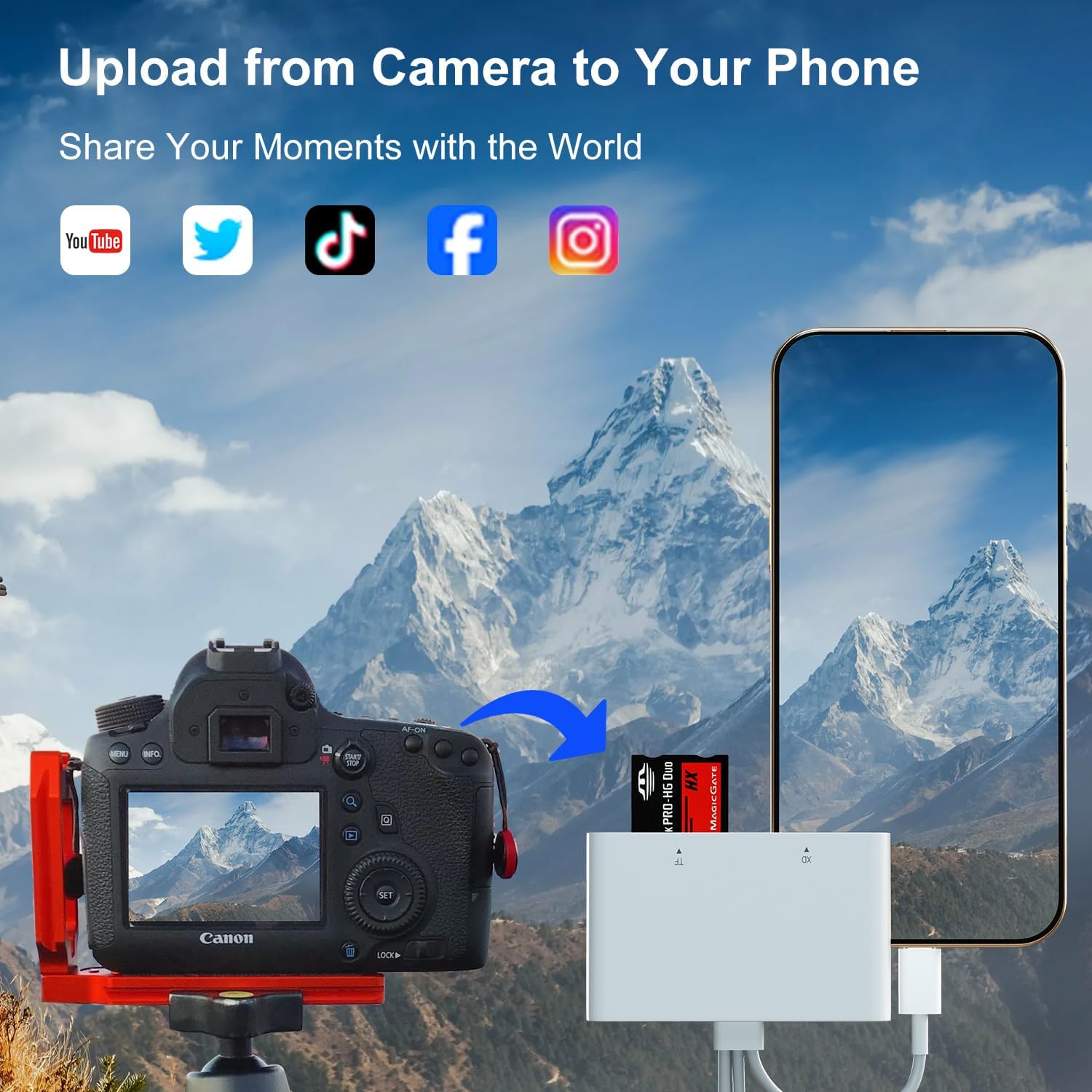
Image: A digital camera connected to a smartphone via the card reader, illustrating the process of uploading photos from the camera to the phone.
6. Itọju
- Keep the card reader clean and free from dust and debris. Use a soft, dry cloth for cleaning.
- Yago fun ṣiṣafihan ẹrọ naa si awọn iwọn otutu to gaju, ọriniinitutu, tabi oorun taara.
- Ma ṣe gbiyanju lati tunto tabi tun ẹrọ naa funrararẹ. Kan si atilẹyin ti awọn ọran ba dide.
- Ensure memory cards are inserted and removed carefully to prevent damage to the card slots.
7. Laasigbotitusita
- Kaadi Ti Ko Da: Ensure the memory card is correctly inserted into its designated slot. If the issue persists, unplug the card reader and memory card, then reconnect them.
- Files Not Transferring: Verify that the card is properly inserted and the card reader is securely connected to your device. For Android devices, if a "format mismatch" prompt appears on first use, format the "U disk" as instructed. This is a one-time operation.
- Slow Transfer Speed: While the device supports up to 480Mbps, actual speeds can vary based on the memory card's speed, the host device's capabilities, and the file sizes. Ensure your memory card is not damaged.
- Device Not Detecting Reader: Try connecting the card reader to a different port or a different compatible device to rule out port or device-specific issues.
8. Awọn pato
| Brand | Ardaddyn |
| Orukọ awoṣe | AP555-C |
| Media Iru Atilẹyin | Memory Stick Duo, Memory Stick PRO Duo, SDHC, microSD, xD Picture Card |
| Asopọmọra Technology | Lightning, USB Type A, USB Type C |
| Pataki Ẹya | 4 in 1 SD/TF/MS/XD Card Reader |
| Awọn ẹrọ ibaramu | Camera, Smartphone, Tablet |
| Data Gbigbe Oṣuwọn | 480 Megabits fun keji |
| Ibamu System isẹ | Android, Chrome OS, Linux, Windows, Mac OS, iOS |
| Ni wiwo Hardware | USB, USB Type C, Lightning |
| Olupese | Dongguan Lijie Electronic Technology Co., Ltd. |
9. Official ọja Video
Fidio: Ipariview of the Ardaddyn 4-in-1 Multi-Port Card Reader, demonstrating its features and usage.
10. Atilẹyin ọja ati Support
This Ardaddyn product comes with a 1-odun atilẹyin ọja lati ọjọ ti o ra.
For technical support, warranty claims, or any questions regarding the product, please contact Ardaddyn customer service through the retailer's platform or the manufacturer's official website. Please have your purchase receipt and product model number (AP555-C) ready when contacting support.