
1. Ti pariview
The Roku Select Series HD TV provides a streamlined entertainment experience. This 32-inch 720p HD television integrates the Roku operating system for easy access to streaming content, live TV, and various applications. It features a voice remote for convenient control and includes technologies like Bluetooth Headphone Mode and Dolby Audio for enhanced sound.
Key Awọn ẹya ara ẹrọ
- Seamless Streaming: Fast Wi-Fi and quick app launches for immediate entertainment access.
- Extensive Content: Access to thousands of streaming apps, free movies, shows, and live TV channels.
- Iboju Ile ti a le ṣe akanṣe: Organize apps and content for personalized viewing.
- Awọn imudojuiwọn sọfitiwia aifọwọyi: Ensures access to the latest features and applications.
- Iṣọkan Ile Smart: Compatible with Roku Voice, Siri, Alexa, and Google Assistant for voice control. Supports Apple AirPlay for content sharing.
- Clear HD Picture: 720p HD resolution with Roku Smart Picture technology for optimized visuals.
- Latọna ohun: Search, play, and control streaming with voice commands.
- Ohun Imudara: Designed for clear speech and louder sound with Dolby Audio technology.
- Bluetooth Headphone Mode: Private listening with wireless headphones.
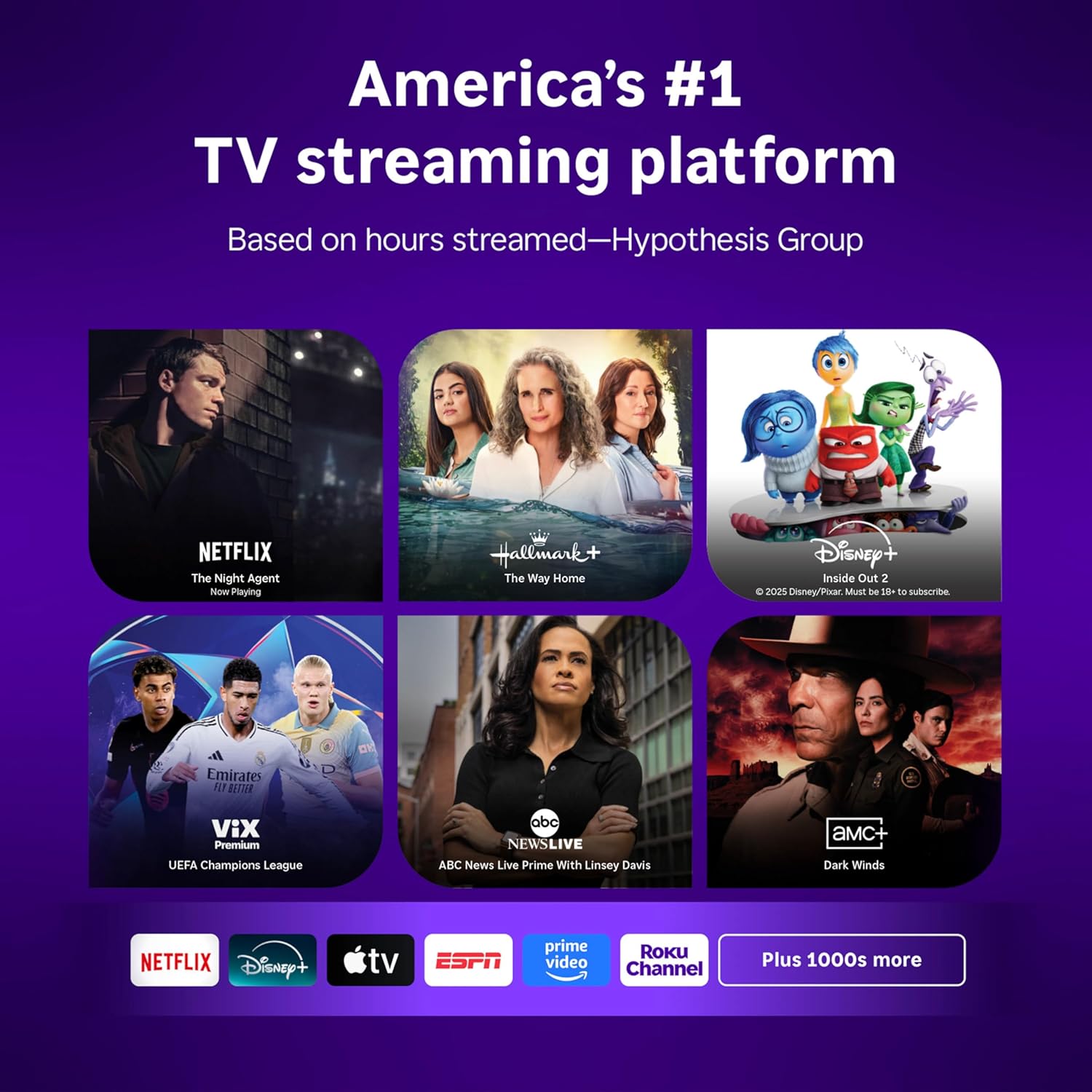
Image: Roku 32-inch Select Series HD Smart TV with included remote control.
2. Ohun ti o wa ninu Apoti
Daju pe gbogbo awọn paati wa ṣaaju ki o to tẹsiwaju pẹlu iṣeto.
- Roku Select Series 32" HD TV
- Stands and screws
- Roku Voice Remote with batteries (2 AAA)
- Okun agbara
- Afowoyi Olumulo (iwe-ipamọ yii)

Image: Contents of the Roku Select Series TV packaging.
3. Eto
3.1 Ṣiṣii silẹ
Fi ìṣọ́ra yọ TV àti gbogbo àwọn ohun èlò míì kúrò nínú àpótí náà. Pa àpótí náà mọ́ fún ìrìnàjò tàbí iṣẹ́ ìtọ́jú ọjọ́ iwájú.
3.2 So Iduro
- Gbe iboju TV si isalẹ lori rirọ, dada ti o mọ lati ṣe idiwọ awọn nkan.
- Ṣe deede awọn iduro TV pẹlu awọn ihò dabaru lori isalẹ ti TV.
- Ṣe aabo awọn iduro nipa lilo awọn skru ti a pese. Rii daju pe wọn ti di ṣinṣin.
3.3 Nsopọ Peripherals
So awọn ẹrọ rẹ pọ mọ awọn ibudo ti o yẹ lori ẹhin TV naa.
- HDMI: Connect up to three HDMI devices (e.g., cable box, gaming console, Blu-ray player) to the HDMI ports.
- USB: Use the USB port for media playback or connecting compatible accessories.
- Ojú (S/PDIF): Fun sisopọ si eto ohun afetigbọ ita.
- Cable Agbara: So okun agbara pọ si TV ati lẹhinna si iṣan ogiri.
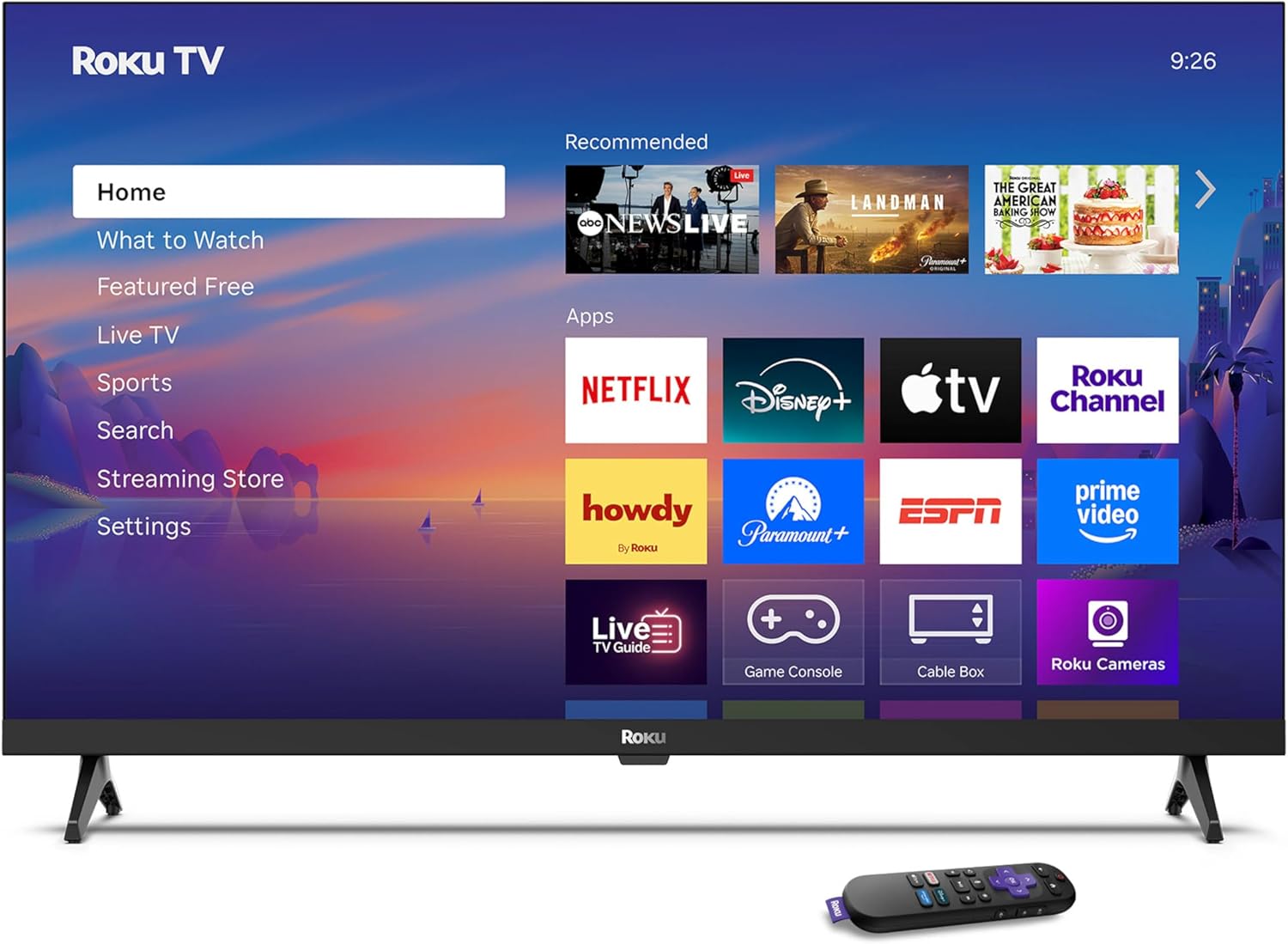
Image: Rear panel connections including HDMI, USB, and optical ports.
3.4 Agbara akọkọ Lori ati Asopọ nẹtiwọki
- Plug in the TV and press the power button on the remote or TV.
- Follow the on-screen instructions to select your language and connect to your Wi-Fi network.
- Activate your Roku account or create a new one.
Fidio: Ipariview of the Roku TV operating system, demonstrating its user interface and features. This video is provided by Roku, Inc.
4. Awọn ilana Iṣiṣẹ
4.1 Lilo Iṣakoso Ohun
The Roku Voice Remote allows for intuitive control of your TV and streaming content.
- Iwadi ohun: Press and hold the voice button and speak your command to search for content, launch apps, or control playback.
- Lilọ kiri: Lo paadi itọsọna lati gbe nipasẹ awọn akojọ aṣayan ki o yan awọn ohun kan.
- Awọn ọna abuja App: Dedicated buttons provide quick access to popular streaming services.

Image: Features of the Roku Voice Remote, highlighting voice control and shortcut buttons.
4.2 Lilọ kiri lori iboju ile
The Roku Home Screen provides access to all your installed apps, inputs, and settings.
- Ile: Ó máa dá ọ padà sí ojú ìbojú àkọ́kọ́.
- Kini lati wo: Discover recommended content.
- TV Live: Access free live television channels.
- Ile itaja ṣiṣanwọle: Browse and add new streaming channels.
- Eto: Adjust TV and system preferences.

Image: The Roku TV home screen interface.
4.3 Ṣíṣe àtúnṣe sí Àwòrán àti Ètò Ohùn
Ṣe akanṣe rẹ viewing and listening experience through the settings menu.
- Ipo aworan: Select from predefined modes like Standard, Vivid, Sports, or Movie. Roku Smart Picture automatically optimizes settings.
- Ipo Ohun: Yan ohun profiles or enable features like Night Mode for reduced volume fluctuations.
- Bluetooth Headphone Mode: Pair your wireless headphones for private audio.

Image: Picture mode settings on the Roku TV.

Image: Bluetooth Headphone Mode in use.

Image: Dolby Audio technology for clear sound.
5. Itọju
5.1 Ninu iboju
To clean the TV screen, gently wipe it with a soft, dry, lint-free cloth. For stubborn marks, lightly dampen awọn asọ pẹlu omi tabi a iboju-ailewu ninu ojutu. Yago fun lilo awọn kẹmika lile tabi awọn ohun elo abrasive.
5.2 Software imudojuiwọn
Your Roku TV automatically receives software updates when connected to the internet. These updates provide new features, performance improvements, and bug fixes. Ensure your TV remains connected to the internet for optimal performance.
6. Laasigbotitusita
Tí o bá ní ìṣòro pẹ̀lú Roku TV rẹ, wo àwọn ìdáhùn tó wọ́pọ̀ wọ̀nyí:
- Ko si Agbara: Rii daju pe okun agbara ti wa ni edidi ni aabo sinu TV mejeeji ati iṣan itanna ti n ṣiṣẹ. Gbiyanju iṣan ti o yatọ.
- Ko si Aworan/Ohun: Rí i dájú pé a ti yan orísun ìtẹ̀wọlé tó tọ́. Ṣàyẹ̀wò gbogbo àwọn ìsopọ̀ okùn (HDMI, ohùn). Tún TV náà bẹ̀rẹ̀ nípa yíyọ ó fún ìṣẹ́jú-àáyá 30 kí o sì tún so ó pọ̀ mọ́ ara rẹ̀.
- Latọna jijin Ko Ṣiṣẹ: Replace the AAA batteries in the remote. Ensure there are no obstructions between the remote and the TV. For voice remote issues, re-pair the remote if necessary (refer to Roku support for specific steps).
- Awọn oran Isopọ nẹtiwọki: Restart your Wi-Fi router and modem. Go to the TV's settings menu, then Network, and try reconnecting to your Wi-Fi network.
- Àpù náà kò ń gbé jáde/kò ń wó lulẹ̀: Try restarting the app. If the issue persists, remove the app from the home screen, restart the TV, and then re-add the app from the Streaming Store.
7. Awọn pato
| Ẹya ara ẹrọ | Ẹ̀kúnrẹ́rẹ́ |
|---|---|
| Iwon iboju | 32 inches |
| Ifihan ọna ẹrọ | LED |
| Ipinnu | 720p |
| Oṣuwọn sọtun | 60 Hz |
| Pataki Awọn ẹya ara ẹrọ | Bluetooth Headphone Mode, Dolby Audio, Voice Remote |
| Asopọmọra Technology | Bluetooth, WiFi |
| Lapapọ HDMI Ports | 3 |
| Lapapọ Awọn ibudo USB | 1 |
| Input Audio | HDMI |
| Eto isesise | Roku OS |
| Iṣagbesori Iru | Gbé Tábìlì, Gbé Ògiri |
| Boṣewa VESA Mount | 200 x 200 mm |
| Awọn iwọn Ọja (D x W x H) | 7"D x 28.3"W x 18.3"H |
| Iwọn Nkan | 7.5 iwon |
| Nọmba awoṣe | 32R2D5 |
| UPC | 829610008974 |
8. atilẹyin ọja Information
8.1 Atilẹyin ọja to lopin
Roku warrants the hardware against defects in materials and workmanship under normal use for a period of one (1) year from the date of purchase ("Warranty Period"). If Roku determines that the device’s hardware is defective during the Warranty Period, Roku’s sole obligation, and your exclusive remedy, will be to either repair or replace the unit with either a new or rebuilt device, at its option. This warranty applies if the product is used in accordance with the provided documentation.
8.2 pada Afihan
You may return a device for any reason:
- Within thirty (30) days from the date of purchase from Roku.
- Within the applicable return period if purchased from an authorized reseller or distributor.
Additional details regarding product returns can be found on the Roku support site.
9. Atilẹyin
For further assistance, troubleshooting guides, and frequently asked questions, please visit the official Roku support webojula: