
1. Ifihan
The Donner Pocket Go is a compact and versatile multi-effects processor designed for electric guitar and bass. It integrates a wide range of effects, amplifier models, and cabinet simulations into a portable, rechargeable unit, making it suitable for practice, recording, and performance. This manual provides essential information for setting up, operating, and maintaining your Pocket Go.

Image 1.1: The Donner Pocket Go Multi Effects Pedal, highlighting its compact design and professional tone capabilities.
2. Key Awọn ẹya ara ẹrọ
- Versatile Effects Modules: Features 6 effects modules including noise gate, boost, compressor, 20 preamp models, 3-band EQ, 7 modulations, 5 delays, 6 reverbs, and 20 IR CAB simulations.
- Rich Preset Sounds: Includes 21 factory presets, with options to overwrite, edit, and save custom sounds.
- Portable and Extended Play: Compact, pocket-sized design with a built-in rechargeable lithium battery providing up to 7 hours of continuous use.
- Awọn agbara iṣẹ-ọpọlọpọ: Integrates wireless Bluetooth function, tuner, headphone monitoring, mobile OTG internal recording, and computer sound card functionality.
- Cross-Platform Connectivity: Supports preset editing and sharing, as well as importing IR files ati AMP module tone data via dedicated Windows/Mac OS/Android/iOS applications.
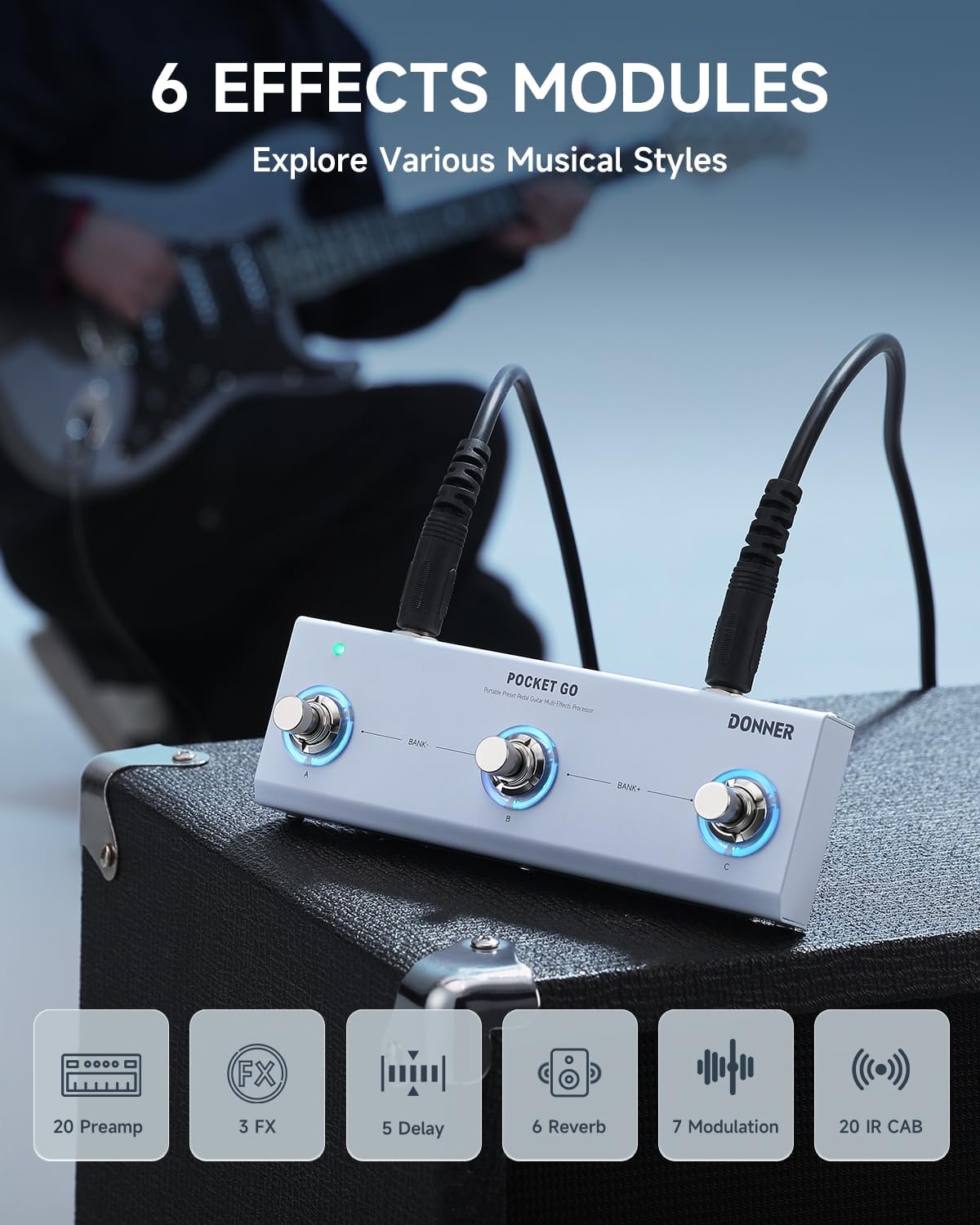
Aworan 2.1: Pariview of the six effects modules available on the Pocket Go, including various preamps, effects, delays, reverbs, modulations, and IR cabinets.

Image 2.2: The Pocket Go features 21 editable presets, allowing users to customize and save their unique sonic signatures across various musical styles.

Image 2.3: The built-in rechargeable lithium battery provides up to 7 hours of continuous use, ideal for outdoor gigs, rehearsals, or travel.

Image 2.4: The Pocket Go's compact dimensions (6.50 x 2.36 x 1.57 inches) make it lightweight and easy to carry, fitting into small bags or pockets.

Image 2.5: The multi-platform app allows for effortless preset editing and management on Windows, Mac OS, Android, and iOS devices.
3. Eto
3.1. Ngba agbara ẹrọ
Before initial use, fully charge the Pocket Go using a standard USB-C cable and a 5V power adapter (not included). The device features a built-in rechargeable lithium-ion battery.
3.2. Connecting Your Instrument and Output
- Connect your electric guitar or bass to the IN jack on the Pocket Go.
- Sopọ awọn Jade jack of the Pocket Go to your amplifier, audio interface, or mixer.
- For silent practice, connect headphones to the dedicated headphone jack.
3.3. Agbara Lori
Locate the power switch on the side of the unit and slide it to the 'ON' position. The indicator light will illuminate.

Image 3.1: The Pocket Go connected to an amplifier, ready for use. Ensure all cables are securely connected before powering on.
4. Awọn ilana Iṣiṣẹ
4.1. Awọn iṣakoso ipilẹ
The Pocket Go features three footswitches labeled A, B, and C, which correspond to different presets or functions. Use the 'BANK-' and 'BANK+' indicators to navigate between banks of presets.
4.2. Preset Selection and Editing
- Yiyan awọn tito tẹlẹ: Press footswitches A, B, or C to activate the corresponding preset within the current bank.
- Changing Banks: Use the designated bank switching mechanism (often a combination press of footswitches or a dedicated button, refer to the quick start guide for specific combinations) to cycle through different banks of presets.
- Awọn atunto ṣiṣatunṣe: For detailed editing and customization of effects, amplifier models, and cabinet simulations, connect the Pocket Go to its companion application.
4.3. Companion Application (M-EFCS)
The Pocket Go is designed to be controlled and customized via a dedicated multi-platform application named M-EFCS. This app is available for Windows, Mac OS, Android, and iOS.
- Gbigba ohun elo naa: Scan the QR code provided in the product's quick start guide or visit the official Donner website to download the M-EFCS application.
- Nsopọ nipasẹ Bluetooth: Enable Bluetooth on your mobile device or computer. Power on the Pocket Go. Open the M-EFCS app and follow the on-screen instructions to pair with your device.
- Iṣẹ ṣiṣe: The app allows for comprehensive editing of all effects parameters, saving and organizing custom presets, importing Impulse Responses (IRs), and managing AMP module tone data.
4.4. Awọn iṣẹ afikun
- Tuner: The built-in tuner can be accessed via a specific footswitch combination (refer to the quick start guide) or through the companion app.
- Abojuto agbekọri: Use the headphone output for private practice sessions. Adjust the volume using the dedicated volume knob.
- Mobile OTG Recording: Connect the Pocket Go to a compatible mobile device via OTG (On-The-Go) for direct audio recording.
- Computer Sound Card: Connect the Pocket Go to your computer via USB-C to use it as an audio interface for recording or re-amping.
5. Itọju
- Ninu: Use a soft, dry cloth to clean the exterior of the unit. Avoid using abrasive cleaners or solvents.
- Itọju Batiri: To prolong battery life, avoid fully discharging the unit frequently. If storing for an extended period, charge the battery to approximately 50% and recharge every few months.
- Awọn imudojuiwọn sọfitiwia: Periodically check the Donner official website or the M-EFCS application for firmware updates to ensure optimal performance and access to new features.
- Ibi ipamọ: Store the Pocket Go in a cool, dry place away from direct sunlight and extreme temperatures.
6. Laasigbotitusita
6.1. Ko si Ijade ohun
- Ensure the Pocket Go is powered on and fully charged.
- Check all cable connections (instrument in, output to amp/headphones).
- Verify that the volume knob on the Pocket Go is turned up.
- Jẹrisi pe rẹ amplifier or headphones are working correctly and their volume is adjusted.
- Check the active preset in the app; some presets might have very low output levels or specific effects engaged that mute the signal.
6.2. Awọn iṣoro Asopọmọra pẹlu App
- Ensure Bluetooth is enabled on both your device and the Pocket Go.
- Restart both the Pocket Go and your mobile device/computer.
- Make sure you have downloaded the correct 'M-EFCS' app, not other Donner-branded apps.
- If using a computer, ensure necessary drivers are installed (if applicable, check Donner's support page).
6.3. Unexpected Behavior
- Perform a factory reset (refer to the quick start guide for instructions).
- Rii daju pe famuwia ti wa ni imudojuiwọn.
7. Awọn pato
| Ẹya ara ẹrọ | Sipesifikesonu |
|---|---|
| Iwọn Nkan | 14 iwon |
| Ọja Mefa | 6.5 x 2.36 x 1.57 inches |
| Nọmba Awoṣe Nkan | Pocket Go |
| Awọn batiri | Batiri Lithium ion 1 nilo (pẹlu) |
| Ni wiwo Hardware | USB Iru C |
| Orisun agbara | Agbara Batiri |
| Voltage | 5 Volts |
| Ampigba | 300 Microamps |
8. Atilẹyin ọja ati Support
For warranty information, technical support, and additional resources, please visit the official Donner website. You can typically find FAQs, updated manuals, and contact information for customer service there.
Official Donner Webojula: www.donnerdeal.com
For specific product support, please have your model number (Pocket Go) and purchase date available.