
1. Ọja Ipariview
The AUDIOCULAR C08 is a high-performance Type-C upgrade cable designed for In-Ear Monitors (IEMs). It integrates an HD microphone with AI-ENC noise cancellation, a CB1300AU Digital-to-Analog Converter (DAC), and a durable 4-core copper wire construction to enhance your audio experience and communication clarity.
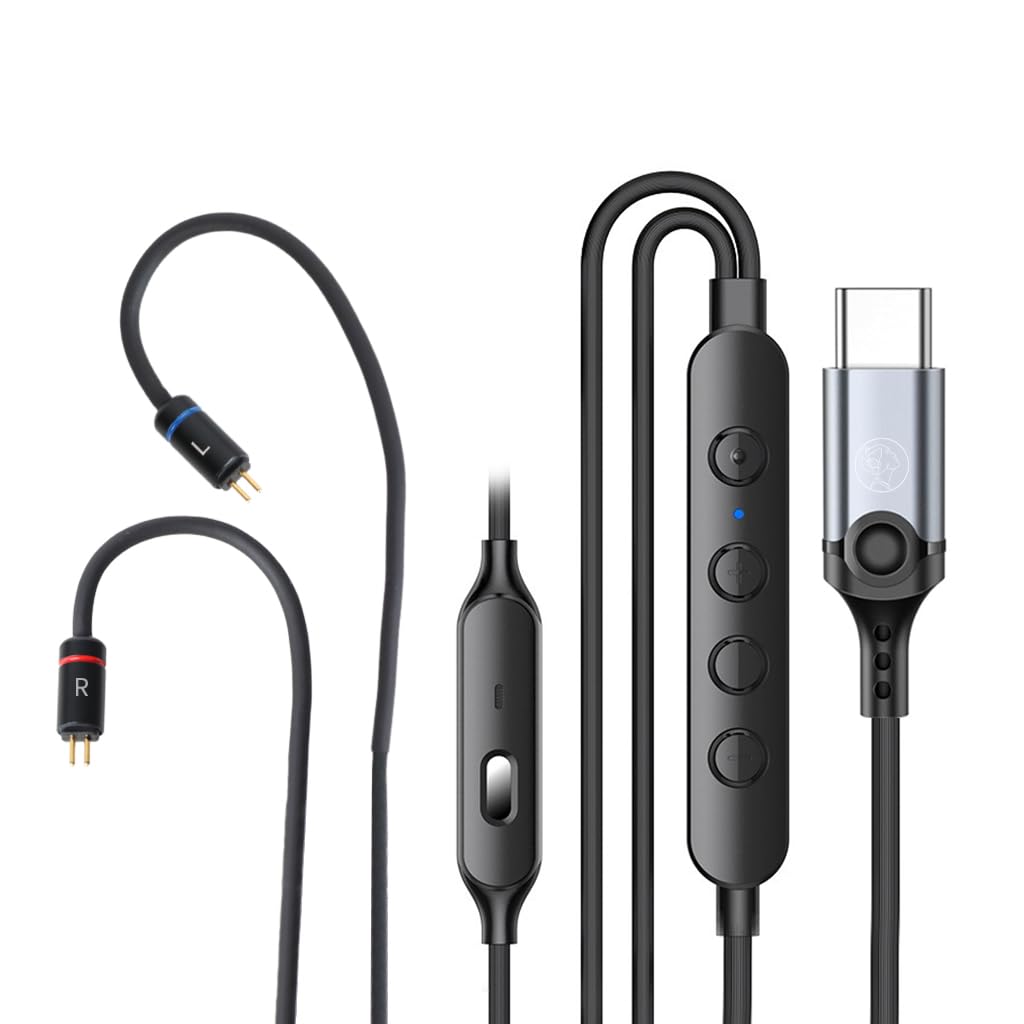
Image 1.1: The AUDIOCULAR C08 Type-C IEM Upgrade Cable, showcasing its various components including the 2-pin connectors, in-line remote, and Type-C plug.
Awọn ẹya pataki:
- CB1300AU DAC: Provides high-resolution audio playback at 24bit/960Khz and 14bit/192kHz ADC for clear sound and voice input.
- AI-ENC Noise Cancellation: Enhances outgoing call clarity by suppressing background noise, indicated by a blue LED.
- 4-Core Copper Wire: Ensures stable signal transmission with tin-plated, enameled copper strands and tangle-resistant TPE coating.
- 0.78mm 2-Pin Connectors: Compatible with a wide range of IEMs.
- In-line Remote: 4-button control for volume, calls, playback, and voice assistant.
- Type-C Connectivity: Wide compatibility with modern Type-C devices.
2. Awọn ilana iṣeto
Follow these steps to connect your AUDIOCULAR C08 upgrade cable to your In-Ear Monitors and Type-C device.
2.1 Connecting to IEMs
- Identify the left (L) and right (R) connectors on your IEMs and the C08 cable. The C08 cable connectors are typically marked with blue for left and red for right.
- Carefully align the 0.78mm 2-pin connectors of the C08 cable with the corresponding sockets on your IEMs.
- Gently push the pins into the sockets until they are securely seated. Avoid excessive force to prevent damage.
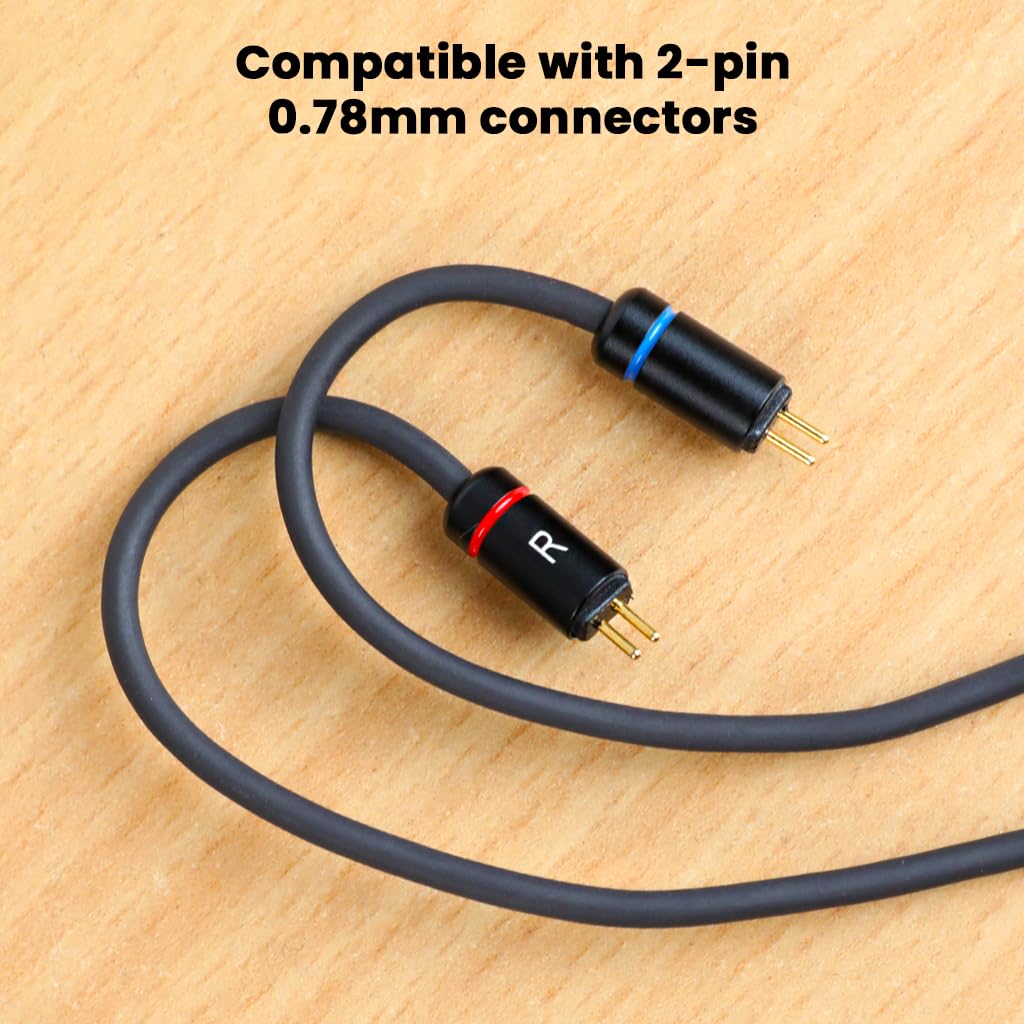
Aworan 2.1: Isunmọ view of the 2-pin 0.78mm connectors, showing the 'L' (blue) and 'R' (red) markings for correct IEM connection.
2.2 Connecting to a Type-C Device
- Locate the Type-C port on your smartphone, tablet, laptop, or other compatible device.
- Insert the Type-C plug of the C08 cable firmly into the device's Type-C port.
- Your device should automatically recognize the cable and connected IEMs.

Image 2.2: The durable Type-C connector, designed for stable and reliable connection to various devices.
The C08 cable is compatible with a wide range of Type-C devices, including but not limited to:
- Samsung Galaxy S24/S23/S22/S21 series
- OnePlus 9/10/11/12 series
- Àwọn fóònù Google Pixel
- Huawei P40 and other Type-C enabled devices.

Image 2.3: Visual representation of the C08 cable's broad compatibility with various Type-C smartphones, tablets, and laptops.
3. Awọn ilana Iṣiṣẹ
The AUDIOCULAR C08 cable features an intuitive in-line remote for easy control of audio playback and calls.
3.1 In-line Remote Functions

Image 3.1: Diagram illustrating the buttons and their functions on the C08 in-line remote control.
- Iwọn didun soke (+): Tẹ lati mu iwọn didun ohun pọ si.
- Iwọn didun isalẹ (-): Tẹ lati dinku iwọn didun ohun.
- Multifunction Button (Center):
- Tẹ Nikan: Mu orin ṣiṣẹ/Daduro, Dahun/Pari awọn ipe.
- Double Tẹ: Rekọja si orin atẹle.
- Tẹ Mẹta: Lọ si orin ti tẹlẹ.
- Long Tẹ: Activate voice assistant (e.g., Google Assistant, Siri).
- AI-ENC Button: Press to activate/deactivate AI-ENC noise cancellation during calls. A blue LED indicator will illuminate when AI-ENC is active.
3.2 AI-ENC Noise Cancellation
The AI-ENC feature is designed to provide crystal-clear outgoing calls by actively suppressing background noise. It activates within 48ms of being switched on. Ensure the blue LED is illuminated for active noise cancellation during calls.
4. Itọju ati Itọju
Proper care will extend the lifespan and maintain the performance of your AUDIOCULAR C08 upgrade cable.
- Ibi ipamọ: Store the cable in a clean, dry place when not in use. Avoid extreme temperatures.
- Ninu: Gently wipe the cable with a soft, dry cloth to remove dust and debris. Do not use harsh chemicals or abrasive materials.
- Idena Tangle: The cable features a tangle-resistant design. To further prevent tangles, coil the cable loosely when storing. Avoid sharp bends or knots.
- Abojuto Asopọmọra: Keep the 2-pin and Type-C connectors clean and free from lint or foreign objects. Avoid pulling the cable by the wire; always grasp the connector housing when plugging or unplugging.

Image 4.1: The 1.2-meter cable, showcasing its flexible and durable design, ideal for daily use and resistance to tangling.
5. Laasigbotitusita
If you encounter issues with your AUDIOCULAR C08 cable, refer to the following common problems and solutions.
| Isoro | Owun to le Fa | Ojutu |
|---|---|---|
| No audio or intermittent sound. |
|
|
| Microphone not working or poor call quality. |
|
|
| In-line remote buttons unresponsive. |
|
|
| Volume increases automatically (specific to some devices). | Device-specific compatibility issue. | This may indicate a compatibility issue with certain device models (e.g., iQOO 13). Try testing with a different compatible Type-C device. |
6. Awọn pato
| Ẹya ara ẹrọ | Ẹ̀kúnrẹ́rẹ́ |
|---|---|
| Orukọ awoṣe | C08 |
| Brand | AUDIOCULAR |
| Asopọmọra Iru | USB Iru C |
| USB Iru | Rirọpo Cable |
| IEM Connector | 2-Pin 0.78mm |
| DAC Chipset | CB1300AU |
| Audio Playback Resolution | 24bit/960Khz |
| ADC ipinnu | 14bit / 192kHz |
| Ifagile Ariwo | AI-ENC with blue LED indicator (48ms activation) |
| Ikole USB | 4-Core (19 strands tin-plated, enameled copper), TPE toothed wire, golden enameled wire with red overlay for shielding. |
| USB Ipari | 1.2 mita |
| Iru-C Asopọmọra | Nickel-plated, one-piece drawn steel with built-in 5.1K resistor. |
| Iwọn Nkan | 50 giramu |
| Ilu isenbale | China |
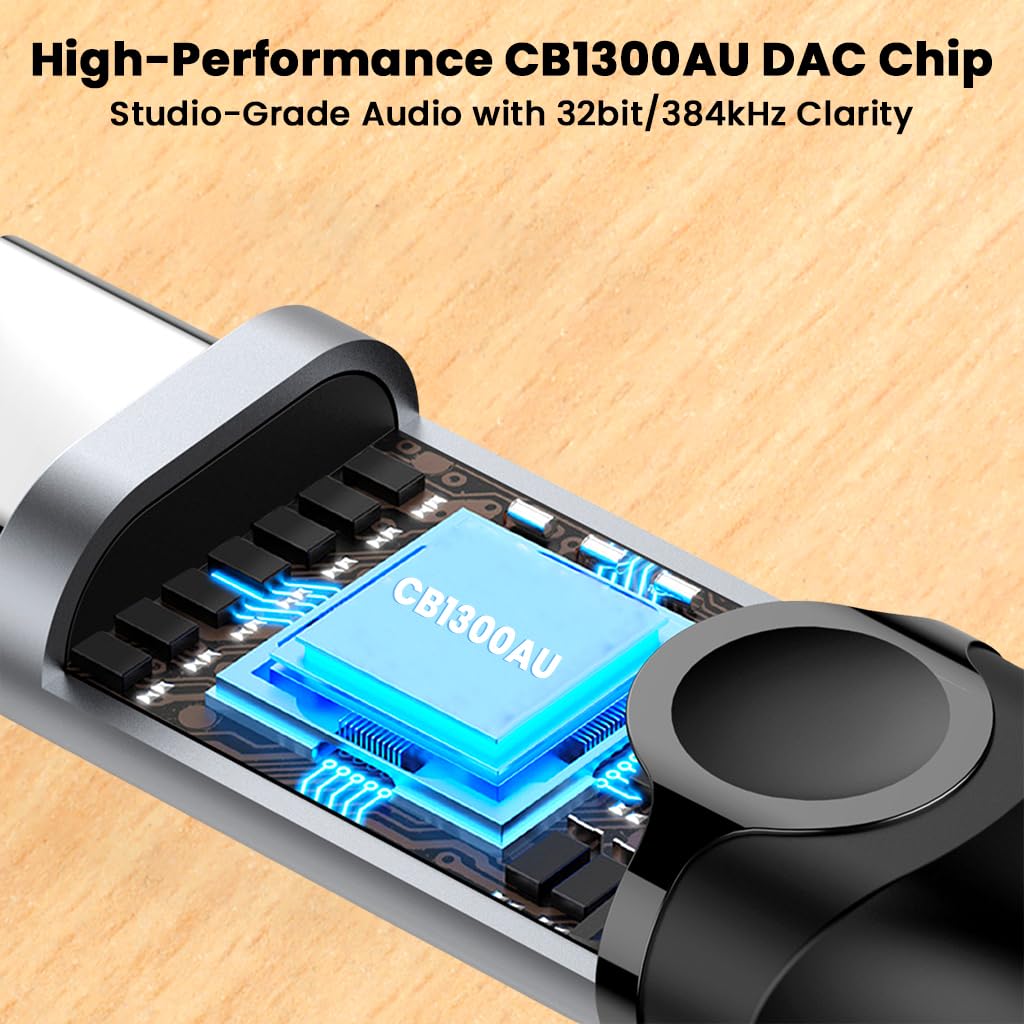
Image 6.1: Illustration of the integrated CB1300AU DAC chip, responsible for high-resolution audio processing.

Àwòrán 6.2: Àgbékalẹ̀-ẹ̀yà view of the 4-core cable, highlighting the individual copper wire strands for stable signal transmission.
7. Atilẹyin ọja ati Support
7.1 atilẹyin ọja Alaye
Please refer to the product packaging or the official AUDIOCULAR website for specific warranty terms and conditions. Typically, products are covered against manufacturing defects for a defined period from the date of purchase.
7.2 Onibara Support
For technical assistance, troubleshooting, or warranty claims, please contact AUDIOCULAR customer support:
- Imeeli: customercare@conceptkart.com
- Adirẹsi olupese: AUDIOCULAR, 2nd Floor, A36, Block B, Naraina Industrial Area Phase 2, Naraina, New Delhi, Delhi, 110028, India.
When contacting support, please provide your product model (C08) and proof of purchase.