
Ọrọ Iṣaaju
This manual provides essential information for setting up, operating, maintaining, and troubleshooting your Acer Aspire 14 AI Copilot+ PC. This high-performance laptop features an Intel Core Ultra 7 Processor, 32GB LPDDR5X RAM, a 1TB PCIe Gen 4 SSD, and a 14-inch WUXGA Touchscreen Display, designed for enhanced productivity and AI-powered experiences.
Eto Itọsọna
1. Unpacking ati Ibẹrẹ Ayewo
Carefully remove your Acer Aspire 14 PC and its accessories from the packaging. Ensure all components, including the AC Adapter, are present and undamaged.

Figure 1: Acer Aspire 14 AI Copilot+ PC, open and ready for setup.
2. Nsopọ agbara Adapter
Connect the AC Adapter to the power port on your laptop and then plug it into a power outlet. It is recommended to fully charge the battery before initial use.
3. Agbara akọkọ Lori ati Eto Windows
Press the power button to turn on your PC. Follow the on-screen instructions to complete the Windows 11 Home setup, including language selection, network connection, and user account creation.
4. Asopọmọra Agbeegbe
Your PC supports various compatible devices. Use the available ports to connect external displays via HDMI, mice, keyboards, storage devices, printers, or wireless headphones. For wireless connectivity, utilize Wi-Fi 6E and Bluetooth 5.3.

olusin 2: Apa view illustrating available ports for peripheral connections.
Awọn ilana Iṣiṣẹ
Isẹ ipilẹ
- Titan/Apapa: Press the power button located on the keyboard deck to turn the device on or off.
- Afi ika te: The 14-inch WUXGA (1920 x 1200) display is multi-touch enabled. Interact directly with the screen using your fingers for navigation and input.
- Paadi Fọwọkan: Use the integrated touchpad for cursor control and gesture-based navigation.
- Àtẹ bọ́tìnnì: The keyboard features backlighting for comfortable typing in various lighting conditions.

olusin 3: Top-isalẹ view of the backlit keyboard and touchpad.
AI Copilot+ Features
Leverage the integrated AI Copilot+ capabilities for enhanced productivity and creative tasks. The Intel Core Ultra 7 Processor with its Neural Processing Unit (NPU) and Intel Arc 140V GPU accelerates AI workloads, providing faster performance for AI-driven applications.
Àpapọ ati Graphics
The 14-inch WUXGA (1920 x 1200) IPS LED-Backlit display offers vibrant visuals with 300-Nits brightness and a 120Hz refresh rate. The integrated Intel Arc 140V GPU handles graphics processing efficiently for both work and entertainment.
Webkamẹra Lilo
The integrated FHD Webcam (1920 x 1080) with Blue Glass supports 1080p FHD video, ideal for video conferencing and online communication.
Asopọmọra
The device supports Wi-Fi 6E (2.4GHz, 5GHz, and 6GHz bands with 2x2 MU-MIMO Technology) and Bluetooth 5.3 for robust wireless connections.
Itoju
Cleaning Your PC
Use a soft, lint-free cloth to clean the screen and exterior surfaces. For stubborn smudges, slightly dampen awọn asọ pẹlu omi tabi a iboju-ailewu regede. Yago fun awọn kẹmika lile tabi awọn ohun elo abrasive.
Awọn imudojuiwọn Software
Regularly check for and install operating system and driver updates to ensure optimal performance and security. Windows 11 Home will prompt you for necessary updates.
Itọju Batiri
To prolong battery life, avoid extreme temperatures and allow the battery to discharge partially before recharging. For long-term storage, charge the battery to about 50%.
Ibi ipamọ Management
The 1TB PCIe Gen 4 Solid State Drive provides ample storage. Regularly back up important data and manage files lati ṣetọju iṣẹ eto.
Laasigbotitusita
Wọpọ Oran ati Solusan
- Kọmputa ko ṣiṣẹ: Rii daju pe ohun ti nmu badọgba AC ti sopọ ni aabo ati pe iṣan agbara jẹ iṣẹ. Gbiyanju iṣan ti o yatọ.
- Ṣe afihan awọn iṣoro: If the screen is blank or flickering, try restarting the PC. Check external display connections if applicable.
- Ko si Wi-Fi asopọ: Verify that Wi-Fi is enabled in Windows settings. Restart your router and PC.
- Iṣẹ ṣiṣe ti o lọra: Close unnecessary applications. Check for background processes and ensure sufficient free storage space.
Fun awọn iṣoro ti o nira sii, wo atilẹyin Acer webojula tabi olubasọrọ onibara iṣẹ.
Awọn pato ọja
| Ẹya ara ẹrọ | Sipesifikesonu |
|---|---|
| Brand | Acer |
| Orukọ awoṣe | Aspire 14 |
| Nọmba awoṣe | A14-52mt-701k |
| isise | Intel Core Ultra 7 Processor 258V (up to 4.8 GHz) |
| Àgbo | 32 GB LPDDR5X |
| Ibi ipamọ | 1 TB PCIe Gen 4 SSD |
| Ifihan | 14" WUXGA (1920 x 1200) Multi-Touch IPS LED-Backlit, 300 Nits, 120Hz Refresh Rate |
| Awọn aworan | Intel Arc 140V GPU (Integrated) |
| Eto isesise | Windows 11 Ile |
| Asopọmọra | Wi-Fi 6E, Bluetooth 5.3 |
| Awọn ibudo | 3x USB Ports, 1x Thunderbolt Port, HDMI |
| Webkamẹra | Integrated FHD (1920 x 1080) with Blue Glass |
| Pataki Awọn ẹya ara ẹrọ | AI Copilot+, Enhanced Webcam, Backlit Keyboard |
| Dimensions (L x W x Thickness) | 13"L x 1"W x 9"Th |
| Iwọn Nkan | 1.8 kilo |
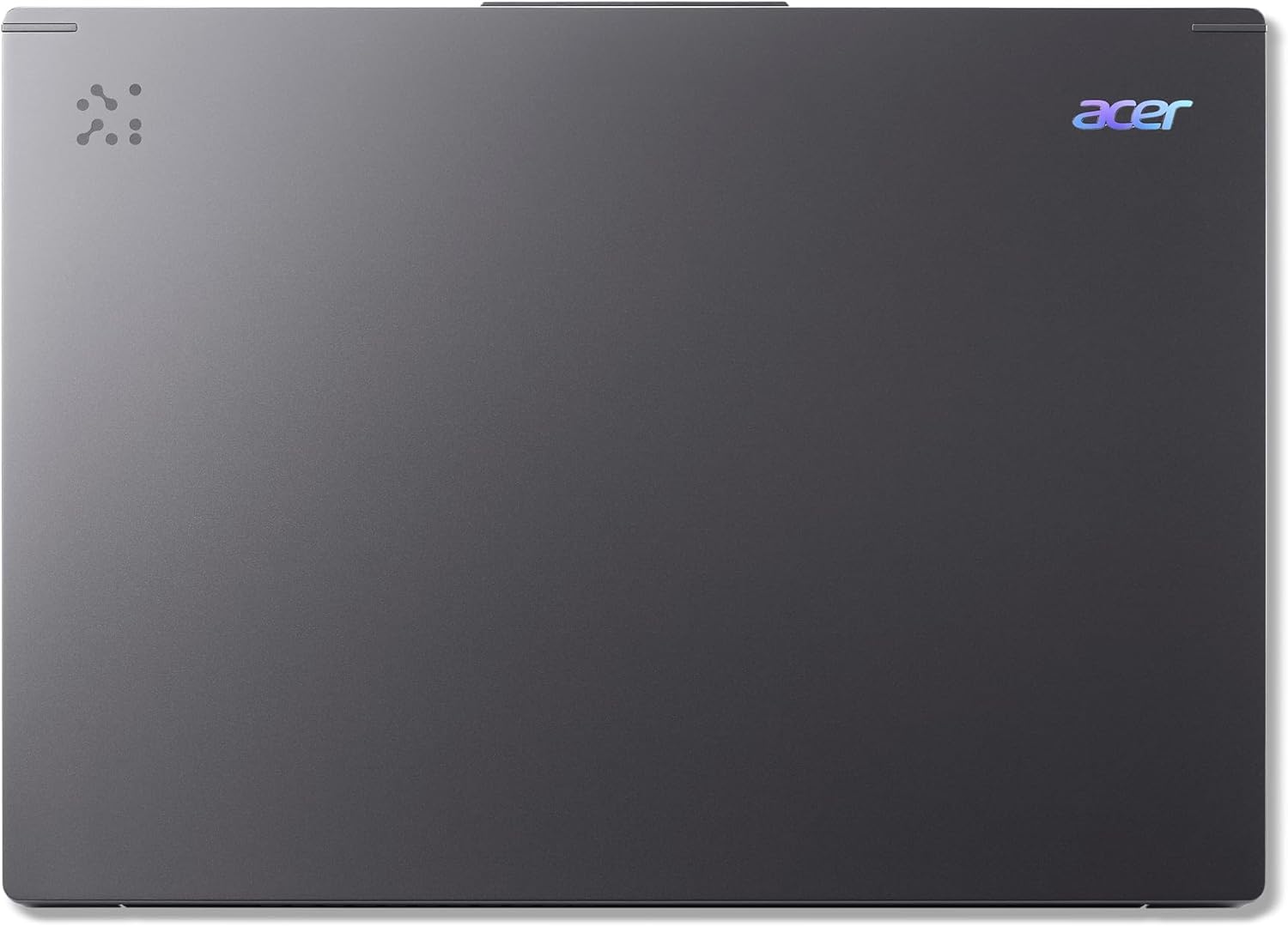
Figure 4: The Acer Aspire 14 AI Copilot+ PC in a closed state.
Alaye atilẹyin ọja
Your Acer Aspire 14 AI Copilot+ PC comes with a 1 Odun olupese atilẹyin ọja. Please retain your proof of purchase for warranty claims. For detailed terms and conditions, refer to the warranty card included with your product or visit the official Acer webojula.
Onibara Support
For further assistance, technical support, or service inquiries, please visit the official Acer support website or contact their customer service hotline. You can find contact information and resources on the Acer webojula: www.acer.com/support.