
FIREBAT MN56, A6
FIREBAT Mini PC MN56 and A6 Series User Manual
Models: MN56 (Ryzen7 8745HS) & A6 (Ryzen7 6800H)
1. Ifihan
This user manual provides detailed instructions for setting up, operating, maintaining, and troubleshooting your FIREBAT Mini PC. This guide covers both the MN56 model (featuring AMD Ryzen 7 8745HS) and the A6 model (featuring AMD Ryzen 7 6800H). Please read this manual thoroughly before using your device to ensure proper operation and longevity.
The FIREBAT Mini PCs are designed for a wide range of applications, from home and office use to education and light gaming, offering powerful performance in a compact form factor.

Figure 1.1: FIREBAT MN56 (white) and A6 (black) Mini PCs. The MN56 model is shown with RGB lighting and a vertical stand, while the A6 model is a compact black cube.
2. Alaye Aabo
To prevent injury, electric shock, fire, and damage to the device, please observe the following safety precautions:
- Use only the power adapter provided with your Mini PC.
- Ma ṣe fi ẹrọ naa han si omi, ọrinrin, tabi awọn iwọn otutu to gaju.
- Yago fun gbigbe ẹrọ naa sinu ina taara tabi sunmọ awọn orisun ooru.
- Ensure proper ventilation; do not block the ventilation openings.
- Ma ṣe gbiyanju lati tunto tabi tun ẹrọ naa funrararẹ. Tọkasi gbogbo iṣẹ si oṣiṣẹ oṣiṣẹ.
- Jeki ẹrọ naa kuro ni awọn aaye oofa ti o lagbara.
- Mu ẹrọ naa pẹlu iṣọra lati yago fun ibajẹ ti ara.
3. Eto Itọsọna
3.1. Package Awọn akoonu
Ṣaaju ki o to tẹsiwaju, rii daju pe gbogbo awọn nkan wa ninu package rẹ:
- FIREBAT Mini PC (MN56 or A6 model)
- Adapter agbara
- Okun HDMI
- Afowoyi Olumulo (iwe-ipamọ yii)
- (Àṣàyàn) Àmì àti skru VESA Mount
3.2. Asopọmọra Agbeegbe
Follow these steps to connect your Mini PC to a display and other essential peripherals:
- Asopọmọra Ifihan: Use the provided HDMI cable or a DisplayPort (DP) cable to connect your monitor to the corresponding port on the Mini PC. Both models support triple display output via HDMI, DisplayPort, and USB-C.
- So Keyboard ati Asin pọ: Plug your USB keyboard and mouse into any available USB-A ports on the Mini PC.
- Nẹtiwọọki Sopọ (Aṣayan): For a wired internet connection, connect an Ethernet cable from your router to the LAN port(s) on the Mini PC. Both models feature 2.5Gbps LAN ports.
- So agbara: Plug the power adapter into the DC-IN port on the Mini PC, then plug the other end into a power outlet.
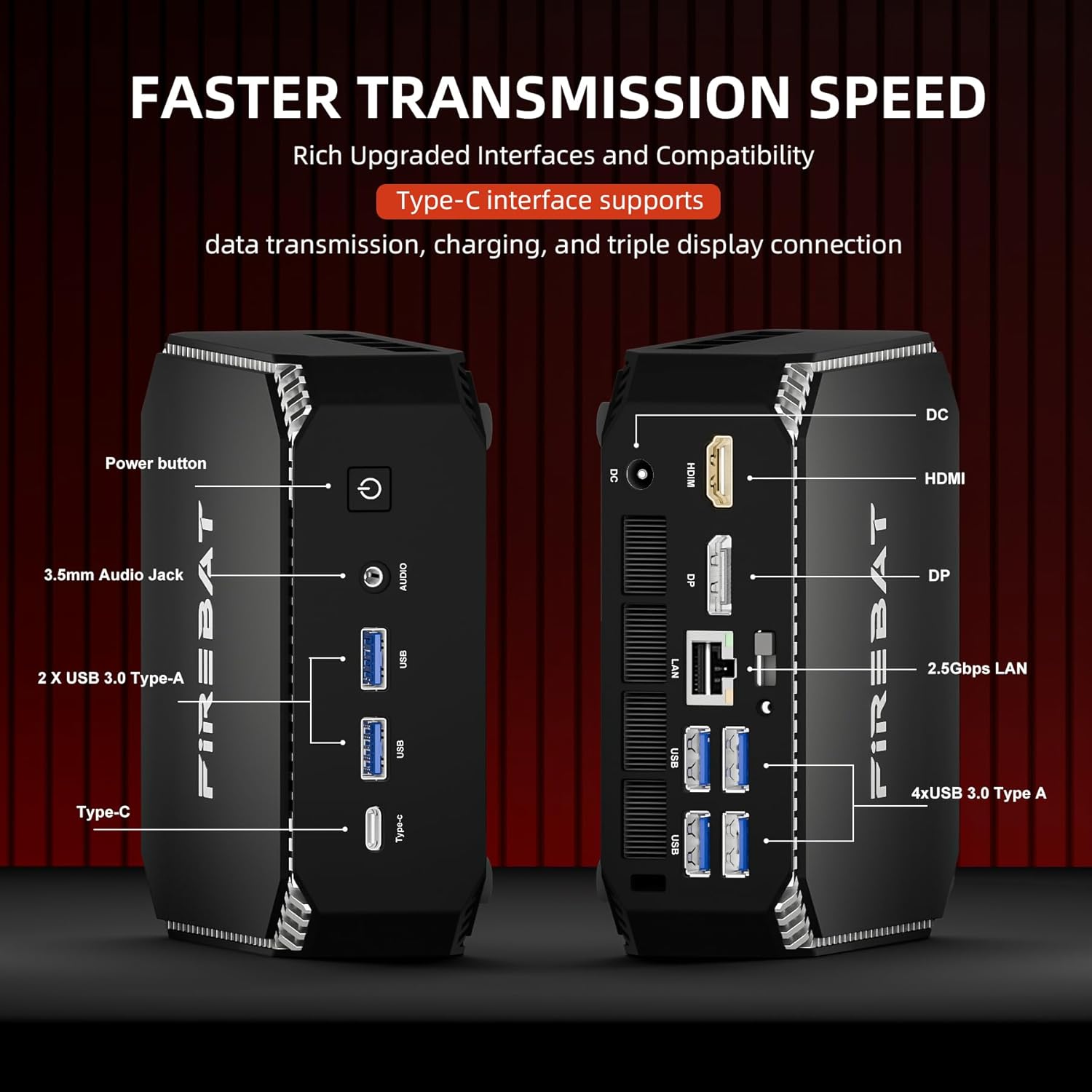
Olusin 3.1: Pariview of ports on the FIREBAT A6 Mini PC, including Power button, 3.5mm Audio Jack, USB 3.0 Type-A, Type-C, DC-IN, HDMI, DisplayPort, and 2.5Gbps LAN ports.
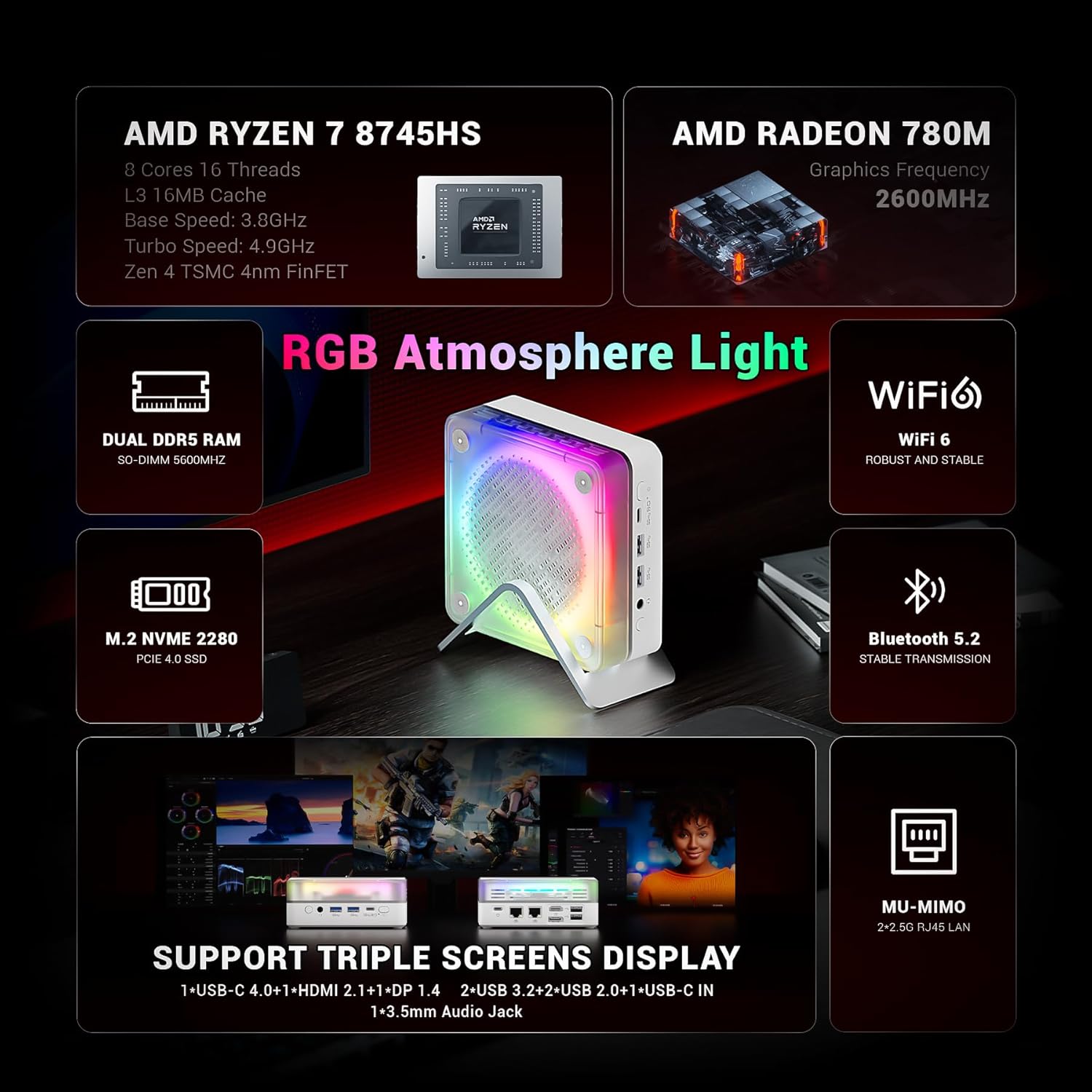
Figure 3.2: The MN56 model also features multiple USB ports, HDMI, DisplayPort, and USB-C for display output, along with dual 2.5Gbps LAN ports.
3.3. Agbara akọkọ Lori
After connecting all peripherals:
- Press the Power button located on the Mini PC. The power indicator light will illuminate.
- The Mini PC will boot up. Follow the on-screen instructions to complete the initial Windows setup (if applicable).
4. Awọn ilana Iṣiṣẹ
4.1. Isakoso Agbara
- Agbara Tan: Tẹ bọtini agbara.
- Paade: Tẹ bọtini Bẹrẹ ni Windows, lẹhinna yan Agbara> Tiipa.
- Tun bẹrẹ: Tẹ bọtini Bẹrẹ ni Windows, lẹhinna yan Agbara> Tun bẹrẹ.
- Orun: Tẹ bọtini Bẹrẹ ni Windows, lẹhinna yan Agbara> Orun.
4.2. Ṣíṣeto Àfihàn
Both MN56 and A6 models support triple display output, allowing you to connect up to three monitors simultaneously for enhanced productivity.
- Connect your monitors to the HDMI, DisplayPort, and USB-C video output ports.
- In Windows, right-click on the desktop and select "Display settings" to configure your multiple displays (extend, duplicate, or show only on one).
Figure 4.1: The MN56 Mini PC demonstrating support for triple screen display configurations via USB-C, HDMI, and DisplayPort.
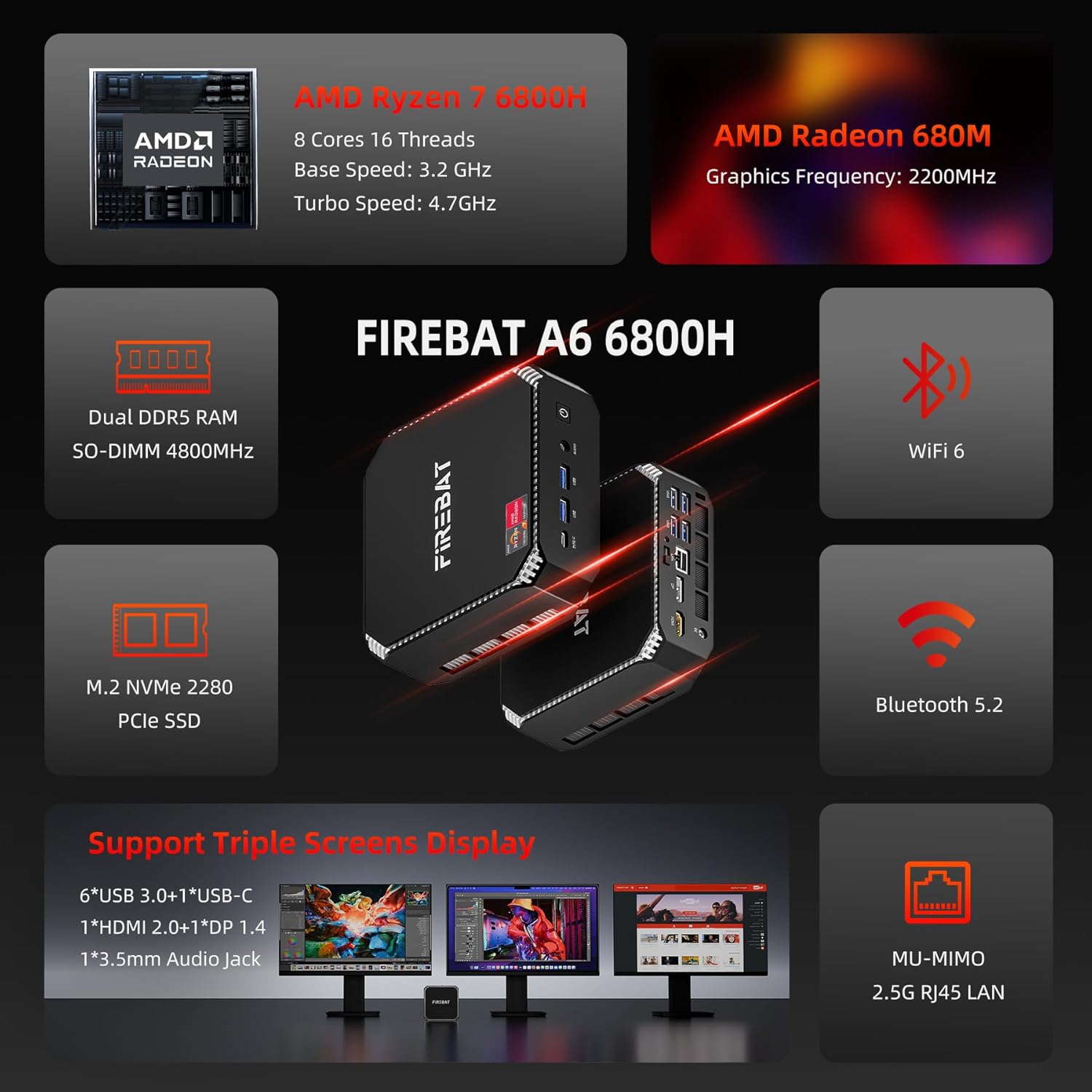
Figure 4.2: The A6 Mini PC also supports triple screen display, offering versatile connectivity options for multiple monitors.
4.3. Nẹtiwọọki ati Asopọmọra
- Wi-Fi: Both models support Wi-Fi 6 for robust and stable wireless connections. To connect, click the Wi-Fi icon in the taskbar, select your network, and enter the password.
- Bluetooth: Integrated Bluetooth 5.2 allows for stable transmission to connect wireless peripherals like keyboards, mice, and headphones. Enable Bluetooth in Windows settings to pair devices.
- LAN Wired: Utilize the dual 2.5Gbps RJ45 LAN ports for high-speed wired network connections.
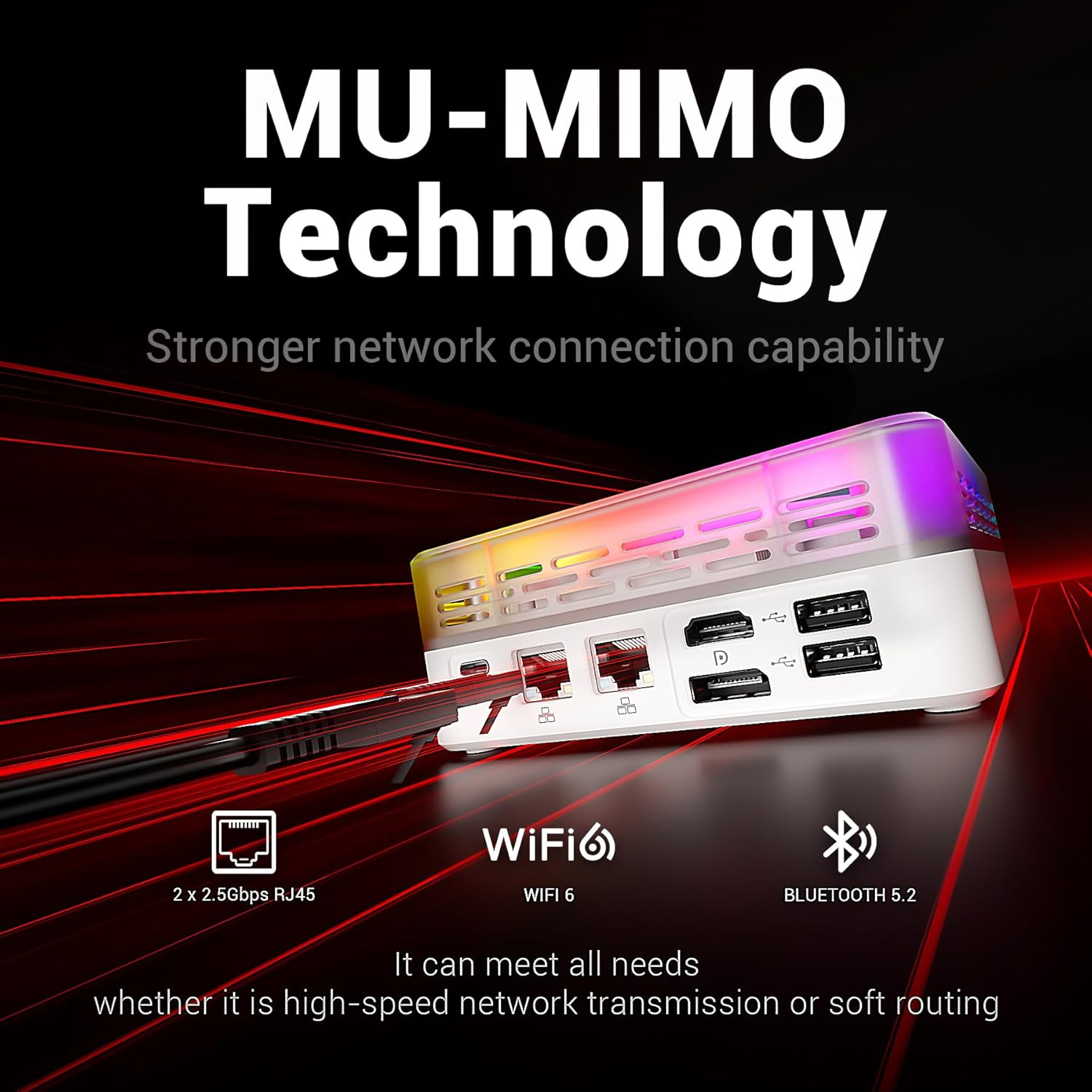
Figure 4.3: The MN56 Mini PC highlights its MU-MIMO Technology, Wi-Fi 6, Bluetooth 5.2, and dual 2.5Gbps RJ45 LAN ports for superior network connectivity.
4.4. Imugboroosi ipamọ
Both Mini PC models come with M.2 NVMe 2280 PCIe SSDs for fast storage. If you need to expand storage, consult a qualified technician or refer to the detailed upgrade guide available on the FIREBAT website for compatible M.2 SSDs.
5. Awọn pato
5.1. FIREBAT MN56 Model (White)
| Ẹya ara ẹrọ | Ẹ̀kúnrẹ́rẹ́ |
|---|---|
| isise | AMD Ryzen 7 8745HS (8 Cores, 16 Threads, L3 16MB Cache, Base Speed: 3.8GHz, Turbo Speed: 4.9GHz, Zen 4 TSMC 4nm FinFET) |
| Awọn aworan | AMD Radeon 780M (Graphics Frequency: 2600MHz, 12 graphics card cores) |
| Àgbo | 32GB Dual DDR5 RAM (SO-DIMM 5000MHz) |
| Ibi ipamọ | 1TB M.2 NVMe 2280 PCIe 4.0 SSD |
| Nẹtiwọọki | Wi-Fi 6, Bluetooth 5.2, 2 x 2.5Gbps RJ45 LAN |
| Ijade fidio | Triple Screens Display (USB-C 4.0+HDMI 2.1+DP 1.4) |
| Awọn ibudo | USB-C 4.0, HDMI 2.1, DisplayPort 1.4, USB 3.2, USB 2.0, 3.5mm Audio Jack, DC-IN, 2x 2.5Gbps LAN |
| Itutu agbaiye | Dual Fans with High-efficiency Thermal Grease (65W stable performance release) |

Figure 5.1: Detailed specifications of the Ryzen 7 8745HS processor in the MN56 model.
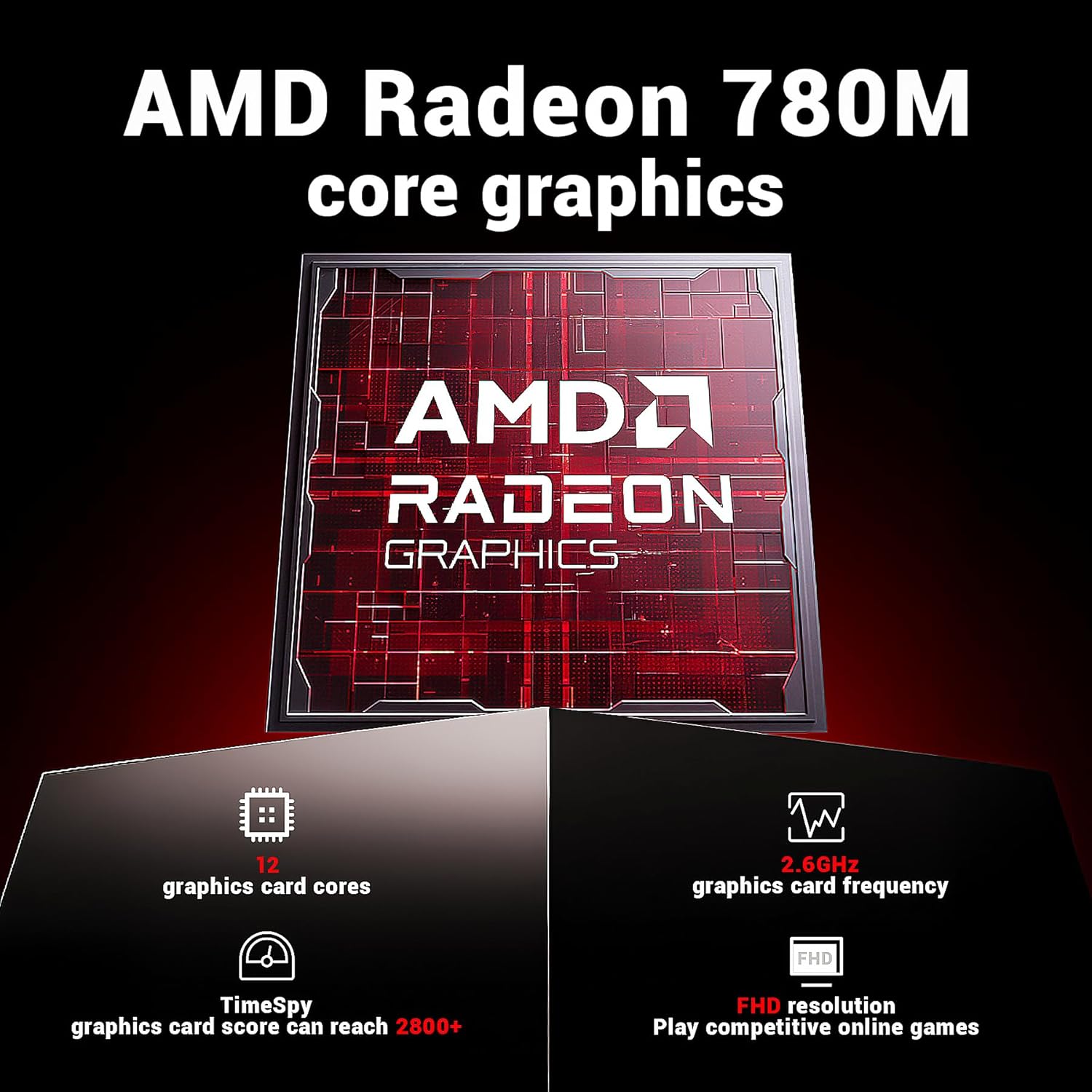
Figure 5.2: Detailed specifications of the AMD Radeon 780M core graphics in the MN56 model.

Figure 5.3: Illustration of the dual fan cooling system in the MN56 Mini PC, designed for efficient heat dissipation.
5.2. FIREBAT A6 Model (Black)
| Ẹya ara ẹrọ | Ẹ̀kúnrẹ́rẹ́ |
|---|---|
| isise | AMD Ryzen 7 6800H (8 Cores, 16 Threads, Base Speed: 3.2GHz, Turbo Speed: 4.7GHz) |
| Awọn aworan | AMD Radeon 680M (Graphics Frequency: 2200MHz) |
| Àgbo | 16GB Dual DDR5 RAM (SO-DIMM 4800MHz) |
| Ibi ipamọ | 512GB M.2 NVMe 2280 PCIe SSD |
| Nẹtiwọọki | Wi-Fi 6, Bluetooth 5.2, 2.5G RJ45 LAN |
| Ijade fidio | Triple Screens Display (6x USB 3.0+1x USB-C, 1x HDMI 2.0+1x DP 1.4) |
| Awọn ibudo | Power button, 3.5mm Audio Jack, 2x USB 3.0 Type-A, Type-C, DC-IN, HDMI, DisplayPort, 4x USB 3.0 Type-A, 2x 2.5Gbps LAN |
Olusin 5.4: Pariview of the FIREBAT A6 Mini PC's key specifications, including CPU, GPU, RAM, storage, and connectivity.
6. Itọju
Regular maintenance helps ensure the longevity and optimal performance of your Mini PC.
- Ninu: Use a soft, dry cloth to wipe the exterior of the Mini PC. For dust accumulation in vents, use compressed air. Ensure the device is powered off and unplugged before cleaning.
- Awọn imudojuiwọn sọfitiwia: Regularly check for and install operating system updates (e.g., Windows Updates) and driver updates for your hardware. This improves security, performance, and compatibility.
- Isakoso Ooru: Ensure the Mini PC is placed in a well-ventilated area. Do not obstruct the air vents. The dual-fan cooling system is designed to maintain optimal temperatures, but proper airflow is crucial.
- Afẹyinti data: Lokọọkan ṣe afẹyinti data pataki rẹ si kọnputa ita tabi ibi ipamọ awọsanma lati ṣe idiwọ pipadanu data.
7. Laasigbotitusita
Abala yii n ṣalaye awọn ọran ti o wọpọ ti o le ba pade ati pese awọn ojutu ti o pọju.
| Isoro | Owun to le Fa | Ojutu |
|---|---|---|
| No power / Device does not turn on | Adapter agbara ko sopọ mọ, ibudo agbara ti ko ni abawọn, iṣoro bọtini agbara. | Rí i dájú pé ohun tí a fi ń ṣe agbára so mọ́ Mini PC àti ibi tí ó ń ṣiṣẹ́ dáadáa. Gbìyànjú ibi tí ó ń jáde láti inú rẹ̀. |
| Ko si ifihan lori atẹle | Incorrect cable connection, monitor input not selected, display driver issue. | Check HDMI/DP/USB-C cable connections. Ensure monitor is set to the correct input source. Try a different display cable or monitor. |
| Awọn oran asopọ Wi-Fi | Incorrect Wi-Fi password, router issue, driver issue. | Verify Wi-Fi password. Restart your router. Check Wi-Fi drivers in Device Manager. |
| O lọra išẹ | Too many applications running, insufficient RAM, overheating, full storage. | Close unnecessary applications. Ensure proper ventilation. Free up disk space. Check for background processes. |
| Peripheral not recognized (USB, Bluetooth) | Driver issue, faulty peripheral, port issue. | Try a different USB port or re-pair Bluetooth device. Update drivers for the peripheral. |
If the problem persists after trying these solutions, please contact FIREBAT customer support.
8. Atilẹyin ọja ati Support
FIREBAT is committed to providing high-quality products and excellent customer service.
- Alaye Atilẹyin ọja: For detailed warranty terms and conditions, please refer to the warranty card included with your product or visit the official FIREBAT webojula. Atilẹyin ọja ni igbagbogbo pẹlu awọn abawọn ninu awọn ohun elo ati iṣẹ ṣiṣe labẹ lilo deede.
- Oluranlowo lati tun nkan se: If you encounter any issues not covered in this manual or require further assistance, please contact our support team.
Ibi iwifunni:
- Imeeli: support@firebatpc.com
- Webojula: www.firebatpc.com
When contacting support, please have your product model (MN56 or A6) and purchase information ready to expedite the process.
Awọn iwe aṣẹ ti o jọmọ - MN56, A6
 |
Itọsọna Olumulo Laptop FIREBAT Ryzen7 - Eto, Awọn ẹya ara ẹrọ, ati Laasigbotitusita Ìtọ́sọ́nà oníṣe tó péye fún kọ̀ǹpútà alágbèéká FIREBAT Ryzen7, tó bo ìṣètò, ìṣàkóso agbára, ìsopọ̀mọ́ra, ìṣòro, ìtọ́jú, àti ìwífún nípa àtìlẹ́yìn. |
 |
GEEKOM Mini A6 Afọwọṣe olumulo ati Awọn alaye imọ-ẹrọ Itọsọna olumulo ati awọn alaye imọ-ẹrọ fun GEEKOM Mini A6 Mini PC, pẹlu awọn akoonu package, data imọ-ẹrọ, ikede ibamu, atilẹyin ọja, ati alaye nu. |
 |
GenMachine R7-6800H High-Performance Mini PC User Manual User manual for the GenMachine R7-6800H High-Performance Mini PC, detailing product specifications, setup instructions, basic operation, expansion options, port layout, and important usage notes. |
 |
Ìwé Ìtọ́sọ́nà Olùlò Firebat Mini PC - Ṣíṣeto, Àwọn Ẹ̀yà Ara Rẹ̀, àti Ìṣàtúnṣe Ìwé ìtọ́ni tó péye fún àwọn àwòṣe Firebat Mini PC (fún àpẹẹrẹ, AK2, MN56, AM02, T8). Ó ní àwọn ohun tó wà nínú àpò, ètò, àwọn ìsopọ̀ ẹ̀rọ, ìsopọ̀ VESA, àwọn ètò BIOS, àwọn ìbéèrè tó ń wá síni lọ́kàn, àti ìṣòro tó ń yọjú fún iṣẹ́ tó dára jùlọ. |
 |
GEEKOM A8-R7 Mini PC User Afowoyi Iwe afọwọkọ olumulo fun GEEKOM A8-R7 Mini PC, alaye awọn akoonu package, awọn alaye imọ-ẹrọ fun Bluetooth ati Wi-Fi, alaye atilẹyin ọja, ikede ibamu, ati awọn eto imulo aṣiri alabara. |
 |
GEEKOM Mini PC A Series (A6, A7, A8) - Ìwé Ìtọ́sọ́nà Olùlò àti Ìtọ́sọ́nà Àkójọpọ̀ Ìtọ́sọ́nà tó péye fún GEEKOM A Series Mini PC (A6, A7, A8), tó sọ̀rọ̀ nípa fífi sori ẹ̀rọ, àlàyé ibudo, àwọn ìṣọ́ra ààbò, àti bí FCC ṣe ń tẹ̀lé e. Kọ́ bí a ṣe ń ṣètò kọ̀ǹpútà alágbèéká kékeré rẹ. |
Ask a question about this manual
Ask about setup, troubleshooting, compatibility, parts, safety, or missing instructions. Manuals+ will review the question and use this page’s manual context to help answer it.