
1. Ifihan
The FIREBAT X3 Wired RGB Gaming Mouse is designed for precision and comfort, suitable for various computing tasks including gaming, office work, and general use. This manual provides detailed instructions for setting up, operating, and maintaining your mouse.

Pariview of the FIREBAT X3 Wired RGB Gaming Mouse highlighting its main features.
2. Eto
2.1 Nsopọ Asin
The FIREBAT X3 Gaming Mouse features a simple plug-and-play design for easy setup.
- Locate an available USB-A port on your computer or laptop.
- Insert the USB connector of the mouse into the USB-A port.
- Your operating system will automatically detect and install the necessary drivers. No additional software installation is required for basic functionality.

The FIREBAT X3 mouse connects via a standard USB-A port for immediate use.
3. Isẹ
3.1 bọtini Awọn iṣẹ
The FIREBAT X3 Gaming Mouse is equipped with 6 programmable buttons for enhanced control.
- Bọtini osi: Standard tẹ iṣẹ.
- Bọtini Ọtun: Standard-ọtun iṣẹ.
- Yi lọ Kẹkẹ: Scrolls up and down. Can also be pressed for a middle-click function.
- Bọtini Atunse DPI: Changes the mouse sensitivity (DPI).
- Bọtini Siwaju: Lilọ siwaju sinu web aṣàwákiri tabi file oluwadi.
- Bọtini Pada: Lilọ kiri sẹhin sinu web aṣàwákiri tabi file oluwadi.

Illustration of the 6-button layout on the FIREBAT X3 Gaming Mouse.
3.2 Adjusting DPI (Sensitivity)
The mouse features 4 adjustable DPI levels to suit different tasks and preferences.
- Tẹ awọn DPI Adjustment Key (located behind the scroll wheel) to cycle through the preset DPI settings.
- The default DPI levels are 1200, 1800, 2400, and 3600.
- Each press will switch to the next DPI level, allowing you to find the optimal sensitivity for your current activity.

The DPI adjustment key allows for quick changes in mouse sensitivity.
Awọn ọna Imọlẹ RGB 3.3
The FIREBAT X3 mouse features 7 dynamic RGB backlit modes to enhance your setup.
- The RGB lighting automatically cycles through its 7 distinct modes.
- There is no manual button to change the RGB mode; the mouse will continuously display various lighting effects.
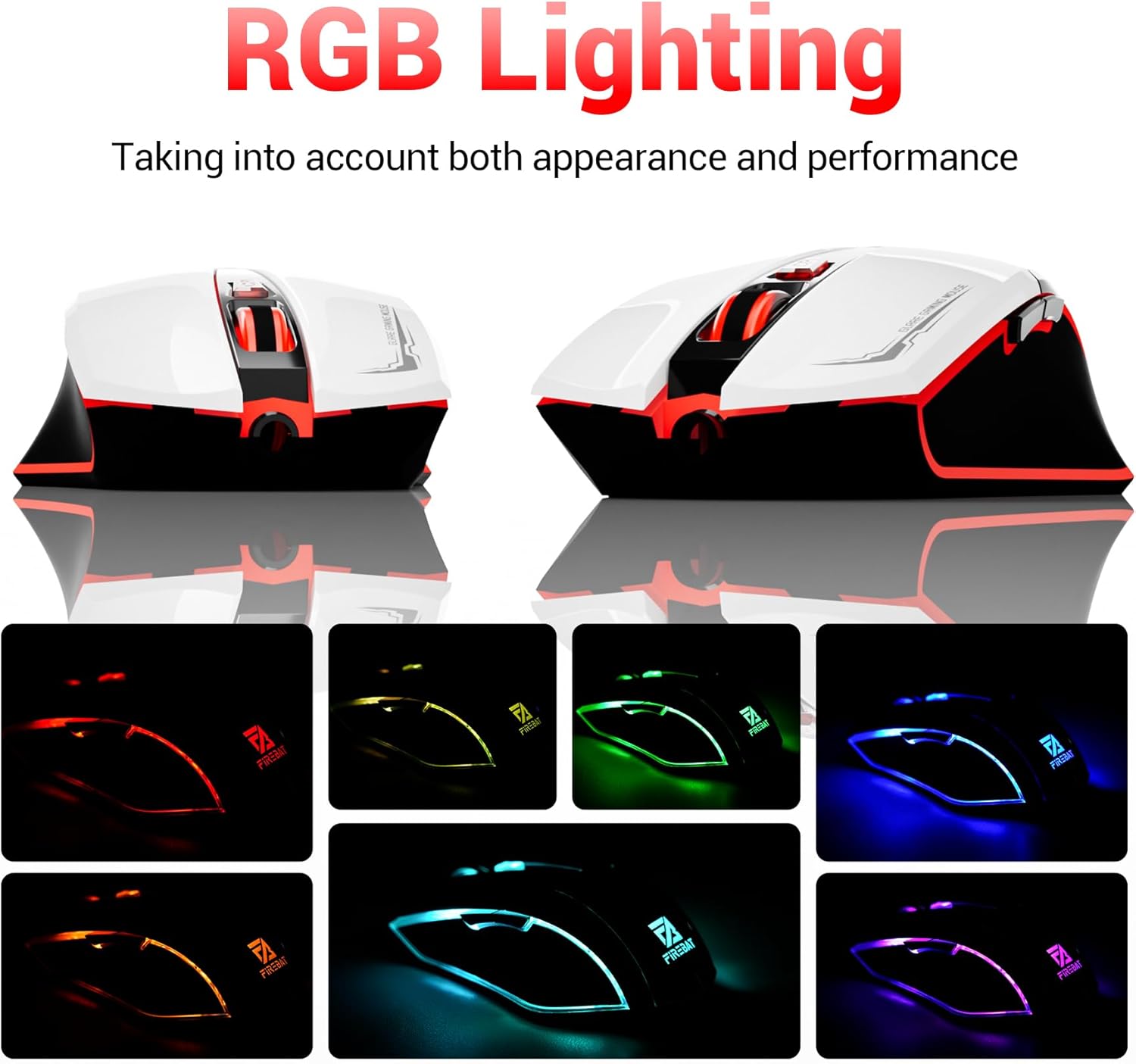
The mouse features vibrant RGB lighting with multiple dynamic modes.
3.4 Ergonomic Apẹrẹ ati Itunu
The mouse is designed with an ergonomic shape to provide a comfortable grip and reduce hand fatigue during extended use, suitable for both right and left-hand users.

The ergonomic design ensures comfort during prolonged use.
3.5 Quiet Click Feature
The mouse incorporates a 'Heavy Bass Design' for its key sounds, ensuring soft clicks without excessive noise, which is beneficial in quiet environments.

The mouse features quiet clicks, minimizing noise during use.
4. Itọju
4.1 Ninu
To ensure optimal performance and longevity, keep your mouse clean.
- Ge asopọ awọn Asin lati kọmputa rẹ ṣaaju ki o to nu.
- Lo asọ rirọ, ti ko ni lint ni sere dampened pẹlu omi tabi a ìwọnba ninu ojutu lati mu ese awọn dada ti awọn Asin.
- Yẹra fun lilo awọn kẹmika ti o lagbara, awọn olutọpa abrasive, tabi ọrinrin ti o pọ ju, nitori iwọnyi le ba asin jẹ.
- For the optical sensor, use a cotton swab to gently remove any dust or debris.
4.2 Ibi ipamọ
Nigbati o ko ba si ni lilo, tọju asin naa sinu mimọ, agbegbe gbigbẹ kuro lati awọn iwọn otutu to gaju ati imọlẹ orun taara.
5. Laasigbotitusita
5.1 Asin Ko fesi
- Ṣayẹwo Asopọ USB: Rii daju pe okun USB ti wa ni edidi ni aabo sinu ibudo USB ti n ṣiṣẹ lori kọnputa rẹ. Gbiyanju ibudo USB ti o yatọ.
- Tun Kọmputa bẹrẹ: Nigba miiran tun bẹrẹ irọrun le yanju awọn ọran Asopọmọra.
- Idanwo lori Kọmputa miiran: Tí ó bá ṣeé ṣe, dán án wò lórí kọ̀ǹpútà mìíràn láti mọ̀ bóyá ìṣòro náà wà pẹ̀lú án tàbí ètò kọ̀ǹpútà rẹ.
5.2 Cursor Movement is Erratic or Jumpy
- Clean Optical Sensor: Dust or debris on the optical sensor can cause erratic movement. Refer to the cleaning instructions in the Maintenance section.
- Use a Mouse Pad: Ensure you are using the mouse on a suitable surface. Reflective, transparent, or uneven surfaces can interfere with the optical sensor.
Ina 5.3 RGB ko ṣiṣẹ
- Ṣayẹwo agbara USB: Ensure the mouse is receiving sufficient power through the USB connection.
- No Manual Control: Remember that the RGB lighting cycles automatically and does not have a manual control button. If the mouse is functioning otherwise, the lighting should be active.
6. Awọn pato
| Ẹya ara ẹrọ | Ẹ̀kúnrẹ́rẹ́ |
|---|---|
| Nọmba awoṣe | X3 Gaming Mouse |
| Brand | FIREBAT |
| Asopọmọra Technology | Okun USB |
| Aṣayan Iṣipopada | Opitika |
| Awọn ipele DPI | 1200/1800/2400/3600 |
| Nọmba ti Awọn bọtini | 6 (Ṣiṣe eto) |
| Imọlẹ ẹhin | Awọn ipo 7 RGB |
| Ọja Mefa | 5 x 3 x 0.1 inches (12.7 x 7.6 x 0.25 cm) |
| Iwọn Nkan | 5.1 iwon (144.6 giramu) |
| Ergonomics | Right or Left Hand Use |
| Olupese | FIREBAT |
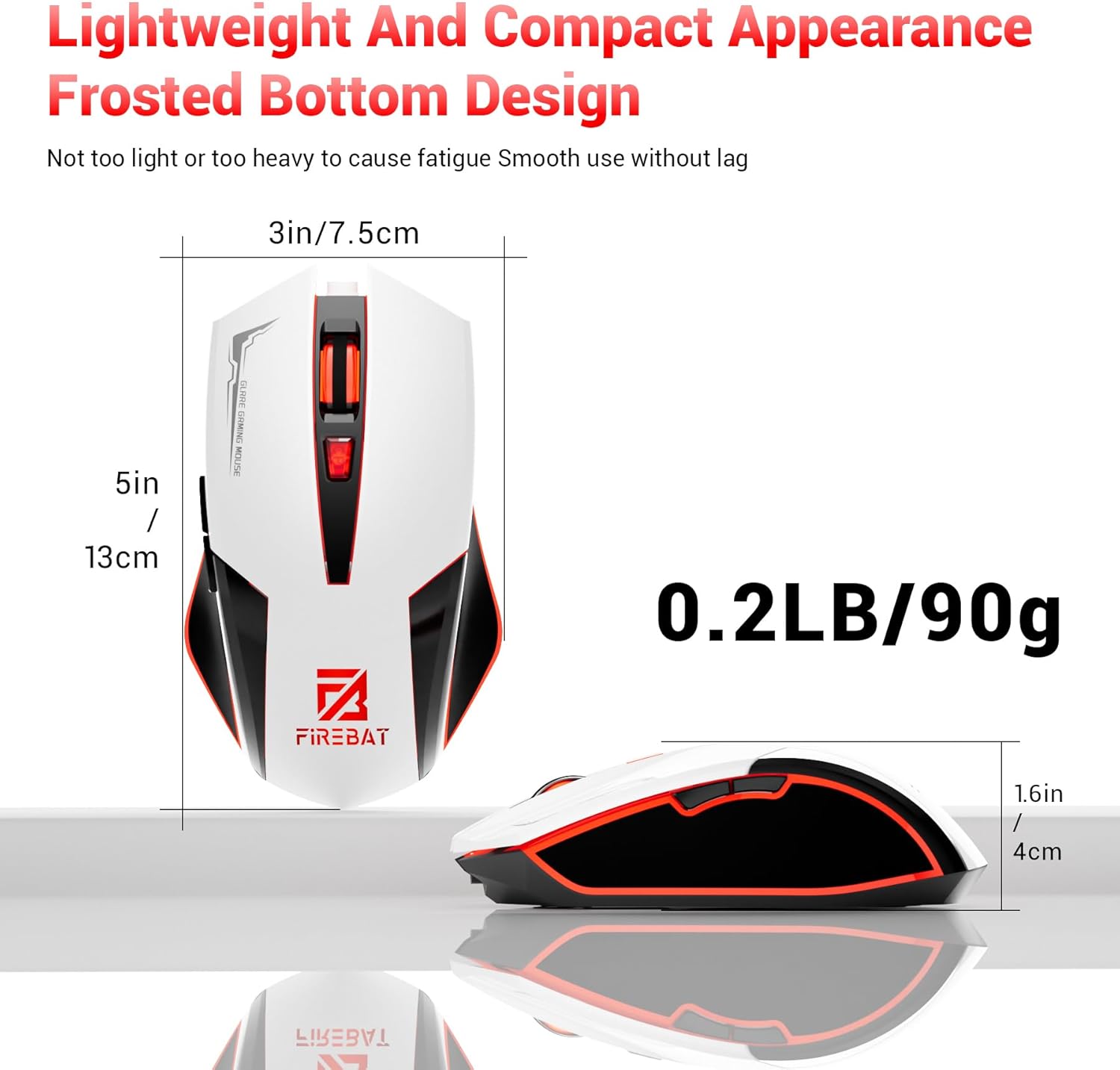
Physical dimensions and weight of the FIREBAT X3 Gaming Mouse.
7. Atilẹyin ọja ati Support
7.1 atilẹyin ọja Alaye
FIREBAT products are manufactured to high-quality standards. For specific warranty details, please refer to the warranty card included with your product or visit the official FIREBAT webojula. Ni deede, awọn ọja wa pẹlu atilẹyin ọja to lopin ti o bo awọn abawọn iṣelọpọ.
7.2 Onibara Support
If you encounter any issues or have questions regarding your FIREBAT X3 Gaming Mouse, please contact our customer support team:
- Imeeli: support@firebatpc.com
- Webojula: www.firebatpc.com
Please provide your product model number (X3 Gaming Mouse) and a detailed description of your issue when contacting support for faster assistance.