
1. Ọja Ipariview
The ICERIVER AE2 is a high-performance ALEO miner designed for efficient cryptocurrency mining. It features a robust power supply unit (PSU) and is engineered for stable operation within a wide voltage range. This manual provides essential information for setting up, operating, and maintaining your AE2 miner.

olusin 1: Iwaju view of the ICERIVER AE2 ALEO Miner, showcasing awọn oniwe-iwapọ oniru ati ese itutu egeb.
Awọn ẹya pataki:
- ALEO Hashrate: 720MH/S (±5%) for optimal mining performance.
- Wall Power: 1300W/h (±10%) power consumption.
- Asopọmọra: Standard Ethernet for network connectivity.
- Voltage Wọle: 100-240V AC, ensuring compatibility with various power grids.
- Iwọn Iṣiṣẹ: Designed to operate efficiently between 0~40 ℃.
2. Eto Itọsọna
2.1 Ṣiṣii silẹ
- Carefully open the packaging and remove the miner.
- Inspect the miner for any visible damage during transit. If damage is found, contact your vendor immediately.
- Verify that all components are present: the ICERIVER AE2 miner unit and the power supply cable.
2.2 ti ara Asopọ
Before powering on, ensure all necessary cables are securely connected.

olusin 2: Ẹyìn view of the ICERIVER AE2 ALEO Miner, showing the power input and Ethernet port.
- Asopọ agbara: Connect the provided power cable to the power input port on the miner. Ensure the other end is connected to a grounded power outlet (100-240V AC).
- Isopọ nẹtiwọki: Connect an Ethernet cable from your router or network switch to the Ethernet port on the miner. A stable internet connection is crucial for mining operations.
2.3 Ibẹrẹ Agbara Lori
- Once all cables are securely connected, switch on the power supply to the miner.
- Observe the indicator lights on the miner. Typically, a green light indicates power, and a blinking light indicates network activity.
- Allow a few minutes for the miner to boot up and acquire an IP address from your network.
3. Isẹ
3.1 Iṣeto Nẹtiwọọki
The miner is configured to obtain an IP address automatically via DHCP by default. For advanced users, static IP configuration is possible via the web ni wiwo.
- Finding the Miner's IP Address:
- Check your router's connected devices list.
- Use an IP scanner tool on your network.
- Iwọle si awọn Web Ni wiwo: Ṣii a web browser and enter the miner's IP address into the address bar. You will be prompted for login credentials (refer to the default credentials provided with your unit or contact support if not found).
- Pool Configuration: Laarin awọn web interface, navigate to the "Miner Settings" or "Pool Configuration" section to enter your ALEO mining pool details (pool URL, orúkọ òṣìṣẹ́, ọ̀rọ̀ìpamọ́).
3.2 Àbójútó àti Ìṣàkóso
Awọn web interface provides real-time monitoring of the miner's status, hashrate, temperature, and fan speed.
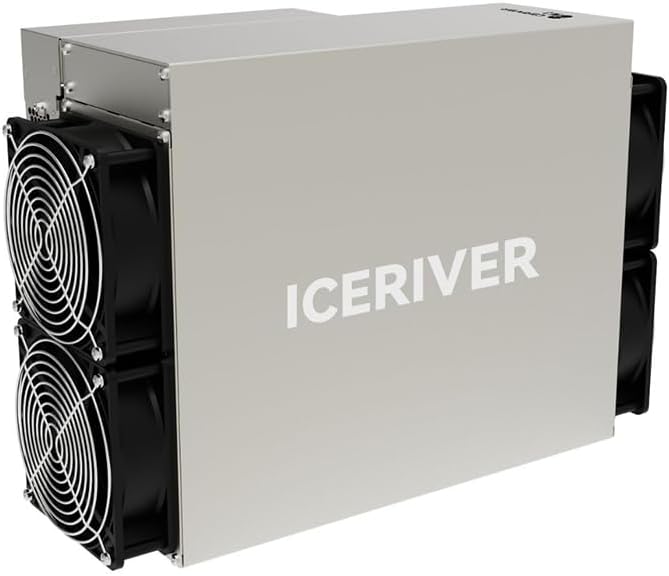
Figure 3: Close-up of the ICERIVER AE2 control panel, showing status indicator lights.
- Awọn Atọka Ipo
- Green Green: Power on / Normal operation.
- LED pupa: Error / Warning (check web interface for details).
- LED nẹtiwọki: Blinking indicates network activity.
- Restart/Reboot: Awọn web interface allows for remote rebooting of the miner if necessary.
4. Itọju
4.1 Ninu
Regular cleaning is essential to ensure optimal performance and longevity of your miner.
- Igbohunsafẹfẹ: Clean the miner every 1-3 months, depending on the operating environment.
- Ilana:
- Power off and unplug the miner before cleaning.
- Use compressed air to remove dust from the fans and heatsinks.
- Wipe the exterior with a dry, soft cloth. Do not use liquid cleaners.
4.2 famuwia imudojuiwọn
Periodically check the official ICERIVER website for firmware updates. Updates can improve performance, stability, and security.
- Download the latest firmware from the official source.
- Follow the update instructions provided on the web interface or with the firmware package.
- Do not power off the miner during a firmware update.
4.3 Ayika riro
- Ensure the operating environment is well-ventilated to prevent overheating.
- Maintain ambient temperature within the specified range (0~40 ℃).
- Avoid high humidity and direct exposure to water or corrosive substances.
5. Laasigbotitusita
This section addresses common issues you might encounter with your ICERIVER AE2 miner.
| Isoro | Owun to le Fa | Ojutu |
|---|---|---|
| Miner ko ni agbara lori. | Power cable loose; Power outlet issue; PSU failure. | Check power cable connections. Test power outlet. Contact support if PSU is suspected. |
| Ko si asopọ nẹtiwọki. | Ethernet cable loose/faulty; Router/switch issue; Incorrect IP configuration. | Verify Ethernet cable. Restart router/switch. Check network settings in web ni wiwo. |
| Low hashrate or no mining. | Incorrect pool settings; Network instability; Overheating; Firmware issue. | Verify pool URL, worker name, and password. Check network stability. Ensure proper ventilation. Update firmware. |
| Gbigbona pupọ. | Poor ventilation; Dust accumulation on fans/heatsinks; High ambient temperature. | Improve airflow around the miner. Clean fans and heatsinks. Relocate to a cooler environment. |
If the issue persists after attempting these solutions, please refer to the support section or contact technical assistance.
6. Imọ ni pato
| Ẹya ara ẹrọ | Iye |
|---|---|
| Orukọ awoṣe | AE2 720MH/S |
| ALEO Hashrate | 720MH/S (±5%) |
| Agbára Ògiri | 1300W/h (±10%) |
| Asopọmọra | Àjọlò |
| Voltage Input | 100-240V AC |
| Awọn iwọn otutu ti nṣiṣẹ | 0 ~ 40 ℃ |
| Awọn iwọn Ọja (L x W x H) | 19.5 x 29 x 43 cm |
| Iwọn Nkan | 13 kg |
| Ọna Itutu | Afẹfẹ |
| Agbara Ipese Design | Ti kii ṣe apọjuwọn |
7. Atilẹyin ọja ati Support
7.1 atilẹyin ọja Alaye
Due to the specialized nature of mining equipment, the product's daily revenue is influenced by total network computing power and cryptocurrency price fluctuations. In principle, returns are not accepted unless due to product failure. If a return is accepted for reasons other than product failure, a 30% return fee may be charged. Please retain your proof of purchase for warranty claims.
7.2 Imọ Support
For technical assistance, troubleshooting beyond this manual, or warranty inquiries, please contact your vendor or the manufacturer, ICERIVER, through their official support channels. Ensure you have your product model number and purchase details ready when contacting support.
Akiyesi: Always refer to the latest information on the official ICERIVER website for the most up-to-date support resources and contact details.