
1. Ifihan
Thank you for choosing the TCL Gaming Monitor 25G54. This monitor is designed to provide an immersive gaming experience with its advanced display technology and high performance. This manual will guide you through the setup, operation, and maintenance of your new monitor.
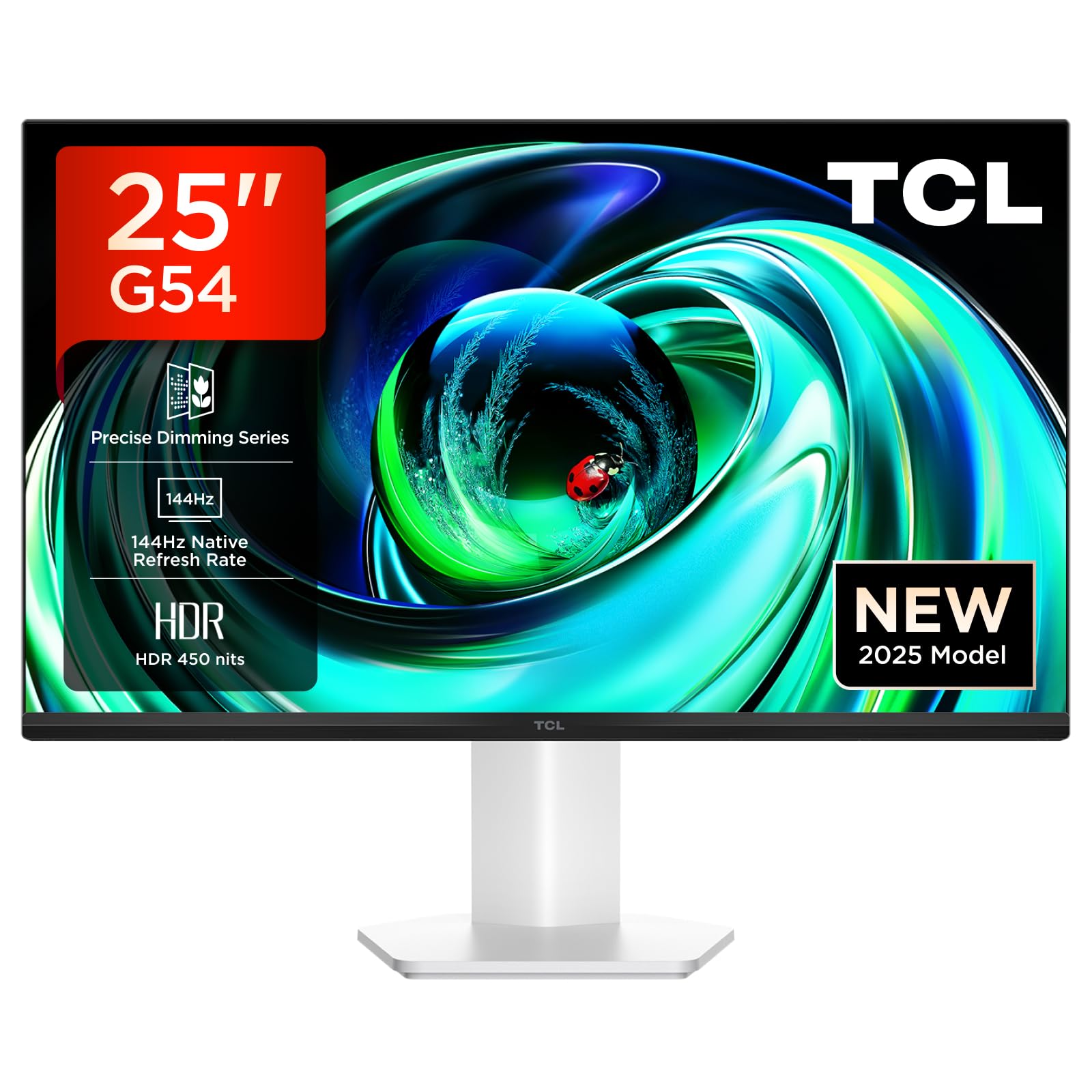
olusin 1: Iwaju view of the TCL Gaming Monitor 25G54.
2. Alaye Aabo
Jọ̀wọ́ ka gbogbo ìtọ́ni dáadáa kí o tó lo àtẹ̀gùn náà. Pa ìwé ìtọ́ni yìí mọ́ fún ìtọ́kasí ọjọ́ iwájú.
- Má ṣe fi àtẹ̀gùn náà sí òjò tàbí ọrinrin láti dènà iná tàbí ìkọlù iná mànàmáná.
- Maṣe ṣii atẹle casing. Ko si awọn ẹya ti olumulo-iṣẹ ninu. Tọkasi gbogbo iṣẹ si oṣiṣẹ oṣiṣẹ.
- Gbe atẹle naa sori iduro, dada alapin lati ṣe idiwọ fun isubu.
- Rii daju pe fentilesonu to dara ni ayika atẹle naa. Ma ṣe dina awọn ṣiṣi atẹgun.
- Lo adapter agbara ati awọn okun waya ti olupese pese nikan.
- Ge asopọ agbara kuro ninu iho ti a ko ba lo iboju naa fun igba pipẹ.
3. Package Awọn akoonu
Daju pe gbogbo awọn nkan wa ninu apo rẹ:
- TCL Gaming Monitor 25G54
- Iduro Iduro (Ipilẹ ati Ọrun)
- Okun agbara
- Okun HDMI
- Olumulo Afowoyi ati Kaadi atilẹyin ọja
Note: Specific cable types (e.g., DisplayPort) may vary by region or package.
4. Eto
4.1 Nto Iduro
- Fara yọ atẹle naa kuro ki o duro awọn paati lati apoti.
- So ọrùn ìdúró mọ́ pánẹ́lì àtẹ̀gùn náà. Rí i dájú pé ó tẹ ibi tí ó wà dáadáa tàbí pé a fi skru dè é gẹ́gẹ́ bí a ti sọ nínú ìwé ìtọ́ni ìbẹ̀rẹ̀ kíákíá.
- So ipilẹ iduro si ọrun imurasilẹ, ni aabo pẹlu dabaru ti a pese.
- Place the assembled monitor on a stable desk.
4.2 Nsopọ Atẹle
The monitor supports various input options. Connect the appropriate cable from your computer or gaming console to the monitor.
- HDMI Asopọ: Use an HDMI cable to connect your device to the monitor's HDMI port.
- Isopọ PortPort: Use a DisplayPort cable to connect your device to the monitor's DisplayPort.
- Awọn asopọ USB: Lo awọn ebute oko USB fun sisopọ awọn agbeegbe.

olusin 2: Ẹyìn view showing the monitor's connectivity ports including HDMI, DisplayPort, and USB.
4.3 Agbara Lori
- So okùn agbára náà mọ́ ibi tí monitor náà ti ń lo agbára, lẹ́yìn náà so mọ́ ibi tí electrical outlet ti ń lo agbára.
- Press the power button, usually located on the back or bottom of the monitor, to turn it on.
5. Awọn ilana Iṣiṣẹ
5.1 Lori-iboju Ifihan (OSD) Akojọ aṣyn
The OSD menu allows you to adjust various monitor settings. Access it using the joystick button, typically located on the back of the monitor.

Figure 3: Illustration of the joystick button for OSD menu navigation.
Àwọn Ètò OSD tó wọ́pọ̀:
- Imọlẹ/Itọtọ: Satunṣe awọn ifihan ká luminance ati itansan awọn ipele.
- Eto awọ: Modify color temperature, gamma, and color space (e.g., DCI-P3, sRGB).
- Orisun igbewọle: Manually select the active input (HDMI, DisplayPort).
- Awọn ẹya ara ẹrọ ere: Enable/disable FreeSync, adjust response time, and other gaming-specific enhancements.
- Ipo aworan: Select preset display modes for different content types (e.g., Standard, Game, Movie).
5.2 Ergonomic Awọn atunṣe
The monitor stand offers ergonomic adjustments for optimal viewinu itunu.
- Tẹ: Adjust the screen's vertical angle.
- Swivel: Yi iboju ni petele.
- Atunse Giga: Raise or lower the screen to eye level.
- Pivot: Rotate the screen to portrait or landscape orientation.

Figure 4: Illustration of the monitor's ergonomic stand, showing tilt and height adjustment capabilities.
6. Awọn ẹya ara ẹrọ
The TCL Gaming Monitor 25G54 incorporates several key technologies for superior performance:
- Mini LED Technology: Combines QLED and OLED advantages for precise, pixel-level illumination, offering sharp contrast and a wide color gamut.
- Ìpele Ìdánwò Pàtàkì: Enhances overall image quality by optimizing light and shadow, providing a high-quality visual experience.
- HDR 400 nit Brightness: With a peak brightness of 450 nits and a contrast ratio of 4,500,000:1, it delivers extended dynamic range and vivid details in both dark and bright areas.
- Oṣuwọn Isọdọtun 144Hz: Ensures smooth and fluid images in all gaming scenes and actions, minimizing motion blur.
- Àkókò Ìdáhùn 1ms (GTG): An extremely fast response time reduces ghosting and blurring, allowing for quick target acquisition.
- 93% DCI-P3 Wide Color Gamut: Displays vibrant colors with professional-level accuracy, revealing an immersive world of color.
- TÜV Rheinland Flicker-Free & Low Blue Light: Certified for eye protection, this mode blocks harmful blue light and eliminates flicker for prolonged viewinu itunu.

Olusin 5: Pariview of the TCL 25G54 Mini LED Monitor's key features.
7. Itọju
Itọju to dara ṣe idaniloju gigun ati iṣẹ ṣiṣe to dara julọ ti atẹle rẹ.
- Ninu iboju: Rọra nu iboju naa pẹlu asọ ti ko ni lint. Fun awọn ami agidi, lo ojutu mimọ-pato atẹle ti a lo si asọ, kii ṣe taara si iboju.
- Ninu ile Casing: Lo asọ ti o rọ, ti o gbẹ lati nu atẹle naa casing. Yago fun abrasive ose.
- Afẹfẹ: Ensure the ventilation openings are clear of dust and debris. Use compressed air to clean if necessary.
- Agbara Pa: Always turn off and unplug the monitor before cleaning or if it will be unused for an extended period.
8. Laasigbotitusita
Ti o ba pade awọn ọran pẹlu atẹle rẹ, tọka si awọn solusan ti o wọpọ wọnyi:
| Isoro | Owun to le Fa | Ojutu |
|---|---|---|
| Ko si aworan loju iboju | Power cable disconnected, input cable loose, incorrect input source selected. | Check power and input cable connections. Select correct input source via OSD. |
| Aworan jẹ blur tabi daru | Incorrect resolution, faulty cable, graphics driver issue. | Set display resolution to 1920x1080. Try a different cable. Update graphics drivers. |
| Iboju ti n tan imọlẹ | Refresh rate mismatch, faulty cable, external interference. | Ensure refresh rate is set to 144Hz. Try a different cable. Check for nearby electronic devices. |
| Ko si ohun | Audio cable not connected, volume too low, incorrect audio output selected. | Connect headphones to the monitor's audio output. Adjust volume. Select monitor as audio output on your device. |
Tí ìṣòro náà bá ń bá a lọ lẹ́yìn tí a bá ti gbìyànjú àwọn ìdáhùn wọ̀nyí, jọ̀wọ́ kan sí ìrànlọ́wọ́ oníbàárà TCL.
9. Awọn pato
| Ẹya ara ẹrọ | Sipesifikesonu |
|---|---|
| Brand | TCL |
| Nọmba awoṣe | 25G54 |
| Iwon iboju | 25 inches |
| Ipinnu | 1920x1080 (FHD) |
| Panel Iru | IPS |
| Oṣuwọn sọtun | 144 Hz |
| Akoko Idahun | 1 ms (GTG) |
| Imọlẹ | 450 nit |
| Ipin Itansan | 4,500,000:1 |
| HDR atilẹyin | VESA Display HDR 400 |
| Awọ Gamut | 93% DCI-P3 |
| Viewigun igun | Awọn iwọn 178 |
| Asopọmọra | 1x HDMI, 1x DisplayPort, 4x USB, Headphone Output |
| Amuṣiṣẹpọ Adaptive | FreeSync |
| Awọn iwọn (DxWxH) | 18.2 x 55.6 x 43.9 cm |
| Iwọn | 4.39 kg |
| Pataki Awọn ẹya ara ẹrọ | Mini LED, Flicker-Free, Low Blue Light |
10. Atilẹyin ọja ati Support
Your TCL Gaming Monitor 25G54 comes with a 2-year manufacturer's warranty. For warranty claims, technical support, or service inquiries, please visit the official TCL support webaaye ayelujara tabi kan si alagbata agbegbe rẹ.
Fun alaye diẹ sii, ṣabẹwo si TCL itaja lori Amazon.
11. Atunlo Alaye
Please dispose of this product responsibly. Electronic waste should not be disposed of with household waste. Follow local regulations for the proper disposal of electronic devices. This helps protect the environment and human health.