
Ọrọ Iṣaaju
This manual provides essential instructions for the setup, operation, maintenance, and troubleshooting of your Insignia 32-inch 1080p HD HDR LCD Fire TV Smart TV, model NS-32F401CA26. Please read this manual thoroughly before using your television to ensure proper and safe operation.
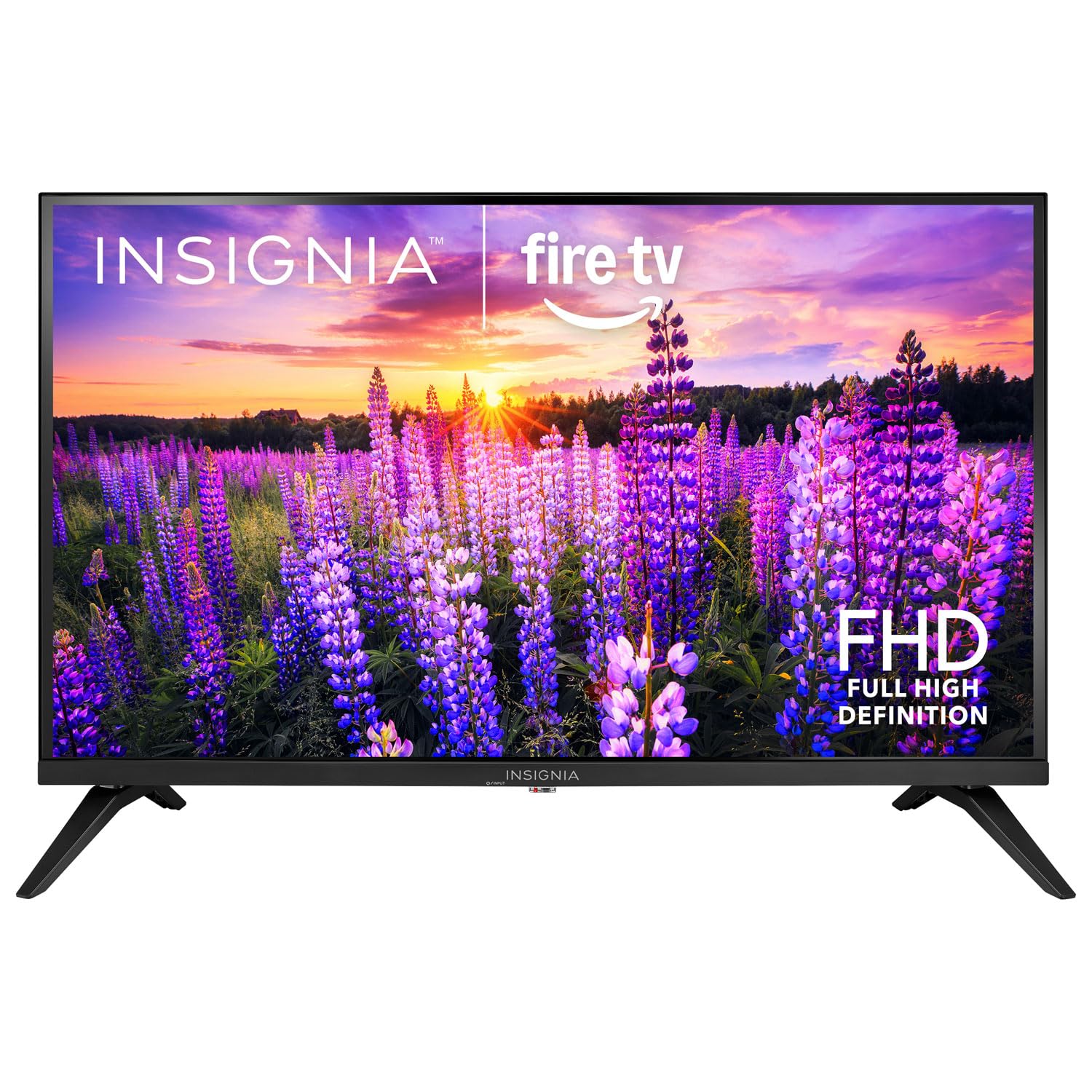
Aworan: Iwaju view of the Insignia 32-inch Fire TV Smart TV, showing the screen and a remote control.
1. Eto
1.1 Ṣiṣii silẹ
Carefully remove the TV and all accessories from the packaging. Retain the packaging materials for future transport or storage.
1.2 So Iduro tabi Iṣagbesori odi
Fun fifi sori imurasilẹ:
- Fi TV naa si oju re lori oju ti o tutu ati ti o mọ lati dena ibajẹ iboju naa.
- Ṣe deede awọn ipilẹ imurasilẹ pẹlu awọn ihò dabaru lori isalẹ ti TV.
- Ṣe aabo awọn iduro nipa lilo awọn skru ti a pese.
Fun Iṣagbesori Odi:
- This TV supports a VESA Mount Standard of 200 x 200 mm.
- Use a compatible wall mount kit (sold separately) and follow its installation instructions.
- Rí i dájú pé ògiri náà lè gbé ìwọ̀n TV àti ibi tí a gbé e sí ró.
1.3 Nsopọ Agbara
Plug the power cord into the TV's power input, then plug the other end into a working electrical outlet.
1.4 Nsopọ Awọn ẹrọ ita
Your TV includes multiple ports for external devices:
- HDMI Ports (Total 2): So awọn ẹrọ orin Blu-ray pọ, awọn afaworanhan ere, awọn apoti USB / satẹlaiti.
- USB 3.0 Port (Total 1): So awọn ẹrọ ibi ipamọ USB pọ fun ṣiṣiṣẹsẹhin media.
- Antenna/Igbewọle okun: So eriali pọ fun awọn igbohunsafefe lori afẹfẹ tabi asopọ okun waya kan.
1.5 Initial Setup (Fire TV OS)
Upon first power-on, the TV will guide you through the Fire TV setup process:
- Asopọmọra isakoṣo latọna jijin: Insert the included 2 AAA batteries into the remote. Follow on-screen instructions to pair the remote.
- Isopọ nẹtiwọki: Yan nẹtiwọki Wi-Fi rẹ ki o tẹ ọrọ igbaniwọle sii.
- Akọọlẹ Amazon: Log in with your Amazon account or create a new one.
- Iwoye ikanni: Tí ó bá ń lo eriali, TV náà yóò ṣe àyẹ̀wò àwọn ikanni tó wà.
- Awọn imudojuiwọn sọfitiwia: The TV may download and install the latest software updates.
2. Ṣiṣẹ TV rẹ
2.1 Agbara Tan / Pa
Tẹ awọn Agbara bọtini lori iṣakoso latọna jijin lati tan tabi pa TV naa.
2.2 Lilọ kiri ni Interface Fire TV
Lo paadi itọnisọna ati Yan button on your remote to browse the Fire TV home screen, access apps, and navigate menus.
2.3 Lilo isakoṣo ohun Alexa
Tẹ mọlẹ Alexa button on your remote and speak into the microphone to:
- Wa fun sinima ati TV fihan.
- Lọlẹ awọn ohun elo (fun apẹẹrẹ, "Ṣi Netflix").
- Control playback (e.g., "Pause", "Fast forward").
- Ask questions or get information.
2.4 Iwọle si Awọn ohun elo
Popular streaming services like Amazon Prime Video, Netflix, and YouTube are pre-installed. You can download additional apps from the Amazon Appstore.
2.5 Ṣíṣe àtúnṣe sí Àwòrán àti Ètò Ohùn
Wọle si Eto menu on the Fire TV home screen to adjust:
- Aworan: Brightness, contrast, color, aspect ratio (16:9).
- Ohun: Volume, sound mode, DTS Virtual-X settings.
- Ifihan: Resolution (1080p), refresh rate (120 Hz).
2.6 Awọn iṣakoso Obi
The TV includes parental control features. Navigate to the Eto akojọ aṣayan, lẹhinna yan Awọn ayanfẹ, ati igba yen Awọn iṣakoso obi to set restrictions on content, purchases, and app usage. A PIN is required to enable or disable these controls.
3. Itọju
3.1 Ninu TV
- Iboju: Rọra nu iboju naa pẹlu asọ ti ko ni lint. Fun awọn ami alagidi, die-die dampFi omi tàbí ohun ìfọmọ́ ìbòjú tí a ṣe pàtó fún àwọn tẹlifíṣọ̀n bò aṣọ náà. Má ṣe fọ́n omi sí ojú ìbòjú náà tààrà.
- Ara: Mu ese TV kuro ki o duro pẹlu asọ ti o gbẹ.
- Yọọ TV nigba gbogbo ṣaaju ṣiṣe mimọ.
3.2 Software imudojuiwọn
Your Fire TV Smart TV automatically checks for and installs software updates when connected to the internet. You can manually check for updates in the Eto akojọ labẹ TV Ina mi > Nipa > Ṣayẹwo fun awọn imudojuiwọn.
3.3 Rírọ́pò Batiri Iṣakoso Latọna jijin
When the remote control's performance degrades, replace the two AAA batteries. Ensure correct polarity when inserting new batteries.
4. Laasigbotitusita
| Isoro | Owun to le Fa | Ojutu |
|---|---|---|
| Ko si agbara | Okun agbara ko sopọ; iṣan ko ṣiṣẹ. | Ensure power cord is securely plugged into TV and a live outlet. Test outlet with another device. |
| Ko si aworan tabi ohun | Incorrect input source; external device off or disconnected. | Tẹ awọn Iṣawọle button on the remote to select the correct source. Check connections of external devices. Ensure devices are powered on. |
| Isakoṣo latọna jijin ko ṣiṣẹ | Àwọn bátírì tí ó ti kú; àtúntò kò so pọ̀. | Replace batteries (2 AAA). Re-pair remote by holding the Ile button for 10 seconds near the TV. |
| Awọn oran asopọ Wi-Fi | Ọrọigbaniwọle ti ko tọ; awọn oran olulana; TV ju jina lati olulana. | Verify Wi-Fi password. Restart your router and modem. Move TV closer to router or use a Wi-Fi extender. |
| Apps not loading or crashing | Temporary software glitch; insufficient memory. | Restart the TV. Clear app cache (Settings > Applications > Manage Installed Applications). Ensure sufficient storage. |
5. Awọn pato
| Nọmba awoṣe | NS-32F401CA26 |
| Iwon iboju | 32 inches |
| Ifihan ọna ẹrọ | LCD |
| Ipinnu | 1080p (HD ni kikun) |
| Oṣuwọn sọtun | 120 Hz |
| HDR kika Atilẹyin | HDR10 |
| Apakan Ipin | 16:9 |
| Asopọmọra Technology | Wi-Fi |
| Awọn ibudo HDMI | 2 |
| Awọn ibudo USB 3.0 | 1 |
| Awọn iṣẹ Intanẹẹti atilẹyin | Amazon Prime Video, Netflix, YouTube, Alexa |
| Agbọrọsọ Apejuwe | DTS Virtual-X virtual surround sound |
| Integrated Surround Sound Format | DTS Virtual-X |
| Ọna Iṣakoso | Remote (with Alexa Voice) |
| Awọn batiri ti a beere | 2 AAA (pẹlu) |
| Awọn iwọn Ọja (D x W x H) | 47.3D x 17.1W x 71.9H |
| Boṣewa VESA Mount | 200 x 200 mm |
| Afikun Awọn ẹya ara ẹrọ | Awọn iṣakoso obi |
6. Atilẹyin ọja ati Support
For warranty information, please refer to the warranty card included with your product or visit the official Insignia support website. For technical assistance, product registration, or service inquiries, please contact Insignia customer support through their official channels.
Akiyesi: Awọn ofin atilẹyin ọja pato ati awọn alaye olubasọrọ atilẹyin le yatọ nipasẹ agbegbe ati pe o wa labẹ iyipada.