
Insignia NS-24F201CA26
Insignia NS-24F201CA26 24-inch 720p HD HDR LED Fire TV Smart TV User Manual
Model: NS-24F201CA26
Ọrọ Iṣaaju
O ṣeun fun riraasing the Insignia NS-24F201CA26 24-inch 720p HD HDR LED Fire TV Smart TV. This manual provides essential information for the safe and efficient use of your television. Please read these instructions thoroughly before operating your new TV and retain them for future reference.
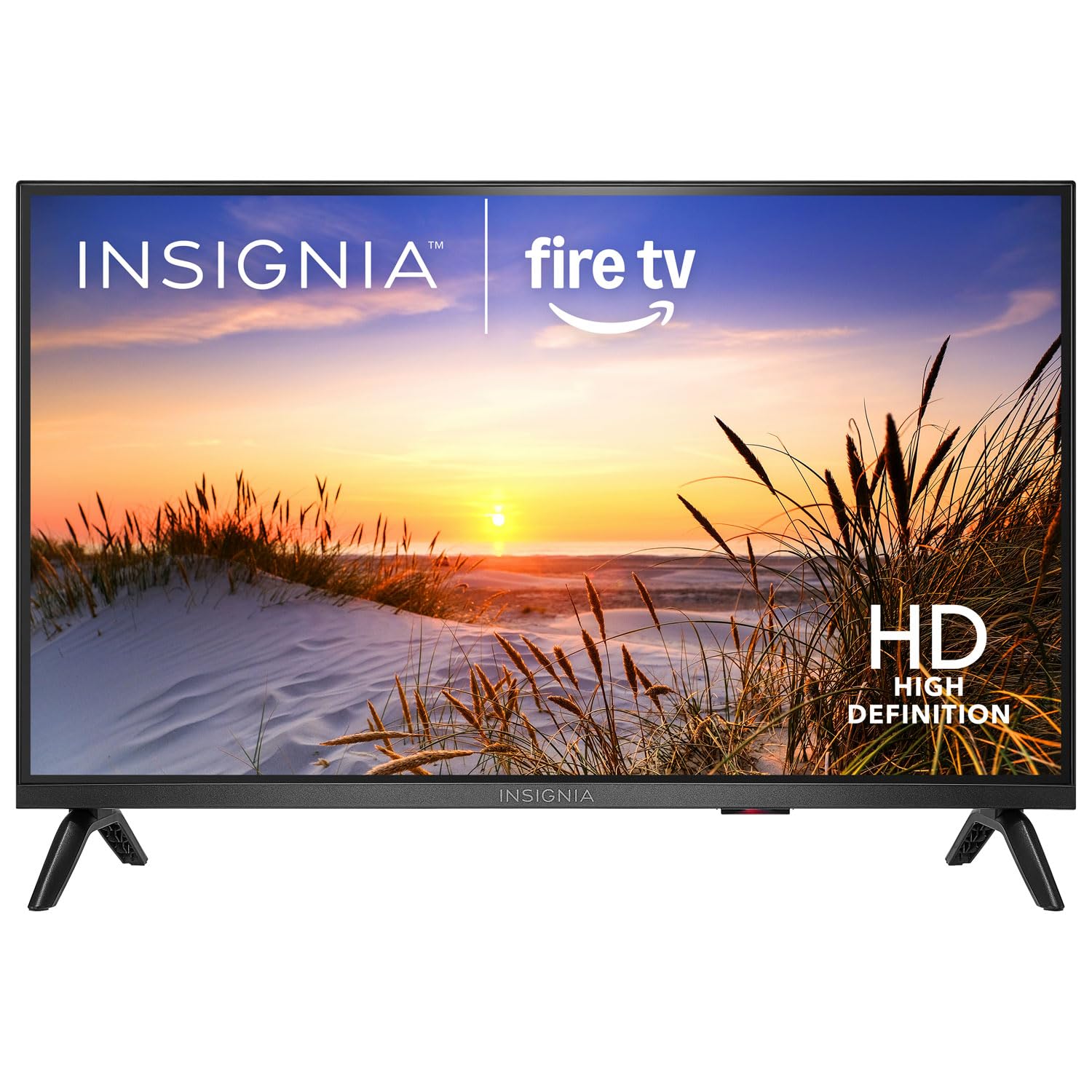
Aworan: Iwaju view of the Insignia NS-24F201CA26 24-inch Fire TV Smart TV, showcasing awọn oniwe-tẹẹrẹ bezel ati iboju.
Alaye Aabo pataki
Nigbagbogbo tẹle awọn iṣọra aabo ipilẹ nigba lilo tẹlifisiọnu rẹ lati dinku eewu ina, mọnamọna, ati ipalara:
- Ma ṣe fi TV han si ojo tabi ọrinrin.
- Do not open the TV cabinet. Refer all servicing to qualified service personnel.
- Rii daju pe fentilesonu to dara. Ma ṣe dina awọn ṣiṣi atẹgun.
- Dabobo okun agbara lati rin lori tabi pinched.
- Yọ TV kuro lakoko iji manamana tabi nigbati a ko lo fun igba pipẹ.
- Keep the TV away from heat sources such as radiators, heat registers, stoves, or other apparatus that produce heat.
- Lo awọn asomọ/awọn ẹya ara ẹrọ ti a sọ pato nipasẹ olupese.
Ohun ti o wa ninu Apoti
Carefully unpack your new product and ensure all items are present:
- Insignia NS-24F201CA26 24-inch Fire TV Smart TV
- Latọna jijin ohun pẹlu Alexa
- Awọn batiri AAA (2)
- Okun agbara
- Iduro TV (awọn ege 2)
- Skru fun TV Imurasilẹ
- Itọsọna Iṣeto yarayara
- Important Safety Information Sheet
Ṣeto
1. So Iduro tabi Odi iṣagbesori
You can either attach the included stand or mount the TV to a wall. If wall mounting, refer to the instructions provided with your wall mount kit. For stand attachment:
- Place the TV face-down on a clean, cushioned surface to prevent screen damage.
- Ṣètò àwọn ohun tí a fi ń dúró pẹ̀lú àwọn ihò ìdènà tí ó wà ní ìsàlẹ̀ TV náà.
- Ṣe aabo nkan iduro kọọkan pẹlu awọn skru ti a pese. Rii daju pe wọn ti di ṣinṣin.
Image Description: An illustration showing the process of attaching the two stand feet to the bottom of the television using screws. (Specific image not available in provided data)
2. Nsopọ Awọn ẹrọ
Connect your external devices (e.g., cable box, Blu-ray player, gaming console) to the TV's HDMI ports. The TV has 2 HDMI ports.
- HDMI: Fún fídíò àti ohùn tó ga jùlọ.
- USB: Fun sisopọ awọn ẹrọ ipamọ USB.
- Antenna/Cable: Fún sísopọ̀ eriali tàbí ìfọwọ́sowọ́pọ̀ tẹlifíṣọ̀n oníkábù.
- Opiti Digital Audio Jade: Fun sisopọ si ọpa ohun tabi olugba ohun.
- Agbara: So okun agbara pọ si TV ati lẹhinna si iṣan ogiri.
Image Description: A diagram illustrating the various input/output ports on the back of the television, including HDMI, USB, and power connections. (Specific image not available in provided data)
3. Agbara Ibẹrẹ Titan ati Iṣeto Akoko-akọkọ
- Pulọọgi okun agbara sinu itanna iṣan.
- Tẹ awọn AGBARA bọtini lori isakoṣo latọna jijin.
- Follow the on-screen instructions to complete the initial setup, which includes selecting your language, connecting to a Wi-Fi network, and signing in to your Amazon account for Fire TV features.
Ṣiṣẹ TV rẹ
Iṣakoso latọna jijinview
The included Voice Remote with Alexa allows you to navigate the Fire TV interface, control playback, and use voice commands.
Image Description: A detailed diagram of the Voice Remote with Alexa, highlighting each button and its function. (Specific image not available in provided data)
- Bọtini agbara: Tan TV si tan tabi paa.
- Bọtini Ohùn (Alexa): Tẹ ki o si dimu mọ lati mu awọn aṣẹ ohun Alexa ṣiṣẹ.
- Oruka Lilọ kiri: Lo lati lọ nipasẹ awọn akojọ aṣayan ko si yan awọn ohun kan.
- Bọtini Ile: Pada si iboju ile Fire TV.
- Bọtini Pada: Pada si iboju ti tẹlẹ.
- Iwọn didun Soke/Isalẹ: Ṣe atunṣe iwọn didun TV.
- Bọtini Mute: Pa tabi mu ohun naa mu.
- Awọn bọtini App: Quick access to popular streaming apps.
Awọn iṣẹ ipilẹ
- Titan/Apapa: Tẹ awọn AGBARA bọtini lori isakoṣo latọna jijin.
- Iṣakoso iwọn didun: Lo awọn VOL+ or VOL - awọn bọtini.
- Aṣayan igbewọle: From the Fire TV home screen, navigate to the "Inputs" section to switch between HDMI inputs, live TV, or other sources.
Smart TV Features (Fire TV)
Your Insignia Fire TV provides access to a vast library of streaming content, apps, and live TV options.
- Iboju ile: Displays recommended content, recently used apps, and input options.
- Awọn ohun elo: Download and manage streaming applications from the Amazon Appstore.
- Alexa Iṣakoso ohun: Press and hold the Voice button on your remote and speak commands to search for content, launch apps, control smart home devices, and more.
Awọn iṣakoso obi
To manage content access for children, you can set up parental controls:
- From the Fire TV home screen, navigate to Eto.
- Yan Awọn ayanfẹ, lẹhinna Awọn iṣakoso obi.
- Follow the on-screen prompts to enable parental controls and set a PIN. You can restrict purchases, app launches, and content based on ratings.
Itoju
Ninu iboju
- Yọọ TV nigba gbogbo ṣaaju ṣiṣe mimọ.
- Lo asọ rirọ, ti ko ni lint ni sere dampened pẹlu omi tabi a specialized iboju regede.
- Nu iboju naa pẹ̀lẹ́pẹ̀lẹ́. Má ṣe fi agbára tó pọ̀ jù.
- Maṣe lo awọn afọmọ abrasive, waxes, tabi nkanmimu.
Gbogbogbo Itọju
- Keep the TV in a well-ventilated area.
- Yago fun gbigbe awọn nkan si oke ti TV.
- Ma ṣe fi TV han si imọlẹ orun taara tabi awọn iwọn otutu to gaju.
Laasigbotitusita
Before contacting support, try these common solutions:
| Isoro | Owun to le Solusan |
|---|---|
| Ko si agbara | Rii daju pe okun agbara ti wa ni edidi ni aabo sinu TV ati iṣan itanna ti n ṣiṣẹ. Gbiyanju iṣan ti o yatọ. |
| Ko si aworan, ṣugbọn ohun wa | Ṣayẹwo orisun titẹ sii. Rii daju pe ẹrọ ti a ti sopọ ti wa ni titan ati pe o nṣiṣẹ ni deede. |
| Ko si ohun, ṣugbọn aworan wa | Check the volume level and ensure the TV is not muted. Verify audio cables are connected correctly. |
| Isakoṣo latọna jijin ko ṣiṣẹ | Replace the batteries (2 AAA batteries). Ensure there are no obstructions between the remote and the TV. |
| Ko le sopọ si Wi-Fi | Rí i dájú pé olùdarí Wi-Fi rẹ wà ní titan àti pé ó wà ní àárín ibi tí a lè dé. Tún tẹ ọ̀rọ̀ ìpamọ́ Wi-Fi náà. Tún tẹ TV àti olùdarí náà. |
Awọn pato
| Ẹya ara ẹrọ | Ẹ̀kúnrẹ́rẹ́ |
|---|---|
| Nọmba awoṣe | NS-24F201CA26 |
| Iwon iboju | 24 inches (Display Size Class) |
| Ipinnu | 720p HD |
| Ifihan ọna ẹrọ | LED |
| Oṣuwọn sọtun | 60 Hz |
| Picture Quality Enhancement | HDR |
| Eto isesise | FireOS |
| Asopọmọra Technology | Wi-Fi |
| Lapapọ HDMI Ports | 2 |
| Awọn iwọn Ọja (D x W x H) | 17.7D x 53.7W x 36.3H cm (pẹlu iduro) |
| Wattage | 35 W |
| Awọn batiri ti a beere | 2 AAA (pẹlu fun isakoṣo latọna jijin) |
| Pataki Awọn ẹya ara ẹrọ | Parental Controls, Smart Home Compatible |
Atilẹyin ọja ati Support
This Insignia product is covered by a limited warranty. For specific warranty terms and conditions, please refer to the warranty card included with your product or visit the official Insignia webojula.
For technical support, troubleshooting assistance, or service inquiries, please contact Insignia Customer Support. Contact information can typically be found on the manufacturer's website or in the quick setup guide.
- Atilẹyin Ayelujara: Ṣabẹwo www.insigniaproducts.com/support (fun apẹẹrẹampìjápọ̀ náà, ìjápọ̀ gidi lè yàtọ̀).
- Atilẹyin foonu: Tọkasi awọn iwe ọja rẹ fun awọn nọmba foonu agbegbe.
Ask a question about this manual
Ask about setup, troubleshooting, compatibility, parts, safety, or missing instructions. Manuals+ will review the question and use this page’s manual context to help answer it.