
Upvivi X88 PRO 14
Upvivi Android 14 TV Box User Manual
Model: X88 PRO 14
Ọrọ Iṣaaju
Thank you for choosing the Upvivi Android 14 TV Box. This device transforms your television into a smart entertainment hub, offering access to a wide range of applications, streaming services, and media content. Featuring the latest Android 14 operating system, a powerful RK3518 Quad-Core CPU, 4K Ultra HD support, Wi-Fi 6, and Bluetooth 5.0, this TV box delivers a smooth and immersive viewing experience. This manual provides detailed instructions for setting up, operating, maintaining, and troubleshooting your device to ensure optimal performance.
Package Awọn akoonu
Jọwọ ṣayẹwo apoti fun awọn nkan wọnyi:
- 1 x Android 14.0 TV Box (2GB+16GB)
- 1 x IR Remote Control (Awọn batiri ko si)
- Adapta Agbara 1 x (DC 5V/2A)
- 1 x HDMI Okun
- 1 x Itọsọna olumulo (iwe yii)

Image: The Upvivi Android 14 TV Box and its accompanying remote control, as typically found in the package.
Ọja Pariview
The Upvivi Android 14 TV Box is designed for ease of use and high performance. Below is an overview of its key features and interface ports.

Aworan: Iwaju view of the TV box, highlighting its Android 14 OS, 4K video capability, Wi-Fi 6, 10/100M Ethernet, and Bluetooth 5.0 features.
Awọn ibudo wiwo
The device is equipped with various ports for connectivity:
- Ibudo DC: Fun sisopọ ohun ti nmu badọgba agbara.
- SPDIF: Digital iwe o wu.
- HDMI: Sopọ̀ mọ́ TV tàbí ìfihàn rẹ fún fídíò àti ohùn tí a lè rí.
- Lan: Àjọlò ibudo fun ti firanṣẹ nẹtiwọki asopọ.
- Ibudo USB 2.0: For connecting USB devices like flash drives, keyboards, or mice.
- Ibudo USB 3.0: High-speed USB port for faster data transfer with compatible devices.
- Iho Kaadi TF: For inserting Micro SD cards to expand storage.
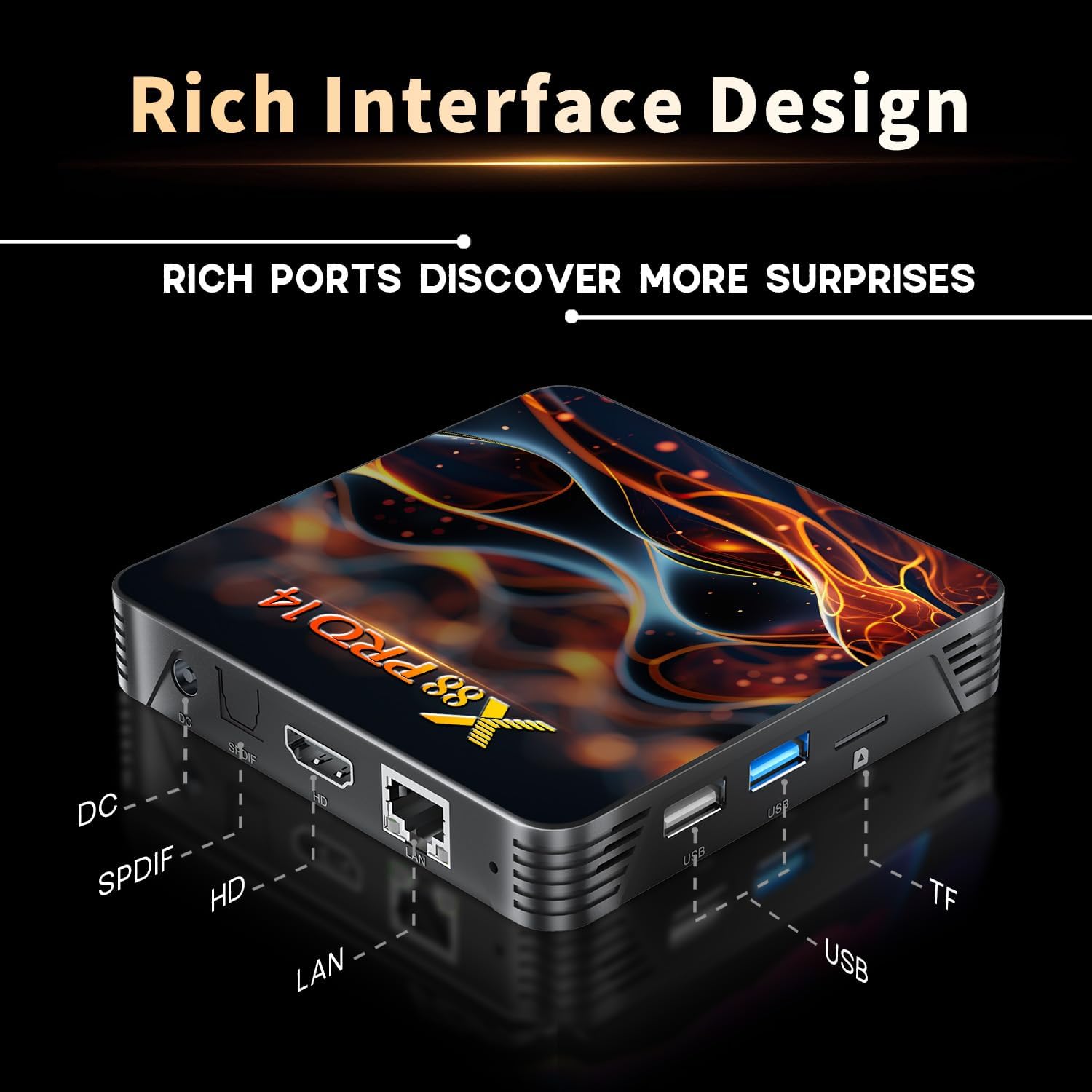
Image: A detailed diagram illustrating the various input and output ports available on the TV box, including DC, SPDIF, HDMI, LAN, USB, and TF card slot.
Eto Itọsọna
Follow these steps to set up your Upvivi Android 14 TV Box:
- Sopọ si Agbara: Insert the DC 5V/2A power adapter into the DC port on the TV box, then plug the adapter into a wall outlet. The power indicator LED on the box will illuminate.
- Sopọ si TV: Use the provided HDMI cable to connect the HDMI port on the TV box to an available HDMI input on your television.
- Yan Igbewọle: Turn on your TV and use its remote control to select the correct HDMI input source that your TV box is connected to.
- Isopọ nẹtiwọki:
- Wi-Fi: Once the box boots up, navigate to the Settings menu, select Network, and choose Wi-Fi. Select your network from the list, enter the password, and connect.
- Àjọlò: For a wired connection, connect an Ethernet cable from your router to the LAN port on the TV box. The device will automatically detect and connect to the wired network.
- Iṣeto akọkọ: Follow the on-screen prompts to complete the initial setup, including language selection, time zone, and Google account login (optional, but recommended for app access).
Awọn ilana Iṣiṣẹ
Isakoṣo latọna jijin
The included IR remote control allows you to navigate the TV box interface. Ensure batteries are inserted correctly (not included). Point the remote directly at the TV box for optimal response.
Image: The TV box and its remote control. The remote features navigation buttons, volume controls, and dedicated function keys.
Lilọ kiri ati Interface
The Android 14 interface is user-friendly. Use the directional buttons on the remote to move between icons and options. The 'OK' button confirms selections, and the 'Back' button returns to the previous screen. The 'Home' button takes you to the main launcher screen.

Image: The Android 14 TV Box interface displayed on a television screen, showing various application icons like Netflix, YouTube, and Google Play Store.
Asopọmọra Peripherals
The TV box supports various peripherals:
- Awọn ẹrọ USB: Connect USB flash drives, external hard drives (up to 1TB), wired keyboards, or mice to the USB 2.0 or USB 3.0 ports.
- Awọn ẹrọ Bluetooth: Pair Bluetooth-enabled devices such as wireless mini-keyboards, game controllers, or speakers via the Bluetooth 5.0 connectivity. Go to Settings > Connected devices > Pair new device.
- Kaadi SD Micro: Insert a Micro SD card (up to 64GB) into the TF card slot for additional storage.
Multi-Domain Applications
The TV box supports a variety of entertainment and utility applications, allowing you to watch TV, play games, listen to music, and stream live events.

Image: Visual representation of the TV box's versatility, showing its use for watching TV, playing games, listening to music, and watching sports.
Imọ ni pato
Detailed specifications of the Upvivi Android 14 TV Box:
| Eto isesise | Android 14.0 |
| Chipset | RK3518 Quad-Core 64bit Cortex-A53 |
| GPU | Mali 450 MP2 |
| Ibi ipamọ FLASH | EMMC 16GB |
| SDRAM | 2GB |
| Awọn ibudo USB | 1 x Type-A USB 2.0, 1 x Type-A USB 3.0 |
| LAN | Àjọlò: 10/100M boṣewa RJ-45 |
| Alailowaya Asopọmọra | 2.4G / 5G dual-band Wi-Fi 802.11 a/b/g/n/ac/ax (Wi-Fi 6) |
| Bluetooth | V5.0 |
| Oluka kaadi | Micro SD cards, Maximum support 64GB |
| Ibudo ifihan | HDMI |
| HDMI Ẹya | HDMI 2.0b for 4K@60Hz |
| Ijade fidio | 4K (3840x2160 pixel) High Definition |
| Ibi ti ina elekitiriki ti nwa | INPUT: 100-240V 50/60HZ, OUTPUT: DC 5V/2A |
| Awọn iwọn otutu ti nṣiṣẹ | -10 ℃ si 45 ℃ |
| Awọn ede atilẹyin | English, French, German, Spanish, Italian, etc. |
Awọn Ifojusi Iṣe

Image: Diagram illustrating the RK3518 Quad-Core Cortex-A53 processor, emphasizing its enhanced computing power and lower power consumption for better performance.
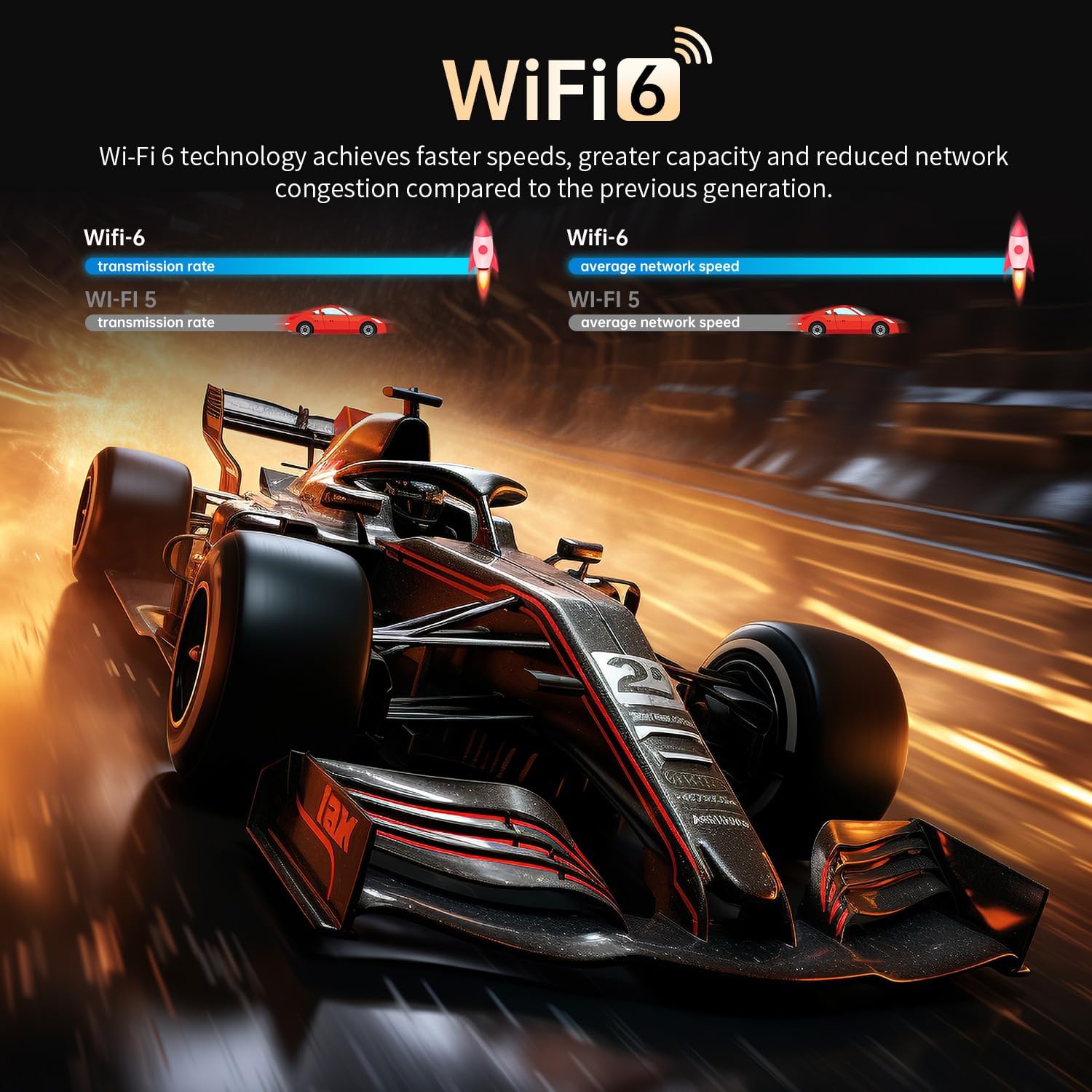
Image: A visual comparison highlighting the benefits of Wi-Fi 6 technology, showing faster speeds, greater capacity, and reduced network congestion compared to Wi-Fi 5.

Image: A visual demonstration of 4K HDR10 quality, showcasing super bright colors, sharper contrast, and richer details compared to standard 1080p.
Itọju ati Itọju
To ensure the longevity and optimal performance of your TV box, follow these maintenance guidelines:
- Ninu: Lo asọ ti o tutu, ti o gbẹ lati nu ita ti ẹrọ naa. Maṣe lo awọn olutọpa olomi tabi awọn aerosols.
- Afẹfẹ: Ensure the TV box is placed in a well-ventilated area. Do not block the ventilation holes. Proper airflow is crucial for heat dissipation.
- Iwọn otutu: Operate the device within the specified temperature range (-10℃ to 45℃). Avoid exposing it to extreme heat or cold.
- Agbara Pa: When not in use for extended periods, it is recommended to power off the device and unplug the power adapter.
Ooru Ifakalẹ
The TV box is designed with efficient heat dissipation to maintain stable operation.
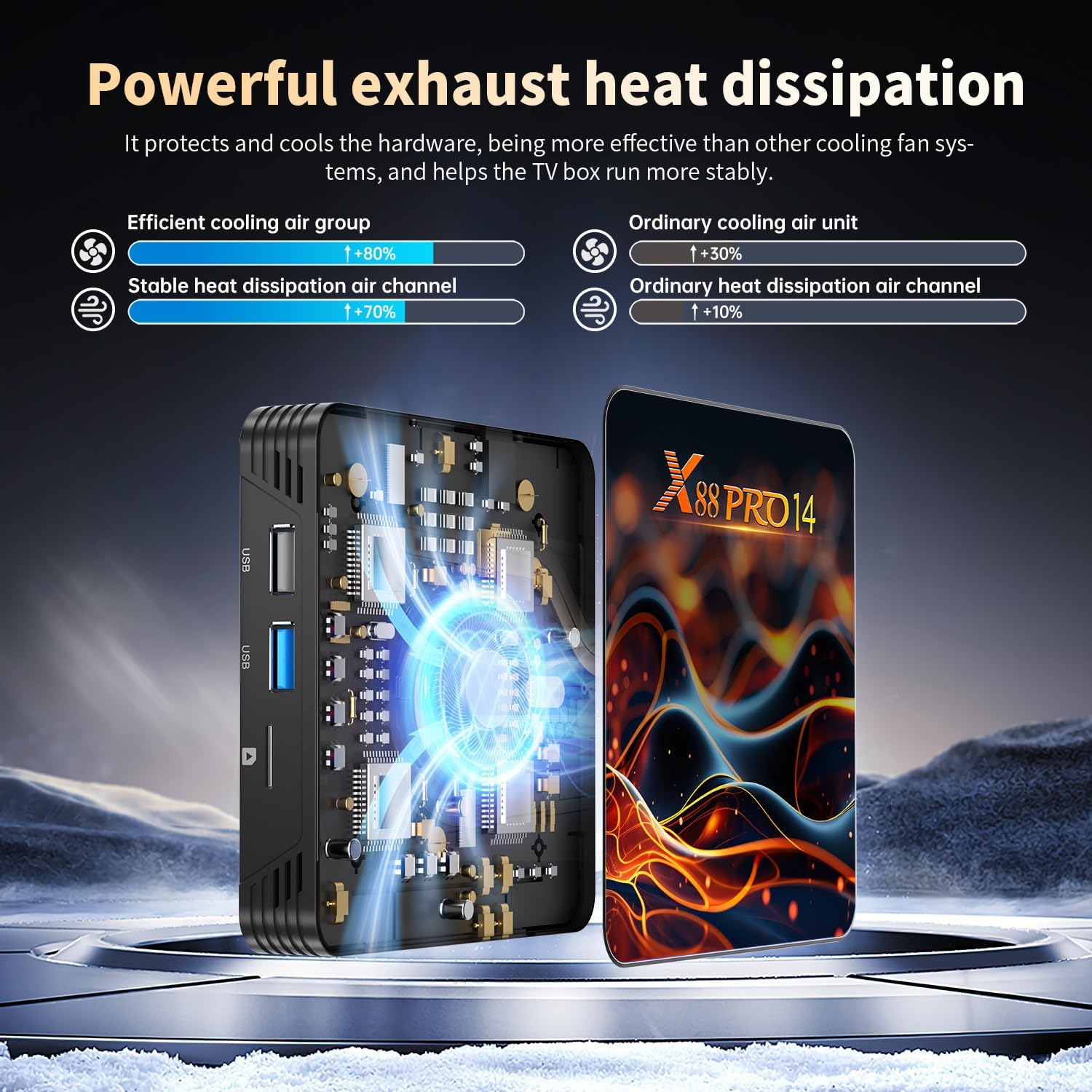
Aworan: inu view highlighting the powerful exhaust heat dissipation system, showing how it protects hardware and ensures stable operation by being more effective than ordinary cooling solutions.
Laasigbotitusita
If you encounter issues with your Upvivi Android 14 TV Box, please refer to the following common problems and solutions:
- Ko si Agbara:
- Ensure the power adapter is securely connected to the TV box and a working power outlet.
- Rí i dájú pé ibi tí agbára iná náà ti ń ṣiṣẹ́.
- Kò sí àwòrán lórí tẹlifíṣọ̀n:
- Check if the HDMI cable is securely connected to both the TV box and the TV.
- Rii daju pe a ṣeto TV rẹ si orisun titẹ sii HDMI to tọ.
- Gbiyanju okun HDMI ti o yatọ tabi ibudo HDMI lori TV rẹ.
- Ko si Ohun:
- Check the volume levels on both the TV box and your TV.
- Ensure the HDMI cable is functioning correctly.
- Verify audio output settings on the TV box (Settings > Sound).
- Awọn ọran Isopọ Wi-Fi:
- Rí i dájú pé olulana Wi-Fi rẹ wà nílẹ̀ àti pé ó ń ṣiṣẹ́.
- Tún tẹ ọ̀rọ̀ìpamọ́ Wi-Fi náà pẹ̀lú ìṣọ́ra.
- Move the TV box closer to the router or try connecting via Ethernet.
- Restart both the TV box and your router.
- Iṣakoso Latọna jijin Ko Dahun:
- Ṣayẹwo ki o rọpo awọn batiri ni isakoṣo latọna jijin.
- Ensure there are no obstructions between the remote and the TV box's IR receiver.
- Àìdúró/Dídì Ètò:
- Pa awọn ohun elo abẹlẹ ti ko wulo.
- Clear cache for frequently used apps (Settings > Apps > [App Name] > Clear cache).
- Restart the TV box.
- Rii daju pe aaye ipamọ to wa.
Atilẹyin ọja ati Support
Upvivi provides a 2-odun atilẹyin ọja for this product, along with lifetime technical support.
If you have any questions, concerns, or require technical assistance, please do not hesitate to contact our customer support team. We are committed to providing a solution within 24 hours.
For support, please refer to the contact information provided on the product packaging or the official Upvivi webojula.