
1. Ifihan
Welcome to the user manual for your new FASTWD Android 15 Tablet 11-inch. This guide provides essential information for setting up, operating, and maintaining your device. Please read this manual thoroughly to ensure optimal performance and longevity of your tablet.
The FASTWD Android 15 Tablet features an 11-inch 2K QHD display, an Octa-Core T615 processor, 36GB RAM, 256GB ROM, and an 8000mAh battery. It supports 5G WiFi, 4G LTE, and includes AI-enhanced cameras, Gemini AI, and Widevine L1 for high-quality streaming.
2. Package Awọn akoonu
Upon unboxing, please verify that all items listed below are present in your package:
- FASTWD Android 15 Tablet (11-inch)
- Asin
- Keyboard
- Tẹ Pen
- Case Alawọ
- Ṣaja
- Data Cable (USB Type-C)
- Tabulẹti User Afowoyi

Nọmba 2.1: Included accessories with the FASTWD Android 15 Tablet.
3. Ẹrọ Loriview
The FASTWD Android 15 Tablet features a sleek, lightweight metal body with a slim profile and straight edges. The display bezel measures 7.8mm, contributing to an immersive viewiriri iriri.
Ti ara Awọn ẹya ara ẹrọ
- Ifihan: 11-inch 2K QHD (2560x1440) In-cell Display with 90Hz refresh rate and Wide Viewigun igun.
- Ara: Metal construction, weighing approximately 568g.
- Awọn ibudo: USB Type-C for charging and data transfer, SIM/MicroSD card slot.
- Awọn kamẹra: Rear 13MP + 3MP with autofocus and Low Light LED Flash; Front 8MP with autofocus.
- Ohun: Mẹrin Amplitude Speakers with Artificial Intelligence Noise Cancellation technology.

Nọmba 3.1: Pariview of the tablet's design and key features.

Nọmba 3.2: Detail of the tablet's connectivity ports and speaker placement.
4. Eto
4.1 Gbigba agbara akọkọ
Before first use, fully charge your tablet using the provided USB Type-C cable and charger. Connect the cable to the tablet's USB-C port and the charger to a power outlet. The battery indicator on the screen will show charging progress.
4.2 Titan / Pa a
- Lati Fi agbara: Press and hold the Power button until the FASTWD logo appears on the screen.
- Lati Paarẹ: Tẹ bọtini agbara ki o si di mu, lẹhinna yan 'Pa agbara kuro' lati awọn aṣayan ti o han loju iboju.
- Lati Tun bẹrẹ: Tẹ bọtini agbara ki o si dimu, lẹhinna yan 'Tun bẹrẹ' lati awọn aṣayan.
4.3 Oṣo oluṣeto akọkọ
Upon first power-on, the tablet will guide you through an initial setup process. This includes selecting your language, connecting to a Wi-Fi network, setting up your Google account, and configuring basic security settings.
4.4 Fifi sori ẹrọ SIM ati Kaadi MicroSD
Locate the SIM/MicroSD card tray on the side of the tablet. Use the provided SIM ejector tool to open the tray. Insert your Nano-SIM card (for 4G LTE connectivity) and/or a MicroSD card (for expanded storage) into the designated slots, ensuring correct orientation. Gently push the tray back into the tablet.
4.5 Bluetooth Device Pairing
To connect Bluetooth accessories like the included keyboard or mouse:
- Lọ si Eto > Awọn ẹrọ ti a ti sopọ > Bluetooth.
- Yi Bluetooth pada On.
- Rii daju pe ẹrọ Bluetooth rẹ wa ni ipo sisopọ.
- Select 'Pair new device' and choose your device from the list.
- Tẹle eyikeyi awọn ilana loju iboju lati pari sisopọ.

Nọmba 4.1: Bluetooth device connection interface.
4.6 Ṣii idanimọ oju
For convenient and secure unlocking, you can set up Face Recognition:
- Lọ si Eto > Aabo & asiri > Ṣii ẹrọ silẹ > Ṣii silẹ oju.
- Follow the on-screen instructions to register your face. Ensure you are in a well-lit environment.
Nọmba 4.2: Face Recognition Unlock setup.
5. Awọn ilana Iṣiṣẹ
5.1 Ipilẹ Lilọ kiri
The tablet uses standard Android touch gestures:
- Fọwọ ba: Yan ohun kan tabi ṣii ohun elo kan.
- Ra: Yi lọ kiri nipasẹ awọn oju-iwe tabi awọn atokọ.
- Fun pọ-si-sun-un: Sun-un sinu tabi jade lori awọn aworan ati web awọn oju-iwe.
- Tẹ gun: Wọle si awọn akojọ aṣayan ọrọ-ọrọ tabi gbe awọn aami app.
5.2 Wi-Fi and 4G LTE Connectivity
- Wi-Fi: Lọ si Eto > Nẹtiwọọki & Intanẹẹti > Ayelujara. Select your desired Wi-Fi network and enter the password if required. The tablet supports 2.4G/5G dual-band Wi-Fi.
- 4G LTE: If a SIM card is installed, go to Eto > Nẹtiwọọki & Intanẹẹti > Awọn SIM to manage mobile data settings. The tablet supports 4G LTE TDD+FDD and VoLTE.

Nọmba 5.1: Connectivity features of the tablet.
5.3 App Management
To manage your applications:
- Fi sori ẹrọ Awọn ohun elo: Lo itaja Google Play lati ṣe igbasilẹ ati fi awọn ohun elo tuntun sori ẹrọ.
- Yọ Awọn ohun elo kuro: Long-press an app icon on the home screen or app drawer, then drag it to 'Uninstall' or select 'App info' and choose 'Uninstall'.
- Free Up Storage Space: Lọ si Eto > Awọn ohun elo > Wo gbogbo awọn ohun elo. Select an app, then choose 'Storage & cache' to clear cache or data, or 'Force stop' to temporarily halt its operation.
Nọmba 5.2: App management options.
5.4 Awọn iṣakoso Obi
Manage and monitor tablet usage for children using parental controls:
- Lọ si Eto > Nini alafia Digital & awọn iṣakoso obi.
- Set up screen time limits, app restrictions, and content filters.
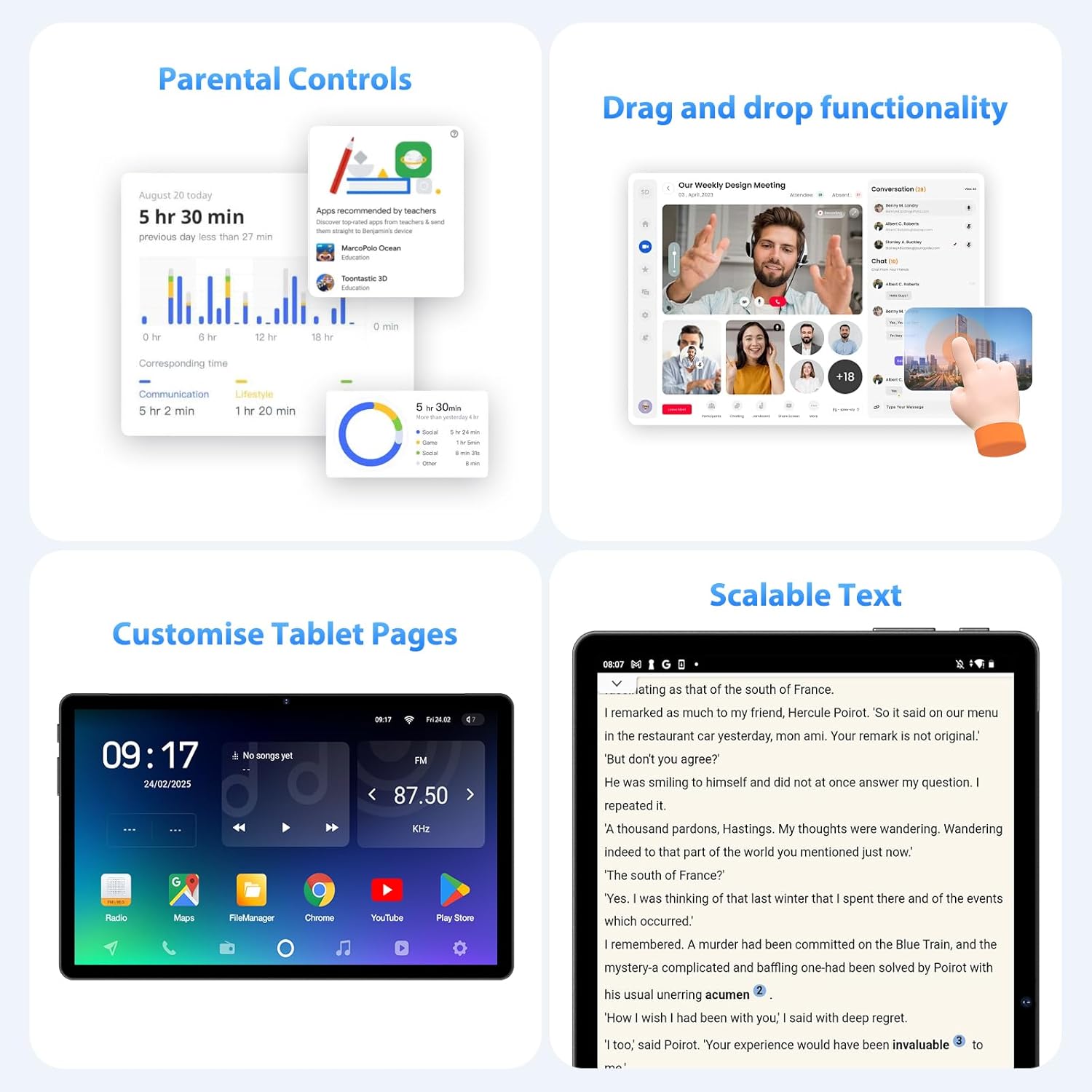
Nọmba 5.3: Parental control settings.
5.5 Double-tap to Wake
To quickly wake the screen without pressing the power button, simply double-tap the display. This feature can usually be enabled or disabled in Eto > Ifihan > Lock screen display.
Nọmba 5.4: Double-tap to wake functionality.
5.6 Customizing Tablet Pages
Personalize your tablet's home screens by long-pressing on an empty area to access wallpaper, widgets, and home screen settings. You can also rearrange app icons and create folders.
Nọmba 5.5: Example of a customized tablet page.
6. Awọn ẹya ara ẹrọ ti ilọsiwaju
6.1 Ifihan ati Multimedia
- 2K QHD 90Hz Display: Enjoy smooth visuals and vibrant colors on the 11-inch 2560x1440 resolution display. The 90Hz refresh rate enhances scrolling and gaming experiences.
- Widevine L1 DRM: Supports Widevine L1 Digital Rights Management, enabling high-definition (1080P) streaming from services like Netflix.
- DP HD Screen Throwing: Allows for high-definition screen mirroring or extension to compatible external displays.
- Scalable Text: Adjust text size for improved readability via display settings.
Nọmba 6.1: Scalable text feature for enhanced readability.
6.2 Performance and AI
- Octa-Core T615 Processor: Equipped with a powerful 12nm Octa-Core T615 processor (4x A73 + 4x A53) and Mali-G72 GPU for efficient multitasking and smooth application performance.
- Gemini AI Integration: Leverages Gemini AI for enhanced smart features and optimized user experience.
- Ìwádìí Ọlọ́gbọ́n AI: The tablet incorporates AI for various smart detection functionalities, improving user interaction and device efficiency.
Nọmba 6.2: Octa-core processor specifications.
6.3 kamẹra Awọn ẹya ara ẹrọ
The tablet is equipped with AI-enhanced cameras:
- Awọn kamẹra ẹhin: 13MP + 3MP with HD Video Call support, autofocus, and Low Light LED Flash.
- Kamẹra iwaju: 8MP with autofocus.
- Capture Unlock Face: Utilize the front camera for face recognition to unlock the device.
6.4 Audio System
Experience clear audio with the tablet's advanced sound system:
- Mẹrin Amplitude Speakers: Ó fúnni ní ohùn tó dùn mọ́ni tó sì wúni lórí.
- AI Noise Cancellation: Artificial Intelligence Noise Cancellation technology automatically filters out ambient noise for clearer audio output.
7. Itọju ati Itọju
7.1 Ninu tabulẹti
Use a soft, lint-free cloth to gently wipe the screen and body of the tablet. For stubborn smudges, slightly dampFi omi tàbí omi ìfọṣọ ìbòjú bo aṣọ náà. Yẹra fún lílo àwọn kẹ́míkà líle tàbí àwọn ohun èlò ìfọṣọ.
7.2 batiri Itọju
The tablet is equipped with an 8000mAh battery, providing approximately 8 hours of usage. To prolong battery life:
- Yago fun awọn iwọn otutu to gaju.
- Ma ṣe jẹ ki batiri naa ṣan patapata nigbagbogbo.
- Use the provided charger for optimal charging.
- Reduce screen brightness and disable unnecessary features (Wi-Fi, Bluetooth, GPS) when not in use.
7.3 Software imudojuiwọn
Ṣayẹwo nigbagbogbo fun ati fi awọn imudojuiwọn sọfitiwia sori ẹrọ lati rii daju pe tabulẹti rẹ ni awọn ẹya tuntun, awọn abulẹ aabo, ati awọn ilọsiwaju iṣẹ. Lọ si Eto > Eto > Imudojuiwọn eto lati ṣayẹwo fun awọn imudojuiwọn to wa.
7.4 Ibi Management
The tablet comes with 256GB of internal storage, expandable up to 1TB via MicroSD card. To manage storage:
- Paarẹ nigbagbogbo ti ko wulo files ati apps.
- Gbe nla files (photos, videos) to the MicroSD card or cloud storage.
- Clear app cache periodically via Eto > Ibi ipamọ.
8. Laasigbotitusita
Abala yii n ṣalaye awọn ọran ti o wọpọ ti o le ba pade pẹlu tabulẹti rẹ.
8.1 Tabulẹti Ko Titan
- Rí i dájú pé batiri náà ti gba agbára. So tábìlì náà mọ́ ẹ̀rọ amúṣẹ́yá fún o kere ju ìṣẹ́jú 30 lọ.
- Tẹ mọlẹ bọtini agbara fun awọn aaya 10-15 lati tun fi agbara mu bẹrẹ.
8.2 Wi-Fi Asopọ oran
- Tun olulana Wi-Fi rẹ bẹrẹ ati tabulẹti.
- Rii daju pe o wa laarin ifihan Wi-Fi.
- Rii daju pe ọrọ igbaniwọle Wi-Fi tọ.
- Gbagbe nẹtiwọki ni awọn eto Wi-Fi ki o tun sopọ.
8.3 o lọra Performance
- Pa awọn ohun elo ti ko lo ti nṣiṣẹ ni abẹlẹ.
- Clear app caches and free up storage space.
- Tun tabulẹti naa bẹrẹ nigbakugba.
- Consider performing a factory reset if performance issues persist (Akiyesi: This will erase all data on the tablet. Back up important data first).
8.4 Iboju ko dahun
- Ṣe àtúnṣe tí a fipá mú nípa dídi bọtini Agbára mú.
- Rii daju pe iboju jẹ mimọ ati laisi ọrinrin tabi idoti.
9. Awọn pato
| Ẹya ara ẹrọ | Sipesifikesonu |
|---|---|
| Brand | FASTWD |
| Orukọ awoṣe | FASTWD Android 15 Tablet 11-inch |
| Eto isesise | Android 15 |
| isise | Octa-Core T615 (4x A73, 4x A53, 12nm) |
| GPU | Mali-G72 |
| Àgbo | 36GB (12GB + 24GB foju) |
| Ibi ipamọ inu | 256GB |
| Expandable Ibi ipamọ | Up to 1TB MicroSD |
| Iwọn Ifihan | 11 inches |
| Ipinnu Ifihan | 2560x1440 (2K QHD) |
| Oṣuwọn sọtun | 90Hz |
| Agbara Batiri | 8000 mAh |
| Igbesi aye batiri | O fẹrẹ to awọn wakati 8 |
| Kamẹra ẹhin | 13MP + 3MP with Autofocus and LED Flash |
| Kamẹra iwaju | 8MP with Autofocus |
| Wi-Fi | 802.11ac (2.4G/5G Dual-band) |
| Cellular Asopọmọra | 4G LTE (TDD+FDD), VoLTE |
| Bluetooth | Bẹẹni |
| Awọn ibudo | USB Iru-C |
| Iwọn (Ọja) | 26L x 16W x 0.8H cm |
| Iwọn | O fẹrẹ to 568g |
| DRM Atilẹyin | Widevine L1 |
| Miiran Awọn ẹya ara ẹrọ | Gemini AI, GPS, TÜV Certified (implied from product title) |
10. Atilẹyin ọja ati Support
For detailed warranty information, please refer to the warranty card included in your product packaging or contact your point of purchase. Warranty terms and conditions may vary by region and retailer.
If you encounter issues not covered in this manual or require further assistance, please contact FASTWD customer support through the contact information provided with your product or on the official FASTWD webojula.