
1. Ifihan
This manual provides essential information for the safe and efficient operation of your VOPLLS G3 4K Smart Projector. Please read it thoroughly before using the device and retain it for future reference. The VOPLLS G3 is a versatile smart projector featuring Google TV, 4K input support, auto-focus, auto-keystone correction, Dolby Audio, and extensive connectivity options.
2. Ohun ti o wa ninu Apoti
- VOPLLS G3 Google TV Projector with WiFi and Bluetooth
- 360° rotating stand x 1
- HDMI Cable x 1 (1.5M/4.92ft)
- Power Cord x 1 (2M/6.56ft)
- Itọsọna olumulo
- Latọna jijin (Awọn batiri ko si)
3. Eto
3.1 Ibi ti ara
Place the projector on a stable, flat surface. The integrated 360° rotating stand allows for flexible positioning, including ceiling projection. Ensure adequate ventilation around the projector.
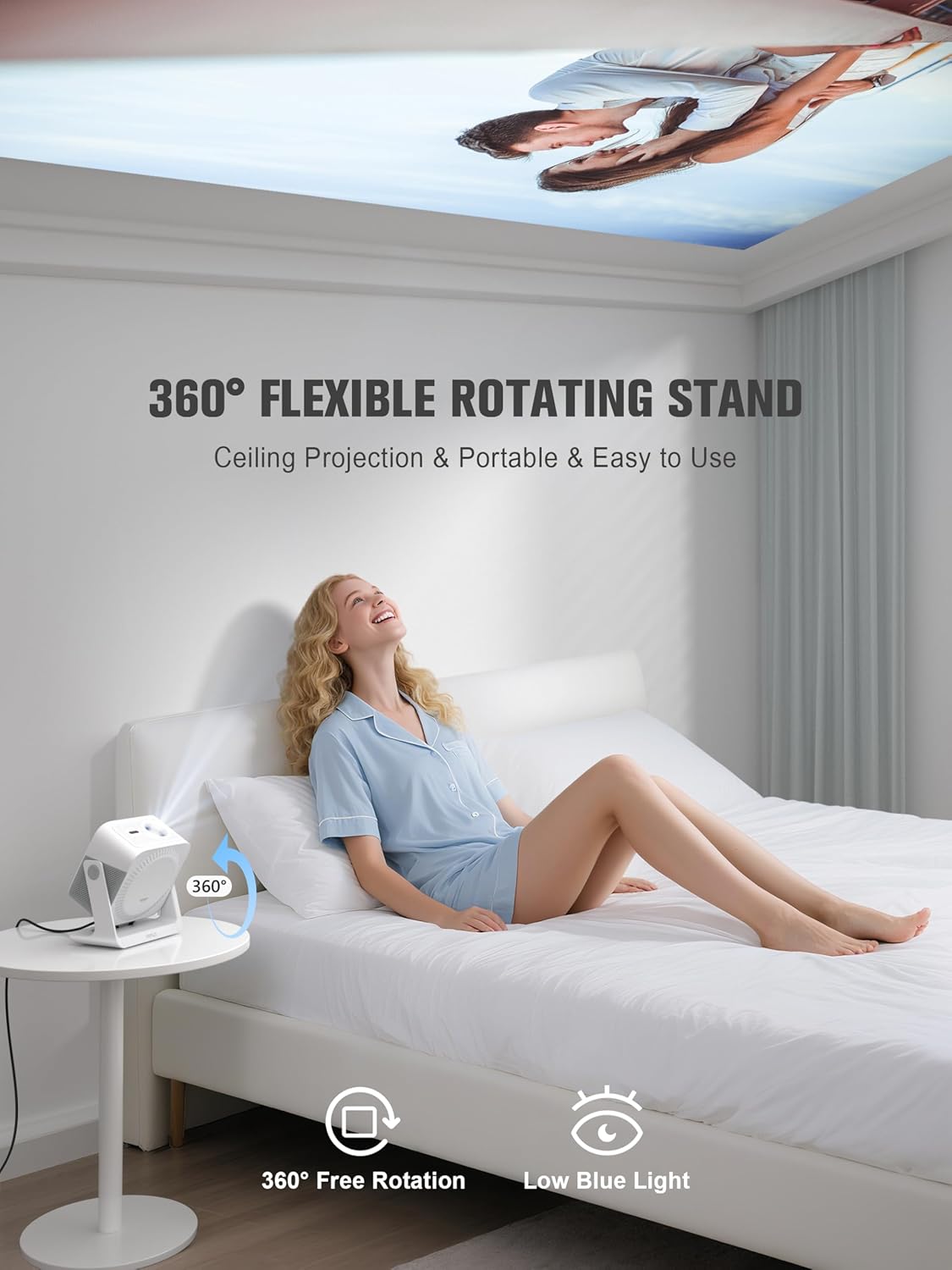
Image: The VOPLLS G3 projector positioned on a bedside table, demonstrating its 360-degree rotating stand for ceiling projection.
3.2 Asopọ agbara
- Connect the power cord to the projector's power input.
- Pulọọgi opin miiran ti okun agbara sinu iṣan itanna to dara.
- Tẹ bọtini agbara lori pirojekito tabi isakoṣo latọna jijin lati tan ẹrọ naa.
3.3 Initial Google TV Setup
Upon first power-on, the projector will guide you through the Google TV setup process. This includes:
- Aṣayan ede: Yan ede ti o fẹ julọ.
- Isopọ nẹtiwọki: Connect to your Wi-Fi network (supports WiFi 6 for optimal performance).
- Wíwọlé Àkọọ́lẹ̀ Google: Wọlé pẹlu akọọlẹ Google rẹ lati wọle si awọn ẹya Google TV, awọn ohun elo, ati awọn iṣeduro ti ara ẹni.
- Fifi sori ẹrọ: Follow prompts to install essential streaming applications like Netflix, Disney+, Prime Video, and Hulu.

Image: The Google TV interface projected, showing available streaming applications and content suggestions.
3.4 Aworan Atunṣe
The VOPLLS G3 features automatic image correction for ease of use:
- Idojukọ aifọwọyi: The projector automatically adjusts for a sharp image within seconds.
- Atunse Keystone Aifọwọyi: Automatically corrects distorted images caused by angled projection.
- Smart Avoidance: Detects and adjusts the projection to avoid obstacles like wall outlets or picture frames.
- Iboju iboju: Automatically scales the image to fit your projection screen.
- Sun-un oni-nọmba: Adjust the image size from 50% to 100% via the settings menu.
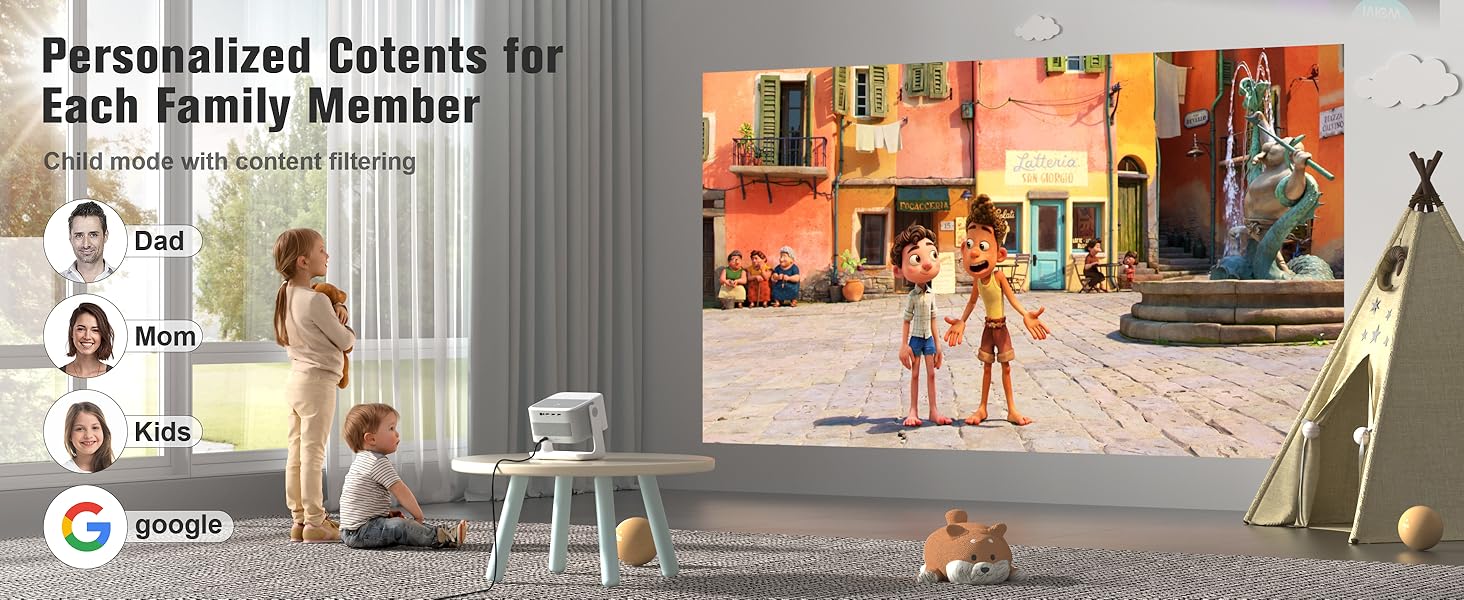
Image: Visual representation of the projector's automatic image adjustment features, including auto-focus and keystone correction.
4. Awọn ilana Iṣiṣẹ
4.1 Google TV Interface
The Google TV home screen provides access to all your streaming content. It organizes movies, shows, and live channels based on your viewing habits and offers personalized recommendations. You can create multiple user profiles for separate watch histories and recommendations.
- Kid-Safe Mode: Activate this mode to filter content ratings, set viewing time limits, and enable a bedtime lock screen for child safety.
- Wiwọle App: Use the built-in Google Play Store to download and install over 10,000 applications.
4.2 Iṣakoso ohun pẹlu Google Iranlọwọ
The VOPLLS G3 integrates Google Assistant for hands-free control. Press the microphone button on your remote control and speak your commands.
- Wa Say "Find movies with [actor's name]" or "Wa fun [show title] on Netflix."
- Iṣakoso Sisisẹsẹhin: Use commands like "Play," "Pause," "Fast forward," or "Lower volume."
- App Launch: Say "Open YouTube" or "Launch Prime Video."
- Alaye: Ask questions like "What's the weather?" or "Tell me about [topic]."

Image: A user interacting with the projector via voice commands using the remote control, demonstrating Google Assistant functionality.
4.3 Didara Aworan
The projector supports 4K input and displays native 1080p resolution. It features HDR10+ for enhanced contrast and color, with 98% wide color coverage for accurate color reproduction. The projector delivers 500 ANSI lumens for a bright viewiriri iriri.
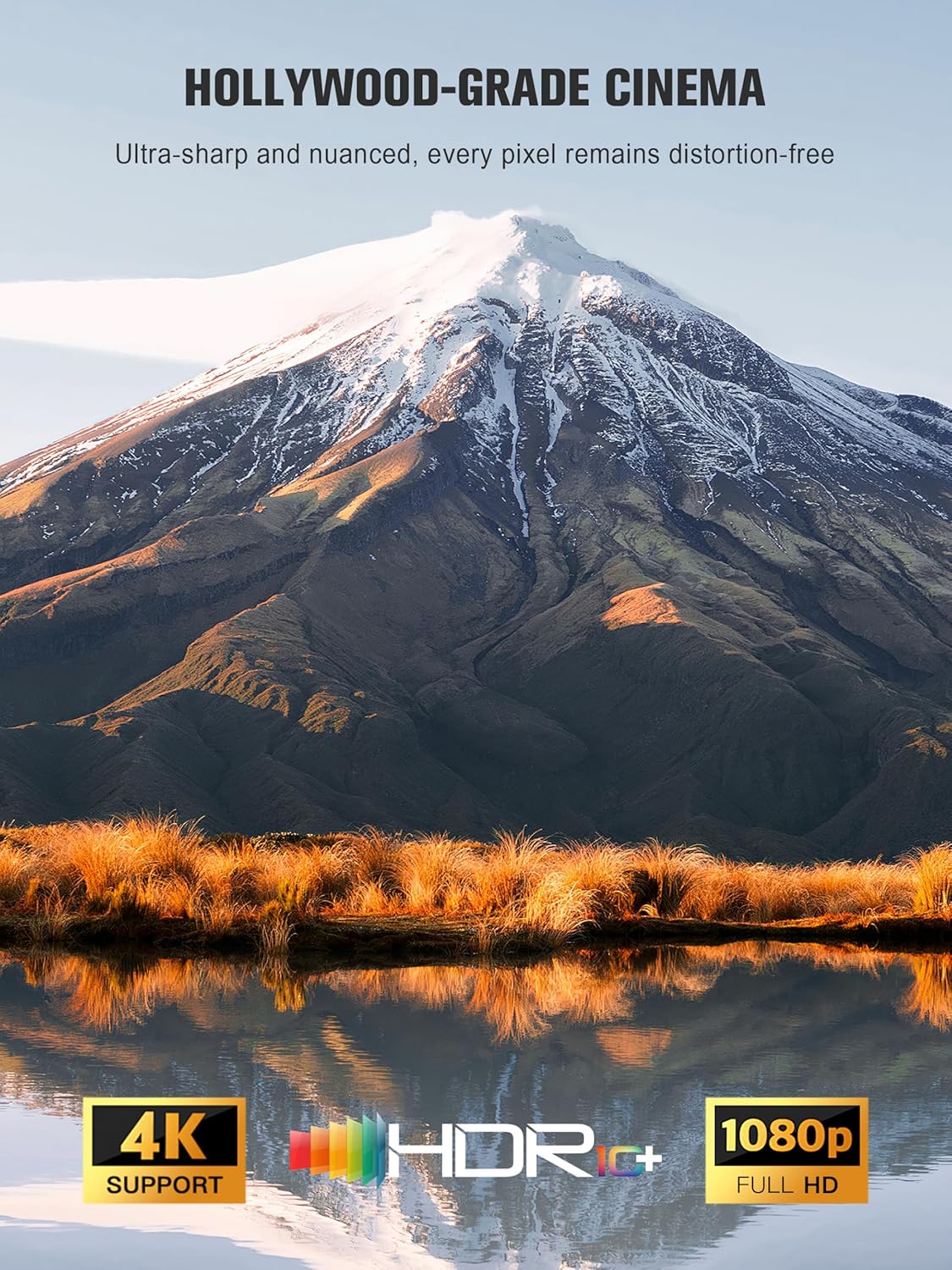
Image: A high-quality projected image showcasing the 4K input support, HDR+, and 1080p Full HD capabilities of the projector.
4.4 Audio Awọn ẹya ara ẹrọ
The VOPLLS G3 incorporates Dolby Atmos via dual speakers for immersive, multi-directional sound. It also features Bluetooth 5.2 bidirectional connectivity.
- Ipo Fiimu: Enjoy rich audio with Dolby Atmos, ensuring clear dialogue and impactful sound effects.
- Party Mode (Bluetooth Speaker): The projector can function as a standalone Bluetooth speaker. Connect your phone or other devices to play music without needing to project an image.
- Wireless Headphones: Pair zero-lag wireless headphones via Bluetooth for private listening.

Image: A visual representation of the projector's dual-channel Dolby Audio, showing sound waves filling a room.
4.5 Asopọmọra
Pirojekito nfun ni orisirisi awọn aṣayan Asopọmọra:
- Ailokun: WiFi 6 (5G+2.4G) for fast streaming, Bluetooth 5.2 (two-way).
- Iboju iboju: Supports AirPlay, Miracast, and Chromecast for casting content from iPhone, Android, PC, or Mac devices.
- Awọn ibudo ti a firanṣẹ: HDMI and USB ports for connecting game consoles (e.g., PS5, Switch), laptops, USB drives, or external speakers.

Image: The VOPLLS G3 projector demonstrating its wireless connectivity, showing a smartphone streaming content and Bluetooth earbuds connected.
4.6 Awọn ere
Connect gaming consoles like PS5 or Nintendo Switch via the HDMI port for lag-free gaming on a large screen.
5. Itọju
- Ninu: Use a soft, dry cloth to clean the projector's exterior. For the lens, use a specialized lens cleaning cloth and solution.
- Eto Itutu: The projector features a whisper-quiet 30dB dual-fan cooling system. Ensure vents are not obstructed to maintain optimal performance and extend the device's lifespan.
- Orisun Imọlẹ LED: The advanced LED light source is designed to last up to 100,000 hours, requiring no regular replacement.
- Awọn imudojuiwọn sọfitiwia: The Google TV system receives lifelong updates (OTA) to ensure cutting-edge experiences and security. Ensure your projector is connected to the internet to receive these updates.
6. Laasigbotitusita
- Ko si Agbara: Ensure the power cord is securely connected to both the projector and the electrical outlet. Try a different outlet.
- Ko si Aworan: Check that the projector is powered on. Verify the input source (HDMI, streaming app) is correctly selected. Ensure the lens cap is removed.
- Aworan blurry: The projector has auto-focus. If the image remains blurry, try moving the projector slightly or manually adjusting focus via settings if available. Ensure the lens is clean.
- Àwòrán tí a yípadà: The projector features auto-keystone correction. If distortion persists, check the projector's angle relative to the screen.
- Ko si Ohun: Check the volume level on the projector and any connected external audio devices. Ensure the correct audio output is selected in settings. If using Bluetooth, ensure devices are properly paired.
- Awọn ọran Isopọ Wi-Fi: Ensure your Wi-Fi network is active and the password is correct. Restart your router and the projector.
- Iṣakoso Latọna jijin Ko Dahun: Check the batteries in the remote control. Ensure there are no obstructions between the remote and the projector.
- Apps Not Loading/Buffering: Verify your internet connection speed. Close and reopen the application. Clear the app's cache in the Google TV settings.
7. Awọn pato
| Brand | VOPLLS |
| Nọmba awoṣe | G3 |
| Ipinnu Ifihan | 1920 x 1080 (Native 1080p, 4K Input Supported) |
| Imọlẹ | 500 ANSI Lumens |
| Asopọmọra Technology | 3.5mm Jack, Bluetooth 5.2, HDMI, USB, Wi-Fi 6 (5G+2.4G) |
| Pataki Awọn ẹya ara ẹrọ | Google TV (10,000+ apps), Dolby Audio, Kid-Safe Mode, AI Smart Recommendations, HDR10+, 98% NTSC Color, 360° Rotating Stand, Auto Focus/Keystone, Smart Obstacle Avoidance, Two-way Bluetooth, Airplay/Miracast/Chromecast, Voice Control (Google Assistant) |
| Ọja Mefa | 10 x 8 x 11 inches |
| Iwọn Nkan | 4 iwon |
| Àwọ̀ | Funfun |
8. Atilẹyin ọja ati Support
VOPLLS provides comprehensive customer support for your G3 projector:
- Atilẹyin ọja: A 3-year protection plan is included with your purchase.
- Atilẹyin Onibara: Enjoy 24/7 support and lifetime customer assistance. For technical issues or inquiries, please refer to the contact information provided with your product packaging or visit the official VOPLLS webojula.