1. Ifihan
Welcome to your new KPKUE Frameo Digital Picture Frame. This 12.7-inch Wi-Fi enabled digital photo frame features a 1440x1080P IPS touch screen, designed to display your cherished photos and videos with clarity and vibrant colors. With 64GB of built-in storage and support for external SD cards/USB flash drives up to 128GB, you can store thousands of memories. This manual provides detailed instructions to help you set up, operate, and maintain your digital picture frame.
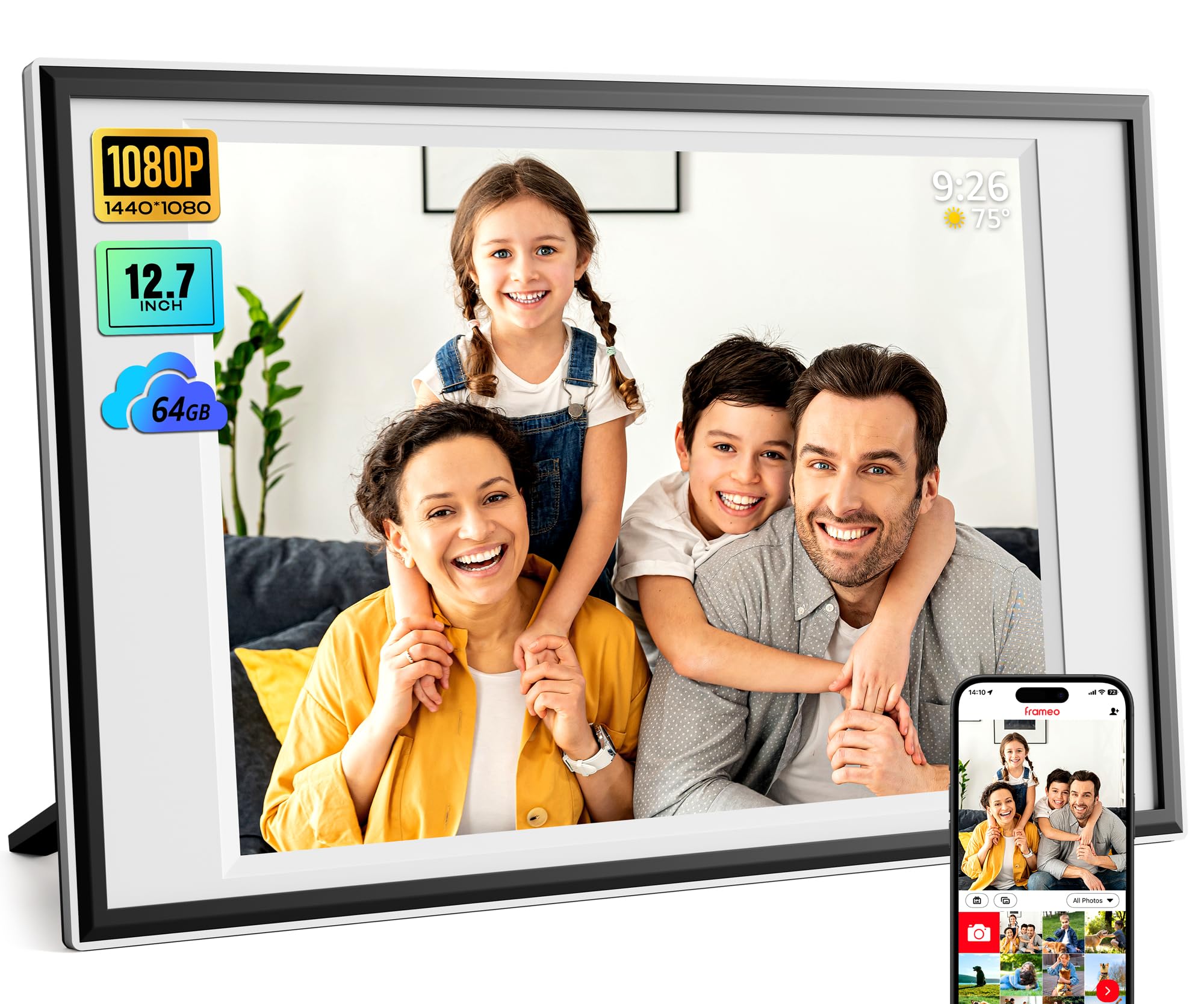
Image: The KPKUE Frameo Digital Picture Frame, 12.7 inches, showcasing a family photo on a tabletop.
2. Eto
2.1 Unboxing ati Ibi Ibẹrẹ
Carefully remove all components from the packaging. The frame can be placed on a tabletop using the included stand or mounted on a wall. The auto-rotation feature automatically adjusts the display orientation.
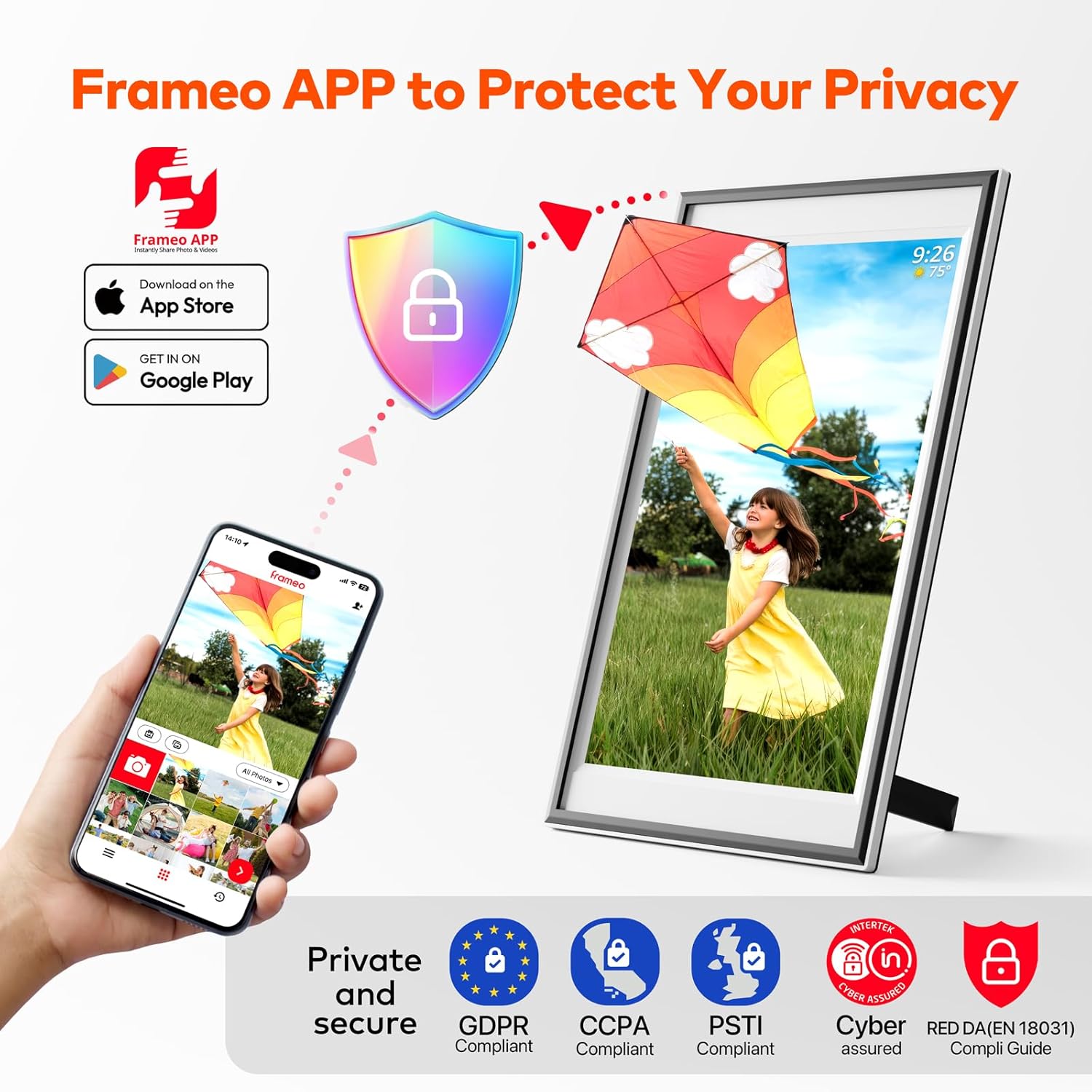
Image: Diagram showing the dimensions (15.7 x 9.84 inches) and various ports (SD card slot, USB-A, Type-C, DC In, 3.5mm Headphone Jack) on the back of the KPKUE Frameo Digital Picture Frame.
2.2 Powering On and Wi-Fi Connection
- Connect the power adapter to the DC In port on the frame and plug it into a power outlet.
- The frame will automatically power on. Follow the on-screen instructions to select your language and time zone.
- Connect the frame to your 2.4GHz Wi-Fi network. This is essential for using the Frameo app.
2.3 Frameo App Setup
The Frameo app allows you to easily send photos and videos to your frame from anywhere in the world.
- Download the free "Frameo" app from the App Store (iOS) or Google Play (Android).
- Ṣẹda iroyin tabi wọle.
- On your digital frame, tap the "Add Friend" icon to generate a unique code.
- In the Frameo app on your smartphone, enter this code to connect your device to the frame.

Image: A visual guide demonstrating how to download the Frameo app from app stores and connect it to the digital picture frame using a generated code.
2.4 Sharing with Friends and Family
You can invite unlimited friends and family to send photos and videos to your frame. Share the unique code generated by your frame with them. They will need to download the Frameo app and enter the code to connect.

Image: An illustration depicting how multiple users can share photos and videos to the digital frame from various geographical locations using the Frameo app and Wi-Fi connectivity.
3. Operating Your Digital Picture Frame
3.1 Lilọ kiri Iboju Ifọwọkan
The 12.7-inch IPS touch screen allows for intuitive navigation. Swipe left or right to browse through photos and videos. Tap on a photo to access options like reacting, hiding, or adjusting the display.

Image: A hand touching the screen of the digital picture frame, illustrating the touch functionality and on-screen menu for settings like brightness, clock, and weather forecast.
3.2 Photo and Video Management
- Uploading via Frameo App: Select photos/videos (up to 15 seconds for videos) in the app, add captions, and send them to your frame.
- Uploading via SD Card/USB Flash: Insert an SD card or USB flash drive (FAT32 format only) into the respective slot. You can transfer photos/videos directly to the frame's internal memory or play them directly from the external storage. There is no time limit for videos uploaded this way.
- Uploading via Computer: Connect the frame to a computer using a USB-C cable to transfer files.
- React Feature: Touch the "React" feature on the frame to send emojis back to loved ones in real-time, letting them know how you feel about the photos they sent.

Image: A visual representation of the four methods for adding photos to the digital frame: via USB flash drive, computer, the Frameo app, and an SD card.
3.3 Aṣa Eto
Access the settings menu by tapping the screen and selecting the gear icon. Here you can customize various aspects:
- Ipo agbelera: Adjust the display order, duration of each photo, and transition effects.
- Imọlẹ: Adjust the screen brightness to your preference.
- Ipo orun: Set a schedule for the frame to automatically turn off and on, saving energy.
- Awọn aṣayan Ifihan: Choose to show/hide captions, clock, and weather information.
- Yiyi Aifọwọyi: The frame automatically adjusts the photo orientation whether placed horizontally or vertically.

Àwòrán: Ìfihàn àwòrán oní-nọ́ńbàasing a family photo, emphasizing its gravity sensing and auto-rotate features for both tabletop and wall-mounted displays.
3.4 Sisisẹsẹhin fidio
The frame supports MP4 video format and features built-in dual stereo speakers for an immersive experience. Videos uploaded via SD card/USB flash have no time limit, while app uploads are limited to 15 seconds.
Video: A seller-provided video demonstrating the features of the digital picture frame, including photo and video display, and its ease of use for sharing memories.
4. Itọju
- Ninu iboju: Use a soft, lint-free cloth to gently wipe the screen. Avoid using harsh chemicals or abrasive materials.
- Firemu nu: Wipe the frame's exterior with a dry or slightly damp asọ.
- Awọn imudojuiwọn sọfitiwia: Ensure your frame is connected to Wi-Fi to receive automatic software updates, which improve performance and add new features.
5. Laasigbotitusita
- Fireemu Ko Nṣiṣẹ Tan-an: Ensure the power adapter is securely connected to both the frame and a working power outlet.
- Awọn ọran Asopọmọra Wi-Fi: Check if your Wi-Fi network is active and within range. Restart your router and the digital frame. Ensure you are connecting to a 2.4GHz network.
- Photos Not Uploading via App: Verify that the frame is connected to Wi-Fi and the code entered in the app is correct. Check your internet connection on your smartphone.
- External Storage Not Recognized: Ensure the SD card or USB flash drive is formatted to FAT32. Try reinserting the storage device or using a different one.
- Iboju Ko dahun: Restart the frame by unplugging it and plugging it back in. If the issue persists, perform a factory reset (refer to the settings menu for this option).
6. Awọn pato
| Nọmba awoṣe | DP-10B |
| Iwon iboju | 12.7 inches |
| Ipinnu | 1440x1080p IPS Touch Screen |
| Ibi ipamọ inu | 64GB (stores 8000+ photos) |
| Atilẹyin Ibi ipamọ ita | Up to 128GB (SD Card/USB Flash, FAT32 format) |
| Asopọmọra | 2.4GHz Wi-Fi |
| Ọja Mefa | 15.67 x 9.84 x 0.99 inches |
| Iwọn Nkan | 4.27 iwon |
| Olupese | KPKUE |
7. Atilẹyin ọja ati Support
Your KPKUE Digital Picture Frame comes with a ọkan-odun atilẹyin ọja. For any technical assistance or customer service inquiries, please do not hesitate to contact our dedicated after-sale team. We offer 24/7 atilẹyin lati rii daju pe o ni itẹlọrun pipe.
Contact information can typically be found on the product packaging or through the official KPKUE webojula.