
1. Ifihan
The PGST A107F Wireless Home Alarm System provides comprehensive security for your home or office. This smart system integrates 4G SMS and Tuya App instant alerts, motion detection, and door alarm sensors, offering reliable protection without monthly fees. It supports voice control via Alexa and Google Assistant for convenient operation.
Awọn ẹya pataki:
- Ohun elo Iṣakoso: Manage your system and receive alerts via the Smart Life or Tuya App.
- Customizable & Expandable: Add various sensors (door, motion, camera) to suit your security needs.
- Iṣẹ SOS: One-click SOS button for immediate distress signals and contact to pre-set numbers.
- Fifi sori Rọrun: Simple setup process, suitable for all users.
- Iṣakoso ohun: Compatible with Alexa and Google Assistant for hands-free arming and disarming.
- Ko si Awọn idiyele Oṣooṣu: Enjoy security without recurring subscription costs.
2. Package Awọn akoonu
Upon opening your PGST A107F Wireless Home Alarm System package, you should find the following components:
- 1 x PGST A107F Home Alarm System Control Panel
- Motion Detectors (quantity varies by package)
- Door/Window Sensors (quantity varies by package)
- Remote Controls (quantity varies by package)
- Adapter agbara
- Itọsọna olumulo
Please verify all items are present and undamaged. If any components are missing or damaged, contact customer support.
3. System Loriview
Familiarize yourself with the main components and interfaces of the PGST A107F control panel.

Nọmba 3.1: PGST A107F Control Panel Main Parameters. This diagram illustrates the various parts of the alarm system's main panel, including the speaker, capacitive touch and IPS display, SOS button, RFID card sensing area, anti-prying switch, Type C power interface, battery switch, SIM card interface (for 2G/4G version), and wall hanging plates with screw holes. Dimensions are also indicated.
Awọn ẹya ara ẹrọ Igbimọ Iṣakoso:
- Agbọrọsọ: For audible alerts and system prompts.
- Capacitive Touch & IPS Display: User interface for system configuration and status.
- Bọtini SOS: Emergency call button.
- RFID Card Sensing Area: For quick arm/disarm using RFID tags.
- Anti-Prying Switch: Triggers an alarm if the panel is tampere pẹlu.
- Type C Power Interface: Fun sisopọ ohun ti nmu badọgba agbara.
- Yipada Batiri: To manage the internal backup battery.
- Àwòrán Kaadi SIM: (For 2G/4G versions) For cellular communication and SMS alerts.
- Wall Hanging Plates: For secure wall mounting.
4. Eto ati fifi sori
4.1 Ibẹrẹ Agbara-soke
- Connect the power adapter to the Type C power interface on the control panel.
- Pulọọgi ohun ti nmu badọgba agbara sinu iṣan itanna boṣewa.
- Ensure the battery switch is in the 'ON' position to activate the backup battery.
- The control panel display will light up, indicating the system is powering on.
4.2 Fifi sori ẹrọ ati Ṣiṣẹda Akọọlẹ
The PGST A107F system is controlled via the Smart Life or Tuya App. Download the app from your smartphone's app store (iOS App Store or Google Play Store).
- Wa fun "Smart Life" or "Tuya Smart" in your app store.
- Ṣe igbasilẹ ati fi sori ẹrọ ohun elo naa.
- Open the app and register a new account if you don't already have one. Follow the on-screen prompts to complete registration.

Nọmba 4.1: All-in-One App Control. This image displays a smartphone with the Tuya Smart Life app open, showing options to add various smart home devices such as electrical, sensors (Wi-Fi, Zigbee), cameras, and alarms, highlighting the system's comprehensive control capabilities.
4.3 Iṣeto Nẹtiwọọki
To connect your alarm system to the internet via Wi-Fi, follow one of the methods below:

Nọmba 4.2: Network Configuration Steps. This diagram outlines two methods for connecting the alarm system to your network: Method 1 (Soft AP Configure) involves selecting Wi-Fi and Soft AP on the host, then using the Smart Life app to add devices via Bluetooth. Method 2 (Airlink Configure) involves selecting Wi-Fi and Airlink on the host, then using the Smart Life app to add devices by selecting Alarm, Wi-Fi, and blinking quickly.
Method 1: Soft AP Configure
- Host Operation: On the control panel, navigate to Akojọ aṣyn > Wi-Fi > Asọ AP atunto.
- Phone Operation: Open the Smart Life app. Ensure your phone's Wi-Fi (2.4GHz) and Bluetooth are enabled. In the app, select Fi ẹrọ kun and follow the prompts to connect via Bluetooth.
Method 2: Airlink Configure
- Host Operation: On the control panel, navigate to Akojọ aṣyn > Wi-Fi > Airlink atunto.
- Phone Operation: Open the Smart Life app. Ensure your phone's Wi-Fi (2.4GHz) is enabled. In the app, select Fi ẹrọ kun > Awọn sensọ > Itaniji > Wi-Fi. Follow the instructions, which may include a "Blink Quickly" step to confirm pairing.
4.4 Ìsopọ̀ Sensọ àti Ìgbékalẹ̀ Rẹ̀
The included sensors are typically pre-paired with the control panel. If you purchase additional sensors or need to re-pair them, use the Smart Life/Tuya App.
- Awọn sensọ ilekun/Fẹlẹfẹlẹ: Install these on doors and windows. Ensure the two parts of the sensor are aligned and within 1 cm of each other when the door/window is closed.
- Motion Detectors: Place motion detectors in areas where intruders are likely to pass, such as hallways or living rooms. Mount them at a height of approximately 2-2.5 meters for optimal coverage. Avoid placing them near heat sources or direct sunlight.
- Adding New Sensors: In the Smart Life/Tuya App, navigate to the alarm system device, then select "Add Sub-device" or a similar option. Follow the app's instructions to put the new sensor into pairing mode.

Nọmba 4.3: Door and PIR Detection Technology. This image illustrates how the system detects intrusions: a door sensor is triggered by an intruder, and a motion sensor (PIR) would detect movement. Simultaneously, a smartphone receives an instant alert notification, ensuring real-time awareness.
5. Awọn ilana Iṣiṣẹ
5.1 Ṣíṣe ohun ìjà àti kíkó ẹ̀rọ náà kúrò
You can arm or disarm your PGST A107F system using the control panel, remote controls, the mobile app, or voice commands.
- Apa: Activates all sensors. Any triggered sensor will initiate an alarm.
- Stay Arm (Home Arm): Activates perimeter sensors (e.g., door/window sensors) while allowing free movement within the property (motion sensors may be disarmed).
- Tu silẹ: Deactivates all sensors, allowing you to move freely without triggering an alarm.
Ibi iwaju alabujuto:
Use the touch screen interface to select Arm, Stay Arm, or Disarm options.
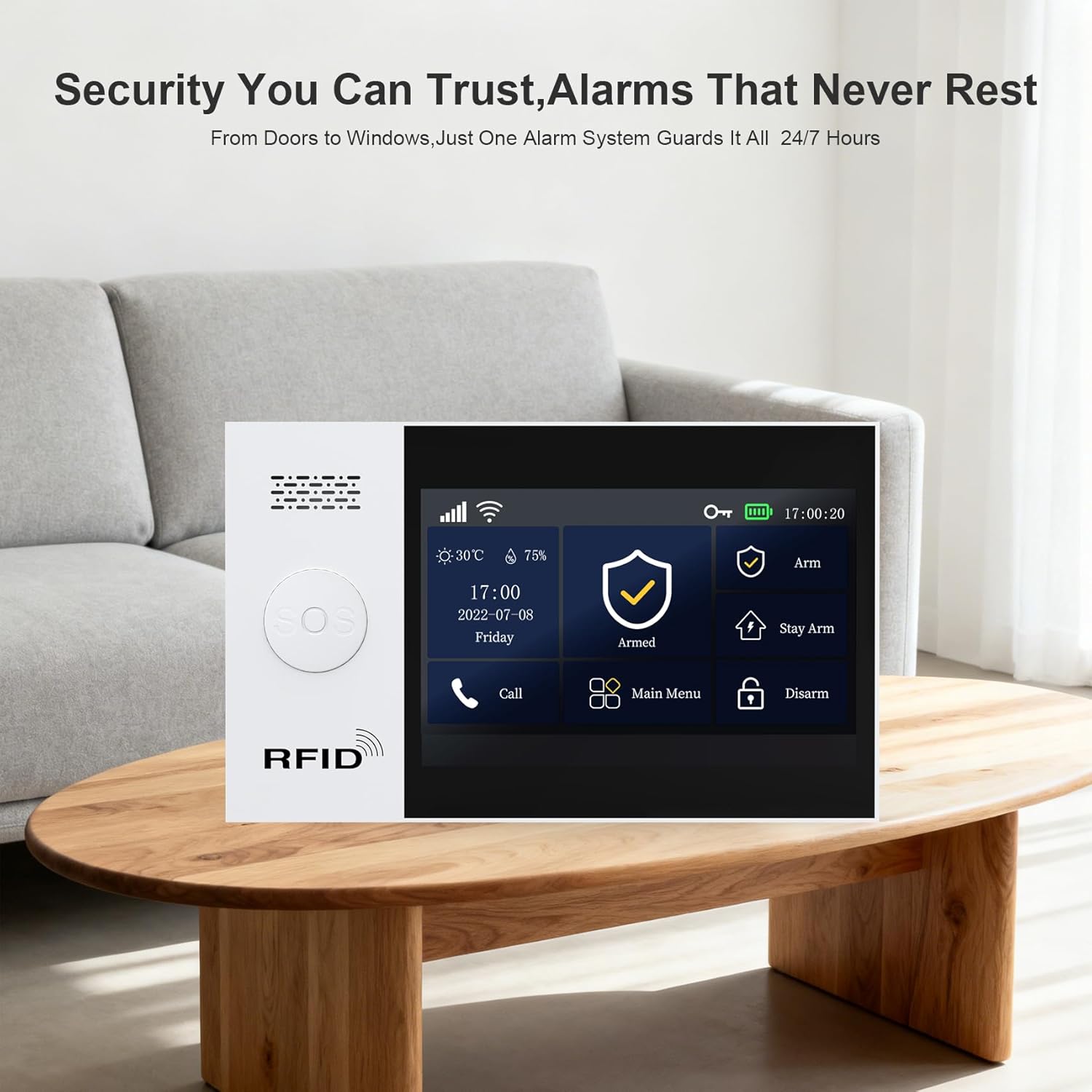
Nọmba 5.1: Control Panel Interface. This image shows the PGST A107F control panel's display, featuring clear icons for Arm, Stay Arm, Disarm, Call, and Main Menu, indicating its user-friendly interface for managing security settings.
Ohun elo Alagbeka:
Open the Smart Life/Tuya App, select your alarm system, and tap the corresponding Arm, Stay Arm, or Disarm button.
Iṣakoso Ohun (Alexa/Google Assistant):
Integrate your alarm system with Alexa or Google Assistant through the Smart Life/Tuya App settings. Once linked, you can use voice commands such as:
- "Alexa, arm my home."
- "Hey Google, disarm the alarm."
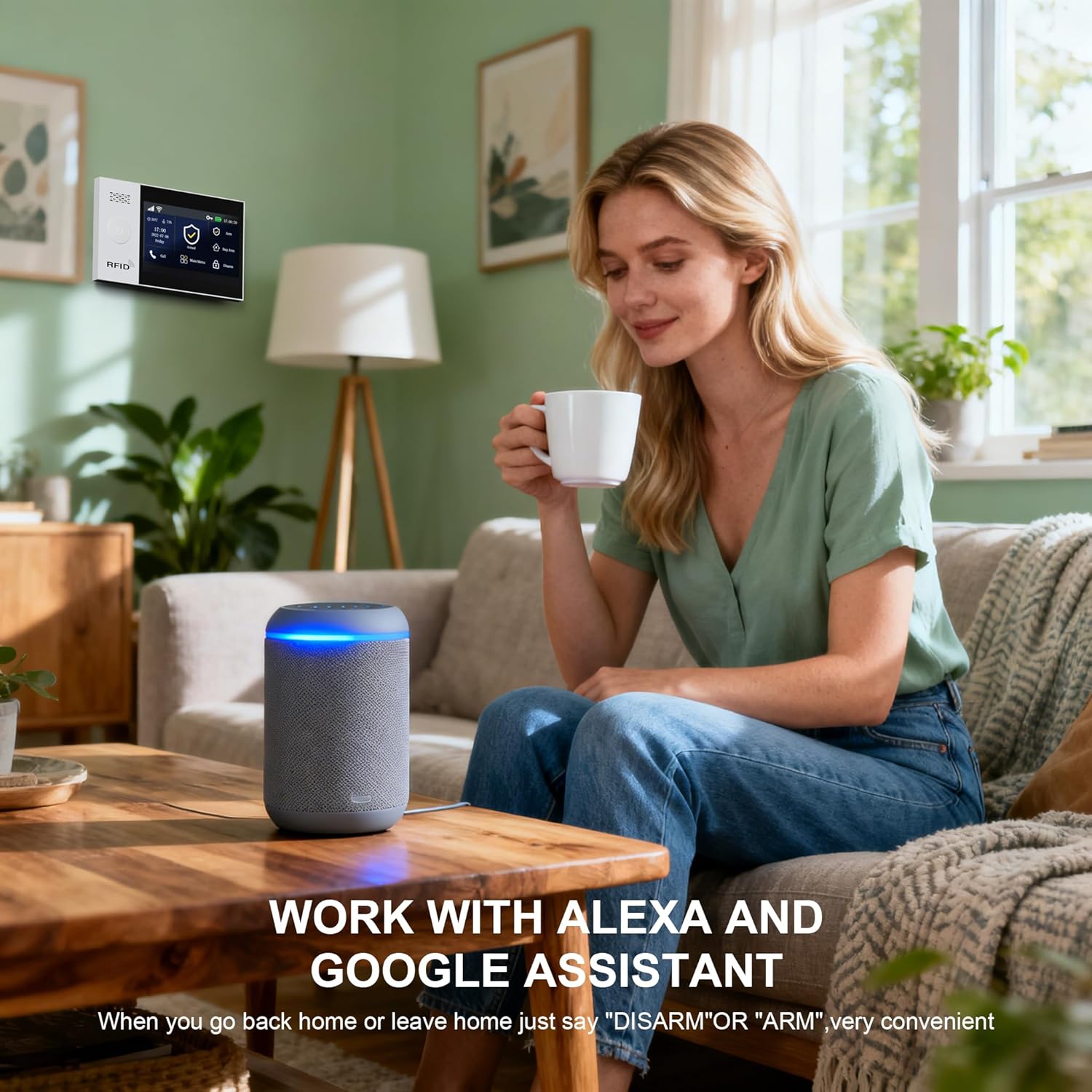
Nọmba 5.2: Voice Control with Alexa. This image shows a woman using an Alexa smart speaker to control her home security system, illustrating the convenience of voice commands for arming or disarming the alarm.

Nọmba 5.3: Voice Control by Alexa and Google Assistant. This image depicts a couple in a modern kitchen, with a smart speaker on the counter, illustrating how the PGST A107F system can be controlled using voice commands like "Disarm my home!" through Alexa or Google Assistant, offering convenient hands-free operation.
5.2 Receiving Alerts
Nigbati itaniji ba nfa, eto naa yoo sọ fun ọ nipasẹ awọn ikanni pupọ:
- Awọn iwifunni Titari App: Instant alerts sent to your smartphone via the Smart Life/Tuya App.
- Awọn itaniji SMS: Text messages sent to pre-set phone numbers (requires a SIM card in the control panel for 4G versions).
- Awọn ipe foonu: The system can automatically call pre-set phone numbers.
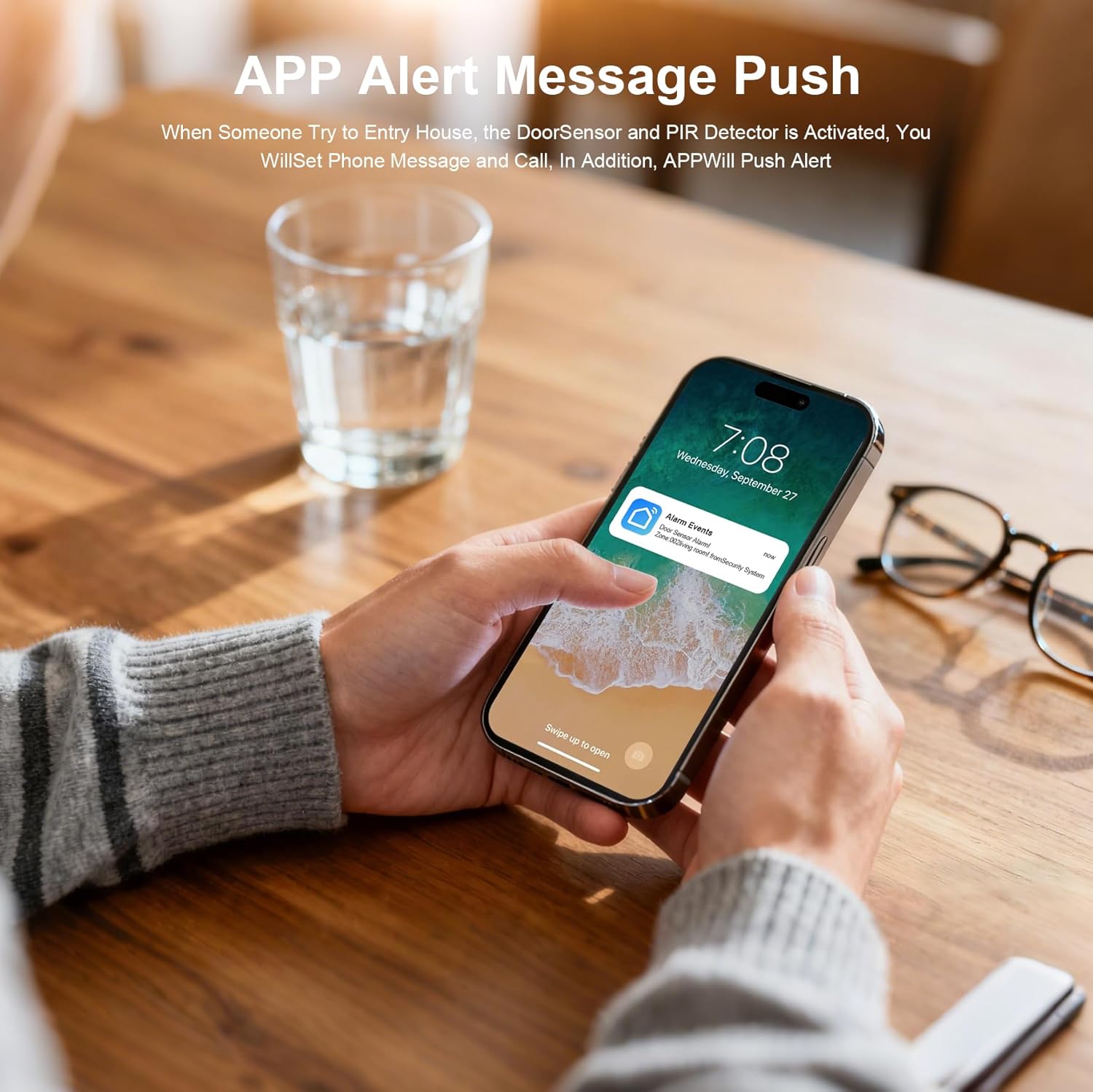
Nọmba 5.4: App Alert Message Push. This image shows a smartphone receiving an "Alarm Events" push notification on its lock screen, demonstrating how the system provides instant alerts when a sensor is activated.
5.3 Iṣẹ́ Bọ́tìnì SOS
The SOS button on the control panel (and potentially on remote accessories) is for emergency situations.
- Pressing the SOS button will immediately send a distress signal.
- The system will call and send messages to pre-set emergency contacts.
5.4 Monitoring Schedule
You can set up a monitoring schedule to automatically arm or disarm the system at specific times, aligning with your daily routine.

Nọmba 5.5: Monitoring Schedule. This graphic demonstrates how users can set a daily schedule for the alarm system, automatically arming it when leaving for work (08:00) or going to bed (22:20), and disarming it upon returning from work (19:00) or waking up (06:30).
Configure these schedules within the Smart Life/Tuya App under the alarm system settings.
6. Itọju
6.1 batiri Management
- Ibi iwaju alabujuto: The control panel has a built-in backup battery. Ensure the battery switch is ON. The system will automatically switch to battery power during a power outage.
- Awọn sensọ: Wireless sensors are powered by alkaline batteries. Replace batteries promptly when the low battery indicator appears on the control panel or in the app. Refer to individual sensor manuals for specific battery types and replacement instructions.
6.2 Ninu
- Wipe the control panel and sensors with a soft, dry cloth.
- Do not use liquid cleaners or abrasive materials, as these can damage the devices.
6.3 famuwia imudojuiwọn
Periodically check the Smart Life/Tuya App for available firmware updates for your alarm system. Updates can improve performance, add new features, and enhance security.
7. Laasigbotitusita
| Isoro | Owun to le Fa | Ojutu |
|---|---|---|
| Eto ko ṣiṣẹ | No power, battery switch OFF | Check power adapter connection, ensure battery switch is ON. |
| Ko le sopọ si Wi-Fi | Incorrect Wi-Fi password, 5GHz network, weak signal | Verify password, ensure 2.4GHz Wi-Fi, move closer to router, retry network configuration. |
| Àwọn sensọ̀ kò fa ìró ìró | Sensor battery low, sensor not paired, system disarmed | Replace sensor battery, re-pair sensor via app, ensure system is armed. |
| Ko si awọn iwifunni app | App permissions, phone settings, internet connectivity | Check app notification permissions, ensure phone has internet, verify system's internet connection. |
| Iṣakoso ohun ko ṣiṣẹ | Incorrect linking, voice assistant issues | Ensure Alexa/Google Assistant is correctly linked to Smart Life/Tuya app. Check voice assistant settings. |
8. Awọn pato
| Ẹya ara ẹrọ | Ẹ̀kúnrẹ́rẹ́ |
|---|---|
| Brand | PGST |
| Nọmba awoṣe | A107F |
| Orisun agbara | Okun Itanna |
| Asopọmọra Technology | Wireless (Wi-Fi, 4G/2G for SIM card versions) |
| Awọn ẹrọ ibaramu | Smartphone (Tuya/Smart Life App), Alexa, Google Assistant |
| Iru Itaniji | Audio & Motion, App Push, SMS, Phone Call |
| Ọna Iṣakoso | App, Control Panel, Remote Control, Voice |
| Ọna ẹrọ | Motion Sensor, Door/Window Sensor |
| Awọn Iwọn Nkan (L x W x H) | 8 x 6 x 4 inches (Control Panel) |
| Batiri Cell Type | Alkaline (for sensors), Built-in rechargeable (for control panel backup) |
9. Atilẹyin ọja ati Support
9.1 atilẹyin ọja Alaye
The PGST A107F Home Alarm System comes with a 1-odun atilẹyin ọja lati ọjọ ti o ra. Atilẹyin ọja yi ni wiwa awọn abawọn iṣelọpọ ati ailagbara labẹ lilo deede. Jọwọ ṣe idaduro ẹri rira rẹ fun awọn iṣeduro atilẹyin ọja.
9.2 Onibara Support
If you encounter any issues during installation, operation, or maintenance, or have any questions regarding your PGST A107F system, please contact PGST customer support. Refer to the contact information provided in your product packaging or on the official PGST webojula.