
1. Ifihan
Thank you for choosing the roborock Q10 S5 Robot Vacuum and Mop Cleaner. This manual provides essential information for setting up, operating, and maintaining your device to ensure optimal performance and longevity. Please read this manual thoroughly before using the product and keep it for future reference.
2. Alaye Aabo
To reduce the risk of injury, electric shock, fire, or damage, please observe the following safety precautions:
- Ohun elo yii le ṣee lo nipasẹ awọn ọmọde ti o jẹ ọdun 8 ati ju bẹẹ lọ ati awọn eniyan ti o dinku ti ara, ifarako tabi awọn agbara ọpọlọ tabi aini iriri ati imọ ti wọn ba ti fun wọn ni abojuto tabi itọnisọna nipa lilo ohun elo ni ọna ailewu ati loye awọn eewu ti o kan. .
- Awọn ọmọde yẹ ki o wa ni abojuto lati rii daju pe wọn ko ṣere pẹlu ohun elo naa.
- Ninu ati itọju olumulo ko le ṣe nipasẹ awọn ọmọde laisi abojuto.
- Do not use the robot in areas with open flames or fragile objects.
- Ensure the charging dock is placed on a level surface against a wall.
- Only use the original power adapter provided with the device.
- Do not expose the robot to direct sunlight or moisture.
- Kí o tó sọ ọ́ di mímọ́, yọ àwọn okùn agbára, àwọn nǹkan kéékèèké, àti àwọn nǹkan tí ó jẹ́ ẹlẹ́gẹ́ kúrò ní ilẹ̀.
3. Ọja Ipariview
Familiarize yourself with the components of your roborock Q10 S5 robot vacuum.
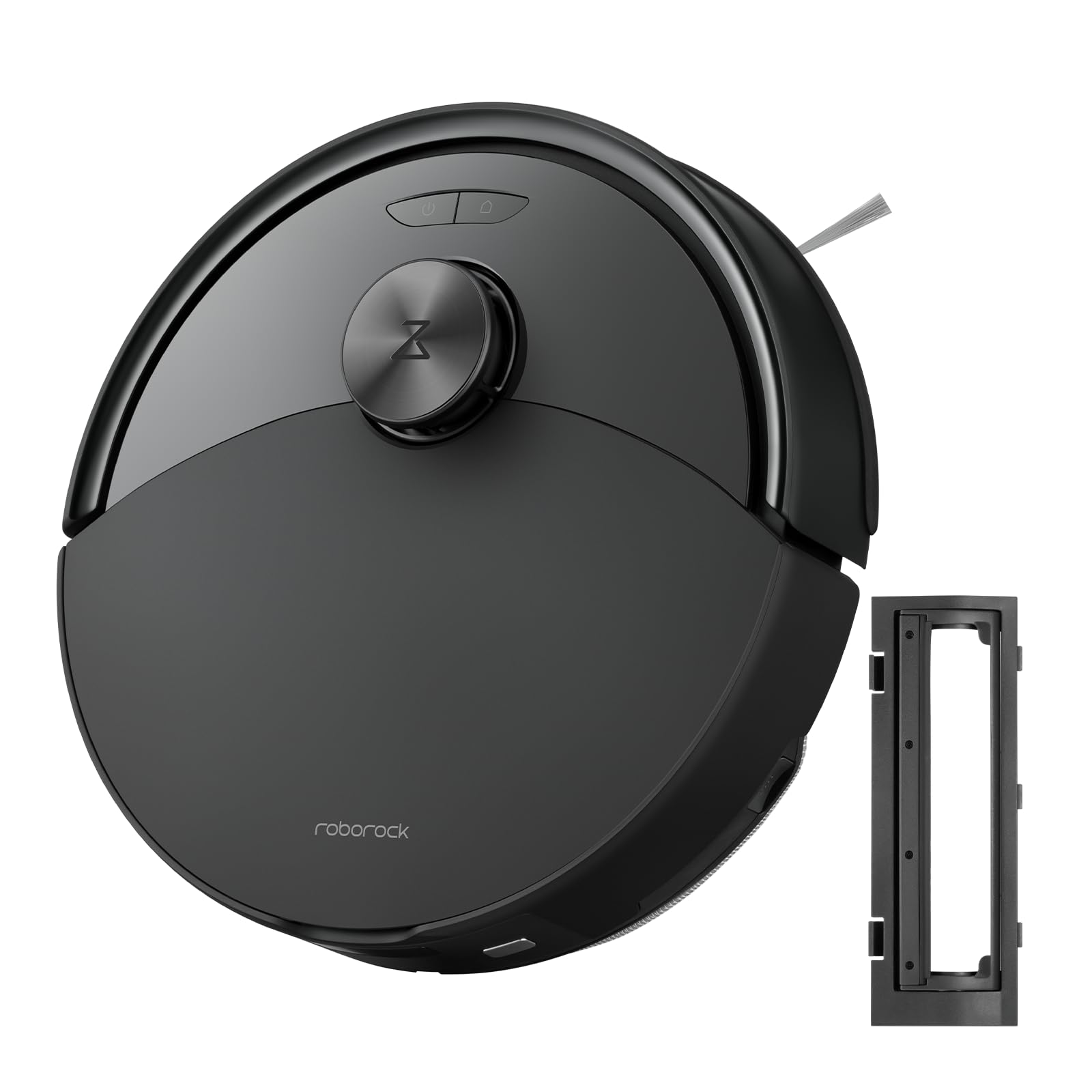
Nọmba 1: The roborock Q10 S5 Robot Vacuum and Mop Cleaner. This image shows the top view of the robot, highlighting its sleek black design and main control buttons.
Awọn ohun elo Robot:
- Ideri oke: Lifts to reveal the dustbin and Wi-Fi indicator.
- Agbara/Bọtini mimọ: Press to start/pause cleaning, hold to turn on/off.
- Dock/Spot Clean Button: Press to send the robot back to the dock, hold for spot cleaning.
- LDS Sensor: For navigation and mapping.
- Bompa: Ó ń ṣàwárí àwọn ìdènà.
- Fẹlẹ ẹgbẹ: Ó ń gbá àwọn ìdọ̀tí kúrò ní etí àti àwọn igun.
- Fẹlẹ akọkọ: Collects dirt and debris from floors. Features a floating design for better contact.
- Kẹ̀kẹ́ Omnidirectional: Fun gbigbe.
- Awọn olubasọrọ gbigba agbara: Connects with the charging dock.
- Àwọn Sensọ Cliff: Ó ń dí rọ́bọ́ọ̀tì lọ́wọ́ láti sọ̀kalẹ̀ sí ìsàlẹ̀ àtẹ̀gùn.
- Àpò Omi àti Páàdì Mop: For mopping functionality.
Ibi iduro gbigba agbara:
- Dock Location Beacon: Helps the robot locate the dock.
- Awọn olubasọrọ gbigba agbara: Transfers power to the robot.
- Ibudo Okun Agbara: So ohun ti nmu badọgba agbara.
4. Eto
- Yọọ Robot naa: Carefully remove the robot and all accessories from the packaging. Remove any protective films or shipping materials.
- Install the Side Brush: Press the side brush onto its post until it clicks into place.
- Gbe ibudo gbigba agbara naa:
- Gbé ibùdó ìgbara agbára náà sí orí ibi tí ó le, tí ó tẹ́jú mọ́ ògiri kan.
- Ensure there is at least 0.5 meters (1.6 feet) of clear space on both sides and 1.5 meters (4.9 feet) in front of the dock.
- Connect the power cable to the charging dock and plug it into a wall outlet.
- Idiyele Ibẹrẹ: Place the robot on the charging dock. The robot will automatically turn on and begin charging. For first-time use, fully charge the robot before operation (approximately 4-6 hours). The power indicator light will breathe white during charging and turn solid white when fully charged.
- Ṣe igbasilẹ ohun elo naa: Wa fun "Roborock" in the App Store or Google Play Store, or scan the QR code on the packaging to download and install the app.
- Sopọ si Wi-Fi:
- Open the Roborock app and follow the on-screen instructions to add your device.
- Rii daju pe foonu rẹ ti sopọ si 2.4 GHz Wi-Fi nẹtiwọki.
- Tẹ mọlẹ Ibi iduro ati Agbara buttons simultaneously for 3 seconds until you hear the "Resetting Wi-Fi" voice alert.
- Follow the app's instructions to complete the connection.
5. Awọn ilana Iṣiṣẹ
Bibẹrẹ Mimọ:
- Láti ọwọ́ Rọ́bọ́ọ̀tì: Tẹ awọn Agbara button once. The robot will start cleaning.
- Láti inú àpù: Open the Roborock app and tap the "Clean" button.
Pausing/Resuming/Stopping:
- Duro: Press any button on the robot or tap "Pause" in the app.
- Bẹrẹ: Tẹ awọn Agbara button or tap "Resume" in the app.
- Duro: To stop a cleaning cycle, press the Ibi iduro button to send the robot back to the charging dock, or tap "Stop" in the app.
Išẹ Mopping:
- Kun Omi Omi: Open the water tank cover, fill with clean water, and close securely.
- So Paadi Mop pọ mọ: Wet the mop pad and wring it out. Slide it into the mop pad slot until it is securely attached.
- Start Mopping: The robot will automatically detect the mop module and switch to mopping mode. You can adjust water flow levels in the app.
Awọn ẹya ara ẹrọ App:
- Ìṣàkóso maapu: Create and save maps, set no-go zones, virtual walls, and invisible barriers.
- Selective Room Cleaning: Choose specific rooms to clean.
- Iseto di mimọ: Set cleaning schedules for different times and days.
- Custom Cleaning Modes: Ṣe àtúnṣe agbára ìfàmọ́ra àti ipele ìṣàn omi.
- Isakoṣo latọna jijin: Fi ọwọ́ ṣàkóso ìṣísẹ̀ robot náà.
6. Itọju
Regular maintenance ensures your roborock Q10 S5 operates efficiently. Always turn off the robot and unplug the charging dock before performing any maintenance.
Dustbin and Filter (Weekly):
- Lift the top cover of the robot.
- Yọ eruku kuro.
- Ṣii ideri eruku ki o sọ awọn akoonu rẹ sinu apo idọti kan.
- Remove the filter. Tap it gently to remove dust. The filter can be rinsed with water; ensure it is completely dry before reinstallation (allow 24 hours).
- Rinse the dustbin with water if necessary and allow it to dry completely.
- Reinstall the dry filter and dustbin.
Main Brush (Weekly):
- Yi robot pada.
- Press the tabs to remove the main brush cover.
- Gbe fẹlẹ akọkọ jade.
- Use the cleaning tool (if provided) or scissors to cut and remove any hair or debris tangled around the brush.
- Reinstall the main brush and cover, ensuring it clicks into place.
Side Brush (Monthly):
- Unscrew the side brush.
- Yọ gbogbo irun tabi idoti kuro.
- Reattach and tighten the screw.
Sensors and Charging Contacts (Monthly):
- Wipe all sensors (cliff sensors, wall sensor, LDS sensor window) and the charging contacts on both the robot and the dock with a soft, dry cloth.
Mop Pad (After Each Use):
- Yọ paadi mop kuro ninu ojò omi.
- Rinse thoroughly with water and allow it to air dry completely before next use.
7. Laasigbotitusita
If you encounter issues with your robot, please refer to the following table before contacting support.
| Isoro | Owun to le Fa | Ojutu |
|---|---|---|
| Robot ko ni tan-an. | Batiri kekere tabi ko gba agbara. | Place the robot on the charging dock and ensure it is charging. |
| Robot ko le sopọ si Wi-Fi. | Ọrọ igbaniwọle Wi-Fi ti ko tọ, nẹtiwọki 5GHz, tabi ifihan agbara ti ko dara. | Ensure correct 2.4GHz Wi-Fi, reset Wi-Fi on robot, move closer to router. |
| Robot di nigbagbogbo. | Obstacles, tangled cables, or dirty sensors. | Clear floor, clean sensors, use no-go zones in app. |
| Iṣẹ ṣiṣe mimọ ti ko dara. | Full dustbin, dirty filter, tangled brushes. | Empty dustbin, clean/replace filter, clean main/side brushes. |
| Robot ṣe ariwo dani. | Debris in main brush, side brush, or wheels. | Inspect and clean all brushes and wheels for obstructions. |
If the problem persists, please refer to the Roborock app for more detailed error messages or contact customer support.
8. Awọn pato
| Ẹya ara ẹrọ | Ẹ̀kúnrẹ́rẹ́ |
|---|---|
| Awoṣe | Q10 S5 |
| Awọn iwọn | Nǹkan bíi 353 x 350 x 96.5 mm (13.9 x 13.8 x 3.8 inches) |
| Iwọn | Isunmọ. 3.7 kg (8.16 lbs) |
| Batiri | Lithium-Ion (Capacity not specified, typical for robot vacuums) |
| Ti won won Agbara | Approx. 60W (Typical for robot vacuums) |
| Dustbin Agbara | Approx. 470 ml (Typical for robot vacuums) |
| Omi ojò Agbara | Approx. 300 ml (Typical for robot vacuums) |
| Agbara afamora | Up to 10,000 Pa (HyperForce Suction Power from feature bullets) |
| Wi-Fi Asopọmọra | 2.4 GHz |
Akiyesi: Awọn alaye ni o wa labẹ iyipada laisi akiyesi.
9. Atilẹyin ọja ati Support
roborock products are manufactured to the highest quality standards. For detailed warranty information, please refer to the warranty card included in your product packaging or visit the official roborock website. For technical support, troubleshooting assistance, or to purchase replacement parts, please contact roborock customer service through the app or their official webojula.
Osise Webojula: www.roborock.com