
Ọrọ Iṣaaju
Thank you for choosing the pTron Flick M2 Wireless Gaming Mouse. This manual provides detailed instructions for setting up, operating, and maintaining your device. Please read this manual carefully before use to ensure optimal performance and longevity of your mouse.
Package Awọn akoonu
- 1N Wireless Mouse
- 1N USB Receiver
- 1N Charging Cable (Type-C)
- 1N User Guide
Ọja Pariview
The pTron Flick M2 features an ergonomic design with RGB lighting and dual wireless connectivity. It is equipped with 6 buttons and adjustable DPI settings for precise control.

Aworan: Pariview of the pTron Flick M2 Wireless Gaming Mouse with its 6 buttons labeled: Left Click, Right Click, Scroll Wheel, DPI Button, Forward Button, and Backward Button.
Awọn ẹya pataki:
- Dual Wireless Modes: Connect via 2.4GHz USB receiver or Bluetooth.
- Imọlẹ LED RGB: Dynamic multi-color lighting effects.
- Apẹrẹ Bọ́tìnì 6: Includes Left/Right-Click, Scroll Wheel, DPI Adjustment, Forward, and Backward buttons.
- DPI ti o le ṣatunṣe: Three levels (1000/1200/1600) for precision tracking.
- Apẹrẹ Ergonomic: Lightweight and comfortable for extended use.
- Batiri gbigba agbara: Built-in battery with Type-C charging port.
Awọn ilana iṣeto
1. Gbigba agbara si Asin
Before first use, ensure the mouse is fully charged. Connect the provided Type-C charging cable to the mouse's charging port and the other end to a USB power source (e.g., computer, wall adapter).
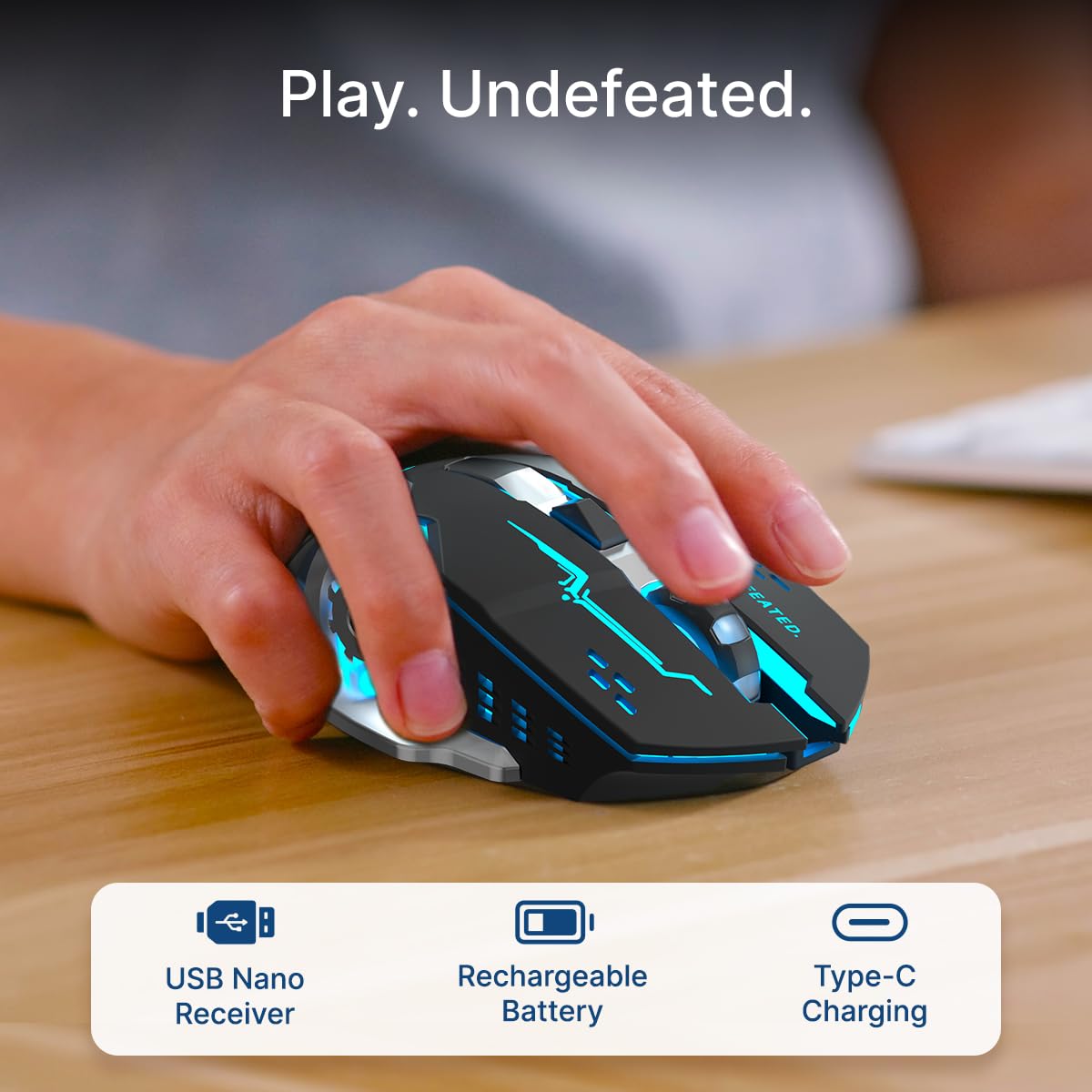
Image: A user's hand operating the pTron Flick M2 mouse, with icons indicating the USB Nano Receiver, Rechargeable Battery, and Type-C Charging features.
2. Nsopọ awọn Asin
The pTron Flick M2 offers two wireless connection methods:
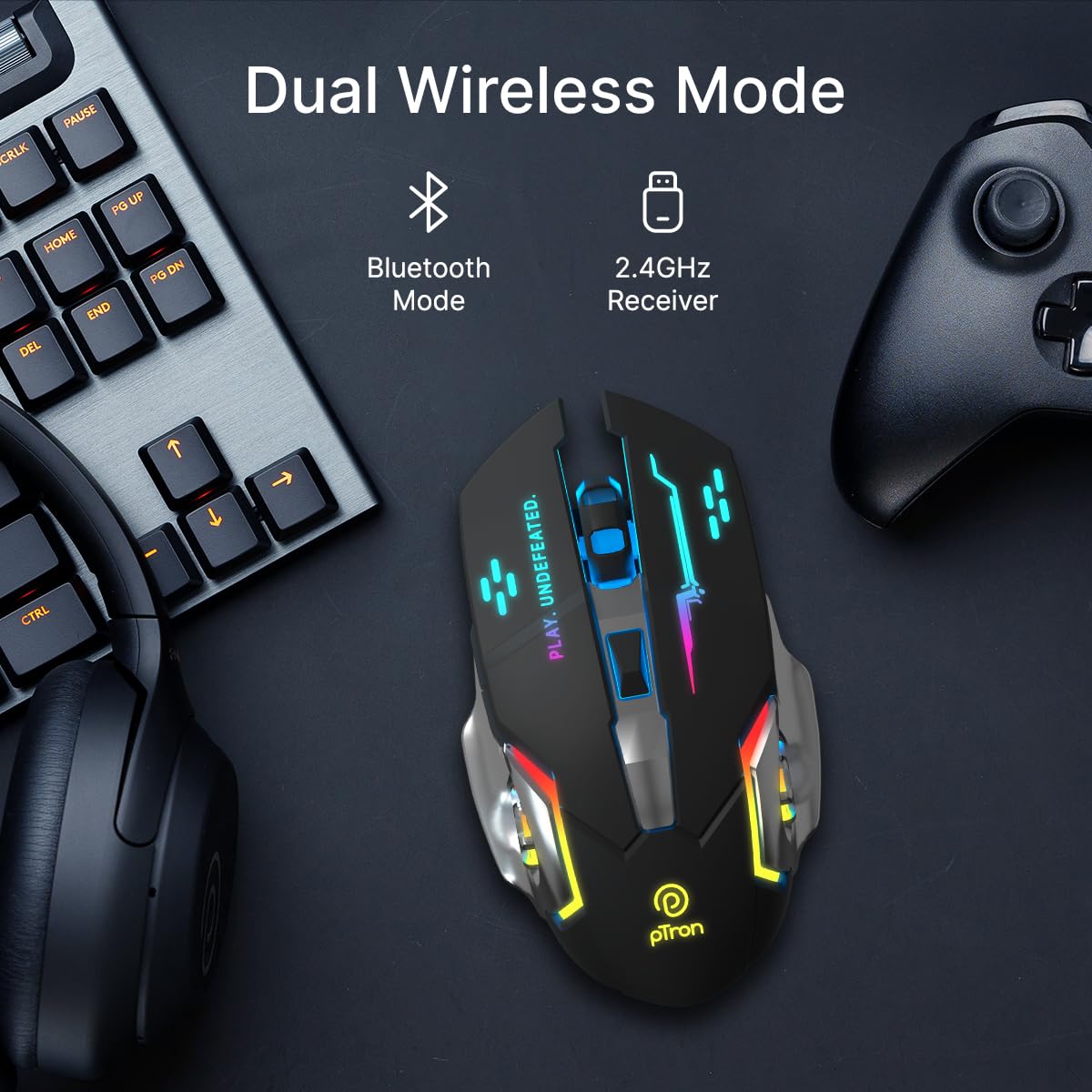
Image: The pTron Flick M2 mouse displayed with text indicating its Dual Wireless Mode capability, offering both Bluetooth and 2.4GHz Receiver options.
2.1. 2.4GHz Wireless Mode (USB Receiver)
- Locate the USB Nano Receiver, typically stored in a compartment on the underside of the mouse.
- Plug the USB Nano Receiver into an available USB port on your computer, laptop, or compatible device.
- Tan-an Asin nipa lilo agbara yipada ti o wa ni abẹlẹ rẹ.
- The mouse should automatically connect to your device. No additional drivers are usually required.
2.2. Ipo Bluetooth
- Tan-an Asin nipa lilo agbara yipada ni abẹlẹ rẹ.
- Lórí ẹ̀rọ rẹ (kọ̀ǹpútà, fóònù alágbèéká, tábìlẹ́ẹ̀tì), mu Bluetooth ṣiṣẹ́ kí o sì wá àwọn ẹ̀rọ tuntun.
- Select "pTron Flick M2" from the list of available Bluetooth devices to pair.
- Ni kete ti a ba so pọ, Asin ti šetan fun lilo.
Awọn ilana Iṣiṣẹ
1. DPI Atunṣe
The mouse features an adjustable DPI (Dots Per Inch) button to change cursor sensitivity. There are three preset DPI levels: 1000, 1200, and 1600.

Image: The pTron Flick M2 mouse with an overlay indicating its Adjustable DPI feature, offering 1000 DPI, 1200 DPI, and 1600 DPI options.
- Tẹ awọn DPI bọtini (located behind the scroll wheel) to cycle through the available DPI settings.
- Each press will change the sensitivity, allowing you to find the optimal speed for your tasks or games.
2. Imọlẹ RGB
The pTron Flick M2 features dynamic multi-color RGB LED lighting.

Image: The pTron Flick M2 mouse illuminated with vibrant multi-color lighting, showcasing ẹwà rẹ̀.
- The RGB lighting automatically cycles through various colors and effects when the mouse is active.
- The lighting enhances the gaming experience and provides visual feedback.
Itoju
To ensure the longevity and optimal performance of your pTron Flick M2 Wireless Gaming Mouse, follow these maintenance guidelines:
- Ninu: Lo asọ ti o rọ, ti o gbẹ lati nu dada ti Asin naa. Fun idoti alagidi, die-die dampen awọn asọ pẹlu omi tabi kan ìwọnba ninu ojutu. Yago fun lilo awọn kẹmika lile tabi awọn ohun elo abrasive.
- Itọju Sensọ: Jeki sensọ opiti ti o wa ni abẹlẹ ti Asin mọ ki o si ni ominira lati eruku tabi idoti. Lo owu swab tabi afẹfẹ fisinuirindigbindigbin ti o ba wulo.
- Ibi ipamọ: Tí o kò bá lò ó, tọ́jú eku náà sí ibi tí ó tutù tí ó sì gbẹ, kí oòrùn má baà fà tààrà tàbí ooru tó le koko.
- Batiri: Má ṣe jẹ́ kí batiri náà máa jáde dáadáa nígbà gbogbo. Máa gba agbára lórí àwokòtò déédéé láti lè máa rí i pé batiri náà ní ìlera tó dára.
Laasigbotitusita
If you encounter issues with your pTron Flick M2 Wireless Gaming Mouse, refer to the following common solutions:
| Isoro | Owun to le Fa | Ojutu |
|---|---|---|
| Asin ko dahun | Low battery; Mouse is off; Incorrect connection mode; USB receiver not detected. | Charge the mouse; Turn on the mouse; Ensure correct mode (2.4GHz/Bluetooth) is selected; Re-insert USB receiver or try a different USB port. |
| Lag tabi lemọlemọ asopọ | Ìdènà; Ijinna lati olugba/ẹrọ; Batiri kekere. | Move closer to the receiver/device; Ensure no large metal objects are between mouse and receiver; Charge the mouse; Try a different USB port for the receiver. |
| Bọtini DPI ko yipada ifamọ | Button malfunction; Software conflict. | Ensure the mouse is properly connected; Restart your device; If the issue persists, contact customer support. |
| Awọn imọlẹ RGB ko ṣiṣẹ | Mouse is off; Low battery; Malfunction. | Turn on the mouse; Charge the mouse; If the issue persists, contact customer support. |
Awọn pato
| Ẹya ara ẹrọ | Ẹ̀kúnrẹ́rẹ́ |
|---|---|
| Brand | pTron |
| Awoṣe | Yipada M2 |
| Asopọmọra | 2.4GHz Alailowaya, Bluetooth |
| Awọn ipele DPI | 1000/1200/1600 |
| Awọn bọtini | 6 (Osi, otun, Yi lọ Kẹkẹ, DPI, Siwaju, Sẹhin) |
| Sensọ Iru | Opitika |
| Itanna | RGB LED |
| Orisun agbara | Rechargeable Battery (Lithium Ion) |
| Gbigba agbara Port | Iru-C |
| Awọn ẹrọ ibaramu | Kọ̀ǹpútà ara ẹni, Foonu alagbeka, Tabulẹti |
| Iwọn Nkan | 96 g |
| Ohun elo | Ṣiṣu |
Official ọja Video
Fidio: Ifihan fidio ọja osise kanasing the pTron Flick M2 Wireless Gaming Mouse, its dual wireless capabilities, RGB lighting, adjustable DPI, and ergonomic design.
Atilẹyin ọja ati Support
The pTron Flick M2 Wireless Gaming Mouse comes with a 6 osù olupese atilẹyin ọja on manufacturing defects.
For warranty claims, technical support, or any other inquiries, please contact:
- Olupese: Palred Electronics Pvt. Ltd.
- Olubasọrọ Itọju Onibara: 040-67138888
- Imeeli Atilẹyin: support@ptron.in
- Adirẹsi: SY.NO. 56, 1ST FLOOR, GUNDLAPOCHAMPALLY VILLAGE, TECH PARK MTP, TSIIC-IALA NACHARAM, HYDERABAD - 500076, TELANGANA, INDIA