
YFDSPSM JY-540
YFDSPSM JY-540 Native 1080P Mini Portable Projector User Manual
Awoṣe: JY-540
1. Ifihan
This manual provides essential instructions for the safe and efficient operation of your YFDSPSM JY-540 Native 1080P Mini Portable Projector. Please read this manual thoroughly before using the product and retain it for future reference.
The YFDSPSM JY-540 projector features native 1080p resolution, 1,000 ANSI lumens LED brightness, and a projection size range of 30 to 200 inches. It includes dual-band 2.4/5 GHz Wi-Fi and Bluetooth 5.2 for versatile connectivity. Key functionalities include automatic focus and keystone correction, a built-in 5W speaker, and a compact, portable design.
2. Ohun ti o wa ninu Apoti
Lẹhin ṣiṣi silẹ, jọwọ rii daju pe gbogbo awọn nkan ti o wa ni isalẹ wa ati ni ipo to dara:
- Pirojekito
- Okun agbara
- Isakoṣo latọna jijin
- Itọsọna olumulo

Figure 2.1: Included accessories with the YFDSPSM JY-540 projector.
3. Ọja Ipariview
3.1. Àwọn Ẹ̀yà Ara àti Àwọn Èbúté
The YFDSPSM JY-540 projector is designed for ease of use and portability. It features a sleek, compact design with intuitive controls and multiple connectivity options.
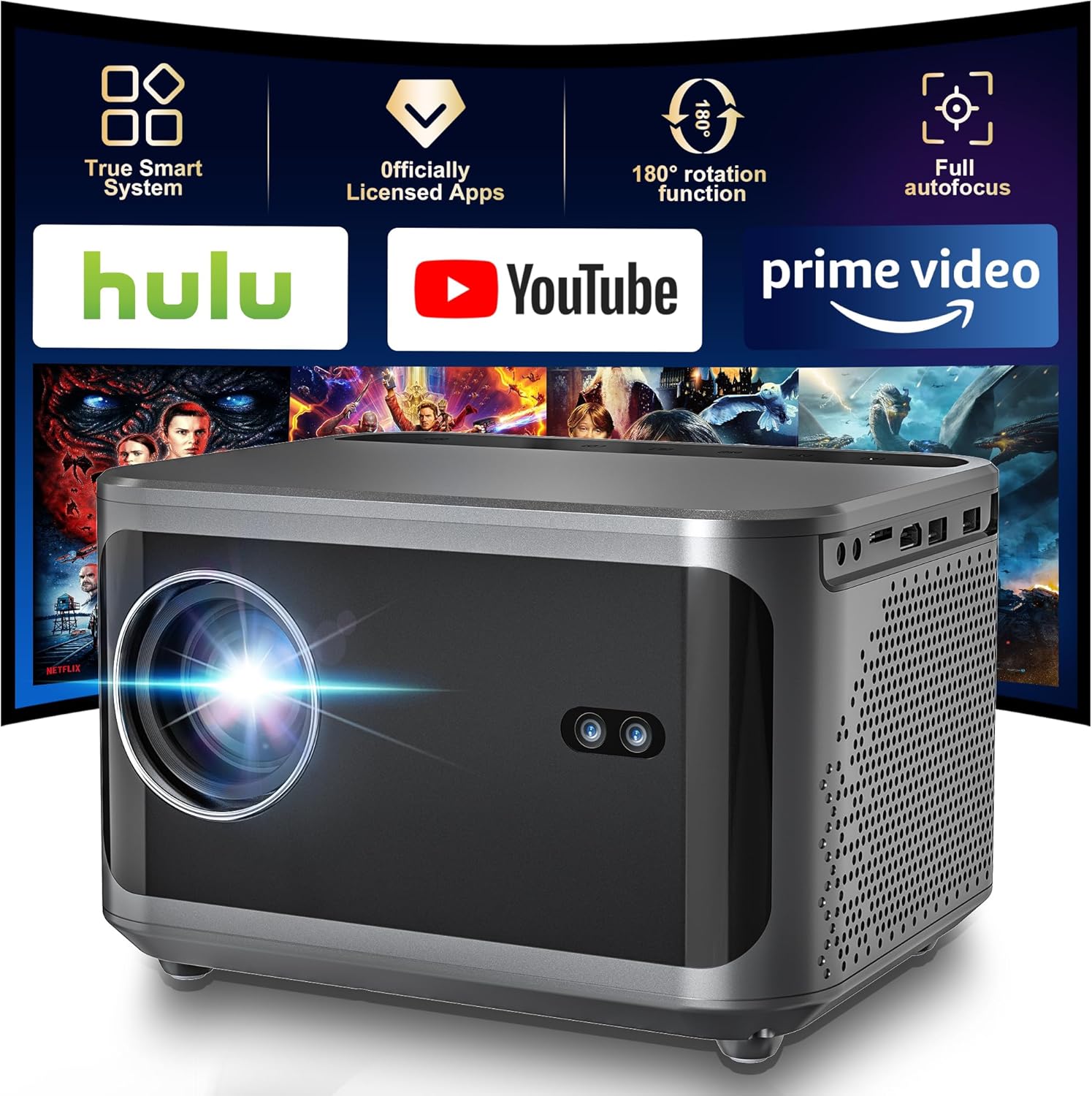
olusin 3.1: Iwaju view of the YFDSPSM JY-540 projector.
The projector includes a touch control panel on the top surface for direct interaction. Various input/output ports are located on the side for connecting external devices.

Figure 3.2: Key features including smart system, app support, rotation, and autofocus.
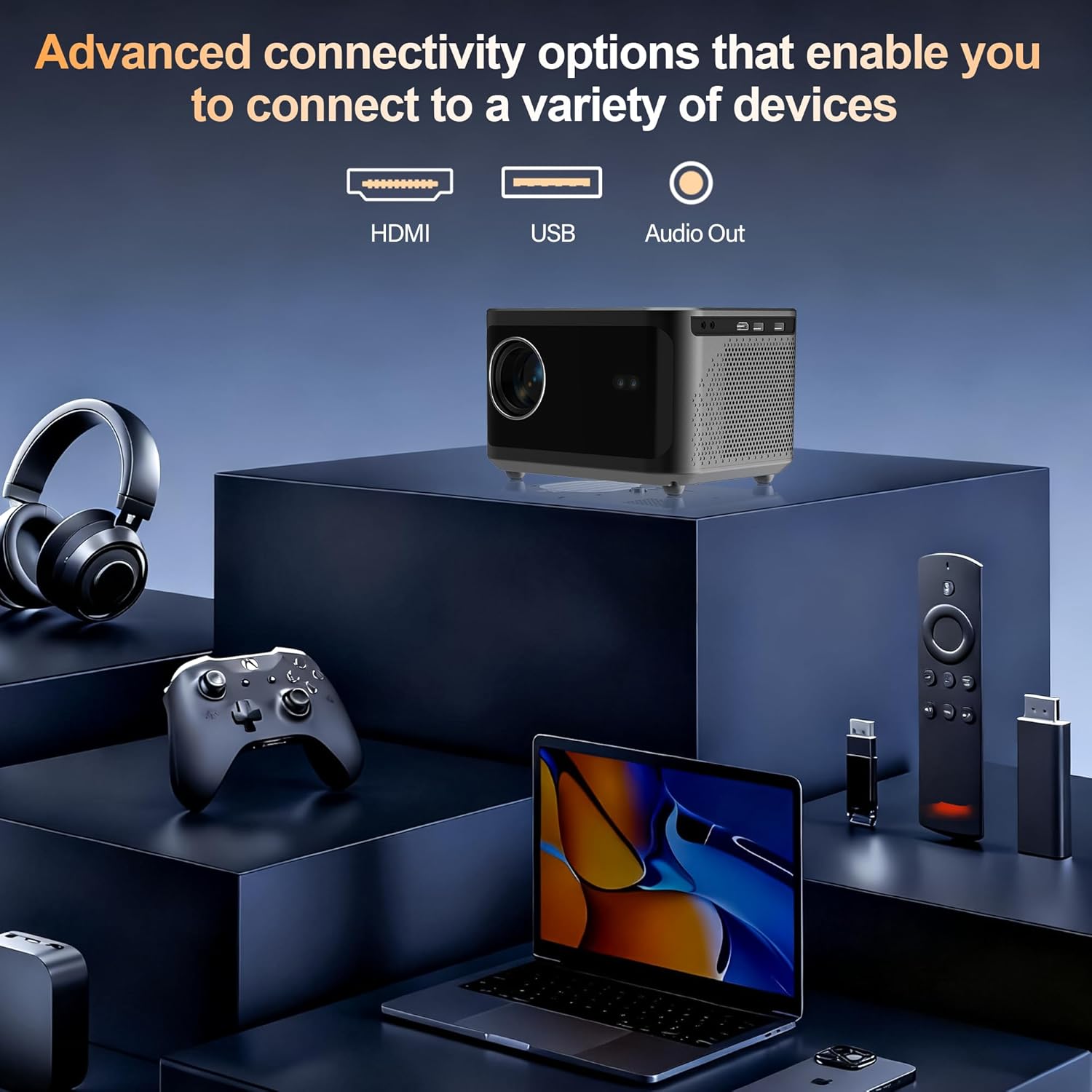
Figure 3.3: Connectivity options including HDMI, USB, and Audio Out ports.
3.2. Key Awọn ẹya ara ẹrọ
- Native 1080P Resolution: Ó fúnni ní àwọn àwòrán tó ṣe kedere àti tó ṣe kedere.
- 1,000 ANSI Lumens: Provides bright and vivid projections.
- Àtúnṣe Àfojúsùn Àdáni àti Ìṣàtúnṣe Kọ́kọ́ọ̀dì: Automatically adjusts for a sharp and rectangular image.
- Dual-Band WiFi (2.4/5 GHz): Ensures stable and fast wireless streaming.
- Bluetooth 5.2: For connecting to external audio devices.
- Built-in 5W Speaker: Offers immersive sound for various content.
- Apẹrẹ to gbe: Compact size for easy transport and setup in various locations.
- Asopọmọra gbogbo agbaye: Supports HDMI, USB, and 3.5mm audio jack.

Figure 3.4: Visual comparison of 1080P Full HD and 720P resolution.
4. Eto
4.1. Ibi Ibẹrẹ
Place the projector on a stable, flat surface. Ensure there are no obstructions in front of the lens or around the ventilation areas. The projector can be positioned to project onto a wall or ceiling.
4.2. Asopọ agbara
- Connect the provided power cord to the projector's power input port.
- Pulọọgi opin miiran ti okun agbara sinu iṣan itanna to dara.
- Tẹ bọtini agbara lori pirojekito tabi isakoṣo latọna jijin lati tan ẹrọ naa.
4.3. Àwọn Àtúnṣe Àìfọwọ́ṣe
The JY-540 features automatic focus and keystone correction. Upon powering on, the projector will typically adjust the image for sharpness and correct any trapezoidal distortion. If manual adjustment is needed, press the focus button on the remote control.

Figure 4.1: Automatic keystone correction and electric focus in action.
4.4. Network and Bluetooth Setup
- Navigate to the 'Settings' menu using the remote control.
- Select 'Networking Setting' to connect to your Wi-Fi network (supports 2.4GHz and 5GHz).
- Select 'Bluetooth Setting' to pair with Bluetooth speakers or headphones.

Figure 4.2: Dual-band WiFi and Bluetooth connectivity options.
5. Awọn ilana Iṣiṣẹ
5.1. Lilo isakoṣo latọna jijin
The included remote control allows for easy navigation and control of the projector's functions. Use the directional buttons to move between options and the 'OK' button to select. Dedicated buttons are available for Home, Volume, and other settings.
5.2. Navigating the Smart Interface
The projector comes with a smart interface that includes pre-installed applications such as Netflix, YouTube, Google Play, and Chrome. You can access these directly from the home screen.
Video 5.1: Demonstration of the YFDSPSM JY-540 projector's smart interface and app navigation.
5.3. Iboju Mirroring
The projector supports wireless screen mirroring from compatible iOS and Android devices. Navigate to the 'Miracast' or 'AirPlay' option on the home screen and follow the on-screen instructions to connect your device.
5.4. Nsopọ Ita Awọn ẹrọ
Use the HDMI port to connect laptops, TV sticks, or gaming consoles. The dual USB ports allow for playing media files directly from USB drives. A 3.5mm audio jack is available for connecting headphones or external speakers.
6. Itọju
6.1. Ninu awọn lẹnsi
Gently wipe the projector lens with a soft, lint-free cloth specifically designed for optical surfaces. Avoid using abrasive materials or harsh chemicals that could scratch or damage the lens.
6.2. Afẹfẹ
The projector features a low-noise cooling design with dual turbine fans. To ensure optimal performance and prevent overheating, always keep the ventilation grilles clear of obstructions. Do not place the projector on soft surfaces that could block airflow.
6.3. Ibi ipamọ
When not in use, store the projector in a cool, dry place away from direct sunlight and extreme temperatures. If storing for an extended period, consider placing it in its original packaging or a protective case.
7. Laasigbotitusita
Tí o bá ní ìṣòro pẹ̀lú ẹ̀rọ ìṣiṣẹ́ rẹ, jọ̀wọ́ wo àwọn ìṣòro àti ojútùú tí ó wọ́pọ̀ wọ̀nyí:
- Aworan ko boju mu:
The projector has auto-focus. If the image is not sharp, press the dedicated focus button on the remote control for manual adjustment. Ensure the projection surface is flat. - Ko si ohun:
Check the volume settings on the projector and any connected external devices. Ensure Bluetooth speakers are properly paired or wired speakers are correctly connected to the 3.5mm audio jack. - Kò le sopọ̀ mọ́ Wi-Fi/Bluetooth:
Ensure the projector is within range of your Wi-Fi router or Bluetooth device. Restart the projector and your network devices. Verify Wi-Fi password and Bluetooth pairing process. - No image from HDMI/USB:
Ensure the cable is securely connected to both the projector and the source device. Select the correct input source on the projector. Try a different cable or port.
8. Awọn pato
| Ẹya ara ẹrọ | Ẹ̀kúnrẹ́rẹ́ |
|---|---|
| Brand | YFDSPSM |
| Nọmba awoṣe | JY-540 |
| Ipinnu Ifihan | 1920 x 1080 (Abínibí 1080P) |
| Imọlẹ | 1000 ANSI Lumens |
| Asopọmọra Technology | Wi-Fi (2.4/5 GHz), Bluetooth 5.2 |
| Pataki Awọn ẹya ara ẹrọ | Auto Focus, Built-In Cooling System, Built-In Speaker, Digital Keystone Correction |
| Niyanju Lilo | Ere, Ile sinima |
| Ọja Mefa | 8 x 7.3 x 9 inches |
| Iwọn Nkan | 3.91 iwon |
9. Atilẹyin ọja ati Support
For warranty information or technical support, please refer to the contact details provided with your purchase documentation or visit the official YFDSPSM webojula. Jeki ẹri rira rẹ fun awọn iṣeduro atilẹyin ọja.
Ask a question about this manual
Ask about setup, troubleshooting, compatibility, parts, safety, or missing instructions. Manuals+ will review the question and use this page’s manual context to help answer it.