
1. Ifihan
Welcome to the instruction manual for your Jectse WiFi 6 4G/5G CPE LTE Router. This document provides essential information on how to set up, operate, maintain, and troubleshoot your device. Please read this manual carefully before using the product to ensure optimal performance and longevity.
The Jectse WiFi 6 Router is designed to provide high-speed internet connectivity by converting a 4G LTE signal into a Wi-Fi hotspot, supporting multiple devices simultaneously. Its robust design with four antennas ensures stable and wide coverage.
2. Ọja Ipariview
2.1 Key Awọn ẹya ara ẹrọ
- 4G LTE Support: Compatible with multiple 4G LTE bands, including FDD B1, B3, B5, B7, B8, B20, TDD B38, B40, B41, and WCDMA B1, B5, B8. This ensures versatile connectivity across various networks.
- Awọn iyara iyara: Experience 4G download speeds up to 150 Mbps and upload speeds up to 50 Mbps. Wireless transfer rates reach up to 300 Mbps for smooth streaming, gaming, and browsing.
- Iṣeto Rọrun: Simply insert a standard SIM card to transform the 4G LTE signal into a Wi-Fi hotspot. Enjoy immediate internet access with minimal configuration.
- Agbara Ẹrọ Giga: Connect up to 32 devices simultaneously, including smartphones, tablets, and PCs, within a maximum coverage area of 300 square meters.
- 4-Antenna Design: Equipped with four antennas for enhanced signal coverage, faster network speeds, and stable connectivity throughout your space.
2.2 Package Awọn akoonu
Jọwọ ṣayẹwo apoti fun awọn nkan wọnyi:
- 1 x Jectse WiFi 6 4G/5G CPE LTE Router
- 1 x Agbara Adapter
- 1 x Okun Ethernet
- 1 x Okun USB
- 1 x Itọsọna olumulo (iwe yii)

Image: Jectse WiFi 6 Router with its power adapter, Ethernet cable, and USB cable.
3. Awọn ilana iṣeto
Follow these steps to set up your Jectse WiFi 6 Router:
- Yọ olulana kuro: Fara yọ olulana kuro ati gbogbo awọn ẹya ẹrọ lati apoti.
- Fi kaadi SIM sii: Locate the SIM card slot on the side of the router. Insert a standard-sized 4G LTE SIM card into the slot until it clicks into place. Ensure the SIM card is correctly oriented as indicated by the diagram near the slot.

Aworan: Apa view of the router highlighting the SIM card slot and USB/WAN/LAN ports.
- So agbara: Connect the power adapter to the router's power input port and then plug the adapter into a wall outlet. The router will power on automatically.
- Agbara Tan: Wait for the router's indicator lights to stabilize. The Wi-Fi and network status lights should indicate a successful connection.
- Optional: Wired Connection: If you prefer a wired connection, connect one end of the Ethernet cable to the WAN/LAN port on the router and the other end to your computer or another network device.
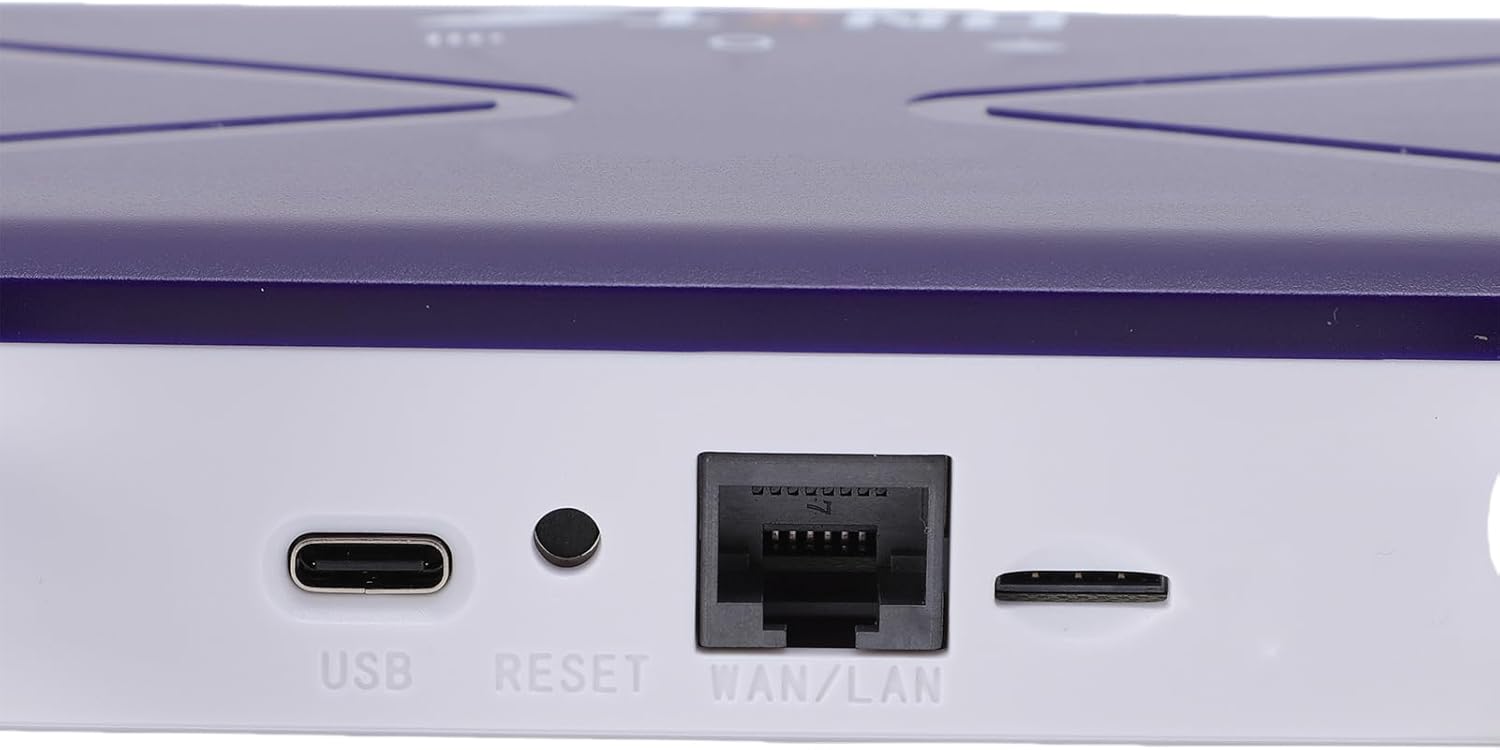
Image: Close-up of the router's rear panel showing the USB port, Reset button, and WAN/LAN port.
4. Awọn ilana Iṣiṣẹ
4.1 Nsopọ si Wi-Fi
Láti so àwọn ẹ̀rọ rẹ pọ̀ mọ́ nẹ́tíwọ́ọ̀kì Wi-Fi ti ẹ̀rọ olulana náà:
- On your device (smartphone, tablet, laptop), open the Wi-Fi settings.
- Wa fun available Wi-Fi networks. The router's default Wi-Fi network name (SSID) and password (Wi-Fi Key) are typically printed on a label on the bottom of the router.
- Select the router's SSID from the list.
- Enter the Wi-Fi Key when prompted. The default Wi-Fi Key is usually 1234567890.
- Once connected, your device should have internet access.

Image: Bottom label of the router displaying default Wi-Fi Key and Web Adirẹsi IP.
4.2 Wiwọle si Eto Awọn olulana
To manage your router settings, such as changing the Wi-Fi name or password, or configuring advanced network options:
- Connect your device to the router's Wi-Fi network or via an Ethernet cable.
- Ṣii a web ẹrọ aṣawakiri (fun apẹẹrẹ, Chrome, Firefox, Edge).
- In the address bar, type the default Web Àdírẹ́sì IP: 192.168.100.1 ki o si tẹ Tẹ.
- You will be prompted for a username and password. Refer to the label on the bottom of your router for default login credentials.
- Once logged in, you can customize your network settings.
4.3 Network Coverage
The router provides Wi-Fi wireless coverage and supports network port wired output for various environments.

Image: Diagram showing the router's Wi-Fi coverage and wired output capabilities.
5. Itọju
To ensure the optimal performance and longevity of your router, consider the following maintenance tips:
- Ibi: Gbé réètì náà sí àárín gbùngbùn, jìnnà sí àwọn ìdènà, àwọn ohun èlò irin ńláńlá, àti àwọn ẹ̀rọ itanna mìíràn tí ó lè fa ìdènà.
- Afẹfẹ: Ensure the router has adequate ventilation. Do not cover the ventilation holes or place it in an enclosed space.
- Ninu: Gently clean the router's exterior with a soft, dry cloth. Avoid using liquid cleaners or aerosols.
- Awọn imudojuiwọn famuwia: Lorekore ṣayẹwo olupese ká website for firmware updates. Keeping your router's firmware up-to-date can improve performance, security, and add new features.
- Yiyipo Agbara: If you experience minor network issues, try power cycling the router by unplugging it from the power outlet for 10-15 seconds and then plugging it back in.
6. Laasigbotitusita
Ti o ba ni awọn iṣoro pẹlu olulana rẹ, wo awọn iṣoro ati awọn solusan ti o wọpọ wọnyi:
- Ko si Asopọ Ayelujara:
- Ṣayẹwo boya kaadi SIM ti fi sii daradara ati muu ṣiṣẹ.
- Verify that the router's network indicator lights are stable and show a connection.
- Ensure your SIM card has an active data plan.
- Try power cycling the router.
- Awọn iyara Wi-Fi o lọra:
- Sunmọ olulana lati mu agbara ifihan dara si.
- Reduce the number of connected devices if many are actively using bandwidth.
- Ṣayẹwo fun kikọlu lati awọn ẹrọ itanna miiran.
- Tun olulana bẹrẹ.
- Ko le Sopọ si Wi-Fi:
- Ensure you are entering the correct Wi-Fi password (Wi-Fi Key).
- Check if the Wi-Fi function on the router is enabled (refer to router settings via web wiwo).
- Tun olulana ati ẹrọ asopọ rẹ tun bẹrẹ.
- Olulana Ko fesi:
- Perform a hard reset by pressing and holding the 'RESET' button (located near the WAN/LAN port) with a pin for about 10 seconds until the lights flash. This will restore the router to factory default settings, including the default Wi-Fi name and password.
7. Awọn pato
| Ẹya ara ẹrọ | Sipesifikesonu |
|---|---|
| Nọmba awoṣe | Jectseak28xtdzqf |
| Wi-Fi Standard | 802.11b/g/n |
| Alailowaya Igbohunsafẹfẹ | 2.4 GHz |
| 4G LTE Bands (FDD) | B1, B3, B5, B7, B8, B20 |
| 4G LTE Bands (TDD) | B38, B40, B41 |
| Awọn ẹgbẹ WCDMA | B1, B5, B8 |
| Iyara Gbigbasilẹ ti o pọju | 150 Mbps |
| Iyara ikojọpọ ti o pọju | 50 Mbps |
| Wireless Transfer Rate | 300 Mbps |
| Iho kaadi SIM | SIM Standard |
| Eriali | 4 |
| Ogiriina ti a ṣe sinu | Bẹẹni |
| Awọn ẹrọ ti o pọ julọ | 32 |
| Agbegbe Agbegbe | Ti o to 300 m² |
| Olupese | Jectse |
| Ilu isenbale | China |
8. Atilẹyin ọja ati Support
8.1 atilẹyin ọja Alaye
This Jectse WiFi 6 4G/5G CPE LTE Router comes with a 2-odun olupese ká atilẹyin ọja lati ọjọ ti o ra. Atilẹyin ọja yi ni wiwa awọn abawọn ninu awọn ohun elo ati iṣẹ ṣiṣe labẹ lilo deede. Jọwọ ṣe idaduro ẹri rira rẹ fun awọn iṣeduro atilẹyin ọja.
Atilẹyin ọja naa ko ni aabo fun ibajẹ ti o ṣẹlẹ nipasẹ ilokulo, awọn ijamba, awọn iyipada laigba aṣẹ, tabi awọn nkan ita gẹgẹbi awọn iwọn agbara.
8.2 Onibara Support
For technical assistance, troubleshooting beyond this manual, or warranty inquiries, please contact your retailer or the Jectse customer support team. Refer to the contact information provided with your purchase or visit the official Jectse webojula fun support oro.