
1. Ifihan
Thank you for choosing the Transformers GM04 Lightweight Wireless Gaming Mouse. This manual provides essential information for setting up, operating, and maintaining your new gaming mouse. Designed for precision and comfort, the GM04 features a high-precision PAW3311 sensor, triple connection modes (2.4G wireless, Bluetooth 5.3, and USB-C wired), 5 programmable buttons, and up to 100 hours of battery life. Its ergonomic design and lightweight construction ensure a comfortable and responsive experience for gaming, work, and study.
2. Ohun ti o wa ninu Apoti
- TF-GM04 Wireless Gaming Mouse x 1
- USB Wireless Dongle x 1
- Okun USB-C x 1
- Ilana olumulo x 1
3. Ọja Ipariview
Familiarize yourself with the key features and components of your Transformers GM04 gaming mouse.
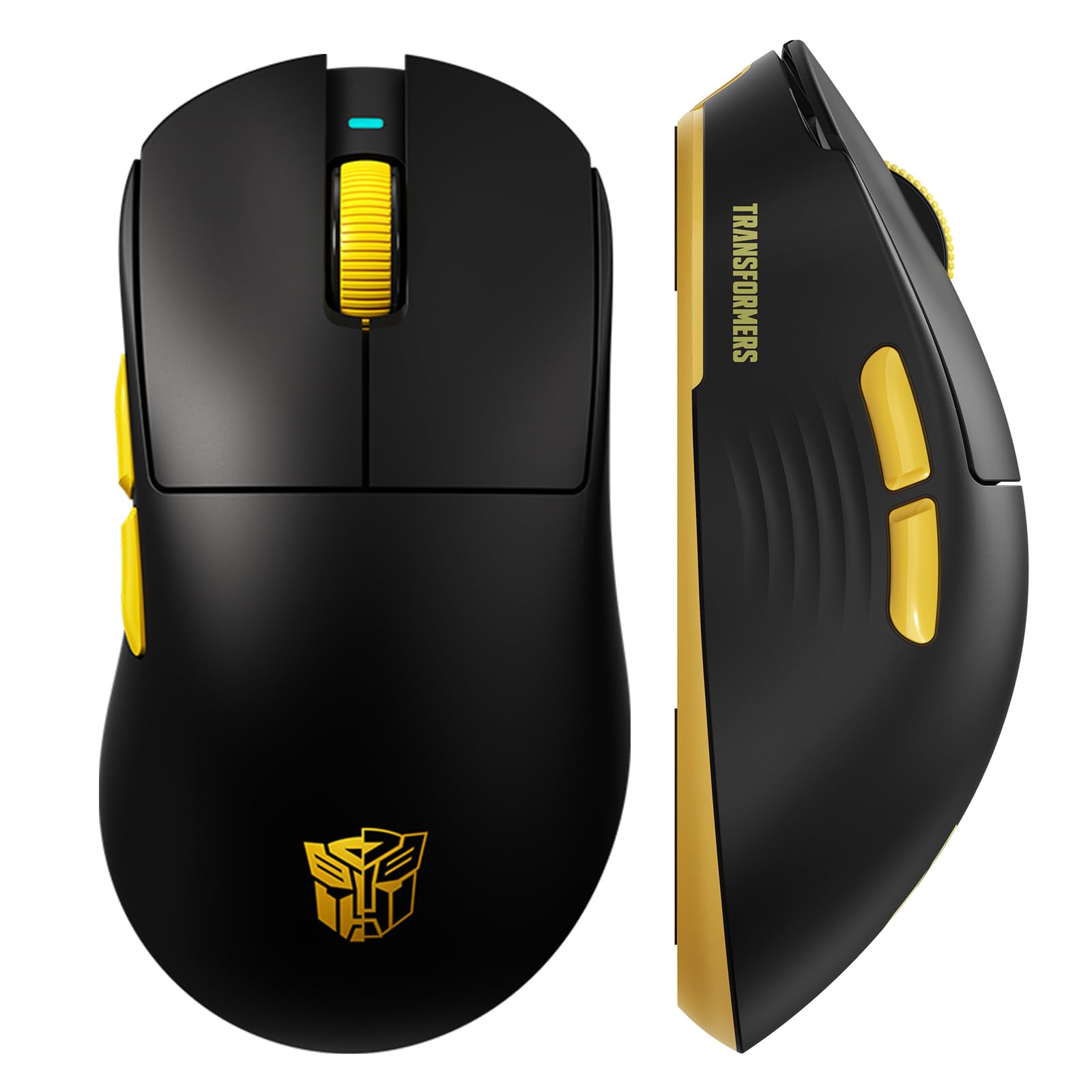
Aworan 1: The Transformers GM04 Wireless Gaming Mouse, showcasing its sleek black and yellow design, along with icons highlighting its core features such as PixArt PAW3311 sensor, up to 12000 DPI, 1000Hz polling rate, 20 million clicks, Tri-Mode connectivity, custom macros, 63g lightweight design, and up to 100 hours of battery life. A USB wireless dongle is also visible next to the mouse.

Aworan 2: A hand demonstrating the ergonomic design of the Transformers GM04 mouse. The image highlights how the mouse fits comfortably in the palm, promoting more comfort and less fatigue during extended use, thanks to its non-slip texture.

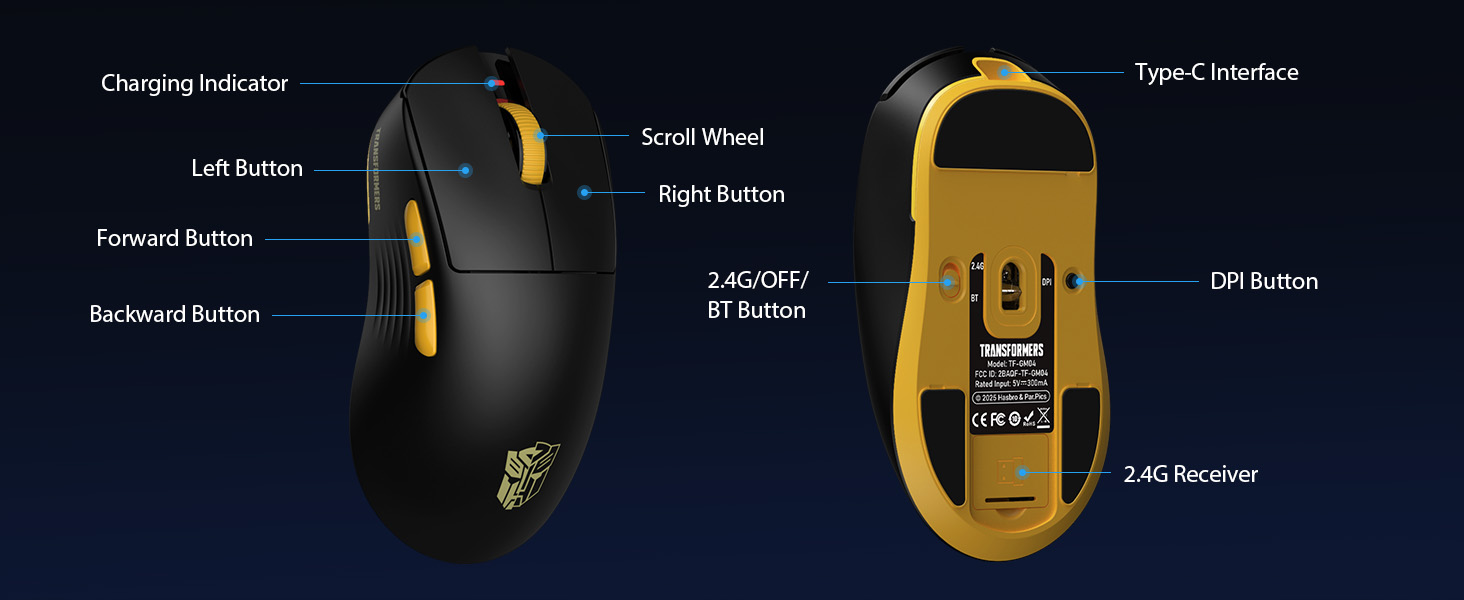
Aworan 3: The underside of the Transformers GM04 mouse, detailing the 2.4G/OFF/BT switch for connection modes, the DPI button, and the storage compartment for the 2.4G wireless receiver. This view is crucial for understanding how to switch modes and adjust settings.

Aworan 4: An illustration of the 6-level adjustable DPI settings for the Transformers GM04 mouse. It shows the DPI values (1200, 2400, 3200, 4800, 6400, 12000) and their corresponding LED indicator colors (Red, Green, Blue, Purple, Yellow, Cyan), which helps users identify the current DPI level.
Aworan 5: Ohun exploded view diagram of the Transformers GM04 mouse, highlighting the HUANO micro switches. This image emphasizes the precision-engineered mechanical switches designed for crisp feedback and a lifespan of over 20 million clicks, ideal for rapid gaming actions.
Fidio 1: An official product video from Transformers Keyboard showcasing the GM04 Lightweight Wireless Gaming Mouse. This short video provides a dynamic overview of the mouse's design and features.
4. Eto
4.1. Gbigba agbara si Asin
Before first use, it is recommended to fully charge your GM04 mouse. Connect the provided USB-C cable to the mouse's front port and the other end to a USB power source (e.g., computer USB port, USB wall adapter). The LED indicator will show charging status.
4.2. Nsopọ awọn Asin
The GM04 mouse supports three connection modes: 2.4G Wireless, Bluetooth 5.3, and USB-C Wired. Use the switch on the bottom of the mouse to select your desired mode.
4.2.1. 2.4G Alailowaya Ipo
- Remove the USB wireless dongle from its storage slot on the bottom of the mouse.
- Plug the USB wireless dongle into an available USB-A port on your computer.
- Gbe iyipada ipo ti o wa ni isalẹ ti asin si ipo "2.4G".
- Asin yẹ ki o sopọ laifọwọyi si kọnputa rẹ.
4.2.2. Ipo Bluetooth
- Gbe iyipada ipo ti o wa ni isalẹ ti asin si ipo "BT".
- Lori kọmputa rẹ tabi ẹrọ, ṣii awọn eto Bluetooth ki o wa awọn ẹrọ titun.
- Select "TF-GM04 BT" from the list of available devices to pair.
- The mouse should connect and be ready for use.
4.2.3. Ipo Asopọ USB-C
- Connect the provided USB-C cable to the mouse's front port and the other end to a USB-A port on your computer.
- Asin yoo yipada laifọwọyi si ipo ti firanṣẹ ati bẹrẹ gbigba agbara.
5. Ṣiṣẹ
5.1. DPI Atunṣe
The GM04 mouse offers 6 default DPI settings. To cycle through these settings, press the DPI bọtini located on the bottom of the mouse. The LED indicator will change color to reflect the current DPI level:
- Pupa: 1200 DPI
- Alawọ ewe: 2400 DPI
- Buluu: 3200 DPI
- eleyi ti: 4800 DPI
- Yellow: 6400 DPI
- Cyan: 12000 DPI
5.2. Awọn bọtini eto
The mouse features 5 programmable buttons. To customize these buttons with macro commands, shortcut keys, or other functions, you will need to use the dedicated driver software. This software is typically available for Windows systems under 2.4G wireless and wired modes. Bluetooth mode may not support full software customization.
5.3. Connection Mode Switching
Easily switch between 2.4G Wireless, Bluetooth, and Wired modes using the dedicated switch on the bottom of the mouse. This allows for seamless transitions between multiple devices.
5.4. Awọn afihan LED
- Atọka DPI: Changes color according to the current DPI setting (see 5.1).
- Atọka gbigba agbara: A green LED near the scroll wheel indicates charging. It turns off when fully charged.
6. Itọju
6.1. Ninu
Lati ṣetọju iṣẹ ti o dara julọ ati irisi, nu asin rẹ nigbagbogbo. Lo asọ ti o rọ, ti o gbẹ lati nu dada. Fun idoti alagidi, die-die damp A le lo aṣọ, kí ó má baà wọ inú àwọn ohun èlò inú. Yẹra fún àwọn kẹ́míkà líle tàbí àwọn ohun èlò ìfọ́.
6.2. Itọju batiri
The GM04 mouse is equipped with a 500mAh high-capacity battery. To prolong battery life:
- Yago fun gbigba agbara si batiri ni kikun nigbagbogbo.
- Tọju Asin ni itura, aye gbigbẹ nigbati o ko ba lo fun awọn akoko ti o gbooro sii.
- If using wired mode, the mouse will charge automatically.
7. Laasigbotitusita
7.1. Asin Ko fesi
- Ṣayẹwo Batiri: Ensure the mouse is charged. Connect it via USB-C cable.
- Ṣayẹwo Ipo Asopọ: Verify the switch on the bottom is set to the correct mode (2.4G, BT, or Wired).
- Re-pair (2.4G/Bluetooth): For 2.4G, try plugging the dongle into a different USB port. For Bluetooth, unpair and re-pair the device in your computer's settings.
- Try Wired Mode: Connect the mouse directly via USB-C cable to see if it functions.
7.2. DPI Kò Yípadà
- Rí i dájú pé o tẹ bọ́tìnì DPI tó tọ́ ní ìsàlẹ̀ àwo náà.
- Observe the LED indicator for color changes to confirm DPI cycles.
- If using custom software, ensure settings are applied correctly.
7.3. Lag or Disconnection in Wireless Mode
- Din kikọlu: Move the mouse closer to the receiver/device. Avoid obstacles or other wireless devices that may cause interference.
- Ṣayẹwo Batiri: Low battery can affect wireless performance.
- Awọn Awakọ imudojuiwọn: Ensure your computer's Bluetooth or USB drivers are up to date.
8. Awọn pato
| Ẹya ara ẹrọ | Ẹ̀kúnrẹ́rẹ́ |
|---|---|
| Ọja Mefa | 4.68 x 2.52 x 0.1 inches |
| Iwọn Nkan | 2.22 iwon (isunmọ 63g) |
| Nọmba Awoṣe Nkan | TF-GM04 |
| Asopọmọra Technology | Alailowaya 2.4G, Bluetooth 5.3, USB-C onirin |
| Imọ-ẹrọ Iwari išipopada | Ojú (PAW3311 Sensọ) |
| Awọn Eto DPI | 1200/2400/3200/4800/6400/12000 (Adjustable) |
| Idibo Oṣuwọn | 1000Hz (1ms latency) |
| Iyara Ipasẹ | Ọdun 300 IPS |
| Isare | 35G |
| Awọn bọtini | 5 Awọn bọtini siseto |
| Yipada Iru | Àwọn Ìyípadà Kékeré HUANO (Àwọn Ìtẹ̀ Mílíọ̀nù 20) |
| Agbara Batiri | 500mAh |
| Igbesi aye batiri | Títí dé wákàtí 100 (Ipò Bluetooth) |
| Ibamu | Windows, Mac OS, and other systems |
9. Atilẹyin ọja & Atilẹyin
9.1. atilẹyin ọja Information
The Transformers GM04 Lightweight Wireless Gaming Mouse comes with a standard manufacturer's warranty. Please refer to the packaging or the official Transformers webAaye fun alaye atilẹyin ọja ofin ati ipo. Tọju iwe-ẹri rira rẹ bi ẹri rira fun eyikeyi awọn ibeere atilẹyin ọja.
9.2. Onibara Support
For technical assistance, troubleshooting, or any questions regarding your Transformers GM04 mouse, please contact Transformers customer support. Contact details can typically be found on the product packaging or the official brand webojula.