
1. Ifihan
This manual provides essential information for the safe and effective operation of your ZENTALITY Mini Projector A10 PLUS. Please read this manual thoroughly before using the product and retain it for future reference.
Ọja Pariview
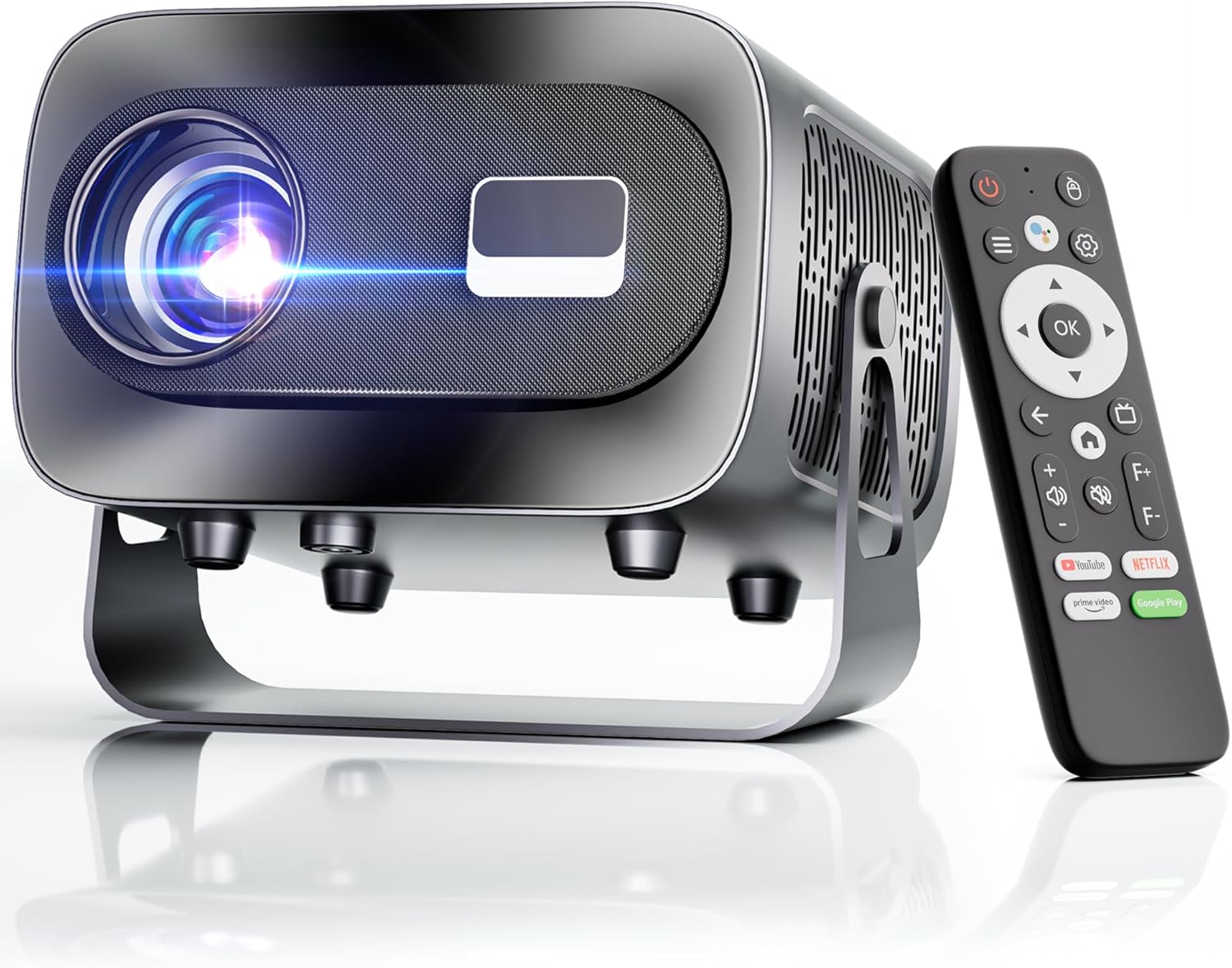
The ZENTALITY Mini Projector A10 PLUS is a smart projector featuring Android 13, designed for versatile home and outdoor entertainment. It supports 4K and 1080P HD content, offers electric focus, auto vertical keystone correction, and includes dual-band WiFi 6 and Bluetooth 5.1 connectivity. Its compact design and multiple input options make it suitable for various applications.
Ohun ti o wa ninu Apoti
- ZENTALITY Mini Projector A10 PLUS
- Okun HDMI
- Adapter agbara
- Isakoṣo latọna jijin
- Afowoyi Olumulo (iwe-ipamọ yii)
2. Alaye Aabo
Please observe the following safety precautions to prevent damage to the projector and ensure user safety:
- Má ṣe dí àwọn ihò afẹ́fẹ́. Rí i dájú pé afẹ́fẹ́ tó wà ní àyíká ẹ̀rọ ìfọ́júwe náà tó láti dènà kí ó má baà gbóná jù.
- Avoid direct exposure to the projector lens light. The bright light can cause eye strain or damage.
- Use only the provided power adapter. Using an incompatible adapter may cause fire, electric shock, or damage.
- Jẹ́ kí ẹ̀rọ ìṣiṣẹ́ náà jìnnà sí omi tàbí àwọn ohun míràn. Má ṣe ṣiṣẹ́ ní damp awọn agbegbe.
- Maṣe gbiyanju lati ṣajọpọ tabi tun ẹrọ pirojekito naa funrararẹ. Tọkasi gbogbo iṣẹ si oṣiṣẹ oṣiṣẹ.
- Gbe awọn pirojekito lori kan idurosinsin, ipele dada lati se o lati ja bo.
- Jeki kuro ni arọwọto awọn ọmọde.
3. Àwọn Ẹ̀yà àti Àwọn Èbúté Ọjà
Familiarize yourself with the projector's physical features and connectivity options.

Awọn ibudo to wa:
- USB (x2): For connecting USB drives, external storage, or other USB-compatible devices.
- HDMI: For connecting devices such as laptops, gaming consoles, or TV sticks.
- Ohùn tó ń jáde (Jack 3.5mm): Fun sisopọ awọn agbohunsoke ita tabi agbekọri.
- Iṣagbewọle agbara: Fun sisopọ ohun ti nmu badọgba agbara.
4. Ni ibẹrẹ Oṣo
4.1 Asopọ agbara
- So ohun ti nmu badọgba agbara si awọn pirojekito ká agbara input ibudo.
- Pulọọgi ohun ti nmu badọgba agbara sinu iṣan ogiri kan.
- Tẹ bọtini agbara lori pirojekito tabi isakoṣo latọna jijin lati tan-an.
4.2 Sisopọ Iṣakoso latọna jijin
Important: The remote control must be paired via Bluetooth before it can operate smoothly within 1-3 meters.
- Rii daju pe ẹrọ pirojekito ti wa ni titan.
- Navigate to the projector's Bluetooth settings (usually found in the 'Settings' menu).
- Select 'Pair new device' or similar option.
- On the remote control, press and hold the designated pairing button (refer to the remote's specific instructions if available, often a combination of 'OK' and 'Volume Down' or a dedicated Bluetooth button).
- Once the remote appears in the projector's Bluetooth device list, select it to complete pairing.

4.3 Placement and Screen Adjustment
The projector offers automatic and electric adjustments for optimal image clarity and alignment.
- Idojukọ Itanna: The projector features electric focus for instant clarity. Use the 'F+' and 'F-' buttons on the remote control to fine-tune the image sharpness.
- Atunse okuta bọtini Inaro Aifọwọyi: The projector automatically corrects vertical image distortion up to ±15°. This ensures a rectangular image even if the projector is not perfectly perpendicular to the screen.
- Iṣẹ Sún: Adjust the image size from 50% to 100% without moving the projector. This is useful for fitting the projection to your screen size.


5. Awọn ilana Iṣiṣẹ
5.1 Android 13 Interface and App Access
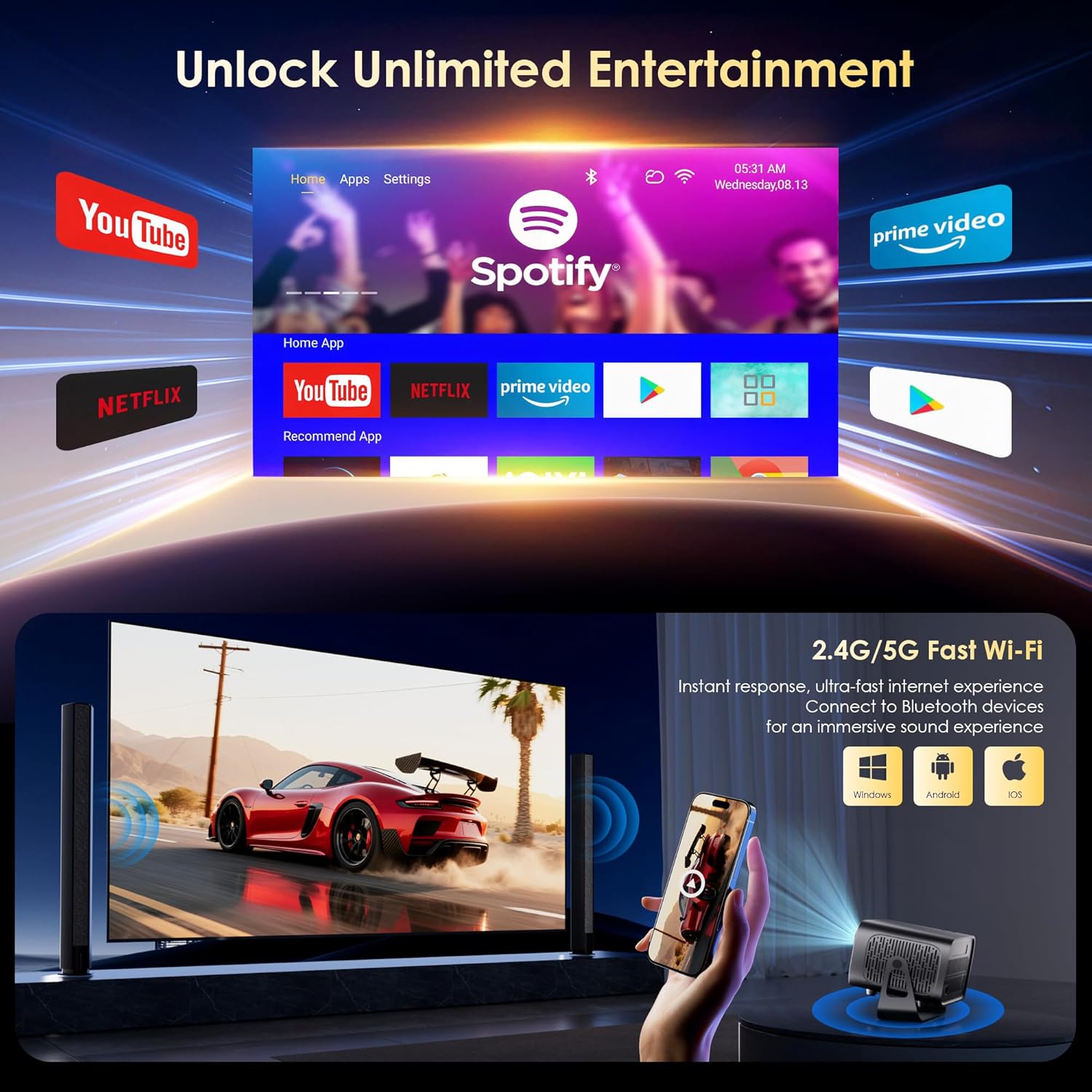
The projector runs on Android 13, providing access to a wide range of streaming applications.
- Upon startup, the home screen will display pre-installed applications like Netflix, Prime Video, and YouTube.
- Navigate using the remote control's directional pad and 'OK' button.
- Access the built-in app store (e.g., Google Play Store) to download additional applications.
- Use the voice assistant feature on the remote control for quick app launching or content search.

5.2 WiFi Asopọmọra
The projector supports dual-band 5G/2.4G WiFi 6 for stable internet access and screen mirroring.
- Go to 'Settings' on the home screen.
- Yan 'Nẹtiwọọki & Intanẹẹti'.
- Tan Wi-Fi ki o yan nẹtiwọki ti o fẹ lati inu akojọ.
- Tẹ ọrọ igbaniwọle sii ti o ba ṣetan ati sopọ.
Note: WiFi is required for the first setup or online apps. If you prefer not to connect to WiFi, you can use the projector offline by connecting external devices via the included HDMI cable or the USB port.

5.3 Bluetooth Asopọmọra
The projector features Bluetooth 5.1 for audio streaming.
- Go to 'Settings' on the home screen.
- Yan 'Awọn Ẹrọ ti a Sopọ' tabi 'Bluetooth'.
- Tan Bluetooth kí o sì wá àwọn ẹ̀rọ tó wà.
- Select your Bluetooth speaker, headphones, or soundbar from the list to pair.
Note: Bluetooth supports audio output only, not video transmission.
5.4 Nsopọ Awọn ẹrọ ita
The projector supports various external devices via its HDMI and USB ports.
- HDMI: Connect your laptop, gaming console, or TV stick using an HDMI cable. The projector will automatically detect the input or you may need to select the HDMI source from the input menu.
- USB: Fi awakọ USB sii lati mu media ṣiṣẹ files directly. The projector's media player will typically launch automatically or can be accessed from the home screen.
5.5 Àwọn Ìgbésẹ̀ Ìṣàfihàn
The projector can be used in various orientations:
- Isọtẹlẹ tabili: Gbe awọn pirojekito lori kan Building dada ni iwaju ti awọn iboju.
- Ceiling Projection: Mount the projector upside down on the ceiling. Adjust the projection settings in the menu to flip the image.
- Igbesoke Tripod: Use the 1/4'' screw hole at the bottom to mount the projector on a tripod for flexible positioning.

6. Itọju
6.1 Ninu
- Lẹnsi: Lo asọ, asọ ti ko ni lint ti a ṣe apẹrẹ pataki fun awọn lẹnsi opiti. Maṣe lo awọn afọmọ abrasive tabi awọn aṣọ.
- Òde: Mu ese pirojekito nu pẹlu asọ ti o gbẹ. Fun idoti alagidi, die-die damp cloth can be used, followed by a dry wipe.
- Awọn ṣiṣi atẹgun: Periodically check and gently clean the ventilation openings to ensure they are free from dust and debris. Use a soft brush or compressed air.
6.2 itutu System
The projector features an advanced dual-fan cooling system designed for low noise and efficient heat dissipation. To ensure its longevity and stable performance:
- Always ensure the projector has adequate space around its ventilation openings.
- Avoid placing the projector on soft surfaces (e.g., blankets, carpets) that might block airflow.
- Operating the projector in extremely hot or humid environments may affect its performance and lifespan.
7. Laasigbotitusita
Ti o ba pade awọn ọran pẹlu pirojekito rẹ, tọka si awọn iṣoro ti o wọpọ ati awọn ojutu wọnyi:
| Isoro | Owun to le Fa | Ojutu |
|---|---|---|
| No power/Projector won't turn on | Okun agbara ko sopọ; Agbara iṣan ti ko tọ | Ṣàyẹ̀wò ìsopọ̀ okùn agbára; Gbìyànjú ọ̀nà ìjáde mìíràn |
| Kò sí àwòrán/Ìbòjú òfìfo | Incorrect input source; Device not connected properly | Select correct input source (HDMI, USB); Reconnect external device |
| Image blurry/Out of focus | Idojukọ ko tunṣe | Use the 'F+' and 'F-' buttons on the remote for electric focus adjustment |
| Image distorted/Trapezoid shape | Keystone not corrected | The projector has auto vertical keystone correction. Ensure it's on or manually adjust if needed. |
| Isakoṣo latọna jijin ko ṣiṣẹ | Not paired via Bluetooth; Low battery | Pair the remote control via Bluetooth (Section 4.2); Replace remote batteries |
| Ko si ohun | Volume too low; Incorrect audio output; Bluetooth not connected | Increase volume; Check audio output settings; Ensure Bluetooth speaker is paired |
| WiFi asopọ oran | Incorrect password; Router issues; Out of range | Verify WiFi password; Restart router; Move projector closer to router |
8. Awọn pato
Detailed technical specifications for the ZENTALITY Mini Projector A10 PLUS:
- Brand: ZENTALITY
- Nọmba awoṣe: A10 Plus
- Ìwọ̀n Nkan: 3.1 iwon
- Awọn iwọn ọja: 7.4 x 6.22 x 4.8 inches
- Eto isesise: Android 13
- Ipinnu Ifihan: 1920 x 1080 (Native 1080P Full HD)
- 4K atilẹyin: Bẹẹni
- Imọlẹ: 350 ANSI Lumens
- Ipin Itansan: 10,000:1
- Imọ-ẹrọ Asopọmọra: 3.5mm Jack, Bluetooth 5.1, HDMI, USB (x2), Wi-Fi 6 (2.4G/5G)
- Awọn ẹya pataki: Built-In Media Player, Built-In Speaker, Electric Focus, Portable, Wi-Fi Ready, Auto Vertical Keystone Correction
- Awọn lilo ti a ṣe iṣeduro: Business, Education, ere, Home Cinema
- Lamp Igbesi aye: Titi di wakati 100,000

9. Atilẹyin ọja ati Support
ZENTALITY is committed to providing quality products and customer satisfaction.
- Ẹri Didara: 360-Day Quality Guarantee.
- Pada: 180-Day Free Returns.
- Oluranlowo lati tun nkan se: Atilẹyin Imọ -ẹrọ Igbesi aye.
- Iṣẹ onibara: 24/7 Fast Customer Service.
For support inquiries, please refer to the contact information provided on the ZENTALITY official webojula tabi rẹ ra Syeed.