
1. Ifihan
Thank you for choosing the Darmoshark M5PRO Mini Wireless Gaming Mouse. This manual provides detailed instructions for setting up, operating, and maintaining your new gaming mouse. The M5PRO features a tri-mode connection (2.4G wireless, Bluetooth, wired), a high-precision PAW3950 optical sensor, and a lightweight design for optimal performance.
2. Ọja Ipariview
The Darmoshark M5PRO is designed for competitive gaming, offering versatile connectivity and advanced sensor technology. Its ergonomic shape is ideal for finger grip players, providing responsive control and comfort during extended use.

Image: Darmoshark M5PRO Mini Wireless Gaming Mouse in various colors, highlighting its design.
Awọn ẹya pataki:
- Asopọmọra-Ipo Mẹta: Seamlessly switch between 2.4G wireless, Bluetooth 5.0, and wired USB connections.
- Sensọ Pípìlì PAW3950: Provides up to 30000 DPI, 750 IPS tracking speed, and 50G acceleration for precise and responsive tracking.
- Oṣuwọn Idibo 8KHz: Experience ultra-low latency with an 8KHz polling rate in 2.4G wireless mode, ensuring rapid response times.
- Apẹrẹ-Funwọnwọn: Weighing approximately 38 grams, the mouse reduces hand fatigue during long gaming sessions.
- Awọn bọtini eto 5: Customize button functions via the dedicated software.
- Batiri Lithium ti a ṣe sinu: High-capacity rechargeable battery for extended wireless usage.
- Ibamu gbooro: Compatible with Windows and Apple Mac operating systems.
3. Package Awọn akoonu
Jọwọ ṣayẹwo package fun awọn nkan wọnyi:
- Darmoshark M5PRO Mini Wireless Gaming Mouse
- Olùgbà Aláìlókùn 2.4G (Dónẹ́ẹ̀lì USB)
- Okun USB-C sí USB-A (fún gbigba agbara àti ìsopọ̀ onírin)
- Afowoyi Olumulo (iwe-ipamọ yii)
- Grip Tape (optional accessory, if included)
4. Eto ati Asopọmọra
4.1. Ipo onirin
- So opin USB-C ti okun ti a pese si Asin.
- So opin okun USB-A pọ si ibudo USB ti o wa lori kọnputa rẹ.
- Asin yoo yipada laifọwọyi si ipo ti firanṣẹ ati bẹrẹ gbigba agbara.
4.2. 2.4G Wireless Mode (with 8KHz Receiver)
- Wa olugba alailowaya 2.4G (USB dongle) ninu package.
- So olugba alailowaya 2.4G pọ mọ ibudo USB ti o wa lori kọmputa rẹ.
- On the bottom of the mouse, locate the tri-mode switching key. Switch it to the 2.4G wireless icon (usually indicated by a small antenna or 'G' symbol).
- The mouse should automatically connect. If not, press and hold the pairing button (if available, refer to the diagram) on the mouse until the indicator light flashes, then release.

Image: M5PRO mouse with its 8KHz wireless receiver for 2.4G connectivity.
4.3. Ipo Bluetooth
- On the bottom of the mouse, switch the tri-mode switching key to the Bluetooth icon.
- The mouse's indicator light will start flashing, indicating it is in pairing mode.
- Lori kọmputa tabi ẹrọ rẹ, ṣii awọn eto Bluetooth.
- Wa fun new devices and select "Darmoshark M5PRO" from the list.
- Tẹle eyikeyi awọn ilana loju iboju lati pari ilana sisopọ.
5. Ṣiṣẹ Asin
5.1. Awọn iṣẹ bọtini
The M5PRO mouse features 5 programmable buttons and a scroll wheel.
- Tẹ osi: Ìtẹ̀ títẹ̀ àkọ́kọ́ déédé.
- Tẹ-ọtun: Tẹ bọtini keji boṣewa.
- Track Roller Key (Scroll Wheel): Scrolls up/down, and acts as a middle click button.
- Bọtini Atunse DPI: Awọn iyipo nipasẹ awọn ipele DPI tito tẹlẹ.
- Bọtini Siwaju: Default function for navigating forward in web aṣàwákiri tabi file oluwadi.
- Bọ́tìnì Ààyè Ààyè: Default function for navigating backward in web aṣàwákiri tabi file oluwadi.

Aworan: Exploded view of the M5PRO mouse showing internal components and button layout.
5.2. DPI Atunṣe
Press the DPI Adjustment Key (located on the underside of the mouse, refer to the product diagram) to cycle through different DPI sensitivity levels. The default DPI settings can be customized using the Darmoshark software.
5.3. Gbigba agbara si Asin
When the battery is low, the mouse's indicator light will typically flash red. Connect the mouse to your computer using the provided USB-C cable to charge it. The indicator light will show charging status and turn off or change color when fully charged.
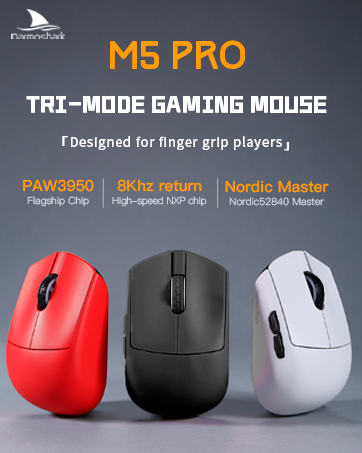
Image: Darmoshark M5PRO mouse charging via USB-C cable, highlighting its built-in lithium battery.
6. Software isọdi
To unlock the full potential of your Darmoshark M5PRO mouse, download and install the official Darmoshark driver software from the manufacturer's webojula. Sọfitiwia gba ọ laaye lati:
- Customize DPI settings and create multiple profiles.
- Program button functions and macros.
- Ṣe àtúnṣe ìwọ̀n ìdìbò.
- Ṣakoso awọn eto agbara ati igbesi aye batiri.
- Ṣe imudojuiwọn famuwia.

Image: Darmoshark proprietary driver software interface for mouse customization.
7. Awọn pato
| Awoṣe | M5PRO |
| Sensọ | Sensọ Opitika PAW3950 |
| DPI | Titi di 30000 DPI |
| Iyara Ipasẹ | Ọdun 750 IPS |
| Isare | 50G |
| Idibo Oṣuwọn | 8KHz (2.4G Wireless), 1KHz (Wired/Bluetooth) |
| Asopọmọra | Alailowaya 2.4G, Bluetooth 5.0, USB-C onirin |
| Awọn bọtini | 5 Awọn bọtini siseto |
| Iwọn | Isunmọ. 38g |
| Awọn iwọn (L x W x H) | 91.7 mm x 57.4 mm x 35.7 mm |
| Batiri | Batiri Litiumu ti a ṣe sinu (300mAh) |
| Ibamu | Windows, Apple Mac |
Image: Product parameter diagram with mouse dimensions.
8. Itọju
- Ninu: Lo asọ asọ ti o gbẹ lati nu asin naa. Yago fun lilo awọn kẹmika lile tabi awọn ohun elo abrasive.
- Ibi ipamọ: Tọju Asin ni itura, aye gbigbẹ kuro lati orun taara ati awọn iwọn otutu to gaju.
- Itọju Batiri: Láti mú kí batiri pẹ́ sí i, má ṣe jẹ́ kí asin náà máa jáde dáadáa nígbàkúgbà. Gba agbára rẹ̀ nígbà tí àmì bátírì tó wà nílẹ̀ bá fara hàn.
9. Laasigbotitusita
9.1. Asin Ko fesi
- Ipo Firanṣẹ: Rii daju pe okun USB ti sopọ ni aabo si mejeeji Asin ati kọnputa. Gbiyanju ibudo USB ti o yatọ.
- Ipo Alailowaya 2.4G: Ensure the 2.4G receiver is plugged in and the mouse is switched to 2.4G mode. Try re-pairing the mouse with the receiver. Ensure the mouse battery is charged.
- Ipo Bluetooth: Ensure Bluetooth is enabled on your device and the mouse is in Bluetooth pairing mode. Try re-pairing the mouse in your device's Bluetooth settings. Ensure the mouse battery is charged.
9.2. Cursor Movement is Erratic or Inaccurate
- Nu sensọ opiti ni apa isalẹ ti Asin pẹlu asọ ti o gbẹ.
- Rí i dájú pé o ń lo àsíìsì náà lórí ojú ibi tó yẹ (fún àpẹẹrẹ, àsíìsì). Yẹra fún àwọn ojú ibi tó ń tàn yanranyanran tàbí tó ń hàn gbangba.
- Adjust the DPI settings using the DPI Adjustment Key or the software.
- Check for any software conflicts or outdated drivers. Update mouse drivers if necessary.
9.3. Wireless Connection Issues
- Reduce the distance between the mouse and the receiver/device.
- Avoid placing the receiver near other wireless devices or sources of interference (e.g., Wi-Fi routers, cordless phones).
- Rii daju pe asin naa ti gba agbara ni kikun.
10. Official ọja Video
Watch the official product video for a visual guide on the Darmoshark M5PRO Mini Wireless Gaming Mouse.
Fidio: Ipariview ti Darmoshark M5PRO Alailowaya Gaming Asin, showasing its design and features in various colors.
11. Atilẹyin ọja ati Support
For warranty information and technical support, please refer to the warranty card included with your product or visit the official Darmoshark webojula.
Olupese: Darmoshark
Webojula: Darmoshark Official Store