
1. Ifihan
This user manual provides detailed instructions for the Tangxi Portable 4G/5G Mobile Hotspot, model Tangxiwbt2r4vmkc. It covers everything from initial setup and operation to maintenance and troubleshooting, ensuring you can maximize your device's potential for reliable, high-speed internet access wherever you are.
2. Alaye Aabo
- Ma ṣe fi ẹrọ naa han si awọn iwọn otutu to gaju, oorun taara tabi ọrinrin.
- Yago fun sisọ silẹ tabi tẹriba ẹrọ si awọn ipa to lagbara.
- Lo okùn gbigba agbara ti a pese tabi ti a fọwọsi nikan.
- Jeki kuro ni arọwọto awọn ọmọde.
- Ma ṣe gbiyanju lati tunto tabi tun ẹrọ naa funrararẹ.
3. Package Awọn akoonu
Daju pe gbogbo awọn nkan wa ninu apo rẹ:
- 1 x Tangxi Portable 4G/5G Mobile Hotspot
- 1 x USB Supply Cable (Type-C)
- 1 x Itọsọna olumulo (iwe yii)
4. Ọja Ipariview
The Tangxi Portable 4G/5G Mobile Hotspot is a compact and powerful device designed to provide high-speed internet connectivity on the go. It supports 4G/5G networks, offering speeds up to 300Mbps, and can connect up to 10 devices simultaneously. Its built-in 3200mAh battery ensures over 10 hours of continuous use.
Awọn ẹya pataki:
- 4G/5G Connectivity: Enjoy fast internet without broadband, simply by inserting a SIM card.
- Nẹ́tíwọ́ọ̀kì Iyára Gíga: Supports LTE CAT4 standard with speeds up to 300Mbps.
- Igbesi aye batiri gigun: Integrated 3200mAh Lithium-ion battery provides over 10 hours of usage.
- Atilẹyin Ẹrọ pupọ: So awọn ẹrọ to to 10 pọ ni akoko kanna.
- Pulọọgi ati Ṣiṣẹ: Easy setup with USB-C power supply and SIM card insertion.
Awọn ẹya ẹrọ:

olusin 1: Iwaju view of the hotspot highlighting key features like Type-C interface, 4G/5G high-speed internet, and battery capacity.

Figure 2: The mobile hotspot demonstrating its high-performance battery, capable of over 10 hours of continuous use.
5. Eto
5.1 Fi kaadi SIM sii
- Carefully remove the back cover of the hotspot device.
- Wa iho kaadi SIM naa.
- Insert your 4G/5G SIM card into the designated slot, ensuring correct orientation.
- Rọpo ideri ẹhin ni aabo.
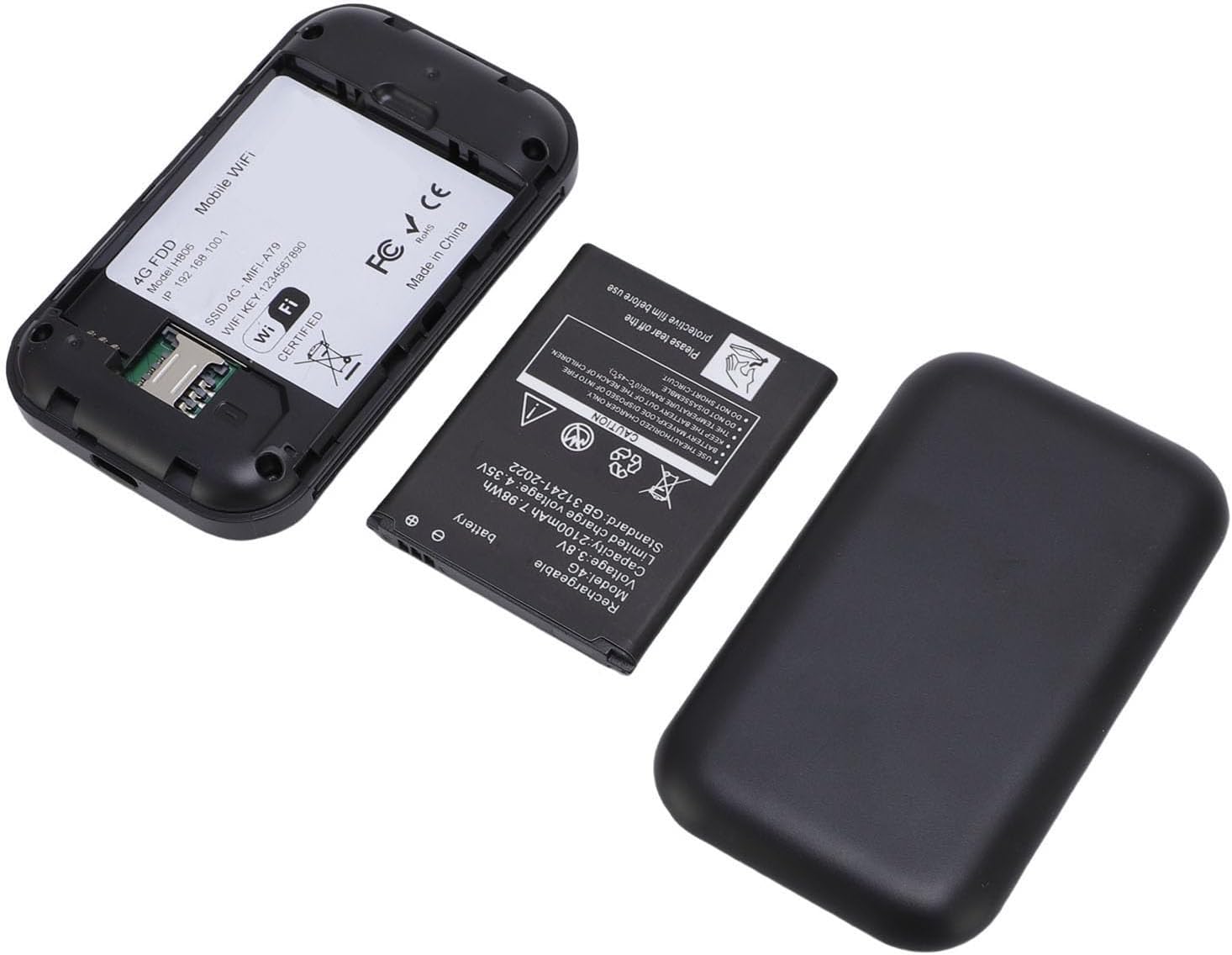
Àwòrán 3: Àwòrán inú view of the hotspot, showing the battery removed and the SIM card slot for easy insertion.
5.2 Agbara Lori ati Asopọ Ibẹrẹ
- Press and hold the power button on the device until the screen illuminates.
- The device will begin registering with the network. This may take a few moments.
- Once registered, the screen will display network status, remaining data, and Wi-Fi details.
- On your smartphone, tablet, or laptop, search for available Wi-Fi networks.
- Select the network name (SSID) displayed on your hotspot's screen.
- Enter the Wi-Fi password (Key) shown on the hotspot's screen to connect.
Video 1: A short demonstration of unboxing the mobile hotspot and inserting the SIM card, followed by powering on the device.
6. Awọn ilana Iṣiṣẹ
6.1 Sísopọ̀ Àwọn Ẹ̀rọ Púpọ̀
The hotspot supports simultaneous connections for up to 10 devices. Follow the initial connection steps (Section 5.2) for each device you wish to connect.
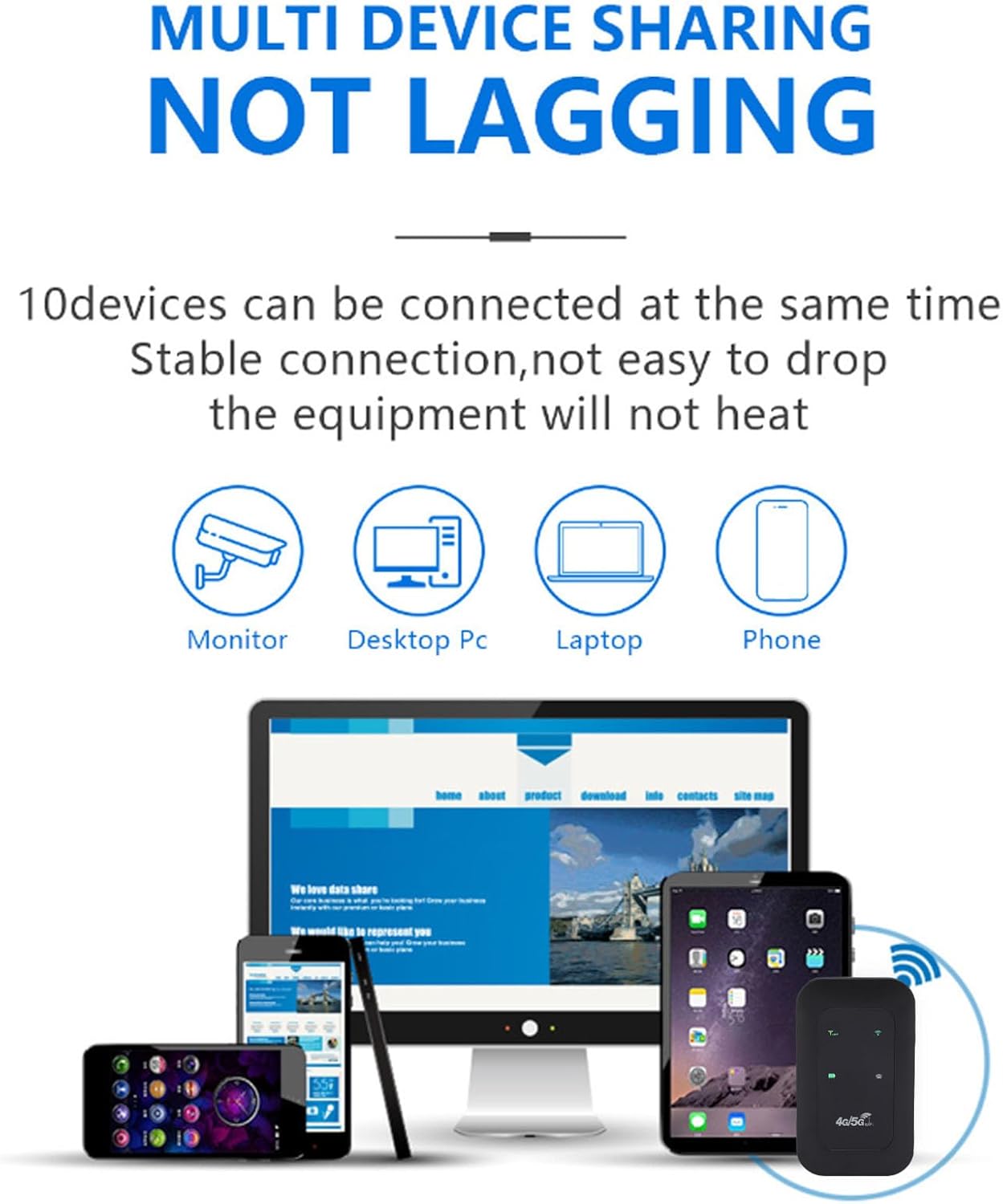
Figure 4: The hotspot providing stable internet to various devices including a monitor, desktop PC, laptop, and smartphone.
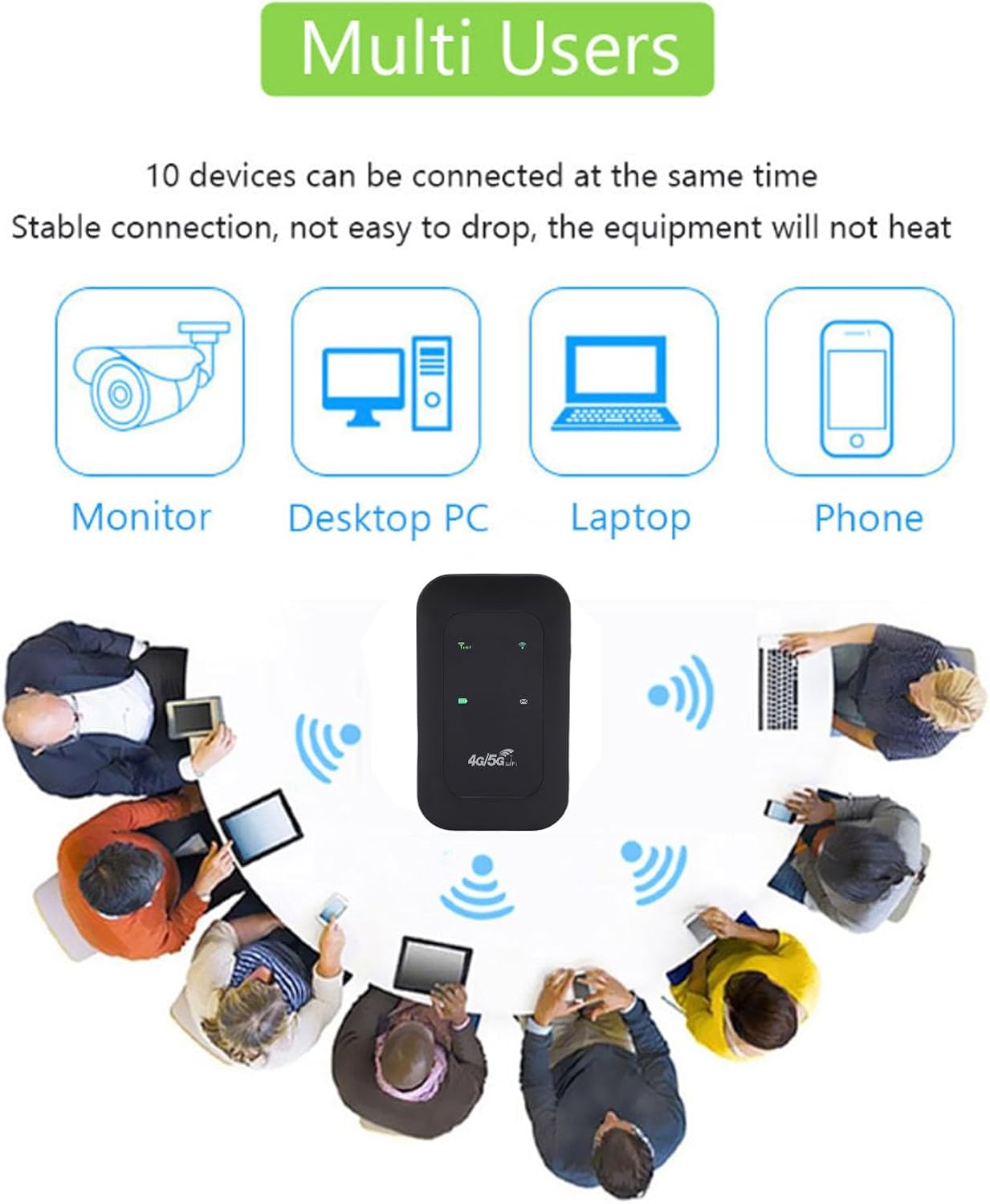
Figure 5: The mobile hotspot facilitating internet access for several individuals and their devices, emphasizing its multi-user capability.
6.2 Understanding Indicators
The device's display provides real-time information about its status:
- Agbara ifihan agbara: Bars indicate the strength of the 4G/5G cellular signal.
- Ipo Wi-Fi: An icon indicates if Wi-Fi is active and broadcasting.
- Ipele Batiri: An icon shows the current battery charge.
- Lilo data: Displays remaining and total data usage (if applicable to your SIM plan).

Figure 6: The hotspot's ability to provide smooth network speed and accurate reception of high-frequency signals within a home environment.
7. Itọju
7.1 batiri Itọju
- Gba agbara si ẹrọ ni kikun ṣaaju lilo akọkọ.
- Má ṣe jẹ́ kí batiri náà máa gbẹ pátápátá nígbà gbogbo kí ó lè pẹ́ sí i.
- If storing the device for an extended period, charge it to about 50% and store in a cool, dry place.
7.2 Ninu ati Ibi ipamọ
- Mu ẹrọ naa nu pẹlu asọ ti o gbẹ. Maṣe lo awọn olutọpa olomi.
- Store the hotspot in a protective pouch or case when traveling to prevent scratches or damage.
8. Laasigbotitusita
8.1 Ko si Asopọ Ayelujara
- Ensure the SIM card is correctly inserted and activated with a data plan.
- Check the signal strength indicator on the hotspot. If signal is weak, move to an area with better reception.
- Restart the hotspot device and your connected device.
- Verify that your data plan has not been exhausted.
8.2 Iyara Asopọmọra Lọra
- Din awọn nọmba ti sopọ awọn ẹrọ.
- Ensure you are in an area with good 4G/5G coverage.
- Check for any background applications consuming bandwidth on connected devices.
8.3 Ẹrọ Ko Nṣiṣẹ Tan-an
- Rii daju pe batiri ti gba agbara. So ẹrọ pọ mọ orisun agbara nipa lilo okun USB-C.
- Gbiyanju lilo okun USB-C ti o yatọ ati ohun ti nmu badọgba agbara.
Video 2: An instructional video demonstrating how to set up tethering, which can be a useful alternative connection method or troubleshooting step.
9. Awọn pato
| Ẹya ara ẹrọ | Ẹ̀kúnrẹ́rẹ́ |
|---|---|
| Nkan Iru | Gbona Hotspot |
| Ohun elo | ABS + electronic components |
| Awọn ẹgbẹ nẹtiwọki | LTE: B1/B3/B5/B40, WCDMA: B1 |
| Wi-Fi Atilẹyin | 802.11 b/g/n Wireless Network |
| Igbohunsafẹfẹ gbigbe | Titi di 300Mbps |
| Iho kaadi SIM | 1 (ko si) |
| Batiri Iru | Built-in 3200mAh Lithium-ion Battery |
| Ilana Asopọmọra | 4G LTE, 5G |
| Awọn ẹrọ ibaramu | Kọǹpútà alágbèéká, Foonuiyara |
| Aabo Ilana | WPA2-PSK |
| Nọmba awoṣe | Tangxiwbt2r4vmkc |
10. atilẹyin ọja Information
This product comes with a manufacturer warranty for 90 days from the date of purchase. Please retain your proof of purchase for any warranty claims.
11. Atilẹyin
For further assistance, product information, or to explore other Tangxi products, please visit the official Tangxi store:
Visit the Tangxi Store on Amazon
Manufacturer: Tangxi