
Ọrọ Iṣaaju
This user manual provides detailed instructions for setting up, operating, and maintaining your FIFINE AmpliGame H13BP Wired USB Gaming Headset. Please read this manual thoroughly before using the product to ensure optimal performance and longevity.
Ohun ti o wa ninu Apoti
- FIFINE AmpliGame H13BP Gaming Headset
- Gbohungbohun yiyọ kuro
- Itọsọna olumulo

Image: The FIFINE AmpliGame H13BP headset, its detachable microphone, and the user manual as packaged.
Ọja Pariview
FIFINE AmpliGame H13BP headset features a robust design with comfortable earcups and an adjustable headband for extended gaming sessions. It includes a versatile USB control box for easy audio management.
Awọn eroja pataki:
- Agbekọri: Equipped with 50mm dynamic drivers for clear audio across all frequencies.
- Gbohungbohun ti o le yọ kuro: Features noise-canceling technology for clear communication.
- USB Control Box: In-line controls for volume, mic mute, 7.1 surround sound, EQ modes, and game/chat balance.
- Imọlẹ RGB: Customizable RGB effects on the earcups.
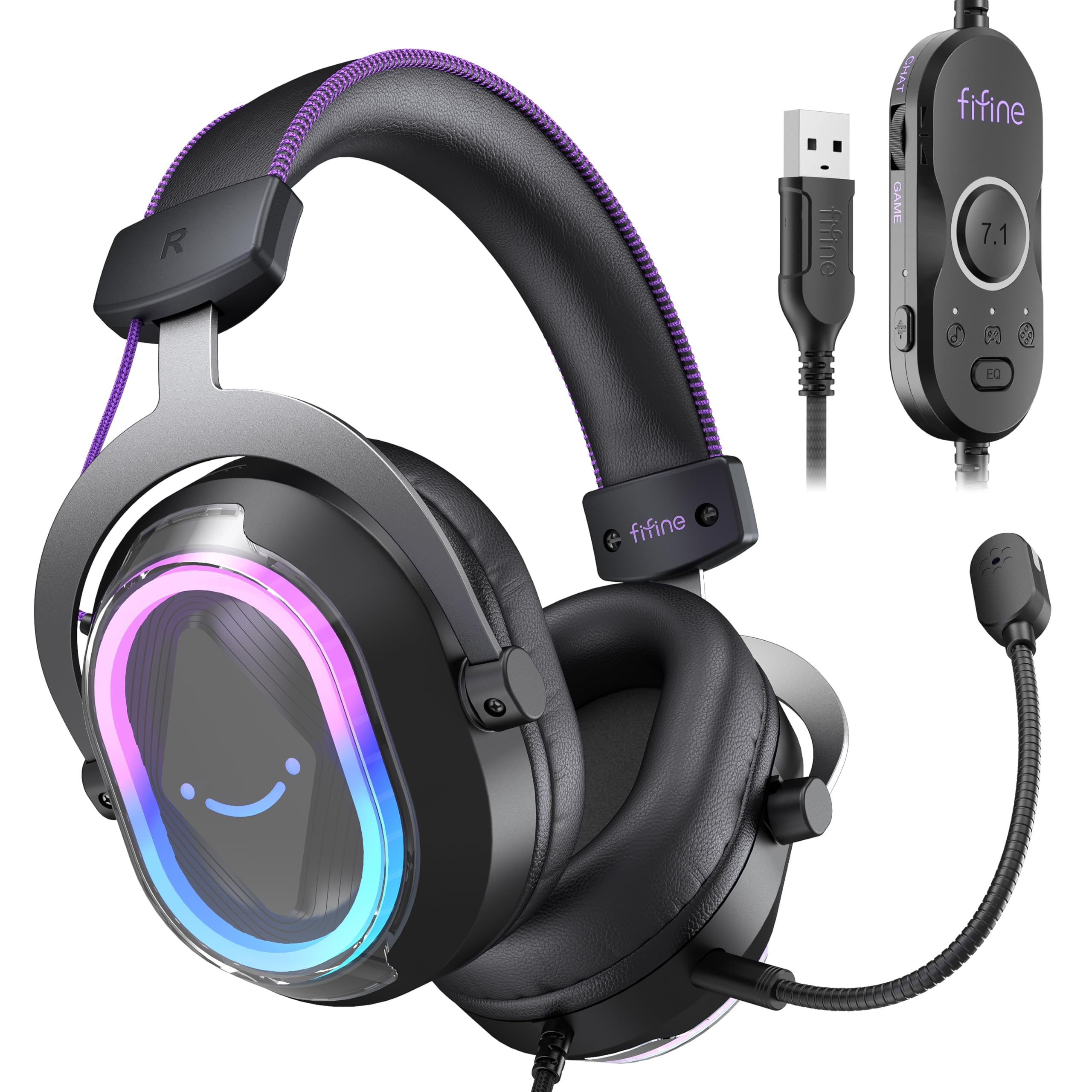
Aworan: A alaye view of the FIFINE AmpliGame H13BP Gaming Headset.

Image: Close-up diagram of the USB Control Box with labeled functions.
Ṣeto
- So Agbekọri pọ: Plug the USB-A connector of the headset into an available USB port on your PC, Mac, PS5, or PS4. No additional software is required for basic functionality.
- So Gbohungbohun naa: Insert the detachable microphone into the designated port on the left earcup until it clicks into place.
- Ṣatunṣe ibamu: Adjust the headband and earcup positions for a comfortable and secure fit. The protein skin ear pads and memory foam cushions are designed for long-term comfort.

Image: Headset connected to various compatible devices.
Awọn ilana Iṣiṣẹ
USB Control Box Functions:
- Headset Volume Control: Use the volume wheel on the side of the control box to adjust the overall headset volume.
- Pa gbohungbohun: Press the mic mute button on the control box to toggle the microphone on/off. The mic indicator light on the microphone will glow red when muted.
- Iwontunwonsi Ere/Iwiregbe: Use the dedicated slider on the control box to prioritize game audio or chat audio. Slide towards 'CHAT' to increase chat volume relative to game volume, or towards 'GAME' to increase game volume.
- 7.1 Ohun ayika: Press the 7.1 button on the control box to activate or deactivate 7.1 virtual surround sound.
- Awọn ọna EQ: Press the EQ button to cycle through four pre-set equalizer modes: Default (Balanced Audio), Music (Clear Vocal), Game (Powerful Bass), and Movie (Dynamic Enhancement). Long press the EQ button to return to default mode.

Image: Demonstrating the game/chat balancing feature.

Aworan: Pariview of the different EQ modes available.
Iṣakoso Imọlẹ RGB:
- Yi awọn ipo RGB pada: Press the dedicated button on the earcup to cycle through 11 different RGB lighting modes.
- Turn RGB On/Off: Long press the RGB button to turn the lighting on or off.

Image: Headset displaying various RGB lighting effects.
Gbohungbohun Awọn ẹya ara ẹrọ
The detachable microphone is designed for clear voice pickup and features noise-canceling capabilities to reduce background distractions, ensuring your teammates hear you clearly.

Image: The microphone with its noise-canceling indicator.
Itunu ati Agbara
The H13BP headset is built for comfort during long gaming sessions. It features protein skin ear pads and soft memory foam cushions that conform to your ears. The adjustable headband ensures a snug fit for various head sizes. The durable construction includes metal and plastic components, and the braided cable enhances longevity.

Image: Close-up of the headset's comfortable earcups and adjustable headband.
Awọn pato
| Ẹya ara ẹrọ | Ẹ̀kúnrẹ́rẹ́ |
|---|---|
| Brand | FIFINE |
| Nọmba awoṣe | H13BP |
| Asopọmọra Technology | Ti firanṣẹ (USB-A) |
| Gbigbe Eti | Lori Eti |
| Audio Driver Iwon | 50 millimeters |
| Audio Driver Type | Yiyi Awakọ |
| Iwọn Igbohunsafẹfẹ | 20Hz - 20,000Hz |
| Ipalara | 32 ohms |
| Ariwo Iṣakoso | Fifagile Ariwo |
| Afikun Awọn ẹya ara ẹrọ | 7.1 Surround Sound, Noise Canceling Mic, RGB Lighting |
| Awọn ẹrọ ibaramu | PC, Mac, PS5/PS4 (Not compatible with Xbox) |
| USB Awọn ẹya ara ẹrọ | Braided material cable (7.55ft) |
| Iṣakoso Iru | Volume Control, Mic Mute, EQ Modes, 7.1 On/Off, Game/Chat Balance |
| Ohun elo | Leather, Metal, Plastic |
Laasigbotitusita
Ko si ohun/gbohungbohun Ko Ṣiṣẹ:
- Ṣayẹwo Awọn isopọ: Rí i dájú pé a ti fi asopọ USB-A sinu ibudo naa patapata.
- Jẹrisi Ipo Didi: Check the mic mute button on the control box and the mic indicator light. Ensure the headset volume is not at minimum.
- Eto Eto: Confirm that the FIFINE H13BP headset is selected as the default audio input and output device in your computer's or console's sound settings.
- Ibamu: Remember that the headset is not compatible with Xbox consoles.
Awọn imọlẹ RGB Ko Ṣiṣẹ:
- Ṣayẹwo Asopọmọra: Ensure the headset is properly connected via USB.
- Toggle RGB: Long press the RGB button on the earcup to ensure the lighting is not simply turned off.
Atilẹyin ọja ati Support
For warranty information and detailed support, please refer to the official FIFINE website or contact their customer service. FIFINE offers product specialists assistance and free technical support for their products.
You can visit the FIFINE Store for more information: FIFINE Store on Amazon
Awọn fidio ọja osise
FIFINE H13 USB Gaming Headset Review
Fídíò: Àtúnyẹ̀wò pípé kanview of the FIFINE H13 USB Gaming Headset, demonstrating its features and performance.
Testing This Colorful Headset Immersive High-Quality Sound!
Video: A demonstration of the headset's immersive sound quality and vibrant RGB lighting.