
1. Ifihan
Welcome to the user manual for your new XIAOMI Redmi 15C smartphone. This guide provides essential information to help you get started, operate, maintain, and troubleshoot your device. Please read this manual carefully to ensure optimal performance and longevity of your smartphone.
Awọn ẹya pataki:
- Massive 6000mAh (typ) battery with 33W fast charging support.
- Immersive 6.9-inch display with up to 120Hz refresh rate.
- Powerful octa-core processor for smooth performance.
- 50MP AI dual camera system for high-quality photos.
- Sleek and refined design.
2. Eto Itọsọna
2.1 Kini ni Apoti
Upon unboxing your Redmi 15C, verify that the following items are included:
- Foonuiyara Xiaomi Redmi 15C
- Okun USB
- Ohun elo SIM Ejector (le yatọ nipasẹ agbegbe)
- Itọsọna Ibẹrẹ kiakia (iwe yii)
Note: A charger is not included with this device and must be purchased separately. For optimal charging, use a 33W compatible charger.
2.2 Fi kaadi SIM sii
- Wa atẹ kaadi SIM ni ẹgbẹ ẹrọ rẹ.
- Fi ohun elo SIM ejector sii sinu iho kekere ti o tẹle atẹ ki o tẹ ṣinṣin titi ti atẹ naa yoo jade.
- Gbe awọn kaadi Nano-SIM rẹ ati/tabi kaadi microSD sinu atẹ pẹlu awọn olubasọrọ goolu ti nkọju si isalẹ. Rii daju pe wọn wa ni deede.
- Fara Titari awọn atẹ pada sinu Iho titi ti o ti wa ni fọ danu pẹlu awọn ẹrọ.
2.3 Agbara akọkọ Lori ati Eto
- Tẹ bọtini agbara ki o si mu titi aami XIAOMI yoo fi han.
- Tẹ̀lé àwọn ìlànà tó wà lójú ìbòjú láti yan èdè rẹ, agbègbè rẹ, sopọ̀ mọ́ Wi-Fi, kí o sì ṣètò àkọọ́lẹ̀ Google rẹ.
- You will be guided through setting up security features like a PIN, pattern, fingerprint, or face unlock.
2.4 Ngba agbara si Ẹrọ
Ṣaaju lilo akọkọ, o niyanju lati gba agbara si ẹrọ rẹ ni kikun.
- So okun USB pọ mọ ibudo gbigba agbara lori foonu rẹ.
- Connect the other end of the USB cable to a compatible 33W power adapter (sold separately) and plug it into a power outlet.
- Atọka gbigba agbara yoo han loju iboju.
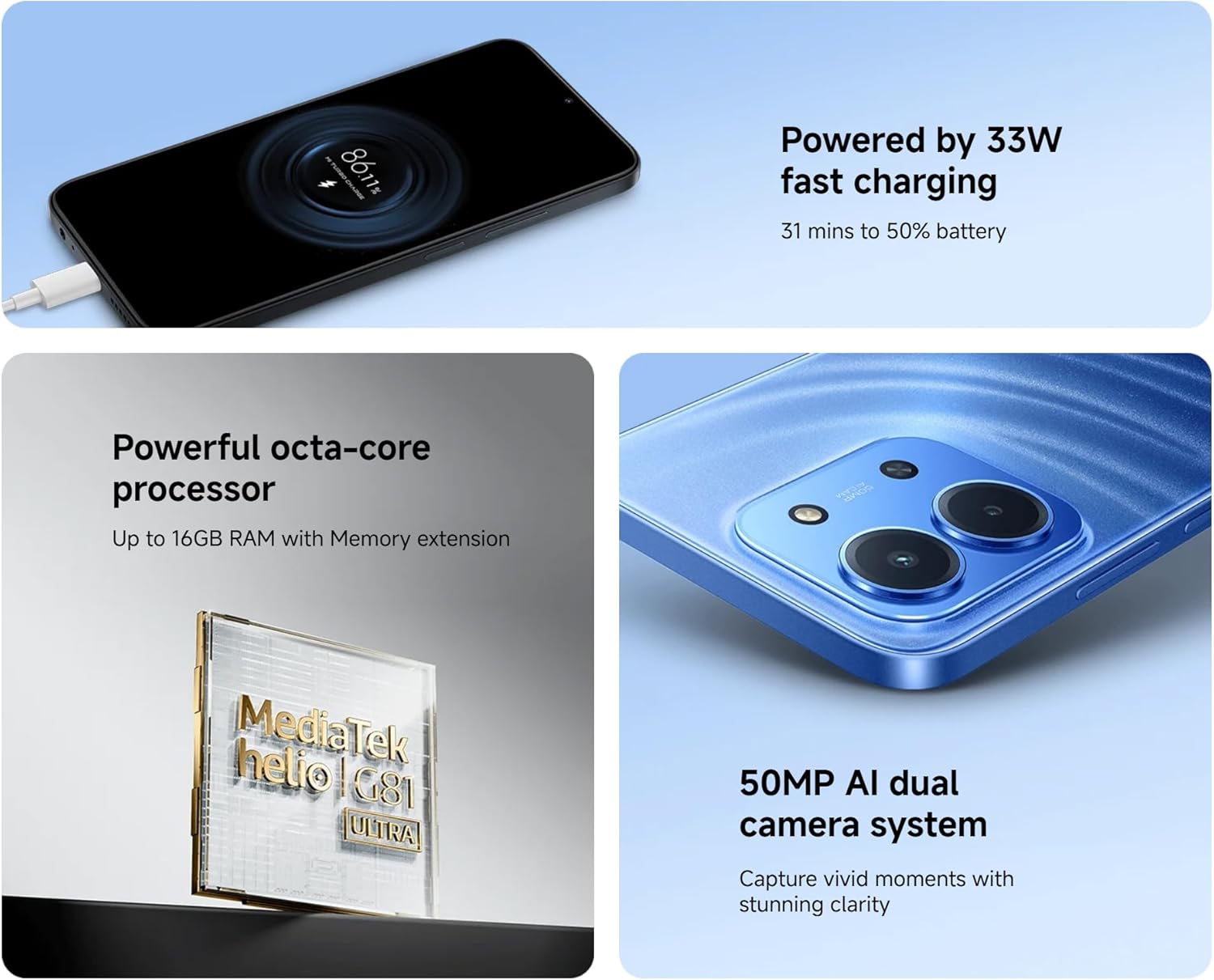
Image: The Redmi 15C connected to a charger, displaying a charging animation indicating 33W fast charging capability.
3. Ṣiṣẹ ẹrọ rẹ
3.1 Ipilẹ Lilọ kiri
- Awọn afarajuwe iboju ifọwọkan: Swipe, tap, pinch-to-zoom are standard.
- Bọtini agbara: Tẹ lati ji/sun iboju naa. Tẹ ki o si dimu mọ lati pa tabi tun bẹrẹ iṣẹ.
- Awọn bọtini iwọn didun: Ṣàtúnṣe iwọn didun media, iwọn didun ipe, tabi iwọn didun ohun orin.
3.2 Ṣiṣe Awọn ipe ati Fifiranṣẹ Awọn ifiranṣẹ
- Open the 'Phone' app to dial numbers or select contacts.
- Open the 'Messages' app to compose and send SMS/MMS messages.
3.3 kamẹra Lilo
Your Redmi 15C features a 50MP AI dual camera system.
- Ṣí àpù 'Kamẹ́rà' náà.
- Select your desired mode (Photo, Portrait, Video, etc.).
- Tẹ bọtini tiipa lati ya awọn aworan tabi bẹrẹ/da gbigbasilẹ fidio duro.

Aworan: A sunmọ-soke view of the XIAOMI Redmi 15C's dual camera module, highlighting its 50MP AI capabilities.
3.4 Ifihan Awọn ẹya ara ẹrọ
The 6.9-inch immersive display offers a smooth visual experience with up to a 120Hz refresh rate.
- Adjust display settings (brightness, color scheme, refresh rate) in 'Settings > Display'.
- AdaptiveSync technology automatically adjusts the refresh rate for optimal viewing and battery efficiency.

Image: The XIAOMI Redmi 15C's large 6.9-inch display, showcasing its immersive viewiriri iriri.
3.5 batiri Management
Batiri 6000mAh pese lilo ti o gbooro sii. Lati mu igbesi aye batiri dara si:
- Use 'Battery Saver' mode when needed.
- Din imọlẹ iboju dinku ati akoko ipari iboju.
- Pa awọn ohun elo ti ko lo ti nṣiṣẹ ni abẹlẹ.
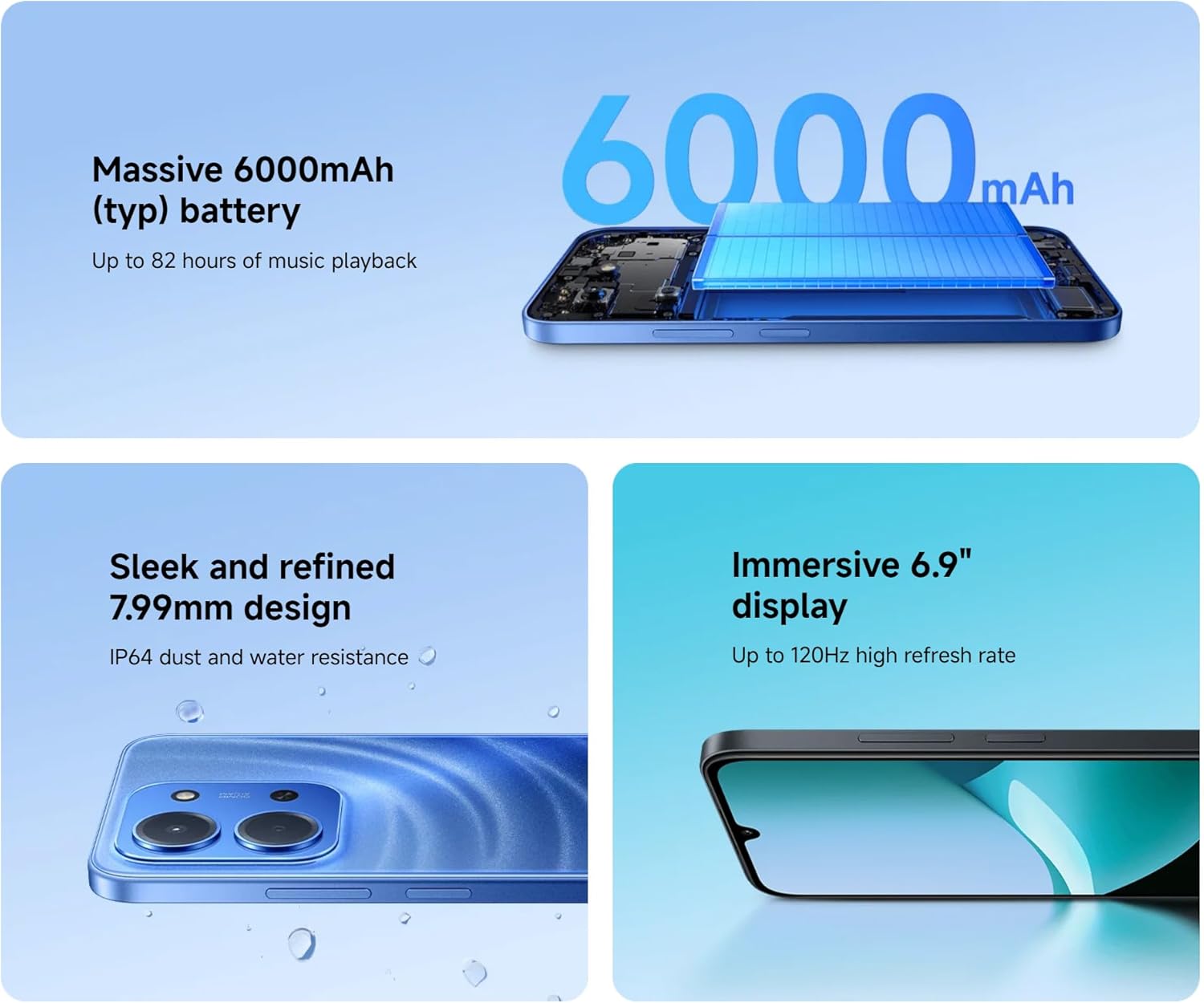
Image: An illustration of the XIAOMI Redmi 15C's internal structure, highlighting its massive 6000mAh battery.
3.6 Processor Performance
The powerful octa-core processor ensures smooth multitasking and efficient app performance.

Image: A visual representation of the MediaTek Helio G81-Ultra octa-core processor, emphasizing its power and efficiency.
3.7 Google Gemini Integration
The Redmi 15C integrates with Google Gemini, your AI assistant from Google, to enhance productivity and creativity. Use Gemini for writing, brainstorming, learning, and more.
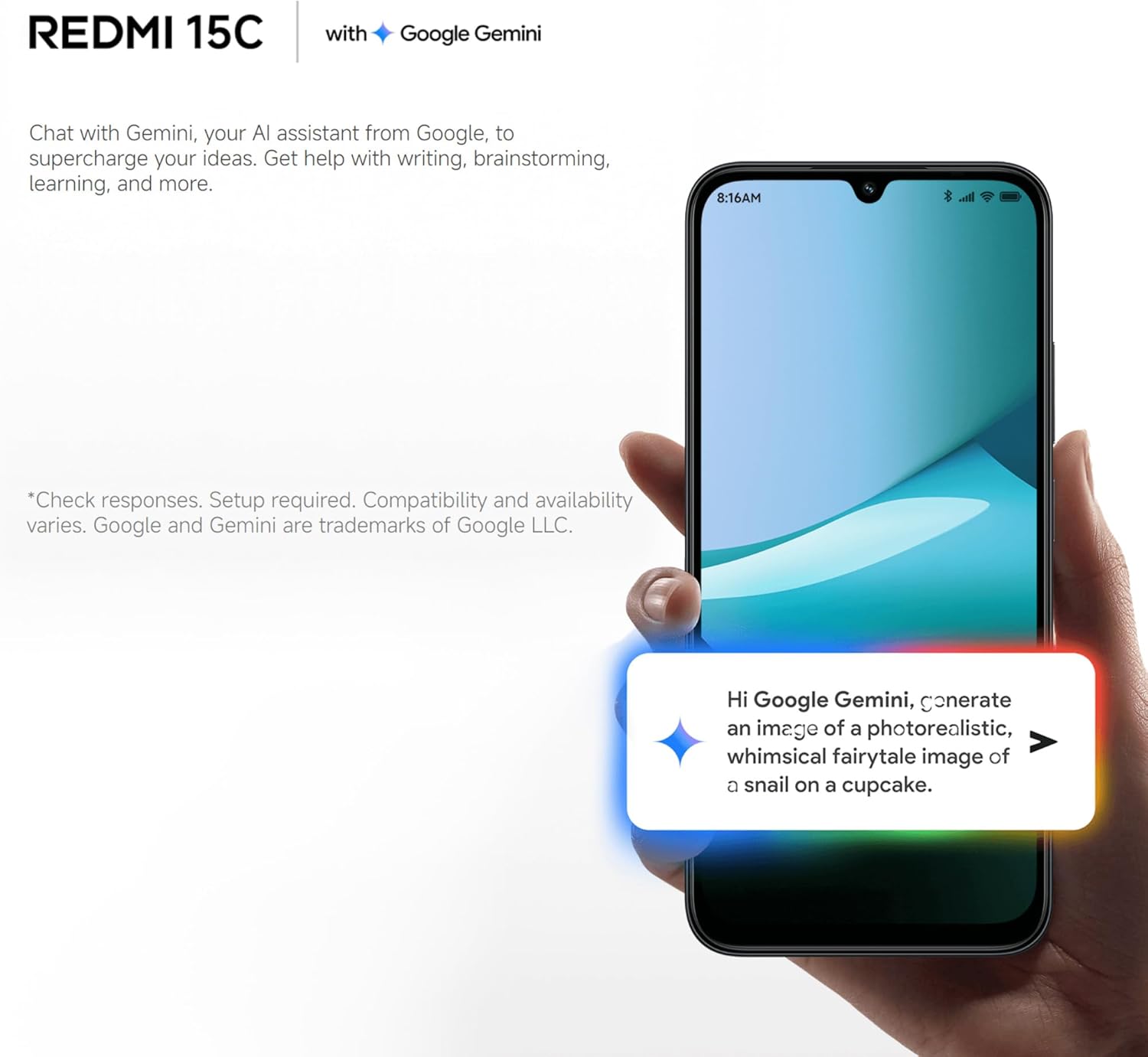
Image: A Redmi 15C displaying a chat interface with Google Gemini, demonstrating its AI capabilities.
4. Itọju
4.1 Ninu ẹrọ rẹ
- Lo asọ, asọ ti ko ni lint lati nu iboju ati ara.
- Yẹra fun lilo awọn kẹmika ti o lewu, awọn afọmọ abrasive, tabi afẹfẹ fisinuirindigbindigbin.
- Jeki awọn ebute oko oju omi laisi eruku ati idoti.
4.2 Software imudojuiwọn
Regularly check for and install system updates to ensure your device has the latest features, security patches, and performance improvements. Go to 'Settings > About phone > MIUI version' to check for updates.
4.3 batiri Itọju
- Yago fun awọn iwọn otutu to gaju, nitori wọn le ba igbesi aye batiri jẹ.
- Ma ṣe fi gbigba agbara foonu silẹ fun igba pipẹ lẹhin ti o ti gba agbara ni kikun.
- Use only original or certified compatible chargers and cables.
4.4 Ibi Management
To maintain optimal performance, regularly manage your device's storage:
- Paarẹ ti ko wulo files, awọn fọto, ati awọn fidio.
- Yọ awọn ohun elo ti a ko lo kuro.
- Ko data kaṣe kuro fun awọn ohun elo.
5. Laasigbotitusita
This section addresses common issues you might encounter with your Redmi 15C.
| Oro | Owun to le Solusan |
|---|---|
| Ẹrọ ko tan | Ensure the battery is charged. Connect to a charger for at least 30 minutes. If it still doesn't turn on, try a forced restart by holding the Power button for 10-15 seconds. |
| Slow performance / Apps freezing | Close background apps. Clear app caches. Restart the device. Check for system updates. If issues persist, consider a factory reset (back up data first). |
| Batiri sisan ni kiakia | Reduce screen brightness. Disable unused features like GPS, Bluetooth, Wi-Fi when not needed. Check battery usage in settings to identify power-hungry apps. |
| Cannot connect to Wi-Fi / Mobile Data | Toggle Wi-Fi/Mobile Data off and on. Restart the device. Forget the Wi-Fi network and reconnect. Ensure SIM card is properly inserted and activated. |
| Kamẹra ko ṣiṣẹ | Restart the device. Clear the Camera app's cache and data in 'Settings > Apps'. Ensure no other app is using the camera. |
5.1 Factory Tunto (Kẹhin ohun asegbeyin ti)
If you experience persistent software issues, a factory reset can resolve them. Warning: This will erase all data on your device. Back up all important information before proceeding.
- Go to 'Settings > About phone > Factory reset'.
- Tẹle awọn ilana loju iboju lati jẹrisi atunto.
6. Awọn pato
Below are the detailed technical specifications for the XIAOMI Redmi 15C:
| Ẹya ara ẹrọ | Sipesifikesonu |
|---|---|
| Orukọ awoṣe | Redmi 15C |
| Eto isesise | Hyper OS 2 |
| isise | MediaTek Helio Octa-core (20 GHz CPU speed) |
| Àgbo | 4 GB |
| Agbara ipamọ | 256 GB |
| Iwọn Ifihan | 6.9 inches |
| Ipinnu Ifihan | 720 x 1560 |
| Oṣuwọn sọtun | 120 Hz |
| Agbara Batiri | 6000 mAh |
| Gbigba agbara | 33W Fast Charging compatible |
| Kamẹra ẹhin | Kamẹra Meji AI 50 MP |
| Asopọmọra | 4G LTE, Wi-Fi, Bluetooth, GPS |
| Awọn iwọn | 0.82 x 8.1 x 17.3 cm |
| Iwọn | 200 g |
| Pataki Awọn ẹya ara ẹrọ | Dual SIM, International Functionality, Wi-Fi Hotspot, Integrated GPS |
7. Atilẹyin ọja ati Support
For detailed warranty information, please refer to the warranty card included with your product or visit the official XIAOMI website. XIAOMI provides customer support for product inquiries, technical assistance, and service requests.
You can find support resources, FAQs, and contact information on the official XIAOMI support page. Please have your device's model number and purchase details ready when contacting support.
No official product videos were found in the provided data.