
1. Ifihan
Thank you for choosing the GEEKOM A5 Mini PC. This compact yet powerful desktop computer is designed for a wide range of tasks, from daily office work and multimedia consumption to professional workloads like photo editing and coding. It features an AMD Ryzen 7 5825U processor, 16GB of RAM (upgradable to 64GB), a 1TB NVMe SSD, and comes pre-installed with Windows 11 Pro. This manual provides essential information for setting up, operating, and maintaining your GEEKOM A5 Mini PC.
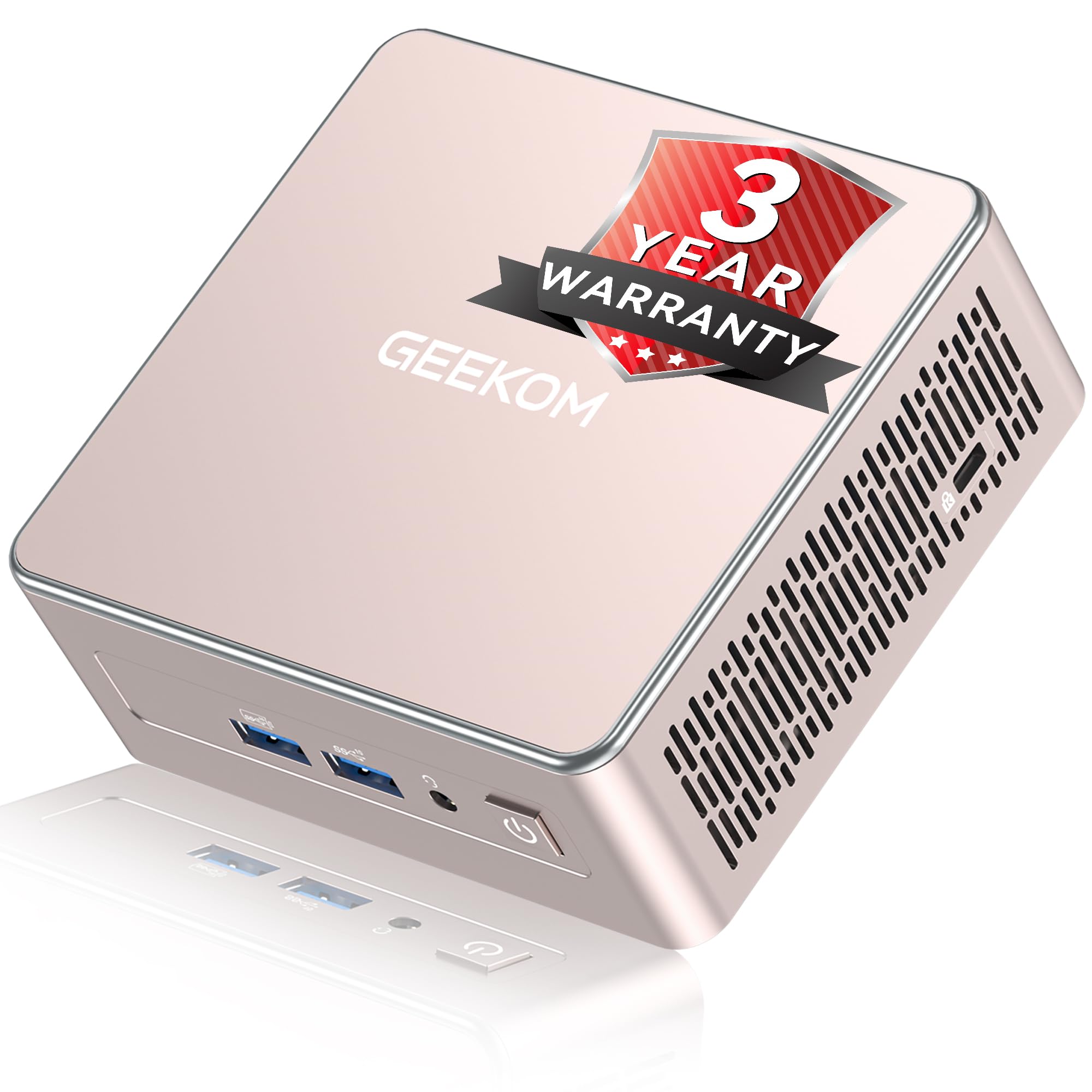
Image: The GEEKOM A5 Mini PC, showcasing its compact design and rose gold finish.
2. Ohun ti o wa ninu Apoti
- 1 x GEEKOM A5 Mini PC
- 1 x HDMI Okun
- 1 x VESA Mount
- 1 x Agbara Adapter
- 1 x Itọsọna olumulo
3. Ọja Ipariview (Ports and Features)
The GEEKOM A5 Mini PC offers a comprehensive set of ports for versatile connectivity.
Aworan: Alaye view of the GEEKOM A5 Mini PC's front and rear ports.
Awọn ibudo iwaju:
- 2 x USB 3.2 Gen 2 Type-A ports
- 1 x 3.5mm agbekọri Jack
- Bọtini agbara
Awọn ibudo ẹhin:
- 2 x USB 3.2 Gen 2 Type-C ports (8K output capable)
- 2 x HDMI 2.0 ports (4K@60Hz output capable)
- 1 x 2.5G RJ45 LAN Port
- 1 x DC Jack (Power Input)
- 1 x Kensington Titiipa Iho
- SD Card Reader (Side)
4. Eto Itọsọna
Follow these steps to set up your GEEKOM A5 Mini PC:
- Awọn Agbeegbe Sopọ: Connect your monitor(s) to the HDMI or USB-C ports. Connect your keyboard and mouse to the available USB-A ports.
- Isopọ nẹtiwọki: For wired internet, connect an Ethernet cable to the RJ45 LAN port. For wireless internet, ensure your Wi-Fi network is available during initial setup.
- Agbara Tan: Connect the power adapter to the DC Jack and plug it into a power outlet. Press the power button on the front of the Mini PC.
- Iṣeto akọkọ: Follow the on-screen instructions to complete the Windows 11 Pro setup. This includes selecting your language, region, and setting up your user account.
- Fifi sori ẹrọ VESA Mount (Aṣayan): Use the included VESA mount to attach your Mini PC to the back of a compatible monitor or to a wall for a clutter-free workspace.
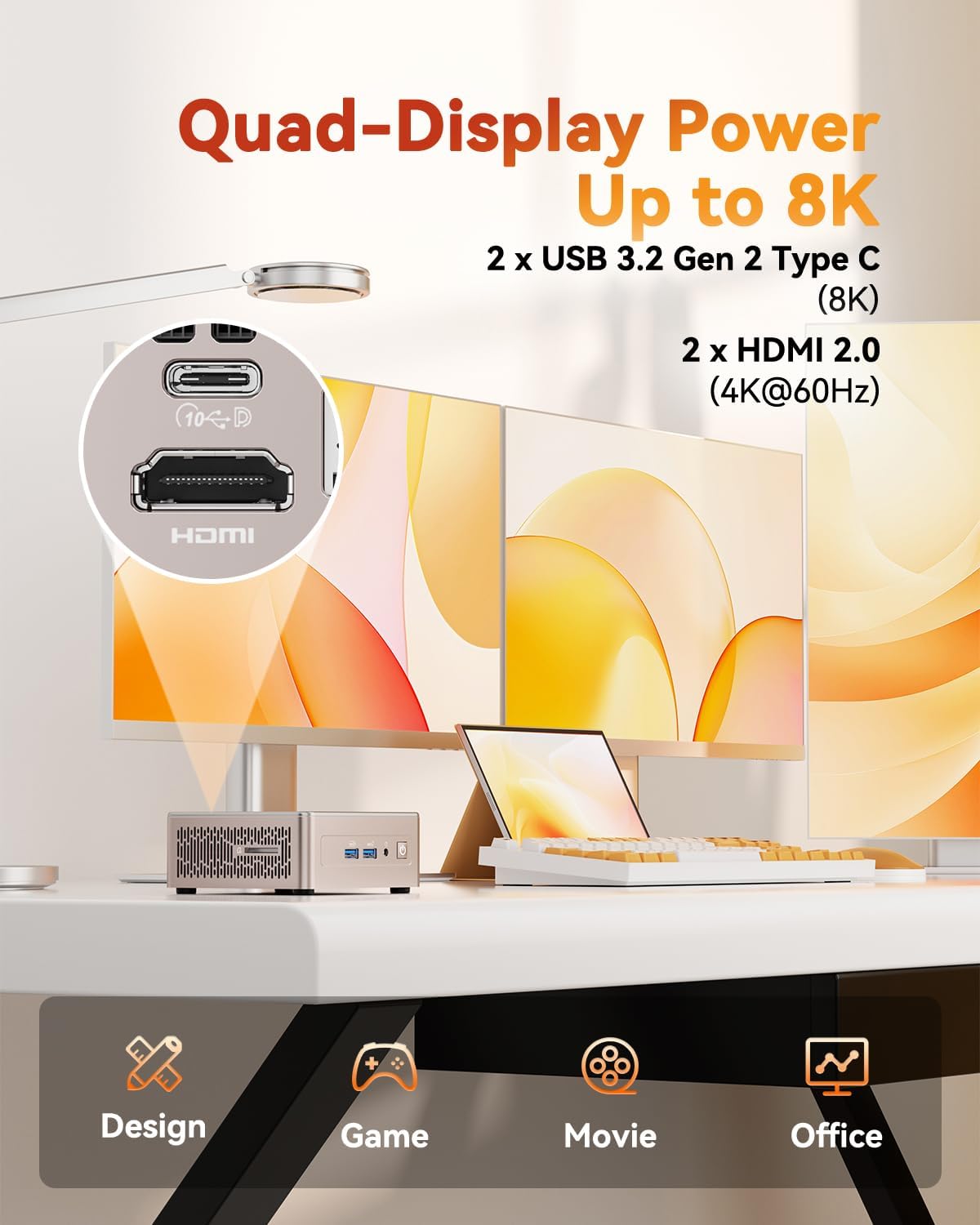
Image: The GEEKOM A5 Mini PC shown with its VESA mount for discreet installation behind a monitor.
5. Awọn ilana Iṣiṣẹ
Ètò Ìfihàn Púpọ̀:
The GEEKOM A5 supports up to four displays simultaneously, with two HDMI 2.0 ports (4K@60Hz) and two USB-C ports (8K output). Connect your monitors to the available ports and configure display settings in Windows 11 Pro (Right-click desktop > Display settings).
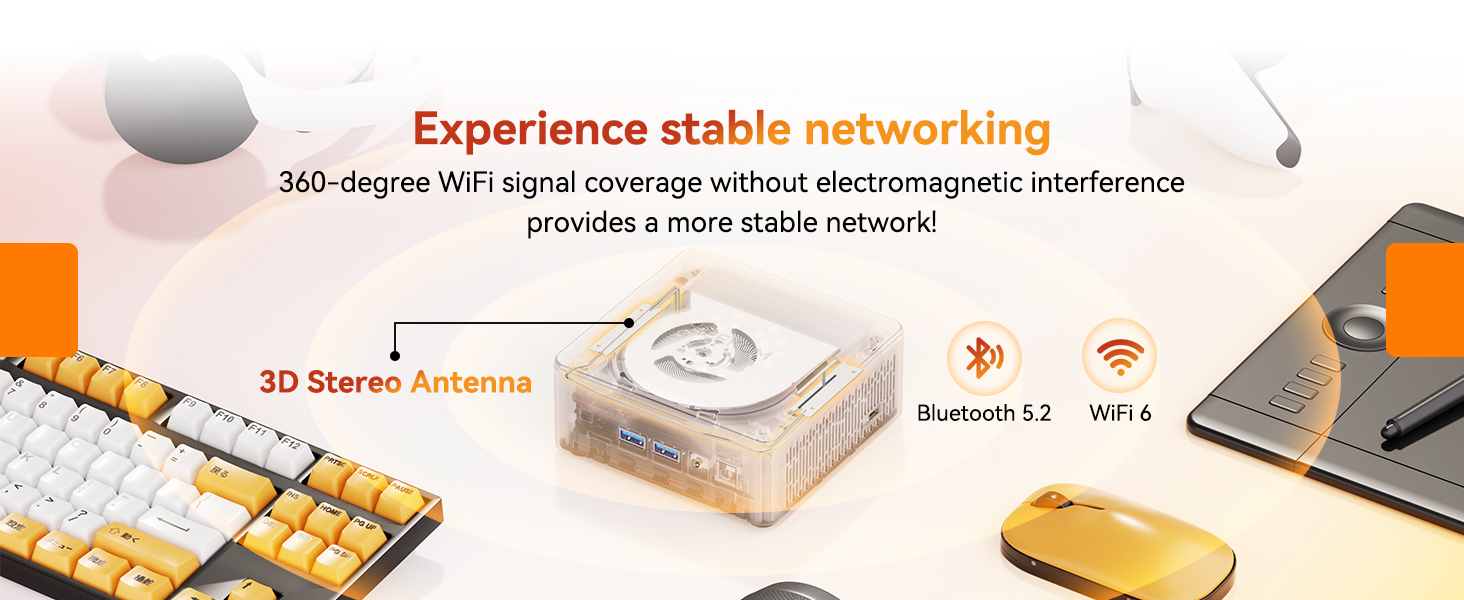
Image: A multi-monitor setup powered by the GEEKOM A5, demonstrating its quad-display capability.
Asopọmọra nẹtiwọki:
- Wi-Fi 6: Enjoy ultra-stable and fast wireless connections for streaming, video calls, and large file awọn gbigbe.
- Bluetooth 5.2: Easily pair wireless headphones, keyboards, mice, and other Bluetooth-enabled devices with low latency.
- 2.5G Ethernet: For the most reliable and fastest wired network connection.

Image: The GEEKOM A5 Mini PC emphasizing its advanced Wi-Fi 6 and Bluetooth 5.2 capabilities for stable networking.
Eto isesise:
The GEEKOM A5 comes pre-installed with Windows 11 Pro, offering a secure and versatile computing experience. It also supports other operating systems like Linux and Ubuntu, providing flexibility for advanced users.

Image: The GEEKOM A5 Mini PC displaying Windows 11 Pro, with icons for Linux and Ubuntu, indicating OS versatility.
6. Storage and Memory Upgrades
The GEEKOM A5 is equipped with 16GB of DDR4 RAM and a 1TB PCIe NVMe SSD, providing excellent performance and storage out of the box. For future expansion, the device supports:
- RAM upgradeable up to 64GB (DDR4 SO-DIMM)
- An additional M.2 2242 SATAIII SSD slot (up to 1TB)
- A 2.5" SATA HDD bay (up to 2TB)
These options allow for significant storage and memory upgrades to meet evolving needs without soldered limits.

Aworan: Ohun exploded view of the GEEKOM A5 Mini PC, highlighting its internal components and upgradeable RAM and SSD slots.
Video: This video explains why the 16GB RAM and 1TB SSD configuration is an optimal value sweet spot, emphasizing its upgrade-ready design.
7. Cooling System (IceBlast 2.0)
The GEEKOM A5 features the self-developed IceBlast 2.0 Cooling System, designed for optimal thermal management. This system includes larger fan blades, dual copper tubes, and an all-copper heat sink to effectively reduce internal temperatures and maintain high performance without throttling.

Image: A visual representation of the IceBlast 2.0 cooling system, detailing its components and airflow for efficient heat dissipation.
Video: This video demonstrates the improved cooling system of GEEKOM Mini PCs, highlighting its efficiency in maintaining performance.
8. Itọju
To ensure the longevity and optimal performance of your GEEKOM A5 Mini PC, consider the following maintenance tips:
- Jeki mimọ: Regularly clean the exterior of the Mini PC with a soft, dry cloth. Ensure ventilation grilles are free from dust and obstructions.
- Awọn imudojuiwọn sọfitiwia: Keep your Windows 11 Pro operating system and drivers updated to ensure security and performance.
- Tiipa ti o tọ: Always shut down your Mini PC properly through the operating system to prevent data corruption.
- Yago fun awọn ipo to gaju: Má ṣe fi Mini PC hàn sí àwọn iwọn otutu tó le koko, ọriniinitutu, tàbí oòrùn tààrà.
9. Laasigbotitusita
If you encounter issues with your GEEKOM A5 Mini PC, refer to the following common troubleshooting steps:
- Ko si Agbara: Rí i dájú pé ohun tí a fi ń so agbára pọ̀ mọ́ Mini PC àti ibi tí ó ń ṣiṣẹ́. Gbìyànjú ibi tí ó yàtọ̀ síra tí ó bá pọndandan.
- Ko si Ifihan: Verify that the HDMI or USB-C cables are securely connected to both the Mini PC and the monitor. Ensure the monitor is powered on and set to the correct input source.
- Awọn ọran Asopọmọra Nẹtiwọọki: For Wi-Fi, check your router and ensure the Wi-Fi adapter is enabled in Windows settings. For wired connections, ensure the Ethernet cable is properly connected and your router is functioning.
- Iṣẹ ṣiṣe ti o lọra: Close unnecessary applications, check for background processes, and ensure your system has sufficient free storage space. Consider upgrading RAM or SSD if performance issues persist.
- A ko rii Agbeegbe: Gbìyànjú láti so ẹ̀rọ ìbánisọ̀rọ̀ pọ̀ mọ́ ibudo USB mìíràn. Rí i dájú pé àwọn awakọ̀ náà wà lórí ẹ̀rọ ìbánisọ̀rọ̀ tí ó bá yẹ.
If problems persist, please contact GEEKOM customer support.
10. Awọn pato
| Brand | GEEKOM |
| Orukọ awoṣe | GEEKOM A5 |
| Eto isesise | Windows 11 Pro |
| Sipiyu Awoṣe | AMD Ryzen 7 5825U (8 cores/16 threads, up to 4.5GHz) |
| Olupilẹṣẹ Graphics | AMD Radeon RX Vega 8 |
| Ramu Memory sori ẹrọ | 16 GB DDR4 (Upgradable to 64GB) |
| Lile Disk Apejuwe | 1 TB NVMe SSD (PCIe x 4) |
| Video o wu Interface | 2x HDMI (4K), 2x USB-C (8K) - Supports 4 displays |
| Alailowaya Asopọmọra | Wi-Fi 6, Bluetooth 5.2 |
| Lan Port | 2.5G RJ45 Ethernet |
| Awọn iwọn Nkan | 8.94 x 6.92 x 5.27 inches |
| Iwọn Nkan | 1.58 kilo |
| Ọna Itutu | Air (GEEKOM's self-developed IceBlast 2.0 Cooling System) |
| Afikun Awọn ẹya ara ẹrọ | SD Card Reader, Kingston Lock, VESA Mount |
11. Atilẹyin ọja ati Support
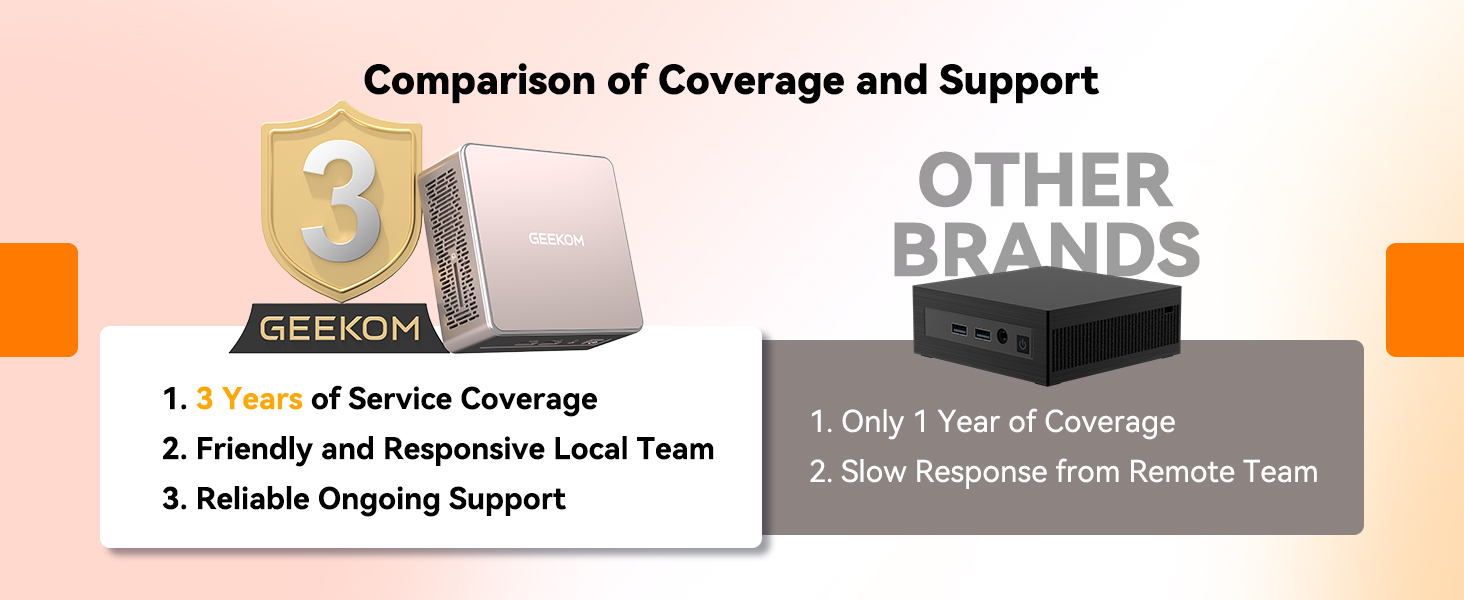
GEEKOM stands by the quality of its products. The GEEKOM A5 Mini PC comes with a 3-odun atilẹyin ọja, reflecting confidence in its materials, build quality, and manufacturing standards.
Video: This video details GEEKOM's rigorous quality validation process, ensuring product reliability and durability.
Atilẹyin Onibara:
For any questions, technical assistance, or warranty claims, please contact the GEEKOM US Store directly. You can typically find seller contact information through your Amazon order history or by visiting the GEEKOM official webojula.
- Atilẹyin Ayelujara: Visit the GEEKOM US Store on Amazon or the official GEEKOM webaaye fun FAQs ati awọn orisun atilẹyin.
- Imeeli Atilẹyin: Contact the After-sales Team via email for assistance.