
Surge SG60094
Surge Wireless Pro Controller User Manual
Awoṣe: SG60094
Ọrọ Iṣaaju
This manual provides instructions for the Surge Wireless Pro Controller, Model SG60094. It covers setup, operation, maintenance, troubleshooting, and specifications. Please read this manual thoroughly before using the controller.
The Surge Wireless Pro Controller is designed for multi-platform compatibility, featuring Hall Effect thumb sticks and triggers for precision control.
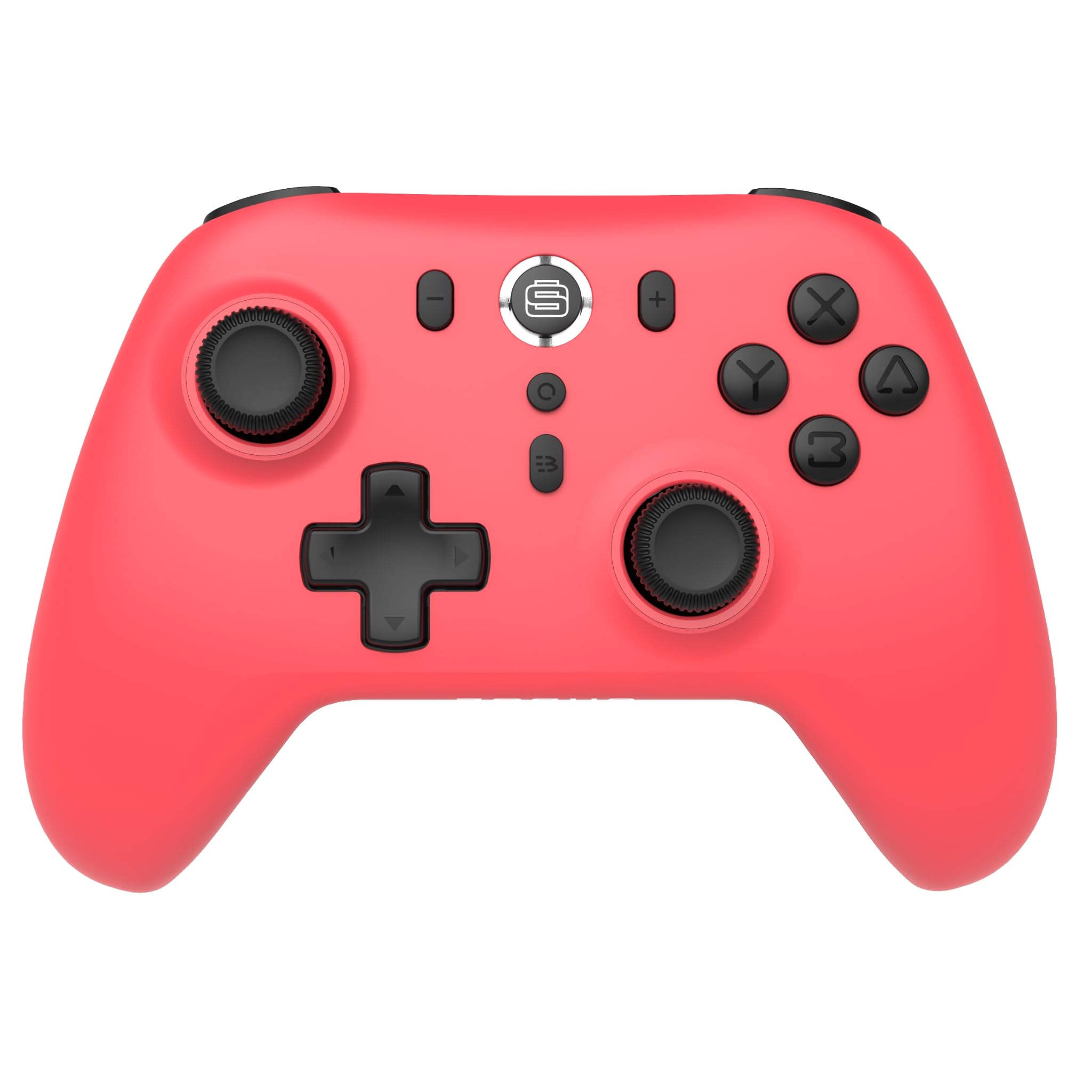
Aworan: Iwaju view of the Surge Wireless Pro Controller in Neon Red.
Key Awọn ẹya ara ẹrọ
- Ibamu Olona Platform: Supports Nintendo Switch/Switch 2 (Note: No C Button/Audio Port on Switch 2), Windows PC, Steam Deck, Android, and iOS devices.
- Hall Effect Thumb Sticks & Triggers: Engineered for precise control and to prevent stick drift.
- Iṣẹ́ Turbo: Offers 3 adjustable turbo levels for rapid-fire actions.
- Idahun gbigbọn: Features 4 customizable vibration levels for enhanced haptic feedback.
- Awọn idari išipopada: Compatible with games that utilize motion sensing.
- Console Wake Up: Ability to wake the Nintendo Switch console from sleep mode (Nintendo Switch only).
- Batiri gbigba agbara: Built-in 600mAh Li-polymer battery provides up to 10 hours of gameplay per charge.
- Ngba agbara USB-C: Includes a 1-meter USB-C charging cable.
Awọn ilana iṣeto
1. Gbigba agbara akọkọ
Before first use, fully charge the controller. Connect the included USB-C cable to the controller's charging port and the other end to a USB power source (e.g., console, PC, USB wall adapter). The charging indicator will show status.

Image: The controller connected to a USB-C charging cable.
2. Pairing with Nintendo Switch
- Lori console Nintendo Switch rẹ, lọ si Akojọ Ile.
- Yan Awọn oludari, lẹhinna Yi Dimu / Bere fun.
- Tẹ mọlẹ Bọtini Isopọpọ on the top of the Surge Wireless Pro Controller until the player indicator lights begin to flash.
- Once paired, the player indicator light(s) will remain solid.
- To wake the console from sleep mode, press the Home button on the controller.
3. Pairing with PC, Android, or iOS
The pairing process may vary slightly depending on your device's operating system. Generally, you will need to enable Bluetooth on your device and search for new devices.
- Ensure Bluetooth is enabled on your PC, Android, or iOS device.
- On the Surge Wireless Pro Controller, press and hold the Bọtini Isopọpọ until the indicator lights flash.
- On your device, select "Surge Pro Controller" from the list of available Bluetooth devices.
- Tẹle eyikeyi awọn ilana loju iboju lati pari sisopọ.
Fidio: Ipariview of the 8Bitdo Ultimate 2 Wireless Controller, demonstrating general wireless controller setup principles.
Awọn ilana Iṣiṣẹ
Ifilelẹ bọtini

Image: Diagram showing the button layout of the Surge Wireless Pro Controller.
- Osi/Ọtun Analog Sticks: For movement and camera control. Features Hall Effect technology for enhanced durability and precision.
- D-Pad: Fun titẹ sii itọsọna.
- Awọn bọtini A/B/X/Y: Awọn bọtini iṣe deede.
- Àwọn bọ́tìnì L/R: Awọn bọtini ejika.
- Àwọn ohun tó ń fa ZL/ZR: Analog triggers with Hall Effect sensors.
- Bọtini Ile: Returns to the console's home menu.
- Bọtini Sikirinifoto: Ya awọn sikirinisoti.
- Plus (+) / Iyokuro (-) Awọn bọtini: Fun lilọ kiri ninu akojọ aṣayan ere.
- Bọtini Turbo: Ó ń mú iṣẹ́ turbo ṣiṣẹ́/ó ń pa iṣẹ́ náà.
- Bọtini sisopọ: Lò fún ìsopọ̀ Bluetooth.
Iṣẹ Turbo
To activate turbo for a button, press and hold the Bọtini Turbo, then press the desired action button (A, B, X, Y, L, R, ZL, ZR). Repeat the process to deactivate. There are 3 adjustable turbo levels; refer to the full product manual for detailed adjustment instructions.
Atunse gbigbọn
The controller offers 4 levels of vibration intensity. Specific button combinations or software may be required to adjust these levels. Consult the full product manual or manufacturer's website for precise instructions.
Itoju
- Ninu: Lo asọ asọ ti o gbẹ lati nu oludari naa. Yago fun lilo awọn kẹmika lile tabi awọn ohun elo abrasive.
- Ibi ipamọ: Tọju olutọju naa ni itura, aye gbigbẹ kuro lati orun taara ati awọn iwọn otutu to gaju.
- Itọju Batiri: Lati pẹ aye batiri, yago fun gbigba agbara si batiri ni kikun nigbagbogbo. Gba agbara si oludari nigbagbogbo, paapaa ti ko ba si ni lilo fun awọn akoko gigun.
- Itọju USB: Handle the USB-C charging cable carefully. Avoid bending or twisting it excessively.
Laasigbotitusita
| Isoro | Ojutu |
|---|---|
| Adarí ko ni agbara lori. | Ensure the controller is fully charged. Connect it to a power source using the USB-C cable. |
| Kò le sopọ̀ mọ́ ẹ̀rọ náà. | Make sure Bluetooth is enabled on your device. Press and hold the pairing button on the controller until lights flash. Ensure the controller is not already paired with another device. Try restarting both the controller and the device. |
| Stick drift or inaccurate input. | The controller features Hall Effect sticks to minimize drift. If issues persist, ensure the controller's firmware is up to date. Contact customer support if the problem continues. |
| Gbigbọn kò ṣiṣẹ́. | Check in-game settings to ensure vibration is enabled. Verify the vibration intensity level on the controller. |
| Console Wake Up not functioning. | This feature is only supported on Nintendo Switch. Ensure the controller is properly paired with the Switch. |
Awọn pato
- Nọmba awoṣe: SG60094
- Batiri: 1 Nonstandard Battery (600mAh Li-polymer, included)
- Igbesi aye batiri: Titi di wakati 10 (isunmọ)
- Ibudo gbigba agbara: USB-C
- Asopọmọra: Alailowaya Bluetooth
- Awọn iwọn: 20.1 x 14 x 6.6 cm (isunmọ)
- Ìwúwo: 310 g (isunmọ)
- Ilu isenbale: China
Atilẹyin ọja ati Support
For warranty information and customer support, please refer to the official Surge website or contact support directly at support@surgegaming.com.
The product typically comes with a manufacturer's warranty covering defects in materials and workmanship. Please retain your proof of purchase for warranty claims.
Ask a question about this manual
Ask about setup, troubleshooting, compatibility, parts, safety, or missing instructions. Manuals+ will review the question and use this page’s manual context to help answer it.